Introduction to macOS Security Architecture
macOS implements a multi-layered security architecture designed to protect users from malicious software and unauthorized system modifications. Two cornerstone technologies in this security framework are Gatekeeper and System Integrity Protection (SIP). These systems work together to create a robust defense against threats while maintaining system usability and performance.
Introduced in Mac OS X Lion 10.7.5 (2012), Gatekeeper serves as the first line of defense against potentially harmful applications. System Integrity Protection, added in OS X El Capitan 10.11 (2015), provides kernel-level protection for critical system files and processes. Understanding these technologies is essential for developers, system administrators, and security professionals working with macOS environments.

Understanding Gatekeeper
What is Gatekeeper?
Gatekeeper is Apple’s application security technology that helps ensure only trusted software runs on macOS systems. It performs code signature verification and malware detection before allowing applications to execute. Gatekeeper operates transparently in the background, checking every application the first time it’s launched.
The system maintains a quarantine database that tracks downloaded files and their origins. When a user attempts to launch a quarantined application, Gatekeeper evaluates the app’s trustworthiness based on several criteria including digital signatures, notarization status, and reputation data.
Gatekeeper Security Levels
macOS provides three primary security levels for application execution:
- App Store – Only applications downloaded from the Mac App Store are allowed to run
- App Store and identified developers – Applications from the App Store and those signed by Apple-verified developers
- Anywhere – All applications (deprecated in macOS Sierra 10.12)
The current default setting is “App Store and identified developers,” which provides an optimal balance between security and functionality. Users can modify these settings through System Preferences > Security & Privacy.
Code Signing and Developer ID
Code signing is a cryptographic process that verifies the authenticity and integrity of applications. Developers must obtain a Developer ID certificate from Apple to sign applications for distribution outside the Mac App Store.
# Check code signature of an application
codesign --verify --verbose /Applications/YourApp.app

# Display detailed signing information
codesign -dvvv /Applications/YourApp.app

# Sign an application with Developer ID
codesign --sign "Developer ID Application: Your Name" /path/to/YourApp.app
The verification process includes checking the certificate chain, ensuring the signature hasn’t been tampered with, and validating that the certificate hasn’t been revoked. A successful verification looks like this:
$ codesign --verify --verbose /Applications/TextEdit.app
/Applications/TextEdit.app: valid on disk
/Applications/TextEdit.app: satisfies its Designated Requirement
Notarization Process
Starting with macOS Mojave 10.14, Apple introduced notarization as an additional security layer. Notarization is an automated security process where Apple scans software for malicious content and issues a notarization ticket if the software passes inspection.
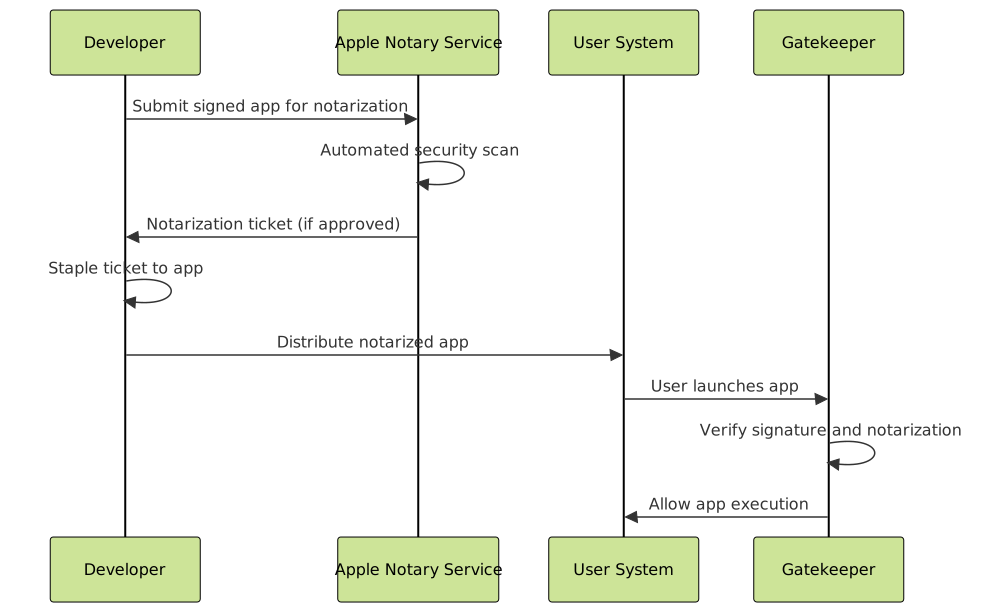
To notarize an application, developers use the following workflow:
# Upload app for notarization
xcrun notarytool submit YourApp.zip --keychain-profile "notary-profile" --wait

# Check notarization status
xcrun notarytool info <submission-id> --keychain-profile "notary-profile"

# Staple the notarization ticket
xcrun stapler staple /path/to/YourApp.app

# Verify notarization
xcrun stapler validate /path/to/YourApp.app
Gatekeeper Bypass and Override
While Gatekeeper provides robust protection, there are legitimate scenarios where users need to run unsigned applications. macOS provides several override mechanisms:
Control-click method: Right-click the application and select “Open” from the context menu. This presents a dialog allowing the user to override Gatekeeper for that specific application.
Privacy & Security settings: After an initial block, users can navigate to System Preferences > Security & Privacy and click “Open Anyway” next to the blocked application notification.
Command line removal of quarantine:
# Remove quarantine attribute from a file
xattr -d com.apple.quarantine /path/to/application.app

# List all extended attributes
xattr -l /path/to/application.app

# Remove all quarantine attributes recursively
find /path/to/app -name "*.app" -exec xattr -d com.apple.quarantine {} \;
System Integrity Protection (SIP)
SIP Overview and Architecture
System Integrity Protection is a kernel-level security technology that restricts the root user account and limits the actions that the root user can perform on protected parts of the macOS system. SIP prevents potentially malicious software from modifying protected files and folders on your Mac.
Unlike traditional Unix systems where root has unlimited access, SIP creates a distinction between system processes and user processes, even when running as root. This concept is known as “rootless” mode and represents a fundamental shift in macOS security architecture.

Protected Resources
SIP protects several categories of system resources:
- System files and directories: /System, /bin, /sbin, /usr (except /usr/local)
- Applications: Pre-installed applications in /Applications
- Runtime protections: System processes, kernel extensions, and certain system calls
- Filesystem protections: Preventing modification of protected files even with root access
The complete list of protected paths is defined in the system’s rootless configuration file:
# View SIP protected paths
cat /System/Library/Sandbox/rootless.conf

# Check SIP status
csrutil status

# Example output:
# System Integrity Protection status: enabled.
SIP Configuration and Management
SIP can be configured through the csrutil command, but modifications require booting into Recovery Mode. This design ensures that malicious software cannot disable SIP from within the running system.
Checking SIP status:
$ csrutil status
System Integrity Protection status: enabled.

Configuration:
    Apple Internal: disabled
    Kext Signing: enabled
    Filesystem Protections: enabled
    Debugging Restrictions: enabled
    DTrace Restrictions: enabled
    NVRAM Protections: enabled
    BaseSystem Verification: enabled
SIP operations in Recovery Mode:
# Disable SIP completely (not recommended)
csrutil disable

# Enable SIP
csrutil enable

# Disable specific SIP features
csrutil enable --without debug --without dtrace

# Clear SIP configuration
csrutil clear
Developer Impact and Workarounds
SIP significantly impacts developers and system administrators who previously relied on modifying system files. Common scenarios affected include:
- Installing system-level debugging tools
- Modifying system libraries or frameworks
- Installing custom kernel extensions
- Accessing certain system processes for monitoring

Apple provides several alternatives for developers:
System Extensions: Replacements for kernel extensions that run in user space with enhanced security.
Endpoint Security Framework: API for security applications to monitor system events without kernel-level access.
Network Extension Framework: Allows apps to extend core networking features while maintaining security boundaries.
Integration and Real-World Applications
Enterprise Deployment Considerations
Organizations deploying macOS systems must carefully consider how Gatekeeper and SIP affect their software distribution and management strategies:
Mobile Device Management (MDM) integration: MDM solutions can manage Gatekeeper settings and deploy trusted applications through configuration profiles.
<?xml version="1.0" encoding="UTF-8"?>
<!DOCTYPE plist PUBLIC "-//Apple//DTD PLIST 1.0//EN" "http://www.apple.com/DTDs/PropertyList-1.0.dtd">
<plist version="1.0">
<dict>
    <key>PayloadContent>
    <array>
        <dict>
            <key>AllowIdentifiedDevelopers>
            <true/>
            <key>EnableApplicationFirewall>
            <true/>
            <key>PayloadType>
            <string>com.apple.systempolicy.control>
        </dict>
    </array>
</dict>
</plist>
Custom application deployment: Organizations developing internal applications must implement proper code signing workflows to ensure seamless deployment.
Security Monitoring and Incident Response
Understanding Gatekeeper and SIP logs is crucial for security monitoring:
Gatekeeper logs:
# View Gatekeeper decisions in system log
log show --predicate 'subsystem == "com.apple.gk"' --last 1h

# Monitor quarantine events
log stream --predicate 'process == "sandboxd"' --style syslog
SIP violation logs:
# View SIP violations
log show --predicate 'subsystem == "com.apple.kernel" AND category == "sip"' --last 1d

# Example SIP violation log entry:
# Operation not permitted: SIP prevented modification of /System/Library/Frameworks/
Performance and System Impact
Both Gatekeeper and SIP are designed to minimize performance impact while providing comprehensive security:
- Gatekeeper: Performs checks only on first launch, with results cached for subsequent executions
- SIP: Kernel-level enforcement with minimal overhead due to hardware-assisted memory protection
- Background processes: Automatic malware scanning and signature verification occur during idle periods

Advanced Configuration and Troubleshooting
Advanced Gatekeeper Configuration
System administrators can configure Gatekeeper behavior through various mechanisms:
Spctl (System Policy Control) commands:
# Check system policy status
spctl --status

# Assess an application
spctl --assess --type exec /Applications/YourApp.app

# Add application to approved list
spctl --add --label "Trusted Internal App" /Applications/YourApp.app

# List policy rules
spctl --list --type exec

# Enable/disable Gatekeeper
sudo spctl --master-enable
sudo spctl --master-disable
Assessment results interpretation:
$ spctl --assess --verbose /Applications/Calculator.app
/Applications/Calculator.app: accepted
source=Apple System
Common Issues and Solutions
Application blocked unexpectedly: This often occurs when applications lose their quarantine bypass status after system updates.
Solution:
# Re-approve the application
sudo spctl --add /Applications/ProblematicApp.app

# Or remove quarantine attributes
xattr -cr /Applications/ProblematicApp.app
Developer workflow disruption: Frequent Gatekeeper prompts during development can slow productivity.
Solution:
# Temporarily disable Gatekeeper for development
sudo spctl --master-disable

# Re-enable after development session
sudo spctl --master-enable
SIP Debugging and Analysis
When SIP blocks legitimate operations, administrators need debugging tools:
# Identify SIP-protected files
ls -lO /System/Library/Frameworks/ | grep restricted

# Check file system protection status
stat -f %Sf /System/Library/Frameworks/Security.framework

# Monitor SIP denials in real-time
sudo log stream --predicate 'eventMessage CONTAINS "Operation not permitted"'
Future Considerations and Best Practices
Evolution of macOS Security
Apple continues to enhance macOS security with each release. Recent developments include:
- Sealed System Volume: Cryptographically protected system volume in macOS Big Sur
- Mandatory notarization: Extended requirements for all distributed software
- Privacy protections: Enhanced user consent mechanisms for sensitive data access
- Hardened Runtime: Additional runtime protections for distributed applications
Developer Best Practices
To ensure compatibility with current and future macOS security measures:
- Implement proper code signing: Use valid Developer ID certificates and follow Apple’s signing guidelines
- Adopt notarization: Submit all distributed applications for notarization
- Use system frameworks: Rely on documented APIs rather than private interfaces
- Test with SIP enabled: Ensure applications function correctly with default security settings
- Minimize system access: Use user-space alternatives when possible
Security Administration Guidelines
Organizations should establish policies for managing macOS security features:
- Maintain default settings: Keep Gatekeeper and SIP enabled unless specific business requirements dictate otherwise
- Regular security audits: Monitor system logs for security violations and unauthorized access attempts
- User education: Train users to recognize and respond appropriately to security dialogs
- Incident response procedures: Establish protocols for handling security policy violations
Conclusion
Gatekeeper and System Integrity Protection represent sophisticated security technologies that provide comprehensive protection for macOS systems. While these systems may initially seem restrictive, they create a secure foundation that allows users to safely run software while protecting critical system components from unauthorized modification.
Understanding how these technologies work is essential for anyone working with macOS systems professionally. Developers must adapt their workflows to accommodate code signing and notarization requirements, while system administrators need to balance security with usability in enterprise environments.
As macOS continues to evolve, these security technologies will undoubtedly become more sophisticated while remaining transparent to end users. The key to successful implementation is understanding the underlying principles and working within the established security framework rather than attempting to circumvent it.
By embracing these security measures and following established best practices, organizations can maintain secure macOS environments while preserving the productivity and user experience that makes macOS attractive for professional use.