
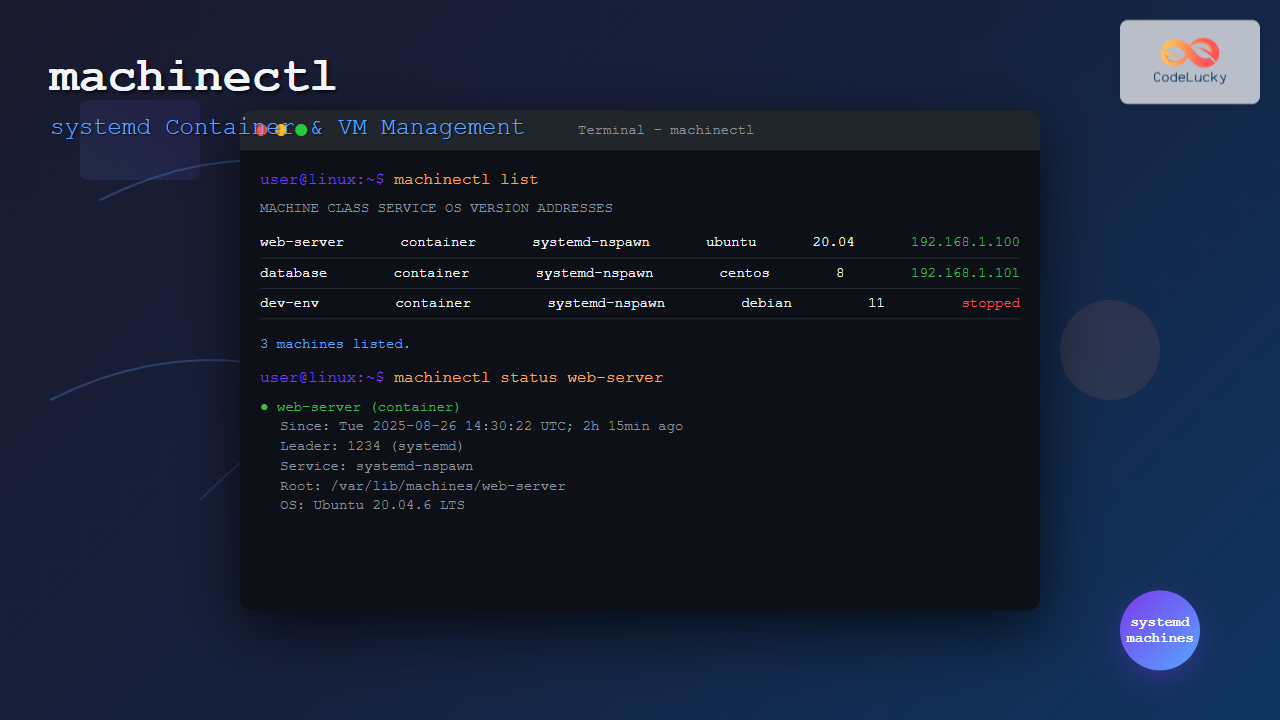
The machinectl command is a powerful utility in Linux systems that provides comprehensive management capabilities for systemd containers and virtual machines. As part of the systemd ecosystem, it offers administrators a unified interface to control, monitor, and interact with various types of isolated environments including containers, VMs, and chroots.
What is machinectl?
machinectl is the command-line interface to systemd-machined, a system service that manages local containers and virtual machines. It’s designed to work seamlessly with various container technologies like systemd-nspawn, Docker, and virtualization platforms such as libvirt and QEMU/KVM.
Key Features
- Unified Management: Single interface for different container and VM technologies
- Image Management: Download, import, and manage container images
- Resource Monitoring: Track resource usage and performance metrics
- Network Integration: Advanced networking capabilities for containers
- Security: Built-in security features and isolation mechanisms
Installation and Prerequisites
machinectl comes pre-installed with most modern Linux distributions that use systemd. To verify installation:
which machinectlExpected Output:
/usr/bin/machinectlIf not installed, you can install it on different distributions:
Ubuntu/Debian:
sudo apt update
sudo apt install systemd-container
CentOS/RHEL/Fedora:
sudo dnf install systemd-containerBasic machinectl Syntax
The general syntax for machinectl follows this pattern:
machinectl [OPTIONS] COMMAND [ARGS...]Essential machinectl Commands
1. Listing Machines
View all running containers and VMs:
machinectl listSample Output:
MACHINE CLASS     SERVICE        OS     VERSION ADDRESSES
web-server container systemd-nspawn ubuntu 20.04   192.168.1.100
database   container systemd-nspawn centos 8       192.168.1.101

2 machines listed.
2. Machine Status Information
Get detailed status of a specific machine:
machinectl status web-serverSample Output:
web-server(a1b2c3d4e5f6)
           Since: Tue 2025-08-26 14:30:22 UTC; 2h 15min ago
          Leader: 1234 (systemd)
         Service: systemd-nspawn
            Root: /var/lib/machines/web-server
              OS: Ubuntu 20.04.6 LTS
            Unit: [email protected]
                  ├─1234 /lib/systemd/systemd --system
                  └─system.slice
                    ├─apache2.service
                    │ └─1456 /usr/sbin/apache2 -DFOREGROUND
3. Starting and Stopping Machines
Start a container or VM:
machinectl start web-serverStop a running machine:
machinectl stop web-serverRestart a machine:
machinectl restart web-server4. Enabling Auto-start
Enable automatic startup on boot:
machinectl enable web-serverDisable auto-start:
machinectl disable web-serverImage Management
1. Listing Available Images
View downloaded images:
machinectl list-imagesSample Output:
NAME        TYPE      RO USAGE  CREATED                     MODIFIED
ubuntu-20.04 raw       no 2.1G   Tue 2025-08-26 12:00:00 UTC n/a
centos-8     raw       no 1.8G   Mon 2025-08-25 15:30:00 UTC n/a

2 images listed.
2. Downloading Images
Pull container images from registries:
machinectl pull-tar --verify=no https://cloud-images.ubuntu.com/focal/current/focal-server-cloudimg-amd64-root.tar.xz ubuntu-focal3. Importing Local Images
Import from a local tar file:
machinectl import-tar /path/to/image.tar.xz my-container4. Removing Images
Delete an unused image:
machinectl remove ubuntu-20.04Interactive Shell Access
1. Login to Machine
Get an interactive shell in a running container:
machinectl login web-server2. Execute Commands
Run single commands without interactive login:
machinectl shell web-server /bin/bash -c "ps aux | grep apache"3. Copy Files
Copy files to/from containers:
# Copy to container
machinectl copy-to web-server /local/file.txt /container/path/

# Copy from container
machinectl copy-from web-server /container/path/file.txt /local/path/
Advanced machinectl Operations
1. Binding Directories
Mount host directories in containers:
machinectl bind web-server /host/data /container/data2. Resource Management
Set memory limits:
systemctl set-property [email protected] MemoryMax=1GSet CPU limits:
systemctl set-property [email protected] CPUQuota=50%3. Network Configuration
Show network interfaces:
machinectl show web-serverCreating Containers with systemd-nspawn
1. Basic Container Creation
Create a new container from an existing image:
# Create container directory
sudo mkdir -p /var/lib/machines/new-container

# Bootstrap Ubuntu container
sudo debootstrap focal /var/lib/machines/new-container http://archive.ubuntu.com/ubuntu/

# Start the container
machinectl start new-container
2. Container with Custom Configuration
Create a container with specific network settings:
sudo systemd-nspawn -M web-app -D /var/lib/machines/web-app --network-veth --bootMonitoring and Troubleshooting
1. Show Properties
Display detailed machine properties:
machinectl show web-serverSample Output:
Name=web-server
Id=a1b2c3d4e5f6789
Class=container
Service=systemd-nspawn
[email protected]
Leader=1234
RootDirectory=/var/lib/machines/web-server
Timestamp=1724677822000000
TimestampMonotonic=12345678
2. Viewing Logs
Check container logs:
journalctl -M web-serverFollow real-time logs:
journalctl -M web-server -f3. Resource Usage
Monitor resource consumption:
systemd-cgtopSecurity Best Practices
1. User Namespaces
Enable user namespace isolation:
sudo systemd-nspawn -M secure-container -D /var/lib/machines/secure-container --private-users=pick --boot2. Read-only Root
Create containers with read-only root filesystem:
sudo systemd-nspawn -M readonly-container -D /var/lib/machines/readonly-container --read-only --boot3. Capability Dropping
Remove dangerous capabilities:
sudo systemd-nspawn -M limited-container -D /var/lib/machines/limited-container --drop-capability=CAP_SYS_ADMIN --bootCommon machinectl Options
| Option | Description | Example |
|---|---|---|
-H, --host |
Connect to remote host | machinectl -H user@remote list |
-l, --full |
Show full output | machinectl list -l |
--no-pager |
Disable pager | machinectl status --no-pager web-server |
--no-legend |
Hide column headers | machinectl list --no-legend |
Troubleshooting Common Issues
1. Container Won’t Start
Check systemd service status:
systemctl status [email protected]2. Network Issues
Verify network bridge configuration:
ip link showCheck iptables rules:
sudo iptables -L -n3. Permission Problems
Ensure proper ownership:
sudo chown -R root:root /var/lib/machines/container-namePerformance Optimization
1. Memory Management
Configure swap accounting:
echo 'GRUB_CMDLINE_LINUX="cgroup_enable=memory swapaccount=1"' | sudo tee -a /etc/default/grub
sudo update-grub
2. Storage Optimization
Use btrfs subvolumes for better snapshot management:
sudo btrfs subvolume create /var/lib/machines/container-nameIntegration with Other Tools
1. Docker Integration
machinectl can manage Docker containers through systemd:
docker run -d --name nginx-container nginx
machinectl list
2. Podman Integration
Similarly works with Podman containers:
podman run -d --name web-service httpd
machinectl list
Conclusion
The machinectl command is an essential tool for modern Linux system administrators working with containers and virtual machines. Its integration with systemd provides a unified management experience that simplifies container orchestration, monitoring, and maintenance tasks.
Key takeaways for effective machinectl usage:
- Use
machinectl listfor quick overview of all machines - Leverage
machinectl statusfor detailed troubleshooting - Implement proper security measures with user namespaces and capability dropping
- Regular monitoring with
journalctlandsystemd-cgtop - Automate container management with systemd service integration
As containerization continues to grow in importance, mastering machinectl will significantly enhance your ability to manage complex containerized environments efficiently and securely.
Related Posts
containerd Linux: Complete Guide to Industry-Standard Container Runtime
Containerd has emerged as the industry-standard container runtime, serving as the foundation for modern containerization platforms like Docker and Kubernetes....

podman Command Linux: Complete Container Management Guide
Podman (Pod Manager) is a powerful, daemonless container engine that provides a Docker-compatible command-line interface for managing containers and pods...
Container Operating Systems: Complete Guide to Docker and Kubernetes Platforms
Container operating systems have revolutionized how we deploy, manage, and scale applications in modern computing environments. Unlike traditional operating systems...
Container Virtualization: Complete Guide to OS-level Virtualization Technology
Container virtualization represents a revolutionary approach to application deployment and resource management through OS-level virtualization. Unlike traditional hardware virtualization, containers...
docker Linux: Complete Container Platform Guide for Developers
Docker has revolutionized software development and deployment by introducing lightweight containerization technology. As a platform that enables developers to package...
systemctl Command Linux: Complete Guide to Control Systemd Services
The systemctl command is the primary tool for controlling systemd services in modern Linux distributions. As the central management utility...

kubectl Command Linux: Kubernetes Management Made Simple
The kubectl command is the primary command-line interface for interacting with Kubernetes clusters. This powerful tool allows administrators and developers...
Full Virtualization: Complete Hardware Abstraction and Implementation Guide
Full virtualization represents one of the most significant breakthroughs in modern computing, enabling complete hardware abstraction that allows multiple operating...

systemd Linux: Complete Guide to System and Service Manager
systemd is a powerful system and service manager that has become the default init system for most modern Linux distributions....

Kubernetes Linux: Complete Guide to Container Orchestration Platform
Kubernetes has revolutionized how we deploy, manage, and scale containerized applications on Linux systems. As the leading container orchestration platform,...

OpenShift Linux: Complete Guide to Enterprise Kubernetes Platform Management
OpenShift represents Red Hat's enterprise-grade Kubernetes platform that revolutionizes how organizations deploy, manage, and scale containerized applications on Linux systems....

CRI-O Linux: Complete Guide to Lightweight Container Runtime for Kubernetes
CRI-O (Container Runtime Interface - Open Container Initiative) is a lightweight, OCI-compliant container runtime specifically designed for Kubernetes. Unlike Docker,...
- What is machinectl?
- Installation and Prerequisites
- Basic machinectl Syntax
- Essential machinectl Commands
- Image Management
- Interactive Shell Access
- Advanced machinectl Operations
- Creating Containers with systemd-nspawn
- Monitoring and Troubleshooting
- Security Best Practices
- Common machinectl Options
- Troubleshooting Common Issues
- Performance Optimization
- Integration with Other Tools
- Conclusion





