
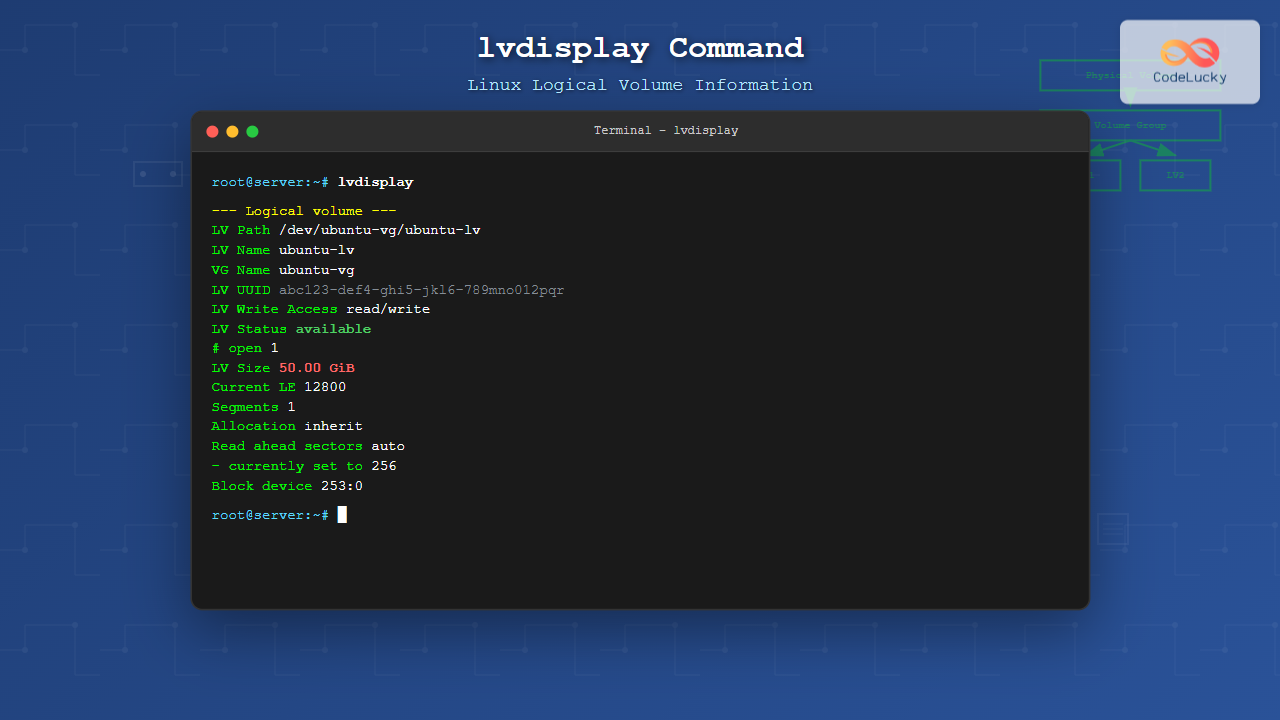
The lvdisplay command is an essential tool in Linux for displaying detailed information about logical volumes (LVs) in Logical Volume Management (LVM) systems. Whether you’re managing storage on servers or workstations, understanding how to use lvdisplay effectively is crucial for system administration and troubleshooting storage-related issues.
What is the lvdisplay Command?
The lvdisplay command provides comprehensive information about logical volumes, including their size, status, volume group association, and various attributes. It’s part of the LVM2 package and works by reading metadata from the LVM system to present human-readable information about your logical volumes.
Basic Syntax
The basic syntax of the lvdisplay command is:
lvdisplay [options] [logical_volume_path]Where:
- options: Various flags to modify the output format or behavior
- logical_volume_path: Specific logical volume to display (optional)
Common Options and Parameters
| Option | Description |
|---|---|
-v |
Verbose mode – shows additional information |
-c |
Colon-separated output format |
-m |
Shows physical volume mapping information |
-a |
Show all logical volumes including inactive ones |
--units |
Specify units (b, k, m, g, t, p, e) |
Basic Usage Examples
Display All Logical Volumes
To display information about all logical volumes on the system:
$ sudo lvdisplaySample Output:
  --- Logical volume ---
  LV Path                /dev/ubuntu-vg/ubuntu-lv
  LV Name                ubuntu-lv
  VG Name                ubuntu-vg
  LV UUID                xyz123-abc4-def5-ghi6-789jkl012mno
  LV Write Access        read/write
  LV Creation host, time ubuntu-server, 2024-01-15 10:30:22 +0000
  LV Status              available
  # open                 1
  LV Size                50.00 GiB
  Current LE             12800
  Segments               1
  Allocation             inherit
  Read ahead sectors     auto
  - currently set to     256
  Block device           253:0
Display Specific Logical Volume
To display information about a specific logical volume:
$ sudo lvdisplay /dev/ubuntu-vg/ubuntu-lvVerbose Output
For more detailed information, use the verbose option:
$ sudo lvdisplay -v /dev/ubuntu-vg/ubuntu-lvSample Verbose Output:
  --- Logical volume ---
  LV Path                /dev/ubuntu-vg/ubuntu-lv
  LV Name                ubuntu-lv
  VG Name                ubuntu-vg
  LV UUID                xyz123-abc4-def5-ghi6-789jkl012mno
  LV Write Access        read/write
  LV Creation host, time ubuntu-server, 2024-01-15 10:30:22 +0000
  LV Status              available
  # open                 1
  LV Size                50.00 GiB
  Current LE             12800
  Segments               1
  Allocation             inherit
  Read ahead sectors     auto
  - currently set to     256
  Block device           253:0

  --- Segments ---
  Logical extent 0 to 12799:
    Type                linear
    Physical volume     /dev/sda2
    Physical extents    0 to 12799
Advanced Usage Examples
Colon-Separated Output
For scripting purposes, you can use the colon-separated format:
$ sudo lvdisplay -cSample Output:
/dev/ubuntu-vg/ubuntu-lv:ubuntu-vg:3:1:-1:1:52428800:12800:-1:0:-1:253:0Show Physical Volume Mapping
To see which physical volumes are used by logical volumes:
$ sudo lvdisplay -mSample Output:
  --- Logical volume ---
  LV Path                /dev/ubuntu-vg/ubuntu-lv
  LV Name                ubuntu-lv
  VG Name                ubuntu-vg
  LV UUID                xyz123-abc4-def5-ghi6-789jkl012mno
  LV Write Access        read/write
  LV Status              available
  # open                 1
  LV Size                50.00 GiB
  Current LE             12800
  Segments               1
  Allocation             inherit
  Read ahead sectors     auto
  - currently set to     256
  Block device           253:0

  --- Segments ---
  Logical extent 0 to 12799:
    Type                linear
    Physical volume     /dev/sda2
    Physical extents    0 to 12799
Display with Different Units
To display sizes in different units:
# Display in megabytes
$ sudo lvdisplay --units m

# Display in sectors
$ sudo lvdisplay --units s

# Display in bytes
$ sudo lvdisplay --units b
Understanding the Output
Let’s break down the key fields in the lvdisplay output:
Essential Fields
- LV Path: Full device path to the logical volume
- LV Name: Name of the logical volume
- VG Name: Volume group containing this logical volume
- LV Size: Total size of the logical volume
- LV Status: Current status (available, suspended, etc.)
- Current LE: Number of logical extents used
Status Indicators
| Status | Meaning |
|---|---|
| available | LV is active and ready for use |
| suspended | LV is temporarily suspended |
| NOT available | LV is inactive |
Practical Use Cases
System Monitoring and Troubleshooting
Use lvdisplay to monitor logical volume health and usage:
# Check all logical volumes status
$ sudo lvdisplay | grep "LV Status"

# Monitor specific volume usage
$ sudo lvdisplay /dev/vg-data/lv-database | grep "LV Size"
Pre-Resize Planning
Before resizing logical volumes, check current configuration:
# Check current size and available extents
$ sudo lvdisplay -v /dev/vg-data/lv-web
Backup and Recovery Planning
Document your LVM configuration for disaster recovery:
# Generate complete LV documentation
$ sudo lvdisplay -v > lvm_backup_info.txt
Combining with Other LVM Commands
The lvdisplay command works well with other LVM utilities:
# Check volume group space before creating new LV
$ sudo vgdisplay ubuntu-vg
$ sudo lvdisplay

# View physical volumes and their usage
$ sudo pvdisplay
$ sudo lvdisplay -m
Common Error Messages and Solutions
Permission Denied
If you encounter permission errors:
$ lvdisplay
  /dev/dm-0: read failed after 0 of 4096 at 0: Permission denied
Solution: Run with sudo privileges:
$ sudo lvdisplayNo Logical Volumes Found
If no output appears, check if LVM is configured:
# Check if any volume groups exist
$ sudo vgdisplay

# Check if LVM service is running
$ sudo systemctl status lvm2-monitor
Best Practices
- Regular Monitoring: Use lvdisplay regularly to monitor logical volume health
- Documentation: Keep records of your LVM configuration using lvdisplay output
- Scripting: Use the -c option for automated scripts and monitoring tools
- Combine Commands: Use with other LVM commands for comprehensive storage management
- Check Before Changes: Always run lvdisplay before making structural changes to logical volumes
Security Considerations
The lvdisplay command requires root privileges to access LVM metadata. Always:
- Use sudo instead of switching to root user
- Restrict access to LVM commands to authorized administrators
- Monitor LVM command usage through system logs
- Be cautious when sharing lvdisplay output as it reveals system storage structure
Conclusion
The lvdisplay command is an indispensable tool for Linux system administrators managing logical volumes. From basic information gathering to advanced troubleshooting and monitoring, mastering lvdisplay helps ensure effective storage management and system reliability. Whether you’re checking volume status, planning capacity changes, or troubleshooting storage issues, lvdisplay provides the detailed information needed to make informed decisions about your LVM infrastructure.
Remember to combine lvdisplay with other LVM commands like vgdisplay and pvdisplay for comprehensive storage management, and always maintain regular monitoring practices to prevent storage-related issues before they impact your systems.
Related Posts
pvdisplay Command Linux: Complete Guide to Physical Volume Information Display
The pvdisplay command is an essential tool in Linux for displaying detailed information about Physical Volumes (PVs) in Logical Volume...
vgdisplay Command Linux: Complete Guide to Display Volume Group Information
The vgdisplay command is an essential tool in Linux systems for displaying detailed information about Volume Groups (VGs) in Logical...
pvcreate Command Linux: Complete Guide to Creating Physical Volumes for LVM
The pvcreate command is a fundamental tool in Linux Logical Volume Management (LVM) that initializes storage devices as physical volumes....
lvcreate Command Linux: Complete Guide to Creating Logical Volumes with Examples
The lvcreate command is a fundamental tool in Linux Logical Volume Management (LVM) that allows you to create logical volumes...
lvm Command Linux: Complete Guide to Logical Volume Manager Operations
The Logical Volume Manager (LVM) is a powerful disk management tool in Linux that provides flexible storage management by abstracting...
vgcreate Command Linux: Complete Guide to Volume Group Creation
The vgcreate command is a fundamental tool in Linux Logical Volume Manager (LVM) that allows system administrators to create volume...

Storage Virtualization: Complete Guide to Logical Volume Management in Linux
Storage virtualization through Logical Volume Management (LVM) represents one of the most powerful features in modern Linux systems, providing administrators...
xfs_info Command Linux: Complete Guide to Display XFS Filesystem Information
The xfs_info command is a powerful utility in Linux systems that provides comprehensive information about XFS filesystems. This command is...
lsblk Command Linux: Complete Guide to List and Manage Block Devices
The lsblk command is an essential Linux utility that displays information about block devices in a tree-like format. Whether you're...

lsattr Command Linux: Complete Guide to List and Manage File Attributes
The lsattr command is a powerful Linux utility that displays the extended attributes of files and directories on ext2, ext3,...
df Command in Linux: Complete Guide to Check Disk Space Usage
The df command is one of the most essential tools in a Linux system administrator's toolkit. Standing for "disk free,"...

stat Command Linux: Complete Guide to Display File and Filesystem Status Information
The stat command is a powerful Linux utility that displays detailed information about files and filesystems. Unlike basic commands like...





