
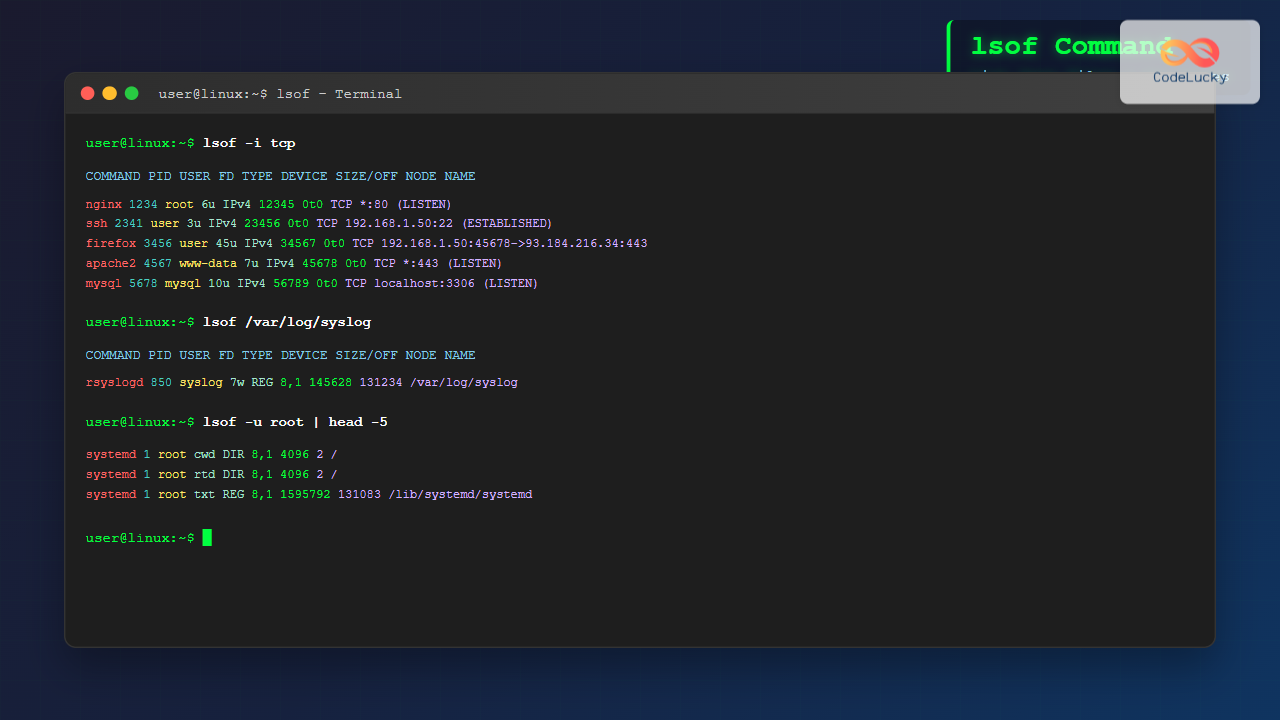
The lsof command (List Open Files) is one of the most powerful and versatile utilities in Linux systems. It provides detailed information about files opened by processes, network connections, and system resources currently in use. Whether you’re troubleshooting system issues, monitoring network connections, or investigating security concerns, lsof is an indispensable tool for system administrators and developers.
What is the lsof Command?
lsof stands for “List Open Files” and displays information about files that are currently opened by processes running on your system. In Unix-like systems, everything is treated as a file, including regular files, directories, network sockets, pipes, and devices. This makes lsof incredibly useful for system monitoring and debugging.
Installing lsof
Most Linux distributions come with lsof pre-installed. If it’s not available on your system, you can install it using your package manager:
Ubuntu/Debian:
sudo apt update
sudo apt install lsof
Red Hat/CentOS/Fedora:
sudo yum install lsof
# or for newer versions
sudo dnf install lsof
Arch Linux:
sudo pacman -S lsofBasic lsof Syntax
The basic syntax of the lsof command is:
lsof [options] [names]When run without any options, lsof lists all open files for all active processes:
lsofSample Output:
COMMAND    PID   TID    USER   FD      TYPE DEVICE  SIZE/OFF    NODE NAME
systemd      1          root  cwd       DIR    8,1      4096       2 /
systemd      1          root  rtd       DIR    8,1      4096       2 /
systemd      1          root  txt       REG    8,1   1595792  131083 /lib/systemd/systemd
systemd      1          root  mem       REG    8,1   1700792  131165 /lib/x86_64-linux-gnu/libc-2.31.so
bash      1234          user  cwd       DIR    8,1      4096  262145 /home/user
bash      1234          user  rtd       DIR    8,1      4096       2 /
bash      1234          user  txt       REG    8,1   1183448  131891 /bin/bash
Understanding lsof Output
The output columns provide valuable information:
- COMMAND: Name of the process
- PID: Process ID
- TID: Task ID (for threads)
- USER: User who owns the process
- FD: File descriptor or file descriptor type
- TYPE: Type of file (REG=regular file, DIR=directory, CHR=character device, etc.)
- DEVICE: Device number
- SIZE/OFF: Size of the file or file offset
- NODE: Inode number
- NAME: File name or path
Common lsof Options and Examples
1. List Files Opened by a Specific Process
Use the -p option followed by the process ID:
lsof -p 1234To find the PID first, you can use:
ps aux | grep firefox
lsof -p $(pgrep firefox)
2. List Files Opened by a Specific User
Use the -u option:
lsof -u usernameExample:
lsof -u root3. List Processes Using a Specific File
Simply specify the filename:
lsof /path/to/fileExample:
lsof /var/log/syslogSample Output:
COMMAND  PID   USER   FD   TYPE DEVICE SIZE/OFF    NODE NAME
rsyslogd 850 syslog    7w   REG    8,1   145628  131234 /var/log/syslog
4. List Network Connections
Use the -i option to show network connections:
lsof -iYou can be more specific:
# Show TCP connections
lsof -i tcp

# Show UDP connections
lsof -i udp

# Show connections on a specific port
lsof -i :80
lsof -i :22

# Show connections to a specific host
lsof -i @192.168.1.100
Sample Output for network connections:
COMMAND   PID   USER   FD   TYPE DEVICE SIZE/OFF NODE NAME
ssh      2341   user    3u  IPv4  23456      0t0  TCP 192.168.1.50:22->192.168.1.100:54321 (ESTABLISHED)
firefox  3456   user   45u  IPv4  34567      0t0  TCP 192.168.1.50:45678->93.184.216.34:443 (ESTABLISHED)
5. List Files in a Specific Directory
Use the +D option for recursive directory search:
lsof +D /var/logOr use +d for non-recursive search:
lsof +d /tmp6. List Files by File Type
Use the -t option with specific file types:
# List regular files only
lsof -t REG

# List directories only
lsof -t DIR
Advanced lsof Usage
1. Combining Multiple Options
You can combine options using logical AND or OR:
# Files opened by root AND using TCP
lsof -u root -i tcp

# Files opened by user OR process with PID 1234
lsof -u user -o -p 1234
2. Continuous Monitoring
Use the -r option to repeat the command:
# Repeat every 2 seconds
lsof -r 2 -i tcp

# Repeat until no output (useful for monitoring when files close)
lsof -r 1 +r /path/to/file
3. Show Process IDs Only
Use -t to show only PIDs:
lsof -t -u usernameThis is useful for killing processes:
kill $(lsof -t -u baduser)4. Show Files Without Headers
Use -F for field output without headers (useful for scripting):
lsof -F pcfn -u rootPractical Use Cases
1. Find Which Process is Using a File
When you can’t delete a file because it’s in use:
lsof /path/to/locked/file2. Check Which Process is Using a Port
To see what’s running on a specific port:
lsof -i :8080Sample Output:
COMMAND  PID   USER   FD   TYPE DEVICE SIZE/OFF NODE NAME
nginx   1234   root    6u  IPv4  12345      0t0  TCP *:8080 (LISTEN)
nginx   1235 nobody   6u  IPv4  12345      0t0  TCP *:8080 (LISTEN)
3. Monitor Network Activity
To see all network connections in real-time:
lsof -i -r 14. Find Files Opened by Deleted Processes
To find files that are still open but have been deleted (showing as “(deleted)”):
lsof | grep deleted5. Check Memory-Mapped Files
To see memory-mapped files:
lsof -d memTroubleshooting with lsof
1. Disk Space Issues
Find large files that are open but deleted:
lsof | grep deleted | awk '{sum+=$7} END {print "Total size: " sum/1024/1024 " MB"}'2. Security Monitoring
Monitor unusual network connections:
# Check for connections to external IPs
lsof -i | grep -v localhost

# Check for processes listening on unusual ports
lsof -i | grep LISTEN
3. Process Investigation
Investigate a suspicious process:
lsof -p [PID] | head -20Performance Considerations
Running lsof without options can be slow on busy systems as it scans all processes. Use specific options to narrow down results:
- Use
-pfor specific processes - Use
-ufor specific users - Use
-ifor network connections only - Avoid using
+Don large directory trees
Common lsof Commands Cheat Sheet
# Basic usage
lsof                          # List all open files
lsof -u username             # Files opened by user
lsof -p PID                  # Files opened by process
lsof filename                # Processes using file
lsof -c processname          # Files opened by process name

# Network connections
lsof -i                      # All network connections
lsof -i tcp                  # TCP connections only
lsof -i udp                  # UDP connections only
lsof -i :port                # Connections on specific port
lsof -i @host                # Connections to specific host

# Directory and file system
lsof +D /directory           # Files in directory (recursive)
lsof +d /directory           # Files in directory (non-recursive)
lsof /dev/sda1              # Files on specific device

# Advanced options
lsof -r 2                    # Repeat every 2 seconds
lsof -t -u user              # Show PIDs only
lsof | grep deleted          # Find deleted but open files
Conclusion
The lsof command is an essential tool for Linux system administration and troubleshooting. Its ability to show open files, network connections, and process relationships makes it invaluable for diagnosing system issues, monitoring security, and understanding system behavior. By mastering the various options and use cases covered in this guide, you’ll be well-equipped to leverage lsof for effective system management and debugging.
Remember that lsof output can be overwhelming on busy systems, so always use appropriate filters and options to focus on the information you need. Regular practice with different scenarios will help you become proficient with this powerful command.
Related Posts

stat Command Linux: Complete Guide to Display File and Filesystem Status Information
The stat command is a powerful Linux utility that displays detailed information about files and filesystems. Unlike basic commands like...

netstat Command Linux: Complete Guide to Network Connection Monitoring
The netstat command is one of the most essential network monitoring tools in Linux systems. It provides comprehensive information about...

ls Command in Linux: Complete Guide to List Files and Directories with Examples
The ls command is one of the most fundamental and frequently used commands in Linux and Unix-like operating systems. It...

ltrace Command Linux: Complete Guide to Trace Library Calls and Debug Programs
The ltrace command is a powerful debugging and analysis tool in Linux that allows you to trace library calls made...
ls Command Advanced Linux: Complete Guide to File Listing Mastery
The ls command is one of the most fundamental and frequently used commands in Linux and Unix-like operating systems. While...
ss Command Linux: Complete Guide to Modern Socket Statistics and Network Analysis
The ss command is a powerful and modern utility for investigating sockets and network connections in Linux systems. As the...
strace Advanced Linux: Complete Guide to System Call Tracing and Debugging
strace is one of the most powerful debugging and diagnostic tools available in Linux systems. It allows you to trace...

ps Command in Linux: Complete Guide to Process Monitoring and Management
The ps command is one of the most fundamental and powerful tools in Linux for displaying information about running processes....
readelf Command Linux: Complete Guide to ELF File Analysis and Debugging
The readelf command is an essential tool for Linux developers, system administrators, and security analysts who need to examine Executable...
df Command in Linux: Complete Guide to Check Disk Space Usage
The df command is one of the most essential tools in a Linux system administrator's toolkit. Standing for "disk free,"...

size Command Linux: Display Section Sizes of Object Files and Executables
The size command is a powerful utility in Linux systems that displays the section sizes of object files, executables, and...
Python open() Function: Opening Files and Streams
In the realm of programming, working with files is an essential task. Python provides a powerful and intuitive function, open(),...





