
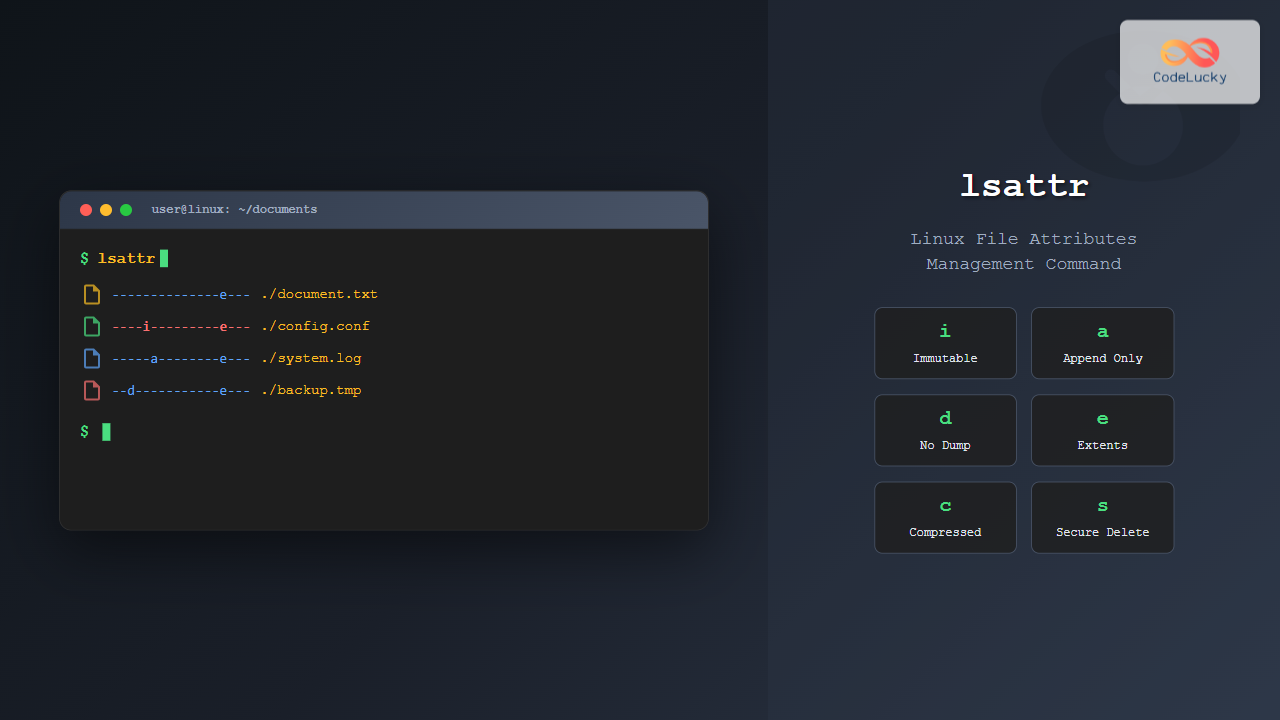
The lsattr command is a powerful Linux utility that displays the extended attributes of files and directories on ext2, ext3, ext4, and other compatible file systems. These attributes provide additional security and performance features that go beyond standard Unix file permissions.
What is lsattr Command?
The lsattr (list attributes) command shows the special attributes that can be set on files and directories using the chattr command. These attributes control various aspects of file behavior, including immutability, append-only mode, compression, and deletion protection.
Basic Syntax
lsattr [options] [files/directories]Common Options
| Option | Description |
|---|---|
-a |
List all files including hidden files (starting with .) |
-d |
List directories like other files, rather than listing their contents |
-R |
Recursively list attributes of directories and their contents |
-v |
List the file’s version/generation number |
-V |
Display the program version |
File Attributes Explained
Here are the most common file attributes you’ll encounter:
| Attribute | Symbol | Description |
|---|---|---|
| Append only | a |
File can only be opened for appending |
| Compressed | c |
File is automatically compressed on disk |
| No dump | d |
File is not a candidate for backup when dump program is run |
| Extent format | e |
File uses extents for mapping blocks on disk |
| Immutable | i |
File cannot be modified, deleted, or renamed |
| Data journaling | j |
File data is written to journal before being written to file |
| Secure deletion | s |
File blocks are zeroed when deleted |
| No tail-merging | t |
File will not have partial block fragments merged |
| Undeletable | u |
File contents saved when deleted (for undeletion) |
Basic Examples
1. List Attributes of Current Directory
$ lsattr
--------------e--- ./document.txt
--------------e--- ./script.sh
--------------e--- ./notes.md
The output shows that all files have the extent format attribute (e) set, which is common on ext4 file systems.
2. List Attributes of Specific Files
$ lsattr document.txt script.sh
--------------e--- document.txt
--------------e--- script.sh
3. List Attributes Including Hidden Files
$ lsattr -a
--------------e--- ./.bashrc
--------------e--- ./.profile
--------------e--- ./document.txt
--------------e--- ./script.sh
Advanced Examples
1. Recursive Listing
$ lsattr -R /home/user/projects
--------------e--- /home/user/projects/app.py
--------------e--- /home/user/projects/config.json

/home/user/projects/docs:
--------------e--- /home/user/projects/docs/readme.md
--------------e--- /home/user/projects/docs/guide.pdf
2. List Directory Attributes Only
$ lsattr -d /home/user/documents
--------------e--- /home/user/documents
3. Display Version Numbers
$ lsattr -v
 394829 --------------e--- ./document.txt
 394830 --------------e--- ./script.sh
The numbers at the beginning represent the file’s version/generation number.
Working with Special Attributes
Immutable Files Example
Let’s create a file and make it immutable:
# Create a test file
$ echo "Important data" > important.txt

# Set immutable attribute (requires root privileges)
$ sudo chattr +i important.txt

# Check the attributes
$ lsattr important.txt
----i---------e--- important.txt
Now the file shows the i (immutable) attribute and cannot be modified or deleted.
Append-Only Files Example
# Create a log file
$ echo "Initial log entry" > system.log

# Set append-only attribute
$ sudo chattr +a system.log

# Check the attributes
$ lsattr system.log
-----a--------e--- system.log
The file now shows the a (append-only) attribute, allowing only data to be appended.
Practical Use Cases
1. System Configuration Protection
# Protect critical system files
$ sudo chattr +i /etc/passwd /etc/shadow
$ lsattr /etc/passwd /etc/shadow
----i---------e--- /etc/passwd
----i---------e--- /etc/shadow
2. Log File Management
# Set log files to append-only
$ sudo chattr +a /var/log/auth.log
$ lsattr /var/log/auth.log
-----a--------e--- /var/log/auth.log
3. Backup Exclusion
# Mark temporary files to exclude from backups
$ chattr +d temp_data.tmp
$ lsattr temp_data.tmp
--d-----------e--- temp_data.tmp
Troubleshooting Common Issues
Permission Denied Errors
If you encounter permission denied errors:
$ lsattr /root/
lsattr: Permission denied While reading flags on /root/file.txt
Use sudo for system directories:
$ sudo lsattr /root/File System Compatibility
Some file systems don’t support extended attributes:
$ lsattr /mnt/ntfs/file.txt
lsattr: Inappropriate ioctl for device While reading flags on /mnt/ntfs/file.txt
This error indicates the file system doesn’t support the attributes that lsattr tries to read.
Combining lsattr with Other Commands
Find Files with Specific Attributes
# Find all immutable files in current directory
$ find . -exec lsattr {} \; 2>/dev/null | grep "i"
Monitor Attribute Changes
# Create a script to monitor attribute changes
#!/bin/bash
echo "Files with special attributes:"
lsattr -R /important/directory | grep -v "e---" | grep -v "^$"
Best Practices
1. Document Attribute Changes
- Always document when and why you set special attributes
- Keep a log of immutable files for system maintenance
- Use version control for critical configuration changes
2. Regular Monitoring
# Create a daily check script
#!/bin/bash
echo "System files with special attributes - $(date)"
lsattr /etc/passwd /etc/shadow /etc/sudoers 2>/dev/null
3. Backup Considerations
- Remember that immutable files cannot be backed up by overwriting
- Use the
dattribute to exclude temporary files from backups - Test restore procedures with files that have special attributes
Related Commands
| Command | Description |
|---|---|
chattr |
Change file attributes |
ls -la |
List files with standard permissions |
getfattr |
Get extended attributes |
setfattr |
Set extended attributes |
Conclusion
The lsattr command is an essential tool for Linux system administrators who need to manage file attributes beyond standard permissions. Whether you’re protecting critical system files with the immutable attribute, managing log files with append-only restrictions, or optimizing backup processes, understanding lsattr helps you maintain better control over your file system.
Remember to use these powerful attributes judiciously, as they can prevent normal file operations. Always test attribute changes in a safe environment before applying them to production systems, and maintain proper documentation of any special attributes set on your files.
Related Posts
chattr Command Linux: Complete Guide to Change File Attributes with Examples
The chattr command in Linux is a powerful utility that allows system administrators and users to change file attributes on...
xattr Command Linux: Complete Guide to Extended File Attributes Management
Extended file attributes in Linux provide a powerful mechanism to store additional metadata beyond traditional file permissions and ownership. The...
ls Command Advanced Linux: Complete Guide to File Listing Mastery
The ls command is one of the most fundamental and frequently used commands in Linux and Unix-like operating systems. While...

ls Command in Linux: Complete Guide to List Files and Directories with Examples
The ls command is one of the most fundamental and frequently used commands in Linux and Unix-like operating systems. It...

stat Command Linux: Complete Guide to Display File and Filesystem Status Information
The stat command is a powerful Linux utility that displays detailed information about files and filesystems. Unlike basic commands like...

File System Types: FAT32, NTFS, ext4 and Modern Linux Filesystems Explained
Understanding File Systems: The Foundation of Data Storage A file system is the method and data structure that an operating...

file Command Advanced Linux: Master Detailed File Type Analysis and Detection
The file command is one of the most powerful and underutilized utilities in Linux for determining file types and analyzing...

tune2fs Command Linux: Complete Guide to Ext2/3/4 Filesystem Tuning
The tune2fs command is a powerful Linux utility that allows system administrators to modify and tune various parameters of ext2,...
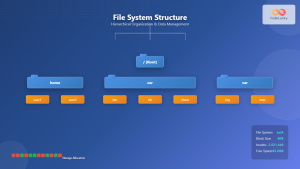
File System in Operating System: Complete Guide to Structure and Organization
Introduction to File Systems A file system is a fundamental component of any operating system that provides a structured way...
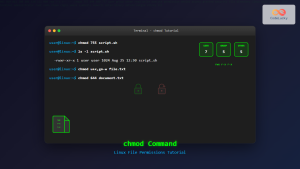
chmod Command in Linux: Complete File Permissions Tutorial with Examples
The chmod command is one of the most essential Linux commands for managing file and directory permissions. Whether you're a...
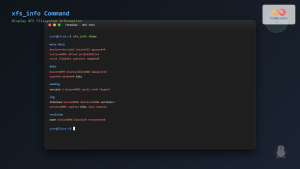
xfs_info Command Linux: Complete Guide to Display XFS Filesystem Information
The xfs_info command is a powerful utility in Linux systems that provides comprehensive information about XFS filesystems. This command is...
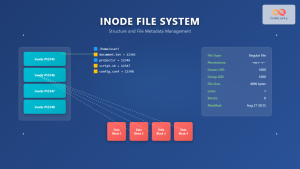
Inode in File System: Complete Guide to Structure and File Metadata
What is an Inode? An inode (index node) is a fundamental data structure in Unix-like file systems that stores metadata...





