
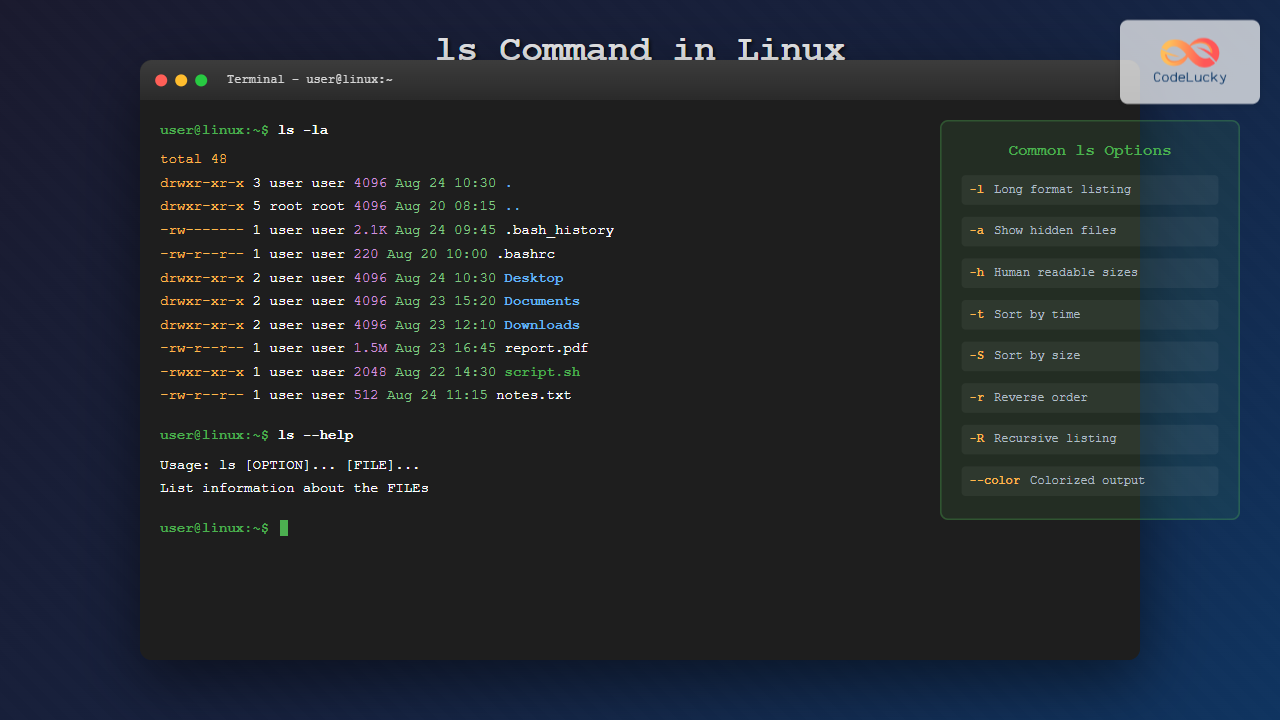
The ls command is one of the most fundamental and frequently used commands in Linux and Unix-like operating systems. It allows users to list the contents of directories, displaying files and subdirectories along with their properties. Whether you’re a beginner learning Linux or an experienced system administrator, mastering the ls command is essential for efficient file management and navigation.
What is the ls Command?
The ls command stands for “list” and is used to display the contents of directories. By default, it shows the names of files and directories in the current working directory. However, with various options and flags, you can customize the output to display detailed information such as file permissions, ownership, size, and modification dates.
Basic Syntax
The basic syntax of the ls command is:
ls [OPTIONS] [FILE/DIRECTORY]Where:
- OPTIONS: Various flags that modify the command’s behavior
- FILE/DIRECTORY: The path to the file or directory you want to list (optional)
Basic ls Command Examples
Simple Directory Listing
To list files and directories in the current directory:
lsOutput:
Desktop    Downloads  Music     Public     Videos
Documents  Library    Pictures  Templates
List Specific Directory
To list contents of a specific directory:
ls /home/user/DocumentsOutput:
project1.txt report.pdf notes.md backup/Essential ls Command Options
-l (Long Format)
The -l option displays detailed information about files and directories:
ls -lOutput:
total 32
drwxr-xr-x  2 user user 4096 Aug 24 10:30 Desktop
-rw-r--r--  1 user user 1024 Aug 23 15:45 document.txt
-rwxr-xr-x  1 user user 2048 Aug 22 09:20 script.sh
drwxr-xr-x  3 user user 4096 Aug 21 14:10 Projects
The long format shows:
- File permissions (first column)
- Number of hard links
- Owner name
- Group name
- File size in bytes
- Last modification date and time
- File or directory name
-a (Show Hidden Files)
To display all files, including hidden files that start with a dot:
ls -aOutput:
.              .bashrc        .profile       Documents
..             .cache         Desktop        Downloads
.bash_history  .config        Music          Pictures
-h (Human Readable)
When combined with -l, the -h option displays file sizes in human-readable format:
ls -lhOutput:
total 32K
drwxr-xr-x  2 user user 4.0K Aug 24 10:30 Desktop
-rw-r--r--  1 user user 1.5M Aug 23 15:45 document.pdf
-rwxr-xr-x  1 user user  512 Aug 22 09:20 script.sh
drwxr-xr-x  3 user user 4.0K Aug 21 14:10 Projects
-R (Recursive Listing)
To list files recursively in all subdirectories:
ls -ROutput:
.:
Desktop  Documents  Downloads

./Desktop:
file1.txt  shortcut.lnk

./Documents:
Projects  report.pdf

./Documents/Projects:
project1  project2
Advanced ls Command Options
-t (Sort by Time)
Sort files by modification time (newest first):
ls -ltOutput:
total 24
-rw-r--r--  1 user user 1024 Aug 24 12:30 latest.txt
-rw-r--r--  1 user user 2048 Aug 23 10:15 recent.pdf
-rw-r--r--  1 user user  512 Aug 22 08:45 older.md
-S (Sort by Size)
Sort files by size (largest first):
ls -lSOutput:
total 24
-rw-r--r--  1 user user 5120 Aug 23 10:15 large_file.pdf
-rw-r--r--  1 user user 2048 Aug 24 12:30 medium.txt
-rw-r--r--  1 user user  512 Aug 22 08:45 small.md
-r (Reverse Order)
Reverse the sorting order:
ls -ltrThis shows files sorted by time in ascending order (oldest first).
–color (Colorized Output)
Display different file types in different colors:
ls --color=autoThis option is often aliased by default in many Linux distributions, making directories appear in blue, executables in green, and regular files in the default color.
Filtering and Pattern Matching
List Specific File Types
To list only files with specific extensions:
ls *.txtOutput:
document.txt notes.txt readme.txtList Files Starting with Specific Characters
ls doc*Output:
document.txt documentation.pdfUsing Wildcards with ls
*– Matches any number of characters?– Matches a single character[abc]– Matches any character in brackets[a-z]– Matches any character in range
Example:
ls file[1-3].txtOutput:
file1.txt file2.txt file3.txtCombining Multiple Options
You can combine multiple options for more detailed output:
ls -lahThis command combines:
-l: Long format-a: Show hidden files-h: Human-readable sizes
Output:
total 48K
drwxr-xr-x  5 user user 4.0K Aug 24 12:30 .
drwxr-xr-x  3 root root 4.0K Aug 20 10:00 ..
-rw-------  1 user user 2.1K Aug 24 08:15 .bash_history
-rw-r--r--  1 user user  220 Aug 20 10:00 .bash_logout
drwxr-xr-x  2 user user 4.0K Aug 24 10:30 Desktop
-rw-r--r--  1 user user 1.5M Aug 23 15:45 document.pdf
Understanding File Permissions
When using ls -l, the first column shows file permissions in a 10-character format:
drwxrwxrwx
- 1st character: File type (
d= directory,-= regular file,l= symbolic link) - Characters 2-4: Owner permissions (read, write, execute)
- Characters 5-7: Group permissions
- Characters 8-10: Other users’ permissions
Permission characters:
r– Read permissionw– Write permissionx– Execute permission-– Permission not granted
Useful ls Command Variations
Show Only Directories
ls -d */Or using the -l option:
ls -ld */Show File Count
To count files in a directory:
ls -1 | wc -lShow Files Modified Today
ls -lt --time-style=+%Y-%m-%d | grep $(date +%Y-%m-%d)Interactive Examples and Best Practices
Creating a Practice Environment
Let’s create some files and directories to practice with:
mkdir practice_ls
cd practice_ls
touch file1.txt file2.pdf script.sh
mkdir documents images
chmod +x script.sh
Now try different ls commands:
# Basic listing
ls

# Detailed listing
ls -l

# Include hidden files (create a hidden file first)
touch .hidden_file
ls -la

# Sort by size
ls -lS

# Recursive listing
ls -R
Common Use Cases and Tips
Finding Large Files
ls -lhS | head -10This shows the 10 largest files in the current directory.
Checking Recent Changes
ls -lt | head -5Shows the 5 most recently modified files.
Creating Aliases
Many users create aliases for commonly used ls combinations:
# Add to your .bashrc or .zshrc
alias ll='ls -alF'
alias la='ls -A'
alias l='ls -CF'
Troubleshooting Common Issues
Permission Denied
If you get “Permission denied” when running ls on a directory, you lack read permissions:
ls: cannot open directory 'restricted': Permission deniedSolution: Use sudo if you have administrative privileges:
sudo ls -l restricted/No Such File or Directory
This error occurs when the specified path doesn’t exist:
ls: cannot access 'nonexistent': No such file or directoryDouble-check the path and ensure it exists.
Performance Considerations
For directories with many files, some ls options can be slow:
ls -Rcan be very slow on large directory structuresls -lrequires additional system calls for each file- Consider using
findfor complex searches instead ofls -R
Conclusion
The ls command is an essential tool for navigating and managing files in Linux. From basic directory listings to detailed file information display, mastering its various options and flags will significantly improve your command-line efficiency. Practice combining different options like -lah, -lt, and -lS to get the exact information you need for different situations.
Remember that the ls command behavior may vary slightly between different Linux distributions, but the core functionality remains consistent across all Unix-like systems. As you become more comfortable with these options, you’ll find yourself navigating and managing files much more efficiently in the terminal environment.
Related Posts
ls Command Advanced Linux: Complete Guide to File Listing Mastery
The ls command is one of the most fundamental and frequently used commands in Linux and Unix-like operating systems. While...

lsattr Command Linux: Complete Guide to List and Manage File Attributes
The lsattr command is a powerful Linux utility that displays the extended attributes of files and directories on ext2, ext3,...

stat Command Linux: Complete Guide to Display File and Filesystem Status Information
The stat command is a powerful Linux utility that displays detailed information about files and filesystems. Unlike basic commands like...
find Command Linux: Ultimate Guide to Search Files and Directories by Name, Size, and Attributes
The find command is one of the most powerful and versatile tools in Linux for searching files and directories. Whether...
type Command Linux: Complete Guide to Display Command Type and Location
The type command is an essential Linux utility that helps you identify the nature and location of commands in your...
chmod Command in Linux: Complete File Permissions Tutorial with Examples
The chmod command is one of the most essential Linux commands for managing file and directory permissions. Whether you're a...
du Command Linux: Display Directory Size and Disk Usage Explained with Examples
The du (disk usage) command in Linux is a powerful tool that allows users to measure directory size, analyze disk...
pwd Command in Linux: Complete Guide to Display Current Working Directory Path
The pwd command is one of the fundamental Linux commands that every user should master. Standing for "Print Working Directory,"...

chown Command Linux: Master File and Directory Ownership Management
The chown command is one of the most fundamental tools in Linux system administration, allowing users to change file and...
lsof Command Linux: Complete Guide to List Open Files and Running Processes
The lsof command (List Open Files) is one of the most powerful and versatile utilities in Linux systems. It provides...

file Command Advanced Linux: Master Detailed File Type Analysis and Detection
The file command is one of the most powerful and underutilized utilities in Linux for determining file types and analyzing...
cd Command Linux: Complete Guide to Directory Navigation in Terminal
The cd command is one of the most fundamental and frequently used commands in Linux and Unix-like operating systems. Standing...
- What is the ls Command?
- Basic Syntax
- Basic ls Command Examples
- Essential ls Command Options
- Advanced ls Command Options
- Filtering and Pattern Matching
- Combining Multiple Options
- Understanding File Permissions
- Useful ls Command Variations
- Interactive Examples and Best Practices
- Common Use Cases and Tips
- Troubleshooting Common Issues
- Performance Considerations
- Conclusion





