
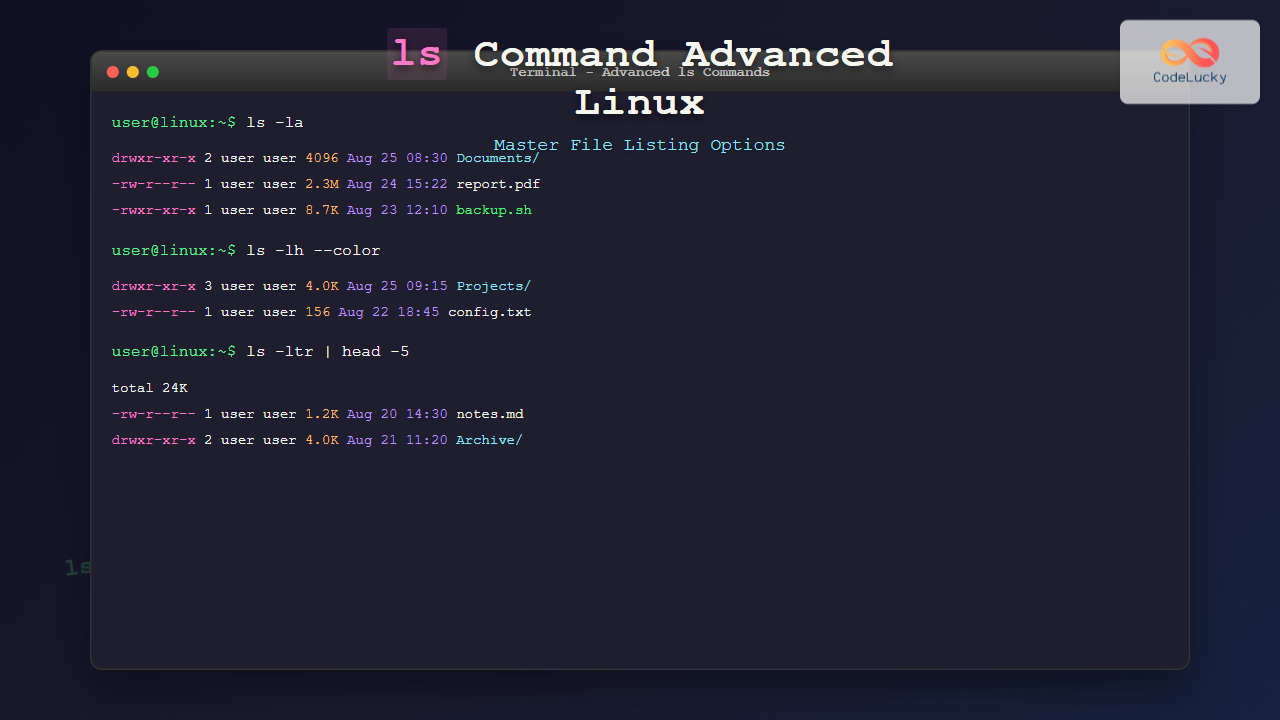
The ls command is one of the most fundamental and frequently used commands in Linux and Unix-like operating systems. While most users are familiar with its basic functionality, mastering its advanced options can dramatically improve your productivity and file management efficiency. This comprehensive guide will take you through everything you need to know about the ls command, from basic usage to advanced techniques.
Understanding the Basic ls Command
At its core, the ls command lists the contents of directories. When used without any arguments, it displays the files and directories in the current working directory:
$ ls
Desktop  Documents  Downloads  Music  Pictures  Videos
However, the real power of ls lies in its numerous options and flags that allow you to customize the output according to your needs.
Essential ls Command Options
Long Format Listing (-l)
The -l option provides detailed information about each file and directory:
$ ls -l
total 24
drwxr-xr-x 2 user user 4096 Aug 25 08:30 Desktop
drwxr-xr-x 3 user user 4096 Aug 24 15:22 Documents
drwxr-xr-x 2 user user 4096 Aug 25 07:45 Downloads
-rw-r--r-- 1 user user  156 Aug 23 12:10 example.txt
drwxr-xr-x 2 user user 4096 Aug 22 09:15 Music
This format displays:
- File permissions (first column)
- Number of hard links
- Owner name
- Group name
- File size in bytes
- Last modification date and time
- File or directory name
Show Hidden Files (-a)
Use -a to display all files, including hidden ones that start with a dot:
$ ls -a
.  ..  .bashrc  .profile  Desktop  Documents  Downloads
For a cleaner view without . and .., use -A:
$ ls -A
.bashrc  .profile  Desktop  Documents  Downloads
Human-Readable File Sizes (-h)
Combine -h with -l to display file sizes in human-readable format:
$ ls -lh
total 24K
drwxr-xr-x 2 user user 4.0K Aug 25 08:30 Desktop
drwxr-xr-x 3 user user 4.0K Aug 24 15:22 Documents
-rw-r--r-- 1 user user 2.3M Aug 23 12:10 largefile.zip
-rw-r--r-- 1 user user  156 Aug 23 12:10 example.txt
Advanced Sorting and Filtering Options
Sort by Time (-t) and Reverse Order (-r)
Sort files by modification time (newest first):
$ ls -lt
total 24
drwxr-xr-x 2 user user 4096 Aug 25 08:30 Desktop
drwxr-xr-x 3 user user 4096 Aug 24 15:22 Documents
drwxr-xr-x 2 user user 4096 Aug 25 07:45 Downloads
-rw-r--r-- 1 user user  156 Aug 23 12:10 example.txt
Reverse the order (oldest first) with -r:
$ ls -ltr
total 24
drwxr-xr-x 2 user user 4096 Aug 22 09:15 Music
-rw-r--r-- 1 user user  156 Aug 23 12:10 example.txt
drwxr-xr-x 2 user user 4096 Aug 25 07:45 Downloads
drwxr-xr-x 3 user user 4096 Aug 24 15:22 Documents
drwxr-xr-x 2 user user 4096 Aug 25 08:30 Desktop
Sort by Size (-S)
Display files sorted by size (largest first):
$ ls -lS
total 24
-rw-r--r-- 1 user user 2396745 Aug 23 12:10 largefile.zip
drwxr-xr-x 2 user user    4096 Aug 25 08:30 Desktop
drwxr-xr-x 3 user user    4096 Aug 24 15:22 Documents
drwxr-xr-x 2 user user    4096 Aug 25 07:45 Downloads
-rw-r--r-- 1 user user     156 Aug 23 12:10 example.txt
Filter by File Type
Show only directories using -d with wildcard patterns:
$ ls -d */
Desktop/  Documents/  Downloads/  Music/  Pictures/  Videos/
Display only files (not directories) using find in combination:
$ ls -l | grep "^-"
-rw-r--r-- 1 user user 2396745 Aug 23 12:10 largefile.zip
-rw-r--r-- 1 user user     156 Aug 23 12:10 example.txt
Visual Enhancement Options
Colorized Output (–color)
Most modern Linux distributions have colored output enabled by default, but you can explicitly enable it:
$ ls --color=always
This will display:
- Directories in blue
- Executable files in green
- Archive files in red
- Symbolic links in cyan
File Type Indicators (-F)
Add indicators to show file types:
$ ls -F
Desktop/  Documents/  Downloads/  script.sh*  example.txt  link@
Where:
/indicates directories*indicates executable files@indicates symbolic links|indicates named pipes (FIFOs)=indicates sockets
Advanced Display Formats
Column Format (-C) and Single Column (-1)
Force multi-column output:
$ ls -C
Desktop    Documents  Downloads  Music      Pictures   Videos
example.txt largefile.zip script.sh
Force single column output:
$ ls -1
Desktop
Documents
Downloads
Music
Pictures
Videos
example.txt
Comma-Separated Format (-m)
Display files in a comma-separated list:
$ ls -m
Desktop, Documents, Downloads, Music, Pictures, Videos, example.txt, largefile.zip
Working with Timestamps
Different Time Types
Show access time instead of modification time:
$ ls -lu
total 24
drwxr-xr-x 2 user user 4096 Aug 25 08:35 Desktop
drwxr-xr-x 3 user user 4096 Aug 25 08:20 Documents
-rw-r--r-- 1 user user  156 Aug 25 07:55 example.txt
Show change time (when file attributes were last changed):
$ ls -lc
total 24
drwxr-xr-x 2 user user 4096 Aug 25 08:30 Desktop
drwxr-xr-x 3 user user 4096 Aug 24 15:22 Documents
-rw-r--r-- 1 user user  156 Aug 23 12:15 example.txt
Full Timestamp Format (–full-time)
Display complete timestamp information:
$ ls -l --full-time
total 24
drwxr-xr-x 2 user user 4096 2025-08-25 08:30:15.123456789 +0530 Desktop
drwxr-xr-x 3 user user 4096 2025-08-24 15:22:30.987654321 +0530 Documents
-rw-r--r-- 1 user user  156 2025-08-23 12:10:45.555555555 +0530 example.txt
Recursive Listing and Depth Control
Recursive Directory Listing (-R)
List all files and directories recursively:
$ ls -R
.:
Desktop  Documents  Downloads  example.txt

./Desktop:
file1.txt  folder1

./Desktop/folder1:
nested_file.txt

./Documents:
project1  project2  readme.md

./Documents/project1:
main.py  config.ini
Tree-like Structure
While not part of ls directly, you can combine it with other tools for tree-like output:
$ find . -type d | sed -e "s/[^-][^\/]*\//  /g" -e "s/^  //" -e "s/-/|/"
.
  Desktop
    folder1
  Documents
    project1
    project2
  Downloads
Performance and Efficiency Tips
Limiting Output with head and tail
Show only the first few files:
$ ls -lt | head -5
total 24
drwxr-xr-x 2 user user 4096 Aug 25 08:30 Desktop
drwxr-xr-x 3 user user 4096 Aug 24 15:22 Documents
drwxr-xr-x 2 user user 4096 Aug 25 07:45 Downloads
-rw-r--r-- 1 user user  156 Aug 23 12:10 example.txt
Show only the last few files:
$ ls -lt | tail -3
drwxr-xr-x 2 user user 4096 Aug 25 07:45 Downloads
-rw-r--r-- 1 user user  156 Aug 23 12:10 example.txt
drwxr-xr-x 2 user user 4096 Aug 22 09:15 Music
Using Wildcards and Patterns
List files matching specific patterns:
$ ls *.txt
example.txt  readme.txt  notes.txt

$ ls -l [A-D]*
drwxr-xr-x 2 user user 4096 Aug 25 08:30 Desktop
drwxr-xr-x 3 user user 4096 Aug 24 15:22 Documents
drwxr-xr-x 2 user user 4096 Aug 25 07:45 Downloads

$ ls -l *.{jpg,png,gif}
-rw-r--r-- 1 user user 45632 Aug 24 10:15 image1.jpg
-rw-r--r-- 1 user user 23456 Aug 23 14:20 logo.png
Advanced Use Cases and Combinations
Finding Recently Modified Files
Combine ls with find to locate files modified in the last 7 days:
$ find . -type f -mtime -7 -exec ls -lh {} \;
-rw-r--r-- 1 user user  156 Aug 23 12:10 ./example.txt
-rw-r--r-- 1 user user 2.3M Aug 25 08:00 ./largefile.zip
Monitoring Directory Changes
Use watch with ls to monitor directory changes in real-time:
$ watch -n 2 'ls -la'
Counting Files and Directories
Count total number of files:
$ ls -1 | wc -l
8

$ ls -la | grep "^d" | wc -l  # Count directories only
4

$ ls -la | grep "^-" | wc -l  # Count files only
4
Security and Permissions Analysis
Identifying Security Issues
Find world-writable files:
$ ls -la | grep "^....w..w."
-rw-rw-rw- 1 user user  156 Aug 23 12:10 public_file.txt
Find executable files:
$ ls -la | grep "^...x"
-rwxr-xr-x 1 user user 8760 Aug 24 16:30 script.sh
Understanding Permission Strings
The permission string breakdown:
- First character: file type (
dfor directory,-for file,lfor link) - Next 3 characters: owner permissions (read, write, execute)
- Next 3 characters: group permissions
- Last 3 characters: other/world permissions
Troubleshooting Common Issues
Handling Large Directories
For directories with thousands of files, use pagination:
$ ls -la | less
$ ls -la | more
Dealing with Special Characters
Use -b to escape non-printable characters:
$ ls -lab
total 28
drwxr-xr-x  6 user user 4096 Aug 25 08:30 .
drwxr-xr-x 20 user user 4096 Aug 24 15:00 ..
-rw-r--r--  1 user user  156 Aug 23 12:10 file\nwith\nnewlines.txt
Creating Useful Aliases
Enhance your productivity by creating aliases for commonly used ls combinations:
# Add to your .bashrc or .zshrc
alias ll='ls -alF'
alias la='ls -A'
alias l='ls -CF'
alias lt='ls -altr'  # Sort by time, reverse
alias ls='ls --color=auto'
alias lh='ls -alh'   # Human readable sizes
alias lr='ls -alR'   # Recursive listing
Best Practices and Tips
Performance Considerations
- Avoid using
-Ron large directory structures as it can be slow - Use specific patterns instead of listing everything and filtering
- Consider using
findfor complex searches instead ofls
Scripting with ls
When using ls in scripts, be aware of potential issues:
#!/bin/bash
# Good practice: use arrays
files=(*)
for file in "${files[@]}"; do
    echo "Processing: $file"
done

# Avoid parsing ls output in scripts
# Bad: for file in $(ls); do
Conclusion
The ls command is far more powerful than its simple appearance suggests. By mastering its advanced options and understanding how to combine them effectively, you can significantly improve your Linux command-line productivity. From basic file listing to complex filtering and sorting operations, ls remains an indispensable tool for system administrators, developers, and power users alike.
Remember that practice makes perfect. Start incorporating these advanced ls options into your daily workflow, create useful aliases for your most common use cases, and gradually build up your command-line expertise. The investment in learning these advanced techniques will pay dividends in improved efficiency and system management capabilities.
Whether you’re managing servers, developing applications, or simply organizing your personal files, the advanced features of the ls command will help you work more effectively with the Linux file system. Keep this guide handy as a reference, and don’t hesitate to experiment with different option combinations to find what works best for your specific needs.
Related Posts

ls Command in Linux: Complete Guide to List Files and Directories with Examples
The ls command is one of the most fundamental and frequently used commands in Linux and Unix-like operating systems. It...

lsattr Command Linux: Complete Guide to List and Manage File Attributes
The lsattr command is a powerful Linux utility that displays the extended attributes of files and directories on ext2, ext3,...

file Command Advanced Linux: Master Detailed File Type Analysis and Detection
The file command is one of the most powerful and underutilized utilities in Linux for determining file types and analyzing...
find Command Linux: Ultimate Guide to Search Files and Directories by Name, Size, and Attributes
The find command is one of the most powerful and versatile tools in Linux for searching files and directories. Whether...

stat Command Linux: Complete Guide to Display File and Filesystem Status Information
The stat command is a powerful Linux utility that displays detailed information about files and filesystems. Unlike basic commands like...
cd Command Linux: Complete Guide to Directory Navigation in Terminal
The cd command is one of the most fundamental and frequently used commands in Linux and Unix-like operating systems. Standing...
HTML Directory List: The <dir> Tag (Legacy)
HTML <dir> Tag The <dir> tag was an HTML element intended to represent a directory list. It was used to...
du Command Linux: Display Directory Size and Disk Usage Explained with Examples
The du (disk usage) command in Linux is a powerful tool that allows users to measure directory size, analyze disk...
lsof Command Linux: Complete Guide to List Open Files and Running Processes
The lsof command (List Open Files) is one of the most powerful and versatile utilities in Linux systems. It provides...
pwd Command in Linux: Complete Guide to Display Current Working Directory Path
The pwd command is one of the fundamental Linux commands that every user should master. Standing for "Print Working Directory,"...

size Command Linux: Display Section Sizes of Object Files and Executables
The size command is a powerful utility in Linux systems that displays the section sizes of object files, executables, and...
type Command Linux: Complete Guide to Display Command Type and Location
The type command is an essential Linux utility that helps you identify the nature and location of commands in your...





