
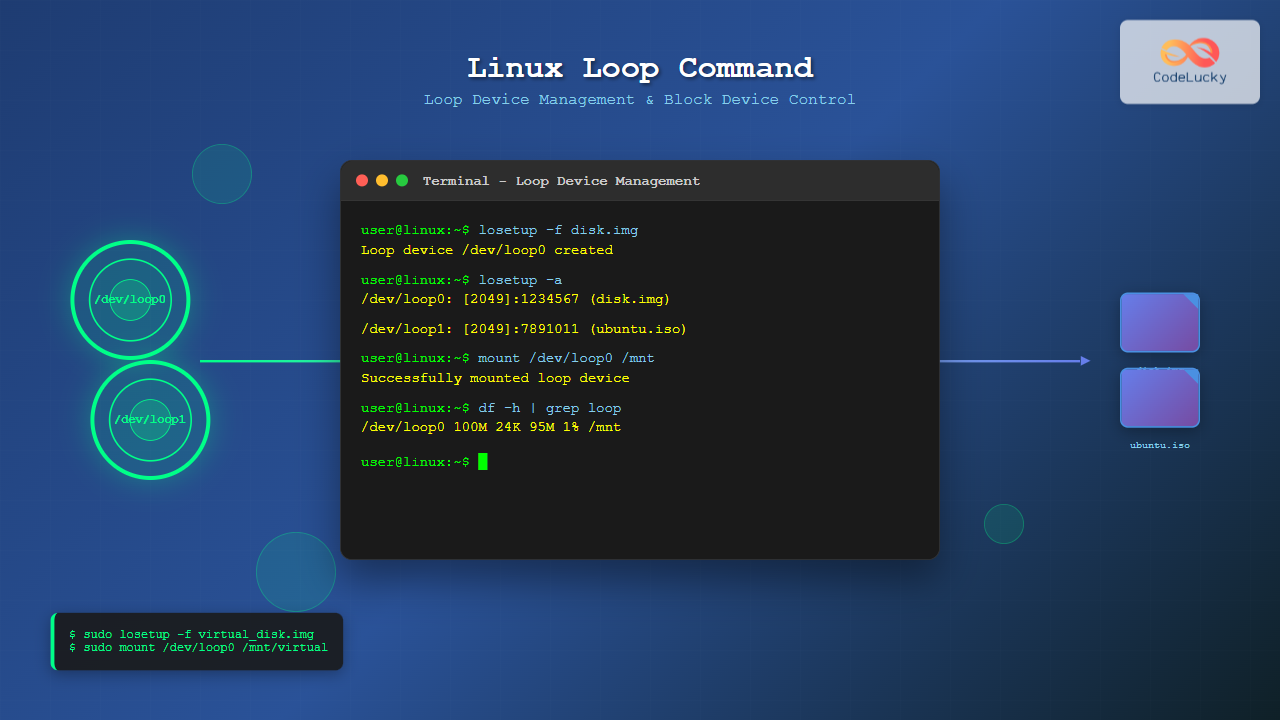
The loop command in Linux is a powerful utility for managing loop devices, which are virtual block devices that allow you to treat regular files as block devices. This functionality is essential for mounting disk images, creating virtual filesystems, and performing various system administration tasks without requiring physical storage devices.
What are Loop Devices?
Loop devices are pseudo-devices that enable the Linux kernel to access files as if they were block devices. When you associate a file with a loop device, you can mount it, format it, or perform any operation you would normally do with a physical disk or partition.
Common use cases include:
- Mounting ISO images
- Creating encrypted filesystems
- Testing filesystem operations
- Working with disk images
- Container and virtualization technologies
Basic Syntax and Options
The primary command for managing loop devices is losetup, though some distributions also provide a loop command wrapper. Here’s the basic syntax:
losetup [options] loop_device file
losetup [options] -f file
losetup [options] -d loop_device
Essential Options
| Option | Description |
|---|---|
-f |
Find and use the first available loop device |
-d |
Detach the specified loop device |
-a |
List all loop devices |
-l |
List loop devices with detailed information |
-o offset |
Start at specified byte offset |
--sizelimit |
Limit device size to specified bytes |
-P |
Scan for partitions |
-r |
Set up read-only loop device |
Practical Examples
1. Creating and Using a Basic Loop Device
First, let’s create a simple file and set up a loop device:
# Create a 100MB file filled with zeros
dd if=/dev/zero of=virtual_disk.img bs=1M count=100

# Set up a loop device
sudo losetup -f virtual_disk.img

# Check which loop device was assigned
losetup -a
Expected Output:
100+0 records in
100+0 records out
104857600 bytes (105 MB, 100 MiB) copied, 0.123456 s, 850 MB/s

/dev/loop0: [2049]:1234567 (/home/user/virtual_disk.img)
2. Creating a Filesystem on Loop Device
Once you have a loop device, you can format it with any filesystem:
# Format with ext4 filesystem
sudo mkfs.ext4 /dev/loop0

# Create a mount point
sudo mkdir /mnt/virtual_drive

# Mount the loop device
sudo mount /dev/loop0 /mnt/virtual_drive

# Verify the mount
df -h /mnt/virtual_drive
Expected Output:
mke2fs 1.46.2 (28-Feb-2021)
Creating filesystem with 25600 4k blocks and 25600 inodes

Filesystem     Size  Used Avail Use% Mounted on
/dev/loop0      95M   24K   90M   1% /mnt/virtual_drive
3. Working with ISO Images
Loop devices are commonly used for mounting ISO images:
# Mount an ISO image
sudo losetup -f ubuntu-20.04.iso

# Find which loop device was used
losetup -a | grep ubuntu

# Mount the ISO (read-only)
sudo mkdir /mnt/iso
sudo mount -o ro /dev/loop1 /mnt/iso

# List contents
ls /mnt/iso
Expected Output:
/dev/loop1: [2049]:7891011 (/home/user/ubuntu-20.04.iso)

boot  casper  dists  EFI  isolinux  md5sum.txt  pics  pool  preseed  README.diskdefines  ubuntu
4. Using Offset and Size Limits
You can work with specific portions of files using offset and size limit options:
# Create a larger file with multiple "partitions"
dd if=/dev/zero of=multi_part.img bs=1M count=500

# Set up loop device starting at 100MB offset with 200MB limit
sudo losetup -f -o $((100*1024*1024)) --sizelimit $((200*1024*1024)) multi_part.img

# Check the setup
losetup -l
Expected Output:
NAME       SIZELIMIT OFFSET AUTOCLEAR RO BACK-FILE
/dev/loop0       200M   100M         0  0 /home/user/multi_part.img
5. Automatic Loop Device Management
Modern systems can automatically manage loop devices:
# Mount with automatic loop device creation
sudo mount -o loop disk_image.img /mnt/auto_mount

# This is equivalent to:
# sudo losetup -f disk_image.img
# sudo mount /dev/loopX /mnt/auto_mount
Advanced Loop Device Operations
Partition Scanning
When working with disk images containing partitions:
# Set up loop device with partition scanning
sudo losetup -P -f disk_with_partitions.img

# List all loop devices and their partitions
lsblk | grep loop
Expected Output:
loop0    7:0    0  1.5G  0 loop
├─loop0p1 259:0   0  500M  0 loop
├─loop0p2 259:1   0    1G  0 loop
Read-Only Loop Devices
For security and data protection, you can create read-only loop devices:
# Set up read-only loop device
sudo losetup -r -f important_data.img

# Attempt to mount read-write will fail
sudo mount /dev/loop0 /mnt/readonly

# Mount as read-only
sudo mount -o ro /dev/loop0 /mnt/readonly
Encrypted Loop Devices
Combine loop devices with encryption for secure virtual storage:
# Create encrypted loop device
sudo cryptsetup luksFormat /dev/loop0

# Open the encrypted device
sudo cryptsetup luksOpen /dev/loop0 encrypted_loop

# Format and mount
sudo mkfs.ext4 /dev/mapper/encrypted_loop
sudo mount /dev/mapper/encrypted_loop /mnt/encrypted
Troubleshooting Common Issues
Device Busy Errors
When you can’t detach a loop device:
# Check what's using the device
sudo lsof /dev/loop0

# Force unmount and detach
sudo umount -f /mnt/virtual_drive
sudo losetup -d /dev/loop0
Running Out of Loop Devices
Check and increase the maximum number of loop devices:
# Check current limit
cat /sys/module/loop/parameters/max_loop

# Increase limit (temporary)
echo 16 | sudo tee /sys/module/loop/parameters/max_loop

# Permanent change in /etc/modprobe.d/loop.conf
echo "options loop max_loop=16" | sudo tee /etc/modprobe.d/loop.conf
Permission Issues
Ensure proper permissions for loop device operations:
# Add user to disk group
sudo usermod -a -G disk username

# Check loop device permissions
ls -l /dev/loop*

# Set appropriate permissions if needed
sudo chmod 660 /dev/loop0
Monitoring and Management
Listing All Loop Devices
Get comprehensive information about loop devices:
# Basic listing
losetup -a

# Detailed listing
losetup -l

# JSON format output
losetup -J
Automated Cleanup Script
Here’s a useful script for cleaning up unused loop devices:
#!/bin/bash
# cleanup_loops.sh

echo "Cleaning up unused loop devices..."

for loop in /dev/loop*; do
    if [[ -b "$loop" ]]; then
        if ! losetup "$loop" &>/dev/null; then
            echo "Detaching unused loop device: $loop"
            sudo losetup -d "$loop" 2>/dev/null || true
        fi
    fi
done

echo "Cleanup completed."
Performance Considerations
Optimizing Loop Device Performance
For better performance with loop devices:
# Use direct I/O for better performance
sudo losetup -f --direct-io disk_image.img

# Check current settings
losetup -l | grep -E "NAME|SIZELIMIT|OFFSET|AUTOCLEAR|RO|BACK-FILE"
Memory Usage Optimization
Monitor and optimize memory usage:
# Check memory usage of loop devices
cat /proc/meminfo | grep -i loop

# Monitor I/O statistics
iostat -x 1 | grep loop
Security Best Practices
- Use read-only mounts when possible to prevent accidental modifications
- Implement proper access controls on loop device files
- Regularly audit active loop devices using
losetup -a - Clean up unused devices to prevent resource exhaustion
- Use encryption for sensitive data in loop devices
Integration with System Services
For automatic loop device mounting at boot, add entries to /etc/fstab:
# /etc/fstab entry for loop device
/path/to/disk_image.img /mnt/loop_mount auto loop,defaults 0 0
Or create a systemd service for complex loop device setups:
# /etc/systemd/system/loop-mount.service
[Unit]
Description=Loop Device Mount
After=local-fs.target

[Service]
Type=oneshot
ExecStart=/usr/sbin/losetup -f /path/to/image.img
ExecStart=/bin/mount /dev/loop0 /mnt/loop
ExecStop=/bin/umount /mnt/loop
ExecStop=/usr/sbin/losetup -d /dev/loop0
RemainAfterExit=yes

[Install]
WantedBy=multi-user.target
Conclusion
The loop command and loop devices are fundamental tools for Linux system administrators and developers. They provide flexible ways to work with disk images, create virtual filesystems, and test storage-related operations without requiring physical hardware. By understanding the various options and best practices covered in this guide, you can effectively leverage loop devices for a wide range of tasks, from simple ISO mounting to complex encrypted virtual storage solutions.
Remember to always clean up unused loop devices, monitor system resources, and follow security best practices when working with sensitive data in loop-mounted filesystems.
Related Posts
losetup Command Linux: Complete Guide to Setup and Manage Loop Devices
The losetup command is a powerful Linux utility that allows you to associate loop devices with regular files, enabling you...
mount Command Linux: Complete Guide to Mount Filesystems and Drives
The mount command is one of the most fundamental tools in Linux system administration, allowing you to attach filesystems from...
lsblk Command Linux: Complete Guide to List and Manage Block Devices
The lsblk command is an essential Linux utility that displays information about block devices in a tree-like format. Whether you're...
devfs Linux: Complete Guide to Device Filesystem Management
The Device Filesystem (devfs) represents a revolutionary approach to device management in Linux systems, providing dynamic creation and removal of...
umount Command Linux: Complete Guide to Safely Unmounting Filesystems
The umount command is an essential Linux utility that allows you to safely disconnect filesystems from the directory tree. Whether...
mkfs Command Linux: Complete Guide to Creating Filesystems on Partitions
The mkfs command in Linux is a fundamental tool for creating filesystems on disk partitions. Whether you're setting up a...

File System Types: FAT32, NTFS, ext4 and Modern Linux Filesystems Explained
Understanding File Systems: The Foundation of Data Storage A file system is the method and data structure that an operating...
kpartx Command Linux: Create and Manage Partition Maps with Complete Examples
The kpartx command is a powerful Linux utility that creates device maps from partition tables, enabling you to access partitions...
udev Command Linux: Complete Guide to Dynamic Device Management
The udev (userspace device manager) is a crucial component of modern Linux systems that handles dynamic device management. Unlike traditional...
sysfs Linux: Complete Guide to Understanding and Using /sys Filesystem
The sysfs filesystem is one of Linux's most powerful yet underutilized features, providing a window into the kernel's internal operations...

blkid Command Linux: Complete Guide to Display Block Device Information
The blkid command is an essential Linux utility that displays information about block devices, including file system types, UUIDs, labels,...
dumpe2fs Command Linux: Complete Guide to Display Ext2/3/4 Filesystem Information
The dumpe2fs command is a powerful Linux utility that displays detailed information about ext2, ext3, and ext4 filesystems. This essential...





