
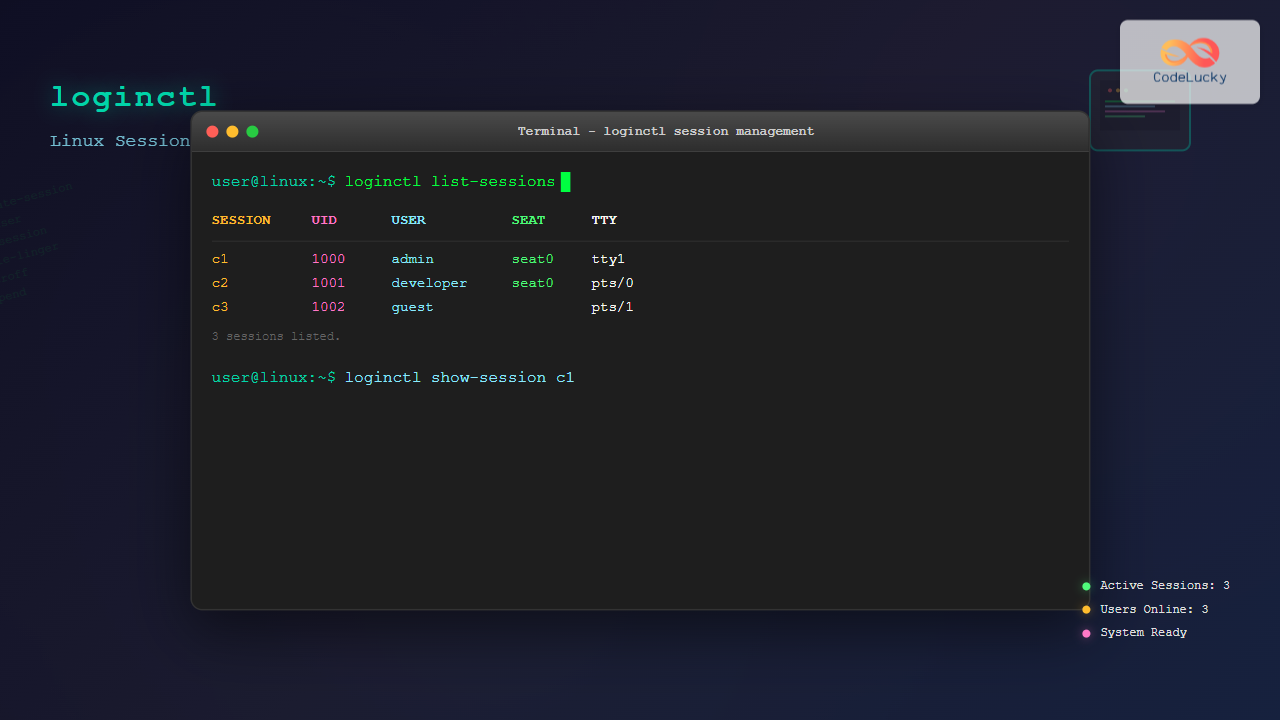
The loginctl command is a powerful systemd utility that allows system administrators to introspect and control the systemd login manager (systemd-logind). This essential tool provides comprehensive session management capabilities, enabling you to monitor active user sessions, control user logins, and manage system power states effectively.
What is loginctl Command?
The loginctl command serves as the primary interface for interacting with systemd’s login manager. It’s designed to replace traditional session management tools and provides a unified approach to handling user sessions, seats, and users in modern Linux systems. Unlike older tools, loginctl integrates seamlessly with systemd’s ecosystem, offering enhanced functionality and better integration with system services.
Basic Syntax and Options
The general syntax for the loginctl command follows this pattern:
loginctl [OPTIONS...] COMMAND [ARGUMENTS...]Common Options
-h, --help: Display help information-l, --full: Show full property names and values-a, --all: Show all properties, including empty ones-q, --quiet: Suppress output--no-legend: Do not show column headers--no-pager: Do not pipe output through a pager-H, --host: Execute operation remotely
Essential loginctl Commands
Listing Sessions, Users, and Seats
The most fundamental operations involve listing active sessions, users, and seats on the system.
List Sessions
loginctl list-sessionsExample output:
SESSION  UID USER    SEAT  TTY
     c1 1000 john    seat0 tty1
     c2 1001 alice   seat0 pts/0
     c3 1002 bob           pts/1

3 sessions listed.
This command displays all active sessions with their session ID, user ID, username, assigned seat, and terminal.
List Users
loginctl list-usersExample output:
UID USER
1000 john
1001 alice
1002 bob

3 users listed.
List Seats
loginctl list-seatsExample output:
SEAT
seat0

1 seats listed.
Session Information and Management
Show Session Details
To get detailed information about a specific session:
loginctl show-session c1Example output:
Id=c1
User=1000
Name=john
Timestamp=Mon 2025-08-26 01:30:15 IST
TimestampMonotonic=1234567890
VTNr=1
Seat=seat0
TTY=tty1
Display=:0
Remote=no
Service=gdm
Desktop=gnome
State=active
IdleHint=no
IdleSinceHint=0
IdleSinceHintMonotonic=0
LockedHint=no
Show Session Status
For a more readable format:
loginctl session-status c1Example output:
c1 - john (1000)
     Since: Mon 2025-08-26 01:30:15 IST; 29min ago
     Leader: 1842 (gdm-session-wor)
     Seat: seat0; vc1
     TTY: tty1
     Service: gdm; type x11; class user
     Desktop: gnome
     State: active
     Unit: session-c1.scope
            ├─1842 gdm-session-worker [pam/gdm-autologin]
            ├─1850 /usr/libexec/gnome-session-binary --autostart /usr/share/gdm/greeter/autostart
            └─1855 gnome-shell --mode=gdm
User Management Operations
Show User Information
loginctl show-user johnExample output:
UID=1000
GID=1000
Name=john
Timestamp=Mon 2025-08-26 01:30:15 IST
TimestampMonotonic=1234567890
RuntimePath=/run/user/1000
[email protected]
Slice=user-1000.slice
Display=c1
State=active
Sessions=c1
IdleHint=no
IdleSinceHint=0
IdleSinceHintMonotonic=0
Linger=no
User Status Details
loginctl user-status johnExample output:
john (1000)
     Since: Mon 2025-08-26 01:30:15 IST; 32min ago
     State: active
     Sessions: c1
     Unit: user-1000.slice
            ├─[email protected]
            │ └─init.scope
            │   ├─1875 /usr/lib/systemd/systemd --user
            │   └─1876 (sd-pam)
            └─session-c1.scope
              ├─1842 gdm-session-worker [pam/gdm-autologin]
              ├─1850 /usr/libexec/gnome-session-binary --autostart
              └─1855 gnome-shell --mode=gdm
Advanced Session Control
Terminating Sessions
You can terminate specific sessions using their session ID:
loginctl terminate-session c2This command gracefully terminates the specified session, allowing running applications to save their state.
Killing Sessions
For forceful termination:
loginctl kill-session c2You can also specify which signal to send:
loginctl kill-session c2 --signal=SIGTERMUser Session Management
Terminate all sessions for a specific user:
loginctl terminate-user aliceKill all processes for a user:
loginctl kill-user alicePower Management with loginctl
The loginctl command provides several power management functions that interact with systemd’s power management capabilities.
System Power Operations
# Shutdown the system
loginctl poweroff

# Reboot the system
loginctl reboot

# Suspend the system
loginctl suspend

# Hibernate the system
loginctl hibernate

# Hybrid sleep
loginctl hybrid-sleep
Checking Power Management Capabilities
loginctl show-seat seat0This will show available power management options and their current state.
Lock Screen Management
Locking Sessions
Lock a specific session:
loginctl lock-session c1Lock all sessions for a user:
loginctl lock-sessionsUnlocking Sessions
loginctl unlock-session c1Note that unlocking typically requires authentication through the configured screen locker.
Monitoring and Real-time Information
Enable User Lingering
Allow a user’s services to run even when not logged in:
loginctl enable-linger johnDisable lingering:
loginctl disable-linger johnMonitoring Session Changes
You can monitor session changes in real-time by combining loginctl with watch:
watch -n 2 'loginctl list-sessions'Practical Use Cases and Examples
System Administrator Tasks
Finding Idle Sessions
Create a script to find idle sessions:
#!/bin/bash
loginctl list-sessions --no-legend | while read session uid user seat tty; do
    if [ -n "$session" ]; then
        idle=$(loginctl show-session "$session" -p IdleHint --value)
        if [ "$idle" = "yes" ]; then
            echo "Session $session ($user) is idle"
        fi
    fi
done
Automated Session Cleanup
Script to terminate old inactive sessions:
#!/bin/bash
IDLE_TIME=3600  # 1 hour in seconds

loginctl list-sessions --no-legend | while read session uid user seat tty; do
    if [ -n "$session" ]; then
        idle_since=$(loginctl show-session "$session" -p IdleSinceHintMonotonic --value)
        current_time=$(cat /proc/uptime | cut -d' ' -f1 | cut -d'.' -f1)

        if [ "$idle_since" -gt 0 ]; then
            idle_duration=$((current_time - idle_since / 1000000))
            if [ "$idle_duration" -gt "$IDLE_TIME" ]; then
                echo "Terminating idle session: $session ($user)"
                loginctl terminate-session "$session"
            fi
        fi
    fi
done
Multi-User Environment Management
Session Summary Report
#!/bin/bash
echo "=== System Session Report ==="
echo "Total Sessions: $(loginctl list-sessions --no-legend | wc -l)"
echo "Total Users: $(loginctl list-users --no-legend | wc -l)"
echo "Total Seats: $(loginctl list-seats --no-legend | wc -l)"
echo
echo "=== Active Sessions ==="
loginctl list-sessions
echo
echo "=== Active Users ==="
loginctl list-users
Integration with systemd Services
The loginctl command integrates seamlessly with systemd services. You can examine the relationship between sessions and systemd units:
# Show systemd unit for a session
systemctl status session-c1.scope

# Show user systemd instance
systemctl --user status
Troubleshooting Common Issues
Session Not Terminating
If a session doesn’t terminate properly:
- Check the session status:
loginctl session-status <session-id> - Try killing with different signals:
loginctl kill-session <session-id> --signal=SIGKILL - Check for lingering processes:
systemctl --user status
Permission Denied Errors
Ensure you have appropriate privileges:
- Session management typically requires appropriate PolicyKit permissions
- Power management operations may require admin privileges
- Use
sudowhen necessary for system-wide operations
Security Considerations
When using loginctl in production environments:
- Audit Session Access: Regularly monitor who has active sessions
- Implement Session Timeouts: Use automated scripts to manage idle sessions
- Monitor Lingering Users: Check which users have lingering enabled
- Secure Remote Access: Be cautious when using remote loginctl operations
Best Practices
- Regular Monitoring: Implement regular session monitoring in your system administration routines
- Graceful Termination: Always try
terminate-sessionbeforekill-session - User Communication: Inform users before terminating their sessions when possible
- Script Automation: Automate repetitive loginctl tasks with well-tested scripts
- Documentation: Document your session management policies and procedures
Conclusion
The loginctl command is an indispensable tool for modern Linux system administration, offering comprehensive session management capabilities that integrate seamlessly with systemd. By mastering its various commands and options, system administrators can effectively monitor user activity, manage system resources, and maintain security in multi-user environments.
Whether you’re managing a single-user desktop system or a complex multi-user server environment, loginctl provides the tools necessary for efficient session management. Regular practice with these commands and understanding their integration with systemd will significantly enhance your Linux administration capabilities.
Remember to always test loginctl commands in a safe environment before implementing them in production systems, and consider the impact on users when performing session management operations.
Related Posts
systemctl Command Linux: Complete Guide to Control Systemd Services
The systemctl command is the primary tool for controlling systemd services in modern Linux distributions. As the central management utility...
last Command Linux: Display Login History and System Boot Records
The last command is an essential Linux utility that displays a chronological list of user logins, system boots, and shutdowns...

w Command Linux: Complete Guide to Monitor Active Users and System Activity
The w command is one of the most essential system monitoring tools in Linux, providing administrators and users with real-time...
who Command in Linux: Complete Guide to Display Logged in Users
The who command is one of the most fundamental system administration tools in Linux, designed to display information about currently...
logger Command Linux: Complete Guide to System Log Message Management
The logger command in Linux is a powerful utility that allows users and scripts to send messages directly to the...

systemd Linux: Complete Guide to System and Service Manager
systemd is a powerful system and service manager that has become the default init system for most modern Linux distributions....
id Command Linux: Complete Guide to Display User and Group IDs
The id command is a fundamental Linux utility that displays user and group identification information for the current user or...
useradd Command Linux: Complete Guide to Add New User Accounts
The useradd command is one of the most essential tools in Linux system administration for creating new user accounts. Whether...
Security in Operating System: Complete Guide to Access Control and Authentication
Introduction to Operating System Security Operating system security forms the foundation of computer security, protecting system resources and user data...

launchd Linux: Understanding the Service Management Framework for System Administrators
The launchd service management framework has become an essential tool for Linux system administrators who need robust process and service...
usermod Command Linux: Complete Guide to Modify User Account Properties
The usermod command is a powerful Linux utility that allows system administrators to modify existing user account properties without deleting...
service Command Linux: Complete Guide to Managing System Services
The service command is a fundamental tool in Linux system administration that allows you to manage system services and daemons...
- What is loginctl Command?
- Basic Syntax and Options
- Essential loginctl Commands
- Advanced Session Control
- Power Management with loginctl
- Lock Screen Management
- Monitoring and Real-time Information
- Practical Use Cases and Examples
- Integration with systemd Services
- Troubleshooting Common Issues
- Security Considerations
- Best Practices
- Conclusion





