
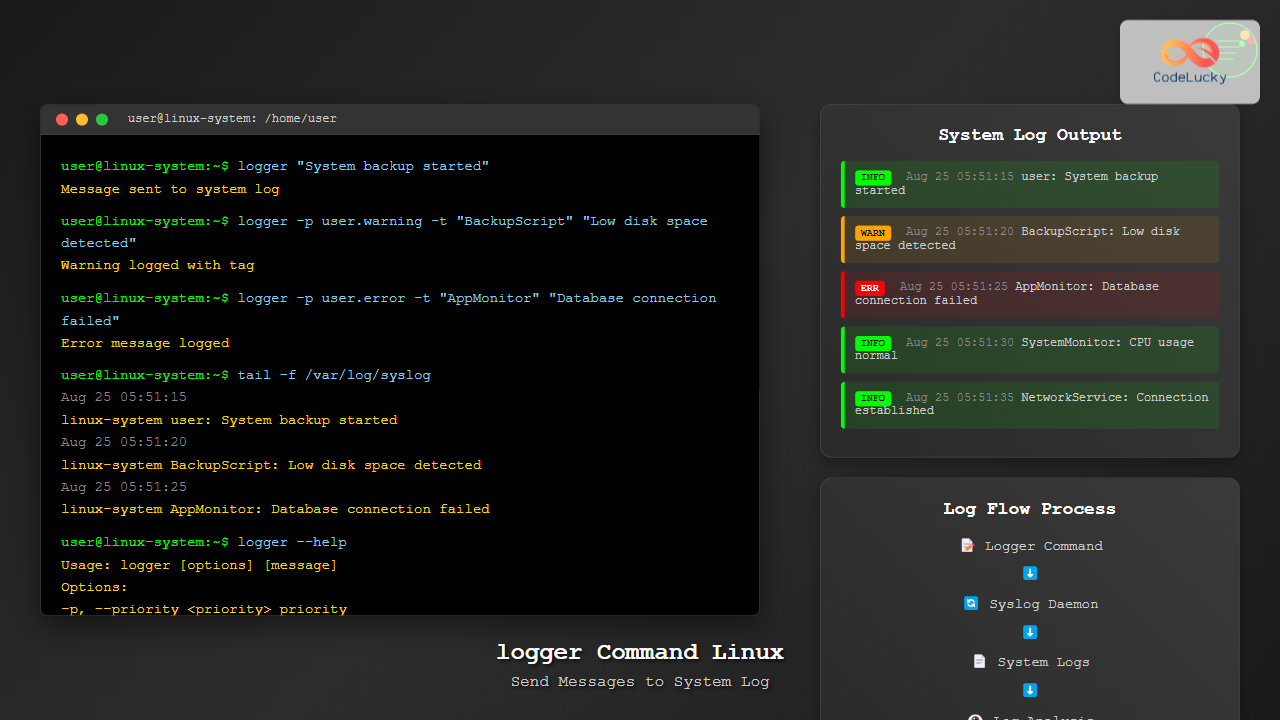
The logger command in Linux is a powerful utility that allows users and scripts to send messages directly to the system log. This command-line tool provides an interface to the system’s logging facility, making it invaluable for system administrators, developers, and anyone who needs to create custom log entries for monitoring, debugging, or record-keeping purposes.
What is the logger Command?
The logger command is a standard Unix/Linux utility that enables users to make entries in the system log from the command line or shell scripts. It writes messages to the system logger daemon (typically rsyslog or syslog-ng), which then processes and stores these messages according to the system’s logging configuration.
This tool is particularly useful for:
- Creating custom log entries from shell scripts
- Debugging applications and system processes
- Recording important system events
- Integrating with monitoring and alerting systems
- Testing log rotation and management systems
Basic Syntax and Usage
The basic syntax of the logger command is straightforward:
logger [options] [message]Let’s start with the simplest example:
logger "This is a test message"This command sends the message “This is a test message” to the system log. You can verify this by checking the system log file:
tail /var/log/messagesOr on Ubuntu/Debian systems:
tail /var/log/syslogExpected Output:
Aug 25 05:51:23 hostname username: This is a test messageCommon Options and Parameters
The logger command offers several options to customize how messages are logged:
Priority Levels (-p option)
You can specify the priority (severity) level of your message using the -p option. The format is facility.priority:
logger -p user.info "Information message"
logger -p user.warning "Warning message"
logger -p user.error "Error message"
Common priority levels include:
emerg– Emergency (system is unusable)alert– Alert (action must be taken immediately)crit– Critical conditionserrororerr– Error conditionswarningorwarn– Warning conditionsnotice– Normal but significant conditionsinfo– Informational messagesdebug– Debug-level messages
Tag Option (-t)
The -t option allows you to specify a tag that will be prepended to your message:
logger -t "MyScript" "Script execution completed successfully"Expected Output:
Aug 25 05:51:23 hostname MyScript: Script execution completed successfullyFacility Option
You can specify different facilities for your messages. Common facilities include:
user– User-level messages (default)daemon– System daemon messageskern– Kernel messagesmail– Mail system messagesauth– Security/authorization messageslocal0tolocal7– Custom facilities
logger -p daemon.info -t "MyDaemon" "Service started"Reading from Files and Standard Input
The logger command can read messages from files or standard input, making it versatile for various scenarios:
Reading from a File
logger -f /path/to/logfile.txtThis reads the entire content of the file and sends each line as a separate log message.
Reading from Standard Input
echo "Message from pipe" | logger
cat error.log | logger -p user.error -t "ErrorHandler"
You can also use here documents:
logger <<EOF
This is line 1
This is line 2
This is line 3
EOF
Advanced Usage Examples
Logging Script Execution
Here’s a practical example of using logger in a backup script:
#!/bin/bash

SCRIPT_NAME="BackupScript"
BACKUP_DIR="/backup"

logger -p user.info -t "$SCRIPT_NAME" "Backup process started"

if [ -d "$BACKUP_DIR" ]; then
    # Perform backup operations
    tar -czf "$BACKUP_DIR/backup_$(date +%Y%m%d_%H%M%S).tar.gz" /home/user/documents

    if [ $? -eq 0 ]; then
        logger -p user.info -t "$SCRIPT_NAME" "Backup completed successfully"
    else
        logger -p user.error -t "$SCRIPT_NAME" "Backup failed with error code $?"
    fi
else
    logger -p user.error -t "$SCRIPT_NAME" "Backup directory $BACKUP_DIR not found"
fi

logger -p user.info -t "$SCRIPT_NAME" "Backup process finished"
System Monitoring Integration
You can integrate logger with system monitoring:
# Monitor disk space and log warnings
DISK_USAGE=$(df / | tail -1 | awk '{print $5}' | sed 's/%//')

if [ "$DISK_USAGE" -gt 80 ]; then
    logger -p user.warning -t "DiskMonitor" "Disk usage is at ${DISK_USAGE}% - cleanup required"
elif [ "$DISK_USAGE" -gt 90 ]; then
    logger -p user.error -t "DiskMonitor" "Critical: Disk usage is at ${DISK_USAGE}%"
fi
Remote Logging
For remote logging to another system, you can use the -n option (if available) or configure your syslog daemon:
logger -n remote-log-server -p user.info "Message from remote system"Integration with systemd Journal
On modern Linux systems using systemd, logger messages are also captured by the systemd journal. You can view these using:
journalctl -t "MyScript" -fThis shows real-time logs with the specified tag.
Practical Use Cases
Cron Job Logging
Enhance your cron jobs with proper logging:
# In crontab
0 2 * * * /home/user/backup.sh && logger -t "CronJob" "Backup completed" || logger -p user.error -t "CronJob" "Backup failed"
Application Error Handling
#!/bin/bash

function handle_error() {
    local error_message="$1"
    local error_code="$2"

    logger -p user.error -t "$(basename $0)" "Error: $error_message (Code: $error_code)"
    echo "Error logged to system log" >&2
    exit $error_code
}

# Example usage
if ! command -v rsync &> /dev/null; then
    handle_error "rsync command not found" 1
fi
Service Status Monitoring
#!/bin/bash

SERVICE="nginx"
TAG="ServiceMonitor"

if systemctl is-active --quiet $SERVICE; then
    logger -p user.info -t "$TAG" "$SERVICE is running normally"
else
    logger -p user.error -t "$TAG" "$SERVICE is not running - attempting restart"
    systemctl restart $SERVICE

    if systemctl is-active --quiet $SERVICE; then
        logger -p user.info -t "$TAG" "$SERVICE restarted successfully"
    else
        logger -p user.alert -t "$TAG" "Failed to restart $SERVICE - manual intervention required"
    fi
fi
Best Practices
Use Appropriate Priority Levels
Choose the correct priority level for your messages:
- Use
infofor general informational messages - Use
warningfor non-critical issues - Use
errorfor serious problems - Use
debugfor troubleshooting information
Include Meaningful Tags
Always use descriptive tags to make log analysis easier:
logger -t "WebServer-Monitor" "High CPU usage detected"
logger -t "Database-Backup" "Backup process initiated"
Structure Your Messages
Use consistent message formatting:
logger -t "AppName" "[ERROR] Database connection failed: timeout after 30s"
logger -t "AppName" "[INFO] User login successful: [email protected]"
Troubleshooting Common Issues
Messages Not Appearing in Logs
If your messages don’t appear in the expected log files:
- Check your syslog configuration (
/etc/rsyslog.confor/etc/syslog-ng/syslog-ng.conf) - Verify the priority level isn’t being filtered out
- Check if the logging daemon is running:
systemctl status rsyslog
Permission Issues
If you encounter permission errors:
# Check if you can write to the socket
ls -la /dev/log

# Test with a simple message
logger "test message"
Log Analysis and Management
After creating log entries with logger, you can analyze them using various tools:
# Search for specific tags
grep "MyScript" /var/log/syslog

# Filter by priority
grep "ERROR" /var/log/messages

# Use journalctl for systemd systems
journalctl -t "MyScript" --since "1 hour ago"
Conclusion
The logger command is an essential tool for Linux system administration and script development. It provides a simple yet powerful way to integrate custom applications and scripts with the system’s logging infrastructure. By following the practices outlined in this guide, you can create meaningful log entries that help with system monitoring, debugging, and maintaining comprehensive audit trails.
Whether you’re writing shell scripts, monitoring system health, or creating custom applications, the logger command offers the flexibility and reliability needed for professional logging solutions. Remember to use appropriate priority levels, meaningful tags, and consistent message formatting to maximize the value of your log entries.
Related Posts
rsyslog Command Linux: System Logging Configuration with Examples
rsyslog is one of the most powerful and widely used system logging tools in Linux. It stands for “rocket-fast syslog”...
who Command in Linux: Complete Guide to Display Logged in Users
The who command is one of the most fundamental system administration tools in Linux, designed to display information about currently...

ps Command in Linux: Complete Guide to Process Monitoring and Management
The ps command is one of the most fundamental and powerful tools in Linux for displaying information about running processes....

w Command Linux: Complete Guide to Monitor Active Users and System Activity
The w command is one of the most essential system monitoring tools in Linux, providing administrators and users with real-time...
last Command Linux: Display Login History and System Boot Records
The last command is an essential Linux utility that displays a chronological list of user logins, system boots, and shutdowns...
journalctl Command Linux: Complete Guide to Query Systemd Journal Logs
The journalctl command is one of the most powerful tools in modern Linux systems for viewing and analyzing system logs....

Python Logging: Best Practices for Application Monitoring
Logging is an essential aspect of software development that often doesn't get the attention it deserves. In Python, the built-in...
watch Command Linux: Monitor and Execute Commands Repeatedly in Real-Time
The watch command is one of the most powerful utilities in Linux for executing commands repeatedly at regular intervals and...
logrotate Command Linux: Complete Guide to Rotate and Archive Log Files
Log files are essential for monitoring system health, debugging applications, and maintaining security. However, without proper management, these files can...
loginctl Command Linux: Master Session Management with Practical Examples
The loginctl command is a powerful systemd utility that allows system administrators to introspect and control the systemd login manager...

bash Command Linux: Start New Shell Sessions and Execute Scripts Efficiently
The bash command is one of the most fundamental tools in Linux systems, serving as both a command-line interpreter and...
sar Command Linux: System Activity Reporter for Performance Monitoring
The sar (System Activity Reporter) command is one of the most powerful and comprehensive system monitoring tools available in Linux....





