
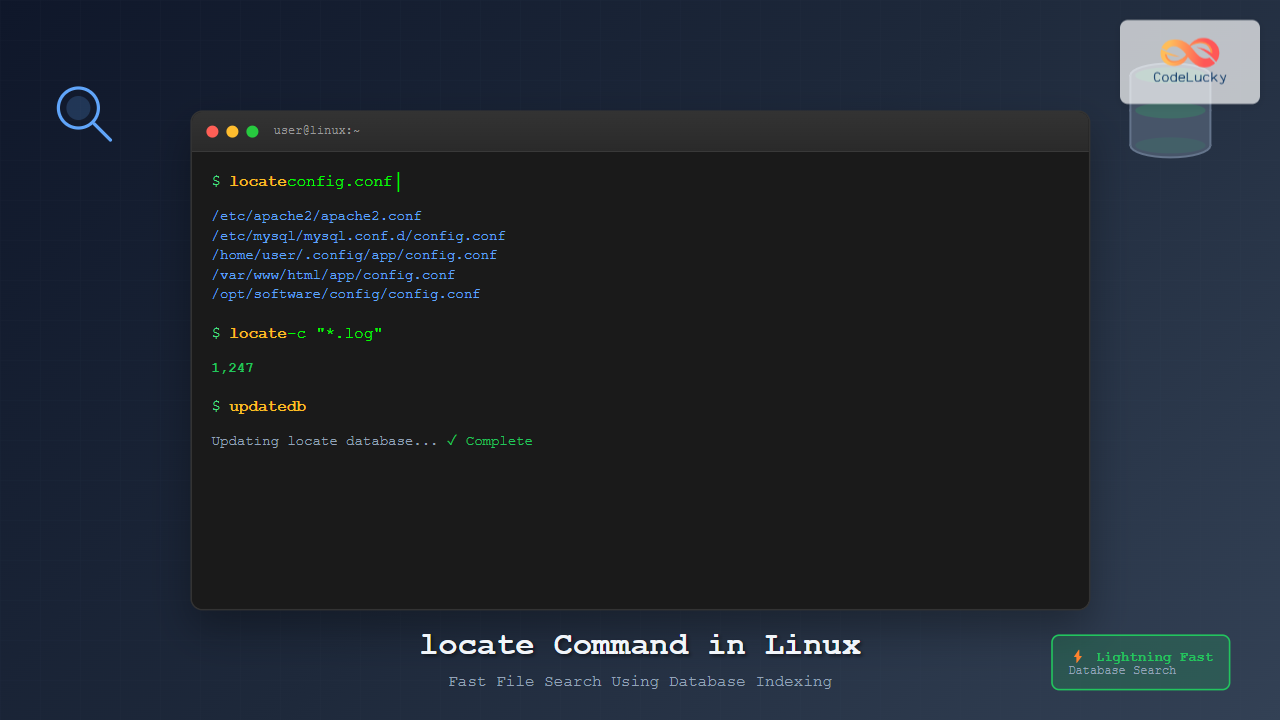
The locate command is one of Linux’s most efficient file search utilities, offering lightning-fast results by leveraging a pre-built database instead of scanning the entire filesystem in real-time. Unlike the find command which traverses directories during execution, locate queries an indexed database, making it significantly faster for locating files across large filesystems.
How locate Command Works
The locate command operates on a simple yet powerful principle: it searches through a database of filenames and paths that’s periodically updated by the system. This database, typically stored in /var/lib/mlocate/mlocate.db or /var/lib/locatedb, contains indexed information about all files on the system.
Key Components
- Database File: Contains indexed file and directory names
- updatedb: Command that builds and updates the database
- locate: The search interface that queries the database
- Configuration Files: Control what gets indexed and excluded
Installation and Setup
Most Linux distributions don’t include locate by default, but installation is straightforward:
Ubuntu/Debian Systems
sudo apt update
sudo apt install mlocate
RHEL/CentOS/Fedora Systems
# For older versions
sudo yum install mlocate

# For newer versions with dnf
sudo dnf install mlocate
Arch Linux
sudo pacman -S mlocateAfter installation, initialize the database:
sudo updatedbBasic locate Syntax and Usage
The basic syntax for the locate command is:
locate [OPTIONS] PATTERNSimple File Search
To find files containing a specific string in their name:
locate filename.txtSample Output:
/home/user/documents/filename.txt
/home/user/backup/filename.txt
/tmp/filename.txt
Case-Insensitive Search
Use the -i option for case-insensitive matching:
locate -i FILENAME.TXTSample Output:
/home/user/documents/filename.txt
/home/user/documents/FileName.txt
/home/user/documents/FILENAME.TXT
Advanced locate Options
Limiting Results with -n
Limit the number of results displayed:
locate -n 5 "*.log"Sample Output:
/var/log/syslog
/var/log/auth.log
/var/log/kern.log
/var/log/dpkg.log
/var/log/alternatives.log
Counting Results with -c
Count matching files without displaying them:
locate -c "*.conf"Sample Output:
247Basename Matching with -b
Match only the basename (filename without path):
locate -b "\passwd"Sample Output:
/etc/passwd
/usr/bin/passwd
Exact Matching with -w
Match whole words only:
locate -w "test"This prevents matching files like “testing” or “contest”.
Using Regular Expressions
The locate command supports basic regular expressions for more sophisticated searches:
Pattern Matching Examples
# Find all .jpg and .png files
locate "*.jpg" "*.png"

# Find files with numbers in the name
locate "*[0-9]*"

# Find files starting with 'config'
locate "config*"

# Find files ending with specific extensions
locate "*.{conf,cfg,ini}"
Regular Expression Mode
Enable extended regular expressions with -r:
locate -r ".*\.(jpg|png|gif)$"Database Management
Understanding updatedb
The updatedb command builds the locate database. It typically runs automatically via cron, but you can execute it manually:
sudo updatedbupdatedb Configuration
Configuration is controlled by /etc/updatedb.conf:
# View current configuration
cat /etc/updatedb.conf
Sample Configuration:
PRUNE_BIND_MOUNTS="yes"
PRUNENAMES=".git .bzr .hg .svn"
PRUNEPATHS="/tmp /var/spool /media /var/lib/os-prober /var/lib/ceph"
PRUNEFS="NFS nfs nfs4 rpc_pipefs afs binfmt_misc proc sysfs usbfs autofs"
Key Configuration Options
- PRUNEPATHS: Directories to exclude from indexing
- PRUNENAMES: Directory names to skip
- PRUNEFS: Filesystem types to exclude
- PRUNE_BIND_MOUNTS: Whether to exclude bind mounts
Practical Examples and Use Cases
Finding Configuration Files
# Find all configuration files
locate "*.conf" | head -10
Sample Output:
/etc/adduser.conf
/etc/ca-certificates.conf
/etc/debconf.conf
/etc/deluser.conf
/etc/fuse.conf
/etc/gai.conf
/etc/hdparm.conf
/etc/host.conf
/etc/ld.so.conf
/etc/logrotate.conf
Locating Executable Files
# Find executables in common bin directories
locate -b "*python*" | grep "/bin/"
Finding Recently Modified Files
Combine with stat to find recently modified files:
locate "*.log" | xargs ls -lt | head -10System Cleanup Helper
# Find large files that might need cleanup
locate "*.tmp" "*.cache" | xargs du -sh 2>/dev/null | sort -hr
Performance Optimization
Database Update Frequency
By default, updatedb runs daily via cron. For systems with frequent file changes, consider more frequent updates:
# Edit the cron job
sudo crontab -e

# Add hourly update (example)
0 * * * * /usr/bin/updatedb
Selective Indexing
Optimize database size by excluding unnecessary directories in /etc/updatedb.conf:
# Add custom exclusions
PRUNEPATHS="/tmp /var/spool /media /home/user/downloads"
Troubleshooting Common Issues
Database Not Found Error
If you encounter “locate: can not stat database”, run:
sudo updatedbPermission Denied Results
The locate command respects file permissions. Files you can’t access won’t appear in results even if they’re in the database.
Outdated Results
If locate shows files that no longer exist, update the database:
sudo updatedblocate vs find: When to Use Each
| Aspect | locate | find |
|---|---|---|
| Speed | Very fast (database lookup) | Slower (filesystem traversal) |
| Real-time accuracy | Depends on database freshness | Always current |
| Search criteria | Filename/path patterns | Complex criteria (size, time, permissions) |
| System impact | Minimal during search | Higher I/O during search |
| Setup required | Database must be maintained | No setup required |
Best Use Cases for locate
- Quick filename searches across the entire system
- Finding files when you know part of the name
- Scripted searches that run frequently
- System administration tasks
Security Considerations
Information Disclosure
The locate database can reveal information about files that users might not normally access. Consider this when configuring PRUNEPATHS for sensitive directories.
Database Permissions
The locate database typically has restricted permissions:
ls -l /var/lib/mlocate/mlocate.dbSample Output:
-rw-r----- 1 root mlocate 2847234 Aug 24 04:02 /var/lib/mlocate/mlocate.dbAdvanced Scripting with locate
Backup Script Example
#!/bin/bash
# Find and backup important configuration files

CONFIG_FILES=$(locate "*.conf" | grep "^/etc/")
BACKUP_DIR="/backup/configs"

mkdir -p "$BACKUP_DIR"

for file in $CONFIG_FILES; do
    if [ -f "$file" ]; then
        cp "$file" "$BACKUP_DIR/"
        echo "Backed up: $file"
    fi
done
System Audit Script
#!/bin/bash
# Find potentially problematic files

echo "=== World-writable files ==="
locate "*" | xargs ls -l 2>/dev/null | grep "^.......rw"

echo "=== SUID binaries ==="
locate "*" | xargs ls -l 2>/dev/null | grep "^...s"
Integration with Other Tools
Combining with grep
# Find Python files and search for specific function
locate "*.py" | xargs grep -l "def main"
Using with xargs
# Find and delete temporary files (use with caution)
locate "*.tmp" | xargs -r rm -f
Pipeline with awk
# Extract file extensions and count them
locate "*.*" | awk -F. '{print $NF}' | sort | uniq -c | sort -nr
Alternative Implementations
plocate: Modern Alternative
The plocate command is a modern replacement offering better performance:
# Installation on newer systems
sudo apt install plocate  # Ubuntu 21.04+
sudo dnf install plocate  # Fedora 34+
slocate: Security-Enhanced Version
Some systems use slocate for enhanced security features, though it’s largely superseded by mlocate.
Conclusion
The locate command is an invaluable tool for Linux system administrators and users who need fast, efficient file searching capabilities. Its database-driven approach makes it significantly faster than real-time filesystem searches, while its simple syntax and powerful pattern matching make it accessible to users of all skill levels.
Key advantages include lightning-fast searches, low system impact during queries, and excellent integration with other command-line tools. However, users must remember that results depend on database freshness and that sensitive information might be indexed.
By understanding its configuration options, maintaining the database appropriately, and combining it with other Linux utilities, you can leverage locate to create powerful system management and file organization workflows. Whether you’re performing system audits, creating backup scripts, or simply trying to find that configuration file you modified last week, locate provides the speed and flexibility needed for efficient Linux system management.
Related Posts

locate Command Advanced Linux: Database Search Optimization Techniques
The locate command is one of Linux's most powerful file search utilities, offering lightning-fast file discovery through its pre-built database...

updatedb Command Linux: Complete Guide to Update Locate Database
The updatedb command is a crucial system utility in Linux that updates the database used by the locate command for...

mlocate Command Linux: Complete Guide to Secure File Search and Database Management
The mlocate command is a powerful and secure implementation of the traditional locate utility in Linux systems. Unlike its predecessor,...
find Command Linux: Ultimate Guide to Search Files and Directories by Name, Size, and Attributes
The find command is one of the most powerful and versatile tools in Linux for searching files and directories. Whether...

whereis Command Linux: Complete Guide to Locate Binary, Source and Manual Pages
The whereis command is a powerful Linux utility that helps system administrators and developers quickly locate binary executables, source files,...
find Command Advanced Linux: Master Complex Search Patterns and Powerful Operations
The find command is one of the most powerful and versatile tools in the Linux arsenal, capable of performing complex...
which Command Linux: Complete Guide to Finding Executable File Locations
The which command is one of the most fundamental utilities in Linux and Unix-like systems, designed to help users locate...
which Command Linux: Complete Guide to Locating Executable Commands in PATH
The which command is a fundamental Linux utility that helps you locate executable files in your system's PATH environment variable....
File Allocation Methods: Contiguous, Linked and Indexed Storage Techniques
Understanding File Allocation Methods in Operating Systems File allocation methods are fundamental techniques used by operating systems to organize and...
ldconfig Command Linux: Complete Guide to Dynamic Linker Configuration
The ldconfig command is a fundamental Linux system administration tool that configures the dynamic linker's runtime bindings for shared libraries....

C++ How To: Implement Binary Search
Binary search is a fundamental algorithm in computer science that efficiently locates a target value within a sorted array. This...
ranlib Command Linux: Complete Guide to Generate Archive Index Files
The ranlib command is a crucial utility in Linux systems for managing static library archives. It generates an index for...





