
The locate command is one of Linux’s most powerful file search utilities, offering lightning-fast file discovery through its pre-built database system. Unlike the find command that searches through the filesystem in real-time, locate queries a compressed database for instant results, making it ideal for system administrators and power users who need efficient file location capabilities.
Understanding the locate Database System
The locate command relies on a database typically stored at /var/lib/mlocate/mlocate.db or /var/lib/locate/locatedb. This database contains indexed information about all files and directories on your system, updated regularly through the updatedb command.
Database Architecture
The locate database uses a compressed format that stores:
- Full pathnames of files and directories
- Modification timestamps
- File permissions and ownership information
- Symbolic link targets
# Check database information
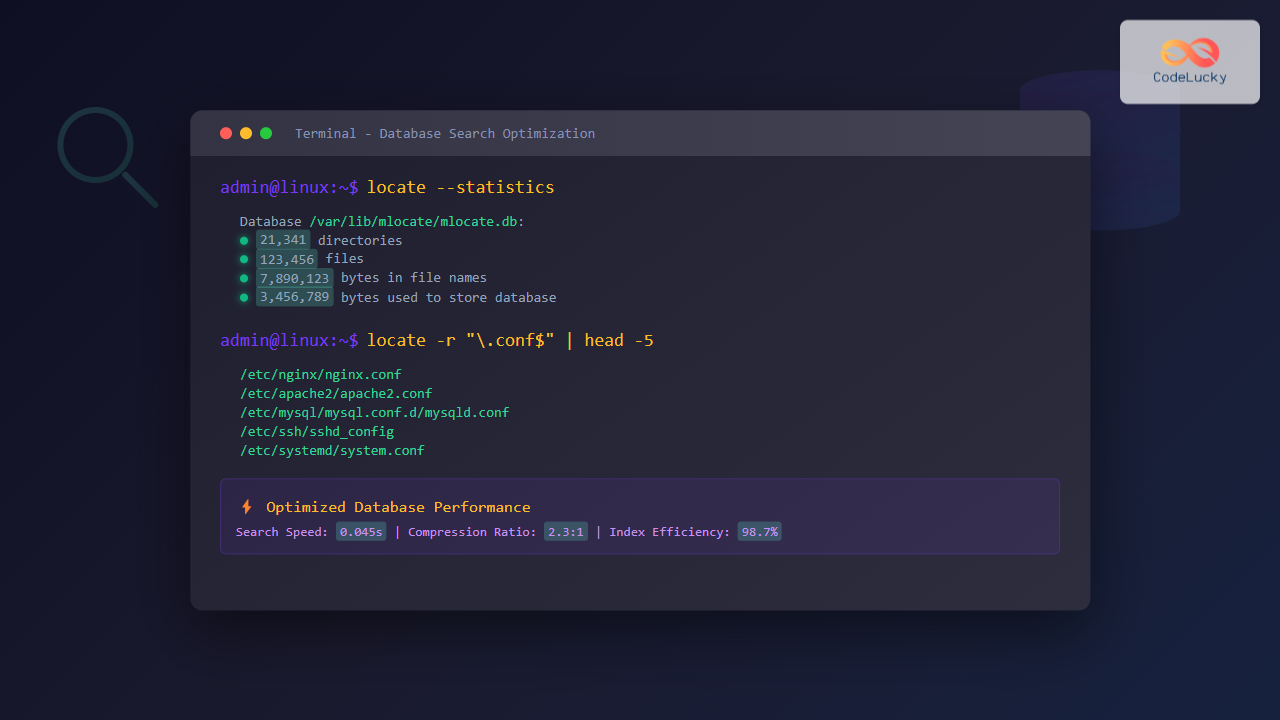
locate --statistics

# Sample output:
Database /var/lib/mlocate/mlocate.db:
        21,341 directories
        123,456 files
        7,890,123 bytes in file names
        3,456,789 bytes used to store database
Advanced locate Command Syntax and Options
The basic syntax follows this pattern:
locate [OPTION]... PATTERN...Essential Advanced Options
Case Sensitivity Control
# Case-insensitive search (default on most systems)
locate -i nginx.conf

# Force case-sensitive search
locate --null nginx.Conf

# Example output:
/etc/nginx/nginx.conf
/usr/share/doc/nginx/nginx.conf.default
Regular Expression Patterns
# Use basic regular expressions
locate --regex ".*\.log$"

# Extended regular expressions
locate --regex -E "^/var/log/.*\.(log|txt)$"

# Example output:
/var/log/auth.log
/var/log/syslog
/var/log/apache2/access.log
/var/log/mysql/error.log
Limiting Search Results
# Limit to first 10 results
locate -l 10 "*.pdf"

# Count matches without displaying them
locate -c "*.conf"

# Example output:
147
Database Optimization Techniques
Custom Database Configuration
The /etc/updatedb.conf file controls database generation behavior:
# Example /etc/updatedb.conf
PRUNE_BIND_MOUNTS="yes"
PRUNENAMES=".git .svn .hg CVS .bzr .arch-ids {arch} .monotone _darcs"
PRUNEPATHS="/tmp /var/spool /media /var/lib/os-prober /var/lib/ceph"
PRUNEFS="NFS nfs nfs4 rpc_pipefs afs binfmt_misc proc sysfs usbfs autofs iso9660 ncpfs coda devpts ftpfs devfs mfs shfs smbfs kernfs"
Optimizing PRUNEPATHS
# Add custom exclusions for better performance
PRUNEPATHS="/tmp /var/spool /media /mnt /proc /sys /dev /run /var/cache/apt"

# Include network mounts to exclude
PRUNEPATHS="${PRUNEPATHS} /net /auto /nfs"
Manual Database Updates
# Update database immediately
sudo updatedb

# Update with verbose output
sudo updatedb --verbose

# Create custom database for specific directory
updatedb --localpaths="/home/user/projects" --output="/tmp/custom.db"

# Use custom database
locate -d /tmp/custom.db "*.py"
Performance Optimization Strategies
Database Compression and Storage
# Check database compression ratio
ls -lh /var/lib/mlocate/mlocate.db

# Example output showing compressed size:
-rw-r----- 1 root mlocate 2.1M Aug 25 08:00 /var/lib/mlocate/mlocate.db
Scheduling Optimizations
Customize the update frequency through cron jobs:
# Edit system cron for locate updates
sudo vim /etc/cron.daily/mlocate

# Example optimized script:
#!/bin/bash
# Run updatedb with nice priority to reduce system impact
nice -n 19 ionice -c 3 updatedb
Custom Update Intervals
# Create hourly updates for development systems
sudo vim /etc/cron.hourly/updatedb-dev

#!/bin/bash
# Quick update for development directories only
updatedb --localpaths="/home /opt/projects" --output="/var/lib/mlocate/dev.db"
Advanced Search Patterns and Techniques
Multiple Pattern Matching
# Search for multiple patterns (OR logic)
locate -r "\.conf$|\.cfg$|\.ini$"

# Search with AND logic using pipes
locate nginx | grep conf

# Example combined output:
/etc/nginx/nginx.conf
/etc/nginx/conf.d/default.conf
/etc/nginx/sites-available/nginx.cfg
Basename vs. Full Path Searches
# Search only in filename (basename)
locate -b "config"

# Search in full path (default)
locate "config"

# Comparison output:
# basename search results:
config
config.php
.config

# full path search results:
/etc/config
/home/user/.config/settings
/var/www/config.php
Secure Mode Operations
# Run in secure mode (checks file permissions)
locate -S "sensitive_file"

# Example of secure mode behavior:
# Only shows files the current user can access
/home/user/documents/sensitive_file.txt
# Skips: /root/sensitive_file.txt (permission denied)
Integration with Other Commands
Piping and Command Chaining
# Find and examine files
locate "*.log" | head -10 | xargs ls -la

# Find and edit configuration files
locate -b "nginx.conf" | xargs -r -I {} sudo vim {}

# Count files by extension
locate "*.pdf" | wc -l
Advanced Filtering Combinations
# Find recently modified configuration files
locate "*.conf" | xargs ls -lt | head -20

# Find large log files
locate "*.log" | xargs du -sh | sort -hr | head -10

# Example output:
125M    /var/log/syslog
89M     /var/log/apache2/access.log
45M     /var/log/mysql/mysql.log
Troubleshooting and Database Maintenance
Common Database Issues
# Check database integrity
locate --statistics

# Rebuild corrupted database
sudo rm /var/lib/mlocate/mlocate.db
sudo updatedb

# Verify database permissions
ls -la /var/lib/mlocate/
Performance Monitoring
# Time locate operations
time locate "*.conf"

# Monitor database update process
sudo strace -e trace=file updatedb 2>&1 | grep -E "(open|stat)"

# Example timing output:
real    0m0.045s
user    0m0.032s
sys     0m0.013s
Security Considerations and Best Practices
Privacy and Security Settings
# Exclude sensitive directories from indexing
echo "/home/user/private" >> /etc/updatedb.conf

# Use secure locate for multi-user systems
alias locate='locate -S'

# Check what files are indexed
locate "" | grep -E "(password|secret|key)" | head -5
Database Access Control
# Set proper database permissions
sudo chown root:mlocate /var/lib/mlocate/mlocate.db
sudo chmod 640 /var/lib/mlocate/mlocate.db

# Verify user access to locate command
groups $USER | grep -o mlocate
Alternative locate Implementations
mlocate vs. plocate vs. slocate
# Install plocate for better performance
sudo apt-get install plocate

# Compare database sizes
ls -lh /var/lib/mlocate/mlocate.db
ls -lh /var/lib/plocate/plocate.db

# Benchmark different implementations
time mlocate "*.conf"
time plocate "*.conf"
Scripting and Automation
Automated File Management Scripts
#!/bin/bash
# Cleanup script using locate

# Find and remove old temporary files
locate -0 "*.tmp" | xargs -0 -r find {} -mtime +7 -delete

# Archive old log files
locate "*.log" | while read file; do
    if [ $(stat -c%Y "$file") -lt $(date -d "30 days ago" +%s) ]; then
        gzip "$file"
    fi
done
System Monitoring Integration
# Monitor database size growth
#!/bin/bash
DB_SIZE=$(stat -c%s /var/lib/mlocate/mlocate.db)
echo "Database size: $((DB_SIZE / 1024 / 1024)) MB"

# Alert on database age
DB_AGE=$(stat -c%Y /var/lib/mlocate/mlocate.db)
CURRENT=$(date +%s)
if [ $((CURRENT - DB_AGE)) -gt 86400 ]; then
    echo "Warning: locate database is more than 24 hours old"
fi
The locate command’s database-driven approach makes it an indispensable tool for system administration and file management. By understanding its optimization techniques, security considerations, and advanced usage patterns, you can leverage its full potential for efficient file system navigation and automated system maintenance tasks.
Regular database maintenance, proper configuration, and strategic use of search patterns will ensure optimal performance while maintaining system security and resource efficiency.
Related Posts

locate Command in Linux: Fast File Search Using Database Indexing
The locate command is one of Linux's most efficient file search utilities, offering lightning-fast results by leveraging a pre-built database...

updatedb Command Linux: Complete Guide to Update Locate Database
The updatedb command is a crucial system utility in Linux that updates the database used by the locate command for...

mlocate Command Linux: Complete Guide to Secure File Search and Database Management
The mlocate command is a powerful and secure implementation of the traditional locate utility in Linux systems. Unlike its predecessor,...
find Command Linux: Ultimate Guide to Search Files and Directories by Name, Size, and Attributes
The find command is one of the most powerful and versatile tools in Linux for searching files and directories. Whether...

whereis Command Linux: Complete Guide to Locate Binary, Source and Manual Pages
The whereis command is a powerful Linux utility that helps system administrators and developers quickly locate binary executables, source files,...
find Command Advanced Linux: Master Complex Search Patterns and Powerful Operations
The find command is one of the most powerful and versatile tools in the Linux arsenal, capable of performing complex...
which Command Linux: Complete Guide to Finding Executable File Locations
The which command is one of the most fundamental utilities in Linux and Unix-like systems, designed to help users locate...
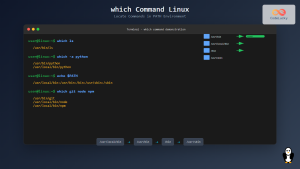
which Command Linux: Complete Guide to Locating Executable Commands in PATH
The which command is a fundamental Linux utility that helps you locate executable files in your system's PATH environment variable....
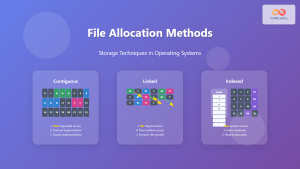
File Allocation Methods: Contiguous, Linked and Indexed Storage Techniques
Understanding File Allocation Methods in Operating Systems File allocation methods are fundamental techniques used by operating systems to organize and...

file Command Advanced Linux: Master Detailed File Type Analysis and Detection
The file command is one of the most powerful and underutilized utilities in Linux for determining file types and analyzing...

C++ How To: Implement Binary Search
Binary search is a fundamental algorithm in computer science that efficiently locates a target value within a sorted array. This...

unzip Command Linux: Complete Guide to Extract ZIP Archives Efficiently
The unzip command is one of the most essential tools in Linux for extracting ZIP archive files. Whether you're dealing...





