
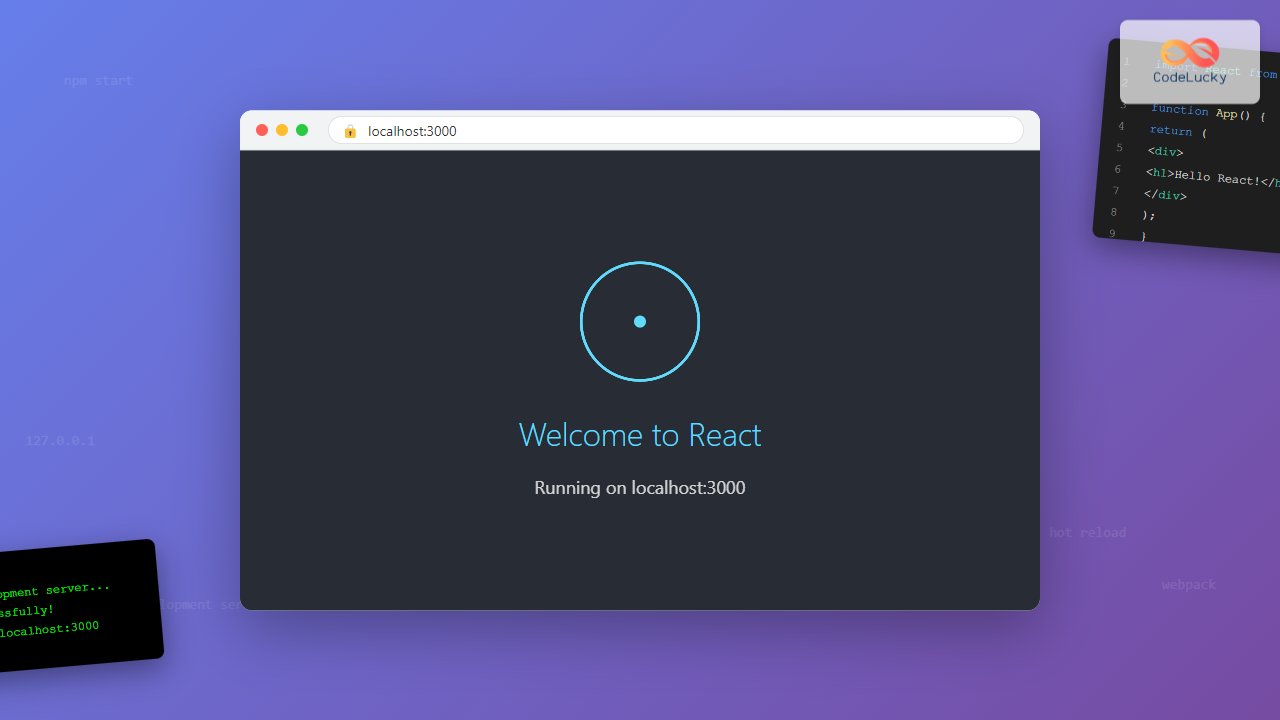
When you start learning React.js, one of the first things you encounter is localhost:3000. This mysterious address appears in your browser’s address bar whenever you run a React development server. Understanding what this means and why it’s used is crucial for every React developer.
What Is localhost:3000?
localhost:3000 is a local web address that points to your computer’s development server running on port 3000. Let’s break this down:
- localhost: A hostname that refers to your own computer (IP address 127.0.0.1)
- :3000: The port number where your React development server is running
When you access localhost:3000 in your browser, you’re essentially telling your browser to connect to a web server running locally on your machine at port 3000.

Why Port 3000 Specifically?
React’s development server uses port 3000 by default for several practical reasons:
1. Avoiding Conflicts
Port 3000 is typically available on most systems and doesn’t conflict with common services like web servers (port 80/443) or databases (port 3306 for MySQL).
2. Convention
Many Node.js applications and development tools use port 3000 as a standard, making it familiar to developers.
3. Easy to Remember
The number 3000 is simple and memorable, making development workflow smoother.
How React Development Server Works
When you run npm start or yarn start in a React project, several processes occur:
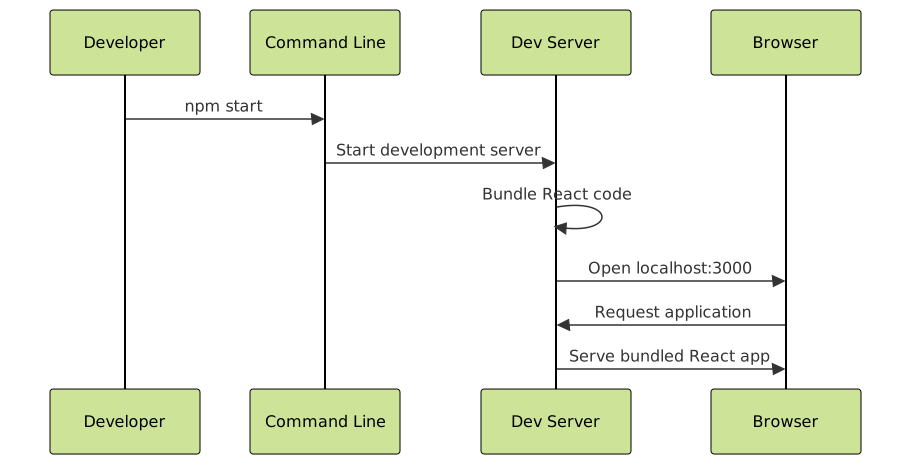
Step-by-Step Process
- Server Initialization: The development server starts and listens on port 3000
- Code Compilation: React components and assets are compiled and bundled
- Browser Launch: Your default browser opens to localhost:3000
- Live Reloading: The server watches for file changes and automatically reloads
Setting Up localhost:3000 in React
Creating a New React App
The most common way to set up a React development server is using Create React App:
# Install Create React App globally (optional)
npm install -g create-react-app

# Create a new React project
npx create-react-app my-react-app

# Navigate to the project directory
cd my-react-app

# Start the development server
npm start
After running npm start, you’ll see output similar to this:
Compiled successfully!

You can now view my-react-app in the browser.

  Local:            http://localhost:3000
  On Your Network:  http://192.168.1.100:3000

Note that the development build is not optimized.
To create a production build, use npm run build.
Basic React Component Example
Here’s what you might see when you first visit localhost:3000:
// App.js
import React from 'react';
import './App.css';

function App() {
  return (
    <div className="App">
      <header className="App-header">
        <h1>Welcome to React!</h1>
        <p>
          Edit <code>src/App.js</code> and save to reload.
        </p>
        <a
          className="App-link"
          href="https://reactjs.org"
          target="_blank"
          rel="noopener noreferrer"
        >
          Learn React
        </a>
      </header>
    </div>
  );
}

export default App;
Customizing Your Development Server
Changing the Port
Sometimes you might need to use a different port. Here are several ways to change it:
Method 1: Environment Variable
# Windows
set PORT=3001 && npm start

# macOS/Linux
PORT=3001 npm start
Method 2: .env File
Create a .env file in your project root:
PORT=3001
Method 3: Package.json Script
{
  "scripts": {
    "start": "PORT=3001 react-scripts start",
    "start-alt": "react-scripts start"
  }
}
Accessing from Other Devices
To access your React app from other devices on the same network:
# Allow external connections
HOST=0.0.0.0 npm start
Then access using your computer’s IP address: http://192.168.1.100:3000
Development vs Production Environments

Key Differences
| Aspect | Development (localhost:3000) | Production |
|---|---|---|
| Purpose | Local development and testing | Live application for users |
| Performance | Slower, includes debugging tools | Optimized and minified |
| Hot Reloading | Enabled | Disabled |
| Error Messages | Detailed debugging info | User-friendly error pages |
| File Size | Larger (includes dev tools) | Smaller (minified) |
Common Issues and Troubleshooting
Port Already in Use
If port 3000 is already occupied, you’ll see an error like:
Something is already running on port 3000.

Would you like to run the app on another port instead? (Y/n)
Solutions:
- Press ‘Y’ to use a different port automatically
- Kill the process using port 3000
- Manually specify a different port
Finding and Killing Process on Port 3000
# Find process using port 3000
# Windows
netstat -ano | findstr :3000

# macOS/Linux
lsof -ti:3000

# Kill process
# Windows
taskkill /PID <PID> /F

# macOS/Linux
kill -9 <PID>
Can’t Access localhost:3000
Common causes and solutions:
- Firewall blocking: Configure firewall to allow port 3000
- Wrong URL: Ensure you’re using
http://nothttps:// - Server not running: Check if
npm startcompleted successfully - Browser cache: Clear browser cache or try incognito mode
Advanced Configuration
Custom Webpack Configuration
For advanced users who need to modify the development server behavior:
// webpack.config.js (after ejecting)
module.exports = {
  // ... other config
  devServer: {
    port: 3000,
    host: 'localhost',
    hot: true,
    open: true,
    historyApiFallback: true,
    static: {
      directory: path.join(__dirname, 'public'),
    },
  },
};
Proxy Configuration
To proxy API calls during development:
{
  "name": "my-react-app",
  "version": "0.1.0",
  "proxy": "http://localhost:3001",
  "dependencies": {
    // ... dependencies
  }
}
Security Considerations

Important Security Points
- Never use development server in production
- Development server has no security features
- Debug information is exposed
- No authentication or authorization
- Source code may be accessible
Best Practices
Development Workflow
- Use version control: Always commit your changes
- Keep dependencies updated: Regularly update npm packages
- Use environment variables: Store configuration in .env files
- Test on different devices: Use network access to test on mobile
- Monitor console: Watch for errors and warnings
Performance Optimization
// Optimize imports
import { Button } from '@material-ui/core'; // ❌ Imports entire library
import Button from '@material-ui/core/Button'; // ✅ Imports only Button

// Use React.memo for expensive components
const ExpensiveComponent = React.memo(({ data }) => {
  // Component logic
});

// Lazy load components
const LazyComponent = React.lazy(() => import('./LazyComponent'));
Integration with Development Tools
Browser DevTools
localhost:3000 works seamlessly with browser development tools:
- React DevTools Extension: Debug React components
- Network Tab: Monitor API calls and asset loading
- Console: View logs and errors
- Sources Tab: Debug JavaScript code with breakpoints
VS Code Integration
// .vscode/launch.json
{
  "version": "0.2.0",
  "configurations": [
    {
      "name": "Launch Chrome",
      "request": "launch",
      "type": "pwa-chrome",
      "url": "http://localhost:3000",
      "webRoot": "${workspaceFolder}/src"
    }
  ]
}
Conclusion
localhost:3000 is the foundation of React.js development, providing a local environment where you can build, test, and debug your applications. Understanding how it works, why port 3000 is used, and how to configure it effectively will make you a more efficient React developer.
Key takeaways:
- localhost:3000 is your local development server address
- Port 3000 is chosen for convenience and convention
- The development server includes hot reloading and debugging tools
- Never use the development server in production
- You can customize port and host settings as needed
Master these concepts, and you’ll have a solid foundation for React development that will serve you well throughout your coding journey.
- What Is localhost:3000?
- Why Port 3000 Specifically?
- How React Development Server Works
- Setting Up localhost:3000 in React
- Customizing Your Development Server
- Development vs Production Environments
- Common Issues and Troubleshooting
- Advanced Configuration
- Security Considerations
- Best Practices
- Integration with Development Tools
- Conclusion





