
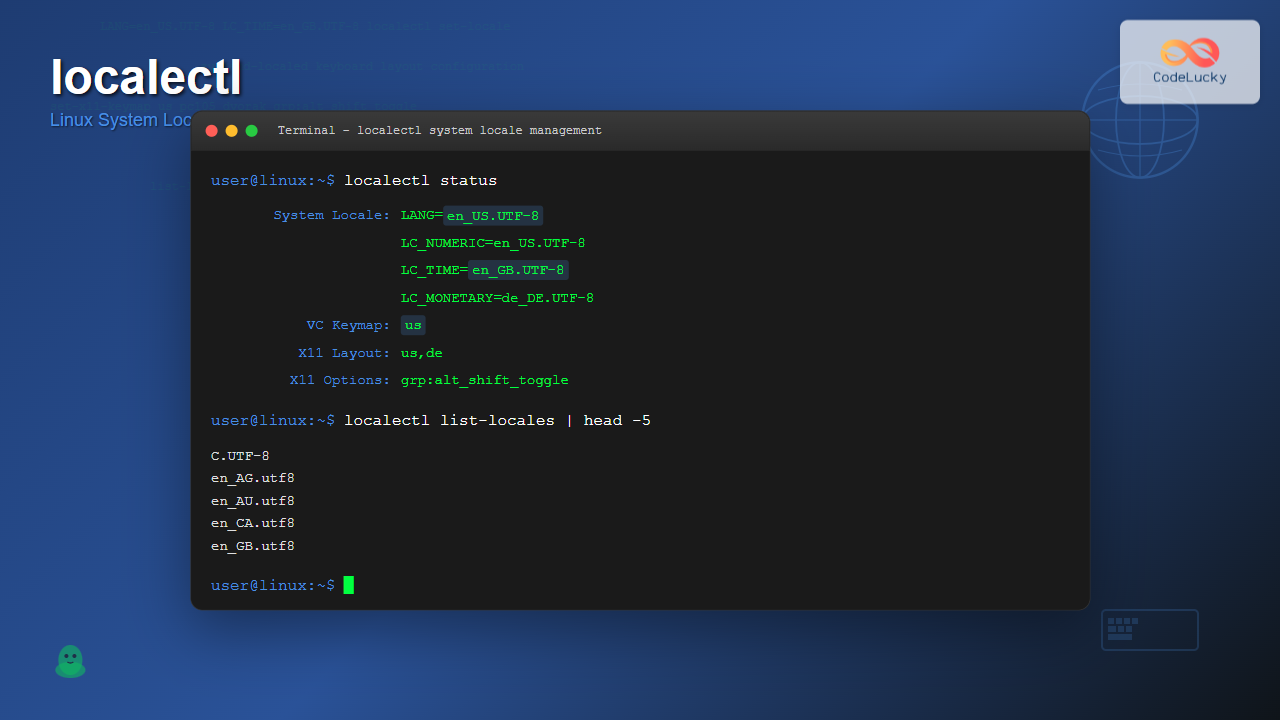
The localectl command is a powerful system administration tool in Linux that allows users to query and modify system locale settings and keyboard configurations. As part of the systemd suite, it provides a unified interface for managing regional and language settings across your Linux system.
What is localectl?
The localectl command is a systemd utility that controls the system locale and keyboard layout settings. It interacts with the systemd-localed service to manage locale-related configurations stored in /etc/locale.conf and keyboard settings in /etc/vconsole.conf.
Unlike traditional methods of editing configuration files manually, localectl provides a standardized and safe way to modify these critical system settings with built-in validation and error checking.
Basic Syntax and Options
The basic syntax of the localectl command follows this pattern:
localectl [OPTIONS...] COMMAND [ARGUMENTS...]Common Options
--no-pager: Do not pipe output into a pager--no-ask-password: Do not ask for authentication password--host=HOST: Operate on remote host--machine=CONTAINER: Operate on local container--help: Show help message--version: Show package version
Displaying Current Locale Information
The most basic use of localectl is to display current system locale settings without any arguments:
localectlExample Output:
   System Locale: LANG=en_US.UTF-8
       VC Keymap: us
      X11 Layout: us
This command shows three key pieces of information:
- System Locale: The current system-wide locale setting
- VC Keymap: Virtual console keyboard mapping
- X11 Layout: X Window System keyboard layout
For more detailed locale information, you can use the status subcommand:
localectl statusExample Output:
   System Locale: LANG=en_US.UTF-8
                  LC_NUMERIC=en_US.UTF-8
                  LC_TIME=en_US.UTF-8
                  LC_MONETARY=en_US.UTF-8
                  LC_PAPER=en_US.UTF-8
                  LC_NAME=en_US.UTF-8
                  LC_ADDRESS=en_US.UTF-8
                  LC_TELEPHONE=en_US.UTF-8
                  LC_MEASUREMENT=en_US.UTF-8
                  LC_IDENTIFICATION=en_US.UTF-8
       VC Keymap: us
      X11 Layout: us
Listing Available Locales
To see all available locales on your system, use the list-locales command:
localectl list-localesExample Output:
C.UTF-8
en_AG
en_AG.utf8
en_AU.utf8
en_BW.utf8
en_CA.utf8
en_DK.utf8
en_GB.utf8
en_HK.utf8
en_IE.utf8
en_IL
en_IL.utf8
en_IN
en_IN.utf8
en_NG
en_NG.utf8
en_NZ.utf8
en_PH.utf8
en_SG.utf8
en_US.utf8
en_ZA.utf8
en_ZM
en_ZW.utf8
You can filter this list using standard command-line tools:
localectl list-locales | grep en_USSetting System Locale
To change the system locale, use the set-locale command. This requires administrative privileges:
sudo localectl set-locale LANG=en_GB.UTF-8You can set multiple locale variables simultaneously:
sudo localectl set-locale LANG=en_US.UTF-8 LC_TIME=en_GB.UTF-8 LC_MONETARY=EURNote: Locale changes take effect for new login sessions. Current sessions will retain their existing locale settings until you log out and back in.
Common Locale Variables
LANG: Default locale for all categoriesLC_COLLATE: Collation (sorting) rulesLC_CTYPE: Character classification and case conversionLC_MESSAGES: Language for system messagesLC_MONETARY: Currency formattingLC_NUMERIC: Number formattingLC_TIME: Date and time formattingLC_PAPER: Paper size
Managing Keyboard Layouts
Listing Available Keymaps
To see all available keyboard layouts for the virtual console:
localectl list-keymapsPartial Example Output:
ANSI-dvorak
amiga-de
amiga-us
applkey
atari-de
atari-se
atari-uk-falcon
atari-us
azerty
backspace
bashkir
be-latin1
bg-cp1251
bg-cp855
bg_bds-cp1251
bg_bds-utf8
bg_pho-cp1251
bg_pho-utf8
br-abnt
br-abnt2
br-latin1-abnt2
br-latin1-us
Setting Virtual Console Keymap
To change the keyboard layout for virtual consoles:
sudo localectl set-keymap usFor international keyboards:
sudo localectl set-keymap de-latin1Managing X11 Keyboard Layout
To list available X11 keyboard layouts:
localectl list-x11-keymap-layoutsExample Output:
ad
af
al
am
at
au
az
ba
bd
be
bg
bh
br
bt
bw
by
ca
cd
ch
cm
cn
cz
de
dk
dz
ee
eg
es
et
fi
fo
fr
gb
ge
gh
gn
gr
hr
hu
id
ie
il
in
iq
ir
is
it
jp
ke
kg
kh
kr
kz
la
lk
lt
lv
ma
md
me
mk
ml
mm
mn
mt
mv
ng
nl
no
np
ph
pk
pl
pt
ro
rs
ru
se
si
sk
sn
sy
th
tj
tm
tr
tw
tz
ua
us
uz
vn
za
To set an X11 keyboard layout:
sudo localectl set-x11-keymap usFor more complex configurations with variants and options:
sudo localectl set-x11-keymap us pc105 dvorak grp:alt_shift_toggleThis command sets:
- Layout:
us(United States) - Model:
pc105(Generic 105-key PC) - Variant:
dvorak(Dvorak layout) - Options:
grp:alt_shift_toggle(Alt+Shift to switch layouts)
Practical Examples and Use Cases
Example 1: Setting Up a Multilingual System
For a system that needs to support both English and German:
# Set system locale to English
sudo localectl set-locale LANG=en_US.UTF-8

# Set German keyboard layout
sudo localectl set-keymap de-latin1

# Set X11 to support both US and German layouts
sudo localectl set-x11-keymap us,de pc105 "" grp:alt_shift_toggle
Example 2: Configuring for European Region
Setting up a system for use in France:
# Set French locale
sudo localectl set-locale LANG=fr_FR.UTF-8

# Set French keyboard
sudo localectl set-keymap fr-latin1

# Configure X11 for French AZERTY layout
sudo localectl set-x11-keymap fr pc105 azerty
Example 3: Developer Workstation Setup
For developers who need English messages but European formatting:
# Keep English for system messages but use European formatting
sudo localectl set-locale LANG=en_US.UTF-8 LC_TIME=en_GB.UTF-8 LC_MONETARY=de_DE.UTF-8 LC_PAPER=de_DE.UTF-8
Troubleshooting Common Issues
Locale Not Found Error
If you encounter an error about a locale not being available:
Failed to set locale: Specified locale is not installedYou need to generate the locale first:
# Edit locale generation file
sudo nano /etc/locale.gen

# Uncomment the desired locale (e.g., en_GB.UTF-8 UTF-8)
# Then generate locales
sudo locale-gen
Checking Locale Support
To verify if a locale is properly installed and available:
locale -a | grep en_GBReverting Changes
If you need to revert to default settings:
# Reset to default US English locale
sudo localectl set-locale LANG=en_US.UTF-8

# Reset to US keyboard
sudo localectl set-keymap us
sudo localectl set-x11-keymap us
Configuration Files
The localectl command modifies several system files:
/etc/locale.conf
This file stores system-wide locale settings:
cat /etc/locale.confExample content:
LANG=en_US.UTF-8
LC_TIME=en_GB.UTF-8
/etc/vconsole.conf
Virtual console configuration:
cat /etc/vconsole.confExample content:
KEYMAP=us
FONT=
Integration with Other Tools
The localectl command works seamlessly with other systemd tools:
# Check systemd-localed service status
systemctl status systemd-localed

# View locale-related journal entries
journalctl -u systemd-localed
Best Practices
- Backup Configuration: Always backup your locale configuration before making changes:
sudo cp /etc/locale.conf /etc/locale.conf.backup - Test Changes: Log out and back in to test locale changes in a new session.
- Use UTF-8: Always prefer UTF-8 encodings for better compatibility:
sudo localectl set-locale LANG=en_US.UTF-8 - Consistent Settings: Keep virtual console and X11 keyboard layouts synchronized when possible.
- Documentation: Document your locale choices, especially in multi-user environments.
Advanced Usage
Remote System Management
You can manage locale settings on remote systems:
localectl --host=user@remote-server statusContainer Management
For managing locales in containers:
localectl --machine=container-name set-locale LANG=de_DE.UTF-8Scripting with localectl
Example script to set up a development environment:
#!/bin/bash
# Setup script for development environment

echo "Setting up locale configuration..."

# Set English locale with European formatting
sudo localectl set-locale \
    LANG=en_US.UTF-8 \
    LC_TIME=en_GB.UTF-8 \
    LC_MONETARY=EUR \
    LC_PAPER=de_DE.UTF-8

# Set US keyboard layout
sudo localectl set-keymap us
sudo localectl set-x11-keymap us

echo "Locale configuration complete!"
echo "Please log out and back in for changes to take effect."
Security Considerations
Modifying system locale requires administrative privileges. Always:
- Verify commands before execution
- Use
sudoappropriately - Monitor system logs for unexpected changes
- Restrict access to locale configuration in multi-user environments
Conclusion
The localectl command is an essential tool for Linux system administrators and users who need to manage system locale and keyboard settings. Its integration with systemd provides a reliable and standardized way to configure regional settings across different Linux distributions.
Whether you’re setting up a multilingual workstation, configuring servers for international users, or simply adjusting your personal system’s regional settings, localectl offers the flexibility and reliability needed for professional locale management.
Remember to always test your changes in a new session and maintain backups of your configuration files. With proper understanding and careful implementation, localectl will help you create perfectly configured multilingual Linux environments.
Related Posts
locale Command Linux: Complete Guide to Display System Locale Information
The locale command is an essential Linux utility that displays and manages locale-specific information on your system. Locales define how...
systemctl Command Linux: Complete Guide to Control Systemd Services
The systemctl command is the primary tool for controlling systemd services in modern Linux distributions. As the central management utility...
timedatectl Command Linux: Complete Guide to System Time and Date Management
The timedatectl command is a powerful utility in modern Linux distributions that provides a unified interface for managing system time,...
env Command Linux: Complete Guide to Display Environment Variables
Environment variables are crucial components of any Linux system, storing configuration data and system information that applications and processes rely...
chkconfig Command Linux: Complete Guide to System Service Management
The chkconfig command is a powerful system administration tool in Red Hat-based Linux distributions that allows you to configure system...
hostnamectl Command Linux: Complete Guide to System Hostname Management
The hostnamectl command is a powerful systemd utility that allows Linux administrators to query and change the system hostname and...
set Command Linux: Display and Configure Shell Options for Advanced Terminal Control
The set command is one of the most powerful built-in commands in Linux shells, allowing you to display and modify...

PHP Internationalization and Localization: Supporting Multiple Languages
In today's globalized world, creating applications that cater to diverse audiences is crucial. PHP, being a versatile language, offers robust...
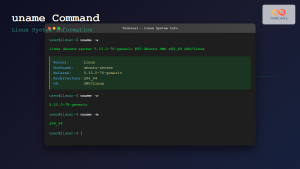
uname Command Linux: Complete Guide to Display System Information
The uname command is one of the most fundamental Linux utilities for retrieving system information. Whether you're a system administrator,...
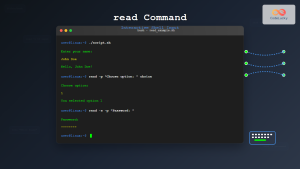
read Command Linux: Complete Guide to Reading User Input in Shell Scripts
The read command is one of the most fundamental tools in Linux shell scripting for creating interactive programs that capture...
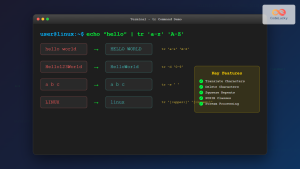
tr Command in Linux: Complete Guide to Character Translation and Deletion
The tr command is one of the most versatile text processing utilities in Linux, designed to translate, delete, or squeeze...
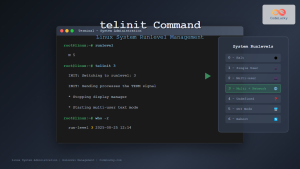
telinit Command Linux: Complete Guide to System Runlevel Management
The telinit command is a powerful Linux utility that allows system administrators to change the current runlevel of a Linux...





