
The locale command is an essential Linux utility that displays and manages locale-specific information on your system. Locales define how programs should handle language-specific conventions such as date formats, currency symbols, number representations, and character encoding. Understanding and properly configuring locales is crucial for system administrators and developers working in multilingual environments.
What is Locale in Linux?
A locale is a set of parameters that defines the user’s language, country, and character encoding preferences. It determines how applications display dates, times, numbers, currency, and other region-specific information. Linux uses the GNU C Library (glibc) locale system, which follows the POSIX standard for internationalization.
Each locale consists of several categories:
- LC_COLLATE: Defines alphabetical ordering rules
- LC_CTYPE: Character classification and case conversion
- LC_MESSAGES: Language for system messages
- LC_MONETARY: Currency formatting
- LC_NUMERIC: Number formatting
- LC_TIME: Date and time formatting
Basic locale Command Syntax
The basic syntax of the locale command is:
locale [OPTION]... [NAME]...When used without any options, locale displays the current locale settings for all categories.
Displaying Current Locale Settings
To view your current locale configuration, simply run:
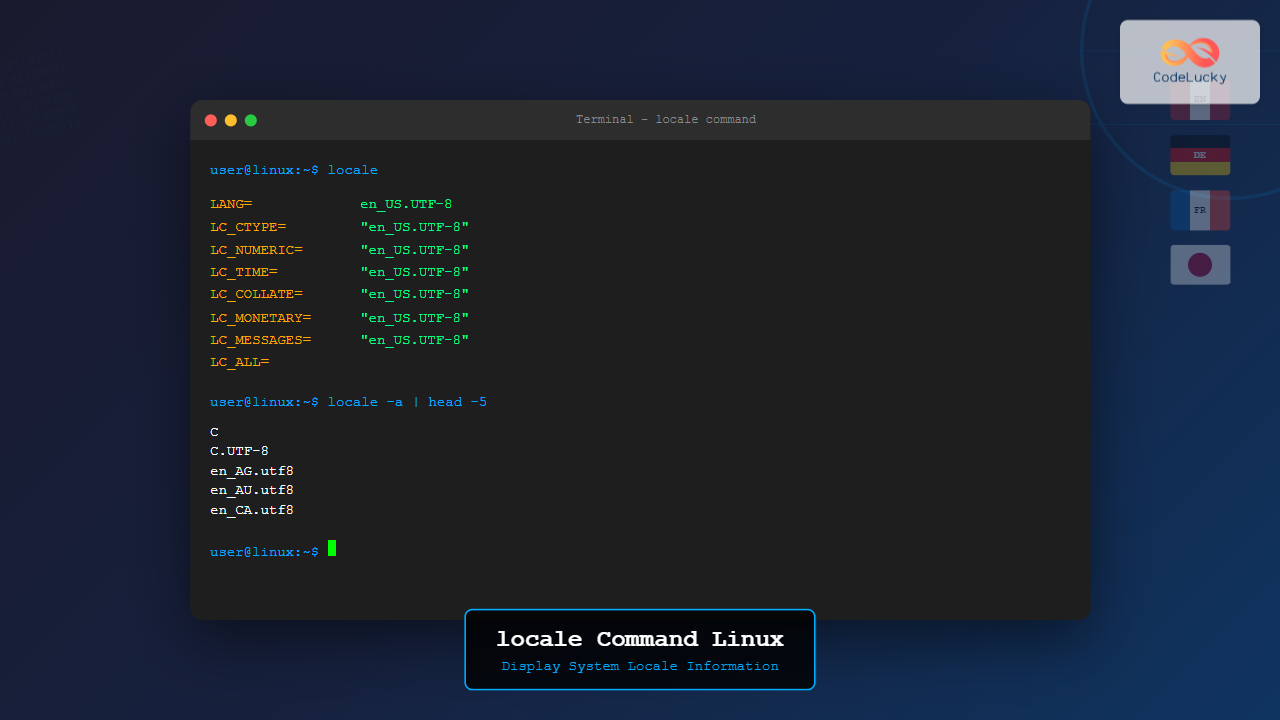
$ localeThis command produces output similar to:
LANG=en_US.UTF-8
LANGUAGE=
LC_CTYPE="en_US.UTF-8"
LC_NUMERIC="en_US.UTF-8"
LC_TIME="en_US.UTF-8"
LC_COLLATE="en_US.UTF-8"
LC_MONETARY="en_US.UTF-8"
LC_MESSAGES="en_US.UTF-8"
LC_PAPER="en_US.UTF-8"
LC_NAME="en_US.UTF-8"
LC_ADDRESS="en_US.UTF-8"
LC_TELEPHONE="en_US.UTF-8"
LC_MEASUREMENT="en_US.UTF-8"
LC_IDENTIFICATION="en_US.UTF-8"
LC_ALL=
Each line shows a locale category and its current value. The format follows the pattern: language_COUNTRY.encoding
Common locale Command Options
1. List All Available Locales (-a)
To see all locales installed on your system:
$ locale -aSample output:
C
C.UTF-8
POSIX
en_AG
en_AG.utf8
en_AU.utf8
en_BW.utf8
en_CA.utf8
en_DK.utf8
en_GB.utf8
en_HK.utf8
en_IE.utf8
en_IN
en_IN.utf8
en_NG
en_NG.utf8
en_NZ.utf8
en_PH.utf8
en_SG.utf8
en_US.utf8
en_ZA.utf8
en_ZM
en_ZW.utf8
2. Display Specific Category Information (-c)
To view information about a specific locale category:
$ locale -c LC_TIMEThis shows detailed information about time formatting rules for the current locale.
3. Get Keyword Information (-k)
To display locale data with keyword names:
$ locale -k LC_MONETARYExample output:
int_curr_symbol="USD "
currency_symbol="$"
mon_decimal_point="."
mon_thousands_sep=","
mon_grouping=3;3
positive_sign=""
negative_sign="-"
int_frac_digits=2
frac_digits=2
p_cs_precedes=1
p_sep_by_space=0
n_cs_precedes=1
n_sep_by_space=0
p_sign_posn=1
n_sign_posn=1
4. Show Character Maps and Locales (-m)
To list all available character maps:
$ locale -mThis displays character encoding maps like UTF-8, ISO-8859-1, etc.
Working with Specific Locale Categories
Examining LC_TIME Category
To see detailed time formatting information:
$ locale LC_TIMEOutput shows:
Sun;Mon;Tue;Wed;Thu;Fri;Sat
Sunday;Monday;Tuesday;Wednesday;Thursday;Friday;Saturday
Jan;Feb;Mar;Apr;May;Jun;Jul;Aug;Sep;Oct;Nov;Dec
January;February;March;April;May;June;July;August;September;October;November;December
AM;PM
%a %b %e %H:%M:%S %Z %Y
%m/%d/%Y
%H:%M:%S
%I:%M:%S %p
Examining LC_NUMERIC Category
To view number formatting rules:
$ locale -k LC_NUMERICSample output:
decimal_point="."
thousands_sep=","
grouping=3;3
Setting and Changing Locales
Temporary Locale Changes
You can temporarily change the locale for a single command:
$ LC_TIME=de_DE.UTF-8 dateThis displays the date in German format while keeping other locale settings unchanged.
Setting LANG Environment Variable
To change the default locale for the current session:
$ export LANG=fr_FR.UTF-8
$ locale
This sets French as the default locale for all categories not explicitly set.
Using LC_ALL for Complete Override
To override all locale categories at once:
$ export LC_ALL=es_ES.UTF-8
$ locale
The LC_ALL variable takes precedence over all other locale settings.
Practical Examples and Use Cases
Example 1: Checking Date Format Across Locales
Compare date formats in different locales:
$ date
Mon Aug 25 07:19:15 IST 2025

$ LC_TIME=de_DE.UTF-8 date
Mo 25. Aug 07:19:15 IST 2025

$ LC_TIME=ja_JP.UTF-8 date
2025年 8月25日 月曜日 07:19:15 IST
Example 2: Number Formatting Differences
See how numbers are formatted in different locales:
$ printf "%'.2f\n" 1234567.89
1,234,567.89

$ LC_NUMERIC=de_DE.UTF-8 printf "%'.2f\n" 1234567.89
1.234.567,89

$ LC_NUMERIC=fr_FR.UTF-8 printf "%'.2f\n" 1234567.89
1 234 567,89
Example 3: Currency Display
Check currency formatting across locales:
$ locale -k LC_MONETARY | grep currency_symbol
currency_symbol="$"

$ LC_MONETARY=en_GB.UTF-8 locale -k LC_MONETARY | grep currency_symbol
currency_symbol="£"

$ LC_MONETARY=ja_JP.UTF-8 locale -k LC_MONETARY | grep currency_symbol
currency_symbol="¥"
Troubleshooting Common Locale Issues
Missing Locale Error
If you encounter “locale: Cannot set LC_* to default locale” errors:
$ sudo locale-gen en_US.UTF-8
$ sudo update-locale LANG=en_US.UTF-8
Checking Locale Generation Status
Verify if a specific locale is installed:
$ locale -a | grep en_US
en_US.utf8
Installing Additional Locales
On Ubuntu/Debian systems:
$ sudo apt-get install language-pack-de
$ sudo locale-gen de_DE.UTF-8
Advanced locale Command Usage
Displaying Character Classification
To see character classification rules:
$ locale -k LC_CTYPE | head -10This shows how characters are classified (uppercase, lowercase, digits, etc.) in the current locale.
Comparing Locales
Compare sorting rules between locales:
$ echo -e "ä\na\nz" | sort
a
z
ä

$ echo -e "ä\na\nz" | LC_COLLATE=de_DE.UTF-8 sort
a
ä
z
Best Practices for Locale Management
1. System-wide Configuration
Edit /etc/locale.conf for system-wide settings:
LANG=en_US.UTF-8
LC_TIME=en_GB.UTF-8
2. User-specific Configuration
Add locale settings to ~/.bashrc or ~/.profile:
export LANG=en_US.UTF-8
export LC_TIME=en_GB.UTF-8
3. Application-specific Locales
Use environment variables for specific applications:
LC_MONETARY=en_GB.UTF-8 your_applicationIntegration with Programming
Shell Scripting
Check locale in scripts:
#!/bin/bash
if [[ "$LANG" == *"UTF-8"* ]]; then
    echo "UTF-8 encoding detected"
else
    echo "Non-UTF-8 encoding: $LANG"
fi
Backup Current Locale
Save current locale settings:
$ locale > locale_backup.txtSecurity Considerations
When working with locales in production environments:
- Always validate locale input from external sources
- Use UTF-8 encoding when possible for better security
- Be aware that locale settings can affect string comparisons and sorting
- Test applications with different locales to prevent unexpected behavior
Conclusion
The locale command is a powerful tool for managing internationalization and localization settings in Linux systems. Understanding how to display, configure, and troubleshoot locale settings is essential for system administrators and developers working in multilingual environments. By mastering the various options and use cases covered in this guide, you’ll be well-equipped to handle locale-related tasks efficiently and effectively.
Regular monitoring of locale settings ensures applications behave correctly across different languages and regions, making your Linux systems more accessible and user-friendly for international audiences.
Related Posts
localectl Command Linux: Complete Guide to System Locale Management
The localectl command is a powerful system administration tool in Linux that allows users to query and modify system locale...
date Command Linux: Complete Guide to Display and Set System Date
The date command is one of the most fundamental utilities in Linux systems, allowing users to display and manipulate system...

PHP Internationalization and Localization: Supporting Multiple Languages
In today's globalized world, creating applications that cater to diverse audiences is crucial. PHP, being a versatile language, offers robust...

JavaScript Date toLocaleString() Method: Localized String
JavaScript Date.toLocaleString() Method: Localized String The toLocaleString() method in JavaScript is used to convert a Date object into a human-readable...
readelf Command Linux: Complete Guide to ELF File Analysis and Debugging
The readelf command is an essential tool for Linux developers, system administrators, and security analysts who need to examine Executable...
MySQL DATE_FORMAT Function: Mastering Date Output
The DATE_FORMAT function in MySQL is your go-to tool for displaying dates and times in the precise format you need....
file Command in Linux: Complete Guide to Determine File Types and Formats
The file command is one of the most essential utilities in Linux for determining file types and formats. Unlike relying...
iconv Command Linux: Convert Character Encodings Efficiently
The iconv command in Linux is a powerful utility designed to convert text files from one character encoding to another....
cal Command Linux: Display and Manage Calendars in Terminal
The cal command is one of Linux's most straightforward yet powerful utilities for displaying calendar information directly in your terminal....
strings Command Linux: Extract and Analyze Text from Binary Files
The strings command is a powerful Linux utility that extracts printable character sequences from binary files. Whether you're analyzing executables,...

size Command Linux: Display Section Sizes of Object Files and Executables
The size command is a powerful utility in Linux systems that displays the section sizes of object files, executables, and...
env Command Linux: Complete Guide to Display Environment Variables
Environment variables are crucial components of any Linux system, storing configuration data and system information that applications and processes rely...





