
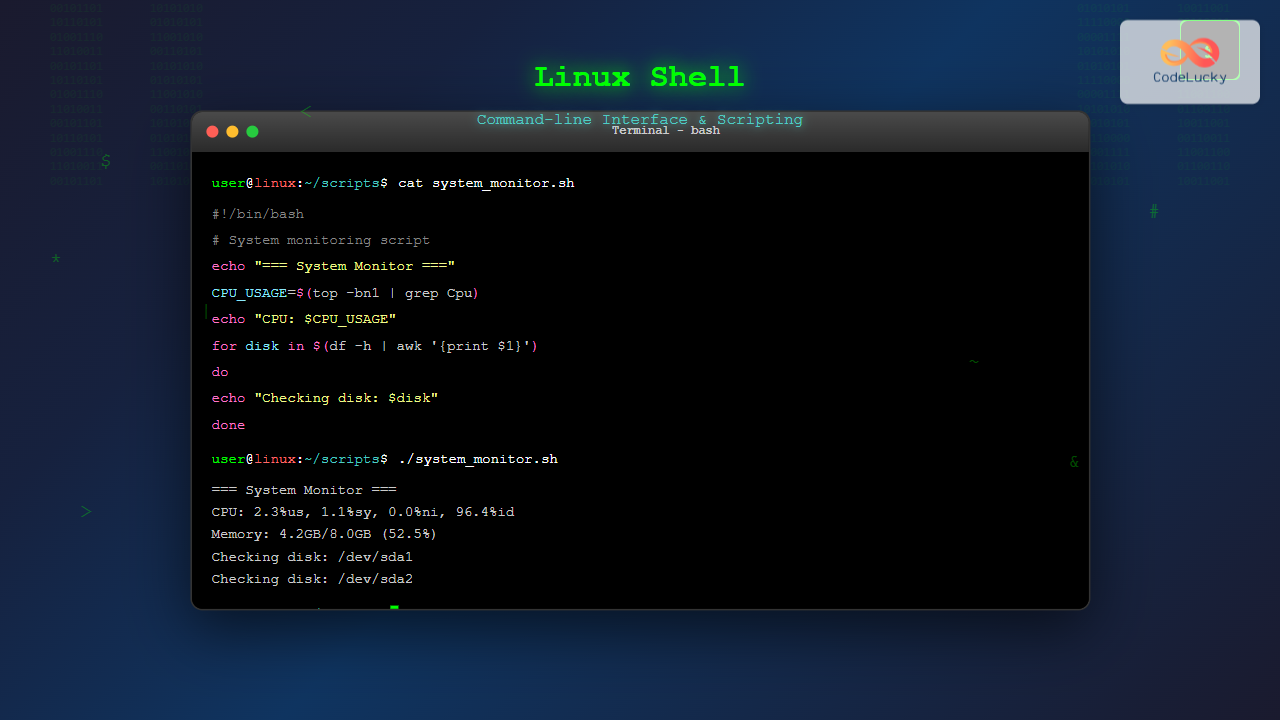
The Linux shell serves as the primary interface between users and the operating system, providing a powerful command-line environment for system administration, file management, and automation. Understanding shell commands and scripting is essential for developers, system administrators, and power users who want to harness the full potential of Linux systems.
What is the Linux Shell?
The shell is a command-line interpreter that acts as an intermediary between the user and the Linux kernel. It reads commands typed by the user, interprets them, and executes the corresponding programs or system calls. The shell provides a text-based interface that offers more control and flexibility than graphical user interfaces.

Types of Linux Shells
Several shell types are available in Linux systems:
- Bash (Bourne Again Shell): The default shell in most Linux distributions
- Zsh (Z Shell): An extended version of Bash with additional features
- Fish (Friendly Interactive Shell): A user-friendly shell with syntax highlighting
- Dash (Debian Almquist Shell): A lightweight POSIX-compliant shell
- Tcsh: An enhanced version of the C shell
Basic Shell Commands
Let’s explore fundamental Linux shell commands with practical examples:
File and Directory Operations
# List files and directories
ls -la

# Output:
# total 24
# drwxr-xr-x  4 user user 4096 Aug 28 17:30 .
# drwxr-xr-x  3 user user 4096 Aug 28 17:25 ..
# -rw-r--r--  1 user user  220 Aug 28 17:25 .bashrc
# drwxr-xr-x  2 user user 4096 Aug 28 17:30 Documents
# -rw-r--r--  1 user user 1024 Aug 28 17:28 example.txt

# Change directory
cd /home/user/Documents

# Print working directory
pwd
# Output: /home/user/Documents

# Create directory
mkdir new_folder

# Create file
touch new_file.txt

# Copy files
cp source.txt destination.txt

# Move/rename files
mv old_name.txt new_name.txt

# Remove files
rm unwanted_file.txt

# Remove directories
rmdir empty_directory
rm -rf non_empty_directory
File Content Operations
# Display file content
cat filename.txt

# Display file content with line numbers
cat -n filename.txt

# Display first 10 lines
head filename.txt

# Display last 10 lines
tail filename.txt

# Display file content page by page
less filename.txt

# Search within files
grep "search_term" filename.txt

# Count lines, words, characters
wc filename.txt
# Output: 15 85 512 filename.txt
#        lines words characters
System Information Commands
# Display system information
uname -a
# Output: Linux hostname 5.4.0-74-generic #83-Ubuntu SMP Sat May 8 02:35:39 UTC 2021 x86_64 x86_64 x86_64 GNU/Linux

# Show running processes
ps aux

# Display memory usage
free -h
# Output:
#               total        used        free      shared  buff/cache   available
# Mem:           7.7Gi       2.1Gi       3.2Gi       234Mi       2.4Gi       5.1Gi
# Swap:          2.0Gi          0B       2.0Gi

# Show disk usage
df -h
# Output:
# Filesystem      Size  Used Avail Use% Mounted on
# /dev/sda1        20G  8.5G   11G  45% /
# /dev/sda2       100G   45G   50G  48% /home

# Display current date and time
date
# Output: Thu Aug 28 17:59:23 IST 2025
Shell Features and Concepts
Input/Output Redirection
Redirection allows you to control where command output goes and where input comes from:
# Redirect output to file
ls -la > file_list.txt

# Append output to file
echo "New line" >> existing_file.txt

# Redirect error output
command_that_fails 2> error.log

# Redirect both output and errors
command > output.log 2>&1

# Use file as input
sort < unsorted_file.txt

# Here document
cat << EOF
This is a multi-line
text input using
here document
EOF
Pipes and Command Chaining
# Pipe output from one command to another
ls -la | grep "\.txt"

# Chain multiple commands
cat large_file.txt | grep "error" | sort | uniq

# Count occurrences
ps aux | grep "python" | wc -l

# Complex pipeline example
cat /var/log/access.log | grep "404" | awk '{print $1}' | sort | uniq -c | sort -nr
Environment Variables
# Display all environment variables
env

# Display specific variable
echo $HOME
# Output: /home/user

echo $PATH
# Output: /usr/local/bin:/usr/bin:/bin:/usr/games

# Set environment variable
export MY_VARIABLE="Hello World"
echo $MY_VARIABLE
# Output: Hello World

# Unset variable
unset MY_VARIABLE
Shell Scripting Fundamentals
Shell scripting allows you to automate tasks by combining multiple commands into executable files.
Basic Script Structure
#!/bin/bash
# This is a comment
# Script name: hello_world.sh

echo "Hello, World!"
echo "Current date: $(date)"
echo "Current user: $USER"
echo "Current directory: $(pwd)"
Variables and User Input
#!/bin/bash
# Script: user_info.sh

# Variable assignment
name="John Doe"
age=25

# Getting user input
echo "Enter your name: "
read user_name

echo "Enter your age: "
read user_age

# Using variables
echo "Hello $user_name, you are $user_age years old"
echo "Default name was: $name"

# Command substitution
current_time=$(date +%H:%M:%S)
echo "Current time: $current_time"
Conditional Statements
#!/bin/bash
# Script: file_checker.sh

echo "Enter filename: "
read filename

if [ -f "$filename" ]; then
    echo "$filename exists and is a regular file"
    echo "File size: $(ls -lh $filename | awk '{print $5}')"
elif [ -d "$filename" ]; then
    echo "$filename exists and is a directory"
    echo "Contents:"
    ls -la "$filename"
else
    echo "$filename does not exist"
fi

# Numeric comparison
echo "Enter a number: "
read number

if [ "$number" -gt 10 ]; then
    echo "Number is greater than 10"
elif [ "$number" -eq 10 ]; then
    echo "Number equals 10"
else
    echo "Number is less than 10"
fi
Loops
#!/bin/bash
# Script: loops_demo.sh

# For loop with range
echo "Counting from 1 to 5:"
for i in {1..5}; do
    echo "Count: $i"
done

# For loop with file list
echo "Files in current directory:"
for file in *.txt; do
    if [ -f "$file" ]; then
        echo "Processing: $file"
    fi
done

# While loop
echo "Enter numbers (0 to stop):"
sum=0
while true; do
    read number
    if [ "$number" -eq 0 ]; then
        break
    fi
    sum=$((sum + number))
    echo "Running sum: $sum"
done

echo "Final sum: $sum"
Functions
#!/bin/bash
# Script: functions_demo.sh

# Function definition
backup_file() {
    local source_file=$1
    local backup_dir=$2

    if [ ! -f "$source_file" ]; then
        echo "Error: Source file '$source_file' not found"
        return 1
    fi

    if [ ! -d "$backup_dir" ]; then
        mkdir -p "$backup_dir"
    fi

    cp "$source_file" "$backup_dir/$(basename $source_file).backup.$(date +%Y%m%d_%H%M%S)"
    echo "Backup created successfully"
    return 0
}

# Function usage
backup_file "/home/user/important.txt" "/home/user/backups"

# Function with return value
calculate_average() {
    local sum=0
    local count=0

    for num in "$@"; do
        sum=$((sum + num))
        count=$((count + 1))
    done

    if [ "$count" -eq 0 ]; then
        echo "0"
    else
        echo "$((sum / count))"
    fi
}

# Using the function
result=$(calculate_average 10 20 30 40 50)
echo "Average: $result"
Advanced Shell Scripting
Error Handling
#!/bin/bash
# Script: error_handling.sh

# Set strict mode
set -euo pipefail

# Error handling function
handle_error() {
    echo "Error occurred in script at line $1"
    echo "Command: $2"
    exit 1
}

# Trap errors
trap 'handle_error $LINENO "$BASH_COMMAND"' ERR

# Function with error checking
process_file() {
    local file=$1

    # Check if file exists
    if [ ! -f "$file" ]; then
        echo "Error: File '$file' not found" >&2
        return 1
    fi

    # Check if file is readable
    if [ ! -r "$file" ]; then
        echo "Error: Cannot read file '$file'" >&2
        return 1
    fi

    echo "Processing file: $file"
    # Process the file
    wc -l "$file"
}

# Usage with error handling
if process_file "example.txt"; then
    echo "File processed successfully"
else
    echo "Failed to process file"
fi
Command Line Arguments
#!/bin/bash
# Script: args_demo.sh

# Display script usage
usage() {
    echo "Usage: $0 [-h] [-v] [-f filename] [-n number]"
    echo "  -h: Show help"
    echo "  -v: Verbose mode"
    echo "  -f: Specify filename"
    echo "  -n: Specify number"
    exit 1
}

# Default values
verbose=false
filename=""
number=0

# Parse command line arguments
while getopts "hvf:n:" opt; do
    case $opt in
        h)
            usage
            ;;
        v)
            verbose=true
            ;;
        f)
            filename="$OPTARG"
            ;;
        n)
            number="$OPTARG"
            ;;
        \?)
            echo "Invalid option: -$OPTARG" >&2
            usage
            ;;
    esac
done

# Shift processed options
shift $((OPTIND-1))

# Display parsed arguments
if [ "$verbose" = true ]; then
    echo "Verbose mode enabled"
fi

if [ -n "$filename" ]; then
    echo "Filename: $filename"
fi

if [ "$number" -ne 0 ]; then
    echo "Number: $number"
fi

# Display remaining arguments
if [ $# -gt 0 ]; then
    echo "Remaining arguments: $@"
fi
Shell Scripting Best Practices

Script Organization
#!/bin/bash
# Script: organized_script.sh
# Description: Example of well-organized shell script
# Author: Your Name
# Date: 2025-08-28
# Version: 1.0

# Set strict mode
set -euo pipefail

# Global variables
readonly SCRIPT_NAME=$(basename "$0")
readonly SCRIPT_DIR=$(dirname "$0")
readonly LOG_FILE="/tmp/${SCRIPT_NAME%.sh}.log"

# Configuration
CONFIG_FILE="$SCRIPT_DIR/config.conf"
DEBUG=${DEBUG:-false}

# Logging function
log() {
    local level=$1
    shift
    echo "[$(date '+%Y-%m-%d %H:%M:%S')] [$level] $*" | tee -a "$LOG_FILE"
}

# Debug function
debug() {
    if [ "$DEBUG" = true ]; then
        log "DEBUG" "$@"
    fi
}

# Cleanup function
cleanup() {
    debug "Performing cleanup..."
    # Remove temporary files
    # Close file descriptors
    # Reset terminal settings
}

# Signal handlers
trap cleanup EXIT
trap 'log "ERROR" "Script interrupted"; exit 130' INT TERM

# Main function
main() {
    log "INFO" "Starting $SCRIPT_NAME"

    # Script logic here
    debug "Processing data..."

    log "INFO" "Script completed successfully"
}

# Run main function
if [[ "${BASH_SOURCE[0]}" == "${0}" ]]; then
    main "$@"
fi
System Administration Scripts
System Monitoring Script
#!/bin/bash
# Script: system_monitor.sh

# System monitoring function
monitor_system() {
    echo "=== System Monitor Report ==="
    echo "Date: $(date)"
    echo

    # CPU Usage
    echo "=== CPU Usage ==="
    top -bn1 | grep "Cpu(s)" | awk '{print "CPU Usage: " $2}'

    # Memory Usage
    echo
    echo "=== Memory Usage ==="
    free -h | grep "Mem:" | awk '{printf "Memory Usage: %s/%s (%.1f%%)\n", $3, $2, ($3/$2)*100}'

    # Disk Usage
    echo
    echo "=== Disk Usage ==="
    df -h | grep -vE '^Filesystem|tmpfs|cdrom' | awk '{printf "%-20s %s/%s (%s)\n", $6, $3, $2, $5}'

    # Load Average
    echo
    echo "=== Load Average ==="
    uptime | awk '{printf "Load Average: %s %s %s\n", $(NF-2), $(NF-1), $NF}'

    # Top Processes
    echo
    echo "=== Top 5 CPU Consuming Processes ==="
    ps aux --sort=-%cpu | head -6 | tail -5 | awk '{printf "%-10s %-6s %-6s %s\n", $1, $2, $3, $11}'
}

# Alert function
send_alert() {
    local message=$1
    echo "ALERT: $message" | tee -a /var/log/system_alerts.log
    # Send email or notification
}

# Check thresholds
check_thresholds() {
    # Check CPU usage
    cpu_usage=$(top -bn1 | grep "Cpu(s)" | awk '{print $2}' | sed 's/%us,//')
    if (( $(echo "$cpu_usage > 80" | bc -l) )); then
        send_alert "High CPU usage: ${cpu_usage}%"
    fi

    # Check memory usage
    memory_percent=$(free | grep "Mem:" | awk '{printf "%.1f", ($3/$2)*100}')
    if (( $(echo "$memory_percent > 80" | bc -l) )); then
        send_alert "High memory usage: ${memory_percent}%"
    fi

    # Check disk usage
    while IFS= read -r line; do
        usage=$(echo "$line" | awk '{print $5}' | sed 's/%//')
        mount_point=$(echo "$line" | awk '{print $6}')
        if [ "$usage" -gt 90 ]; then
            send_alert "High disk usage on $mount_point: ${usage}%"
        fi
    done < <(df -h | grep -vE '^Filesystem|tmpfs|cdrom')
}

# Main execution
monitor_system
check_thresholds
Backup Script
#!/bin/bash
# Script: backup_manager.sh

# Configuration
SOURCE_DIR="/home/user/documents"
BACKUP_DIR="/backup"
MAX_BACKUPS=7
DATE_FORMAT=$(date +%Y%m%d_%H%M%S)

# Create backup function
create_backup() {
    local source=$1
    local destination=$2
    local backup_name="backup_${DATE_FORMAT}.tar.gz"
    local full_backup_path="$destination/$backup_name"

    echo "Creating backup: $backup_name"

    # Create backup directory if it doesn't exist
    mkdir -p "$destination"

    # Create compressed archive
    tar -czf "$full_backup_path" -C "$(dirname "$source")" "$(basename "$source")" 2>/dev/null

    if [ $? -eq 0 ]; then
        echo "Backup created successfully: $full_backup_path"
        echo "Backup size: $(du -h "$full_backup_path" | cut -f1)"
    else
        echo "Error: Backup creation failed"
        return 1
    fi
}

# Clean old backups
clean_old_backups() {
    local backup_dir=$1
    local max_backups=$2

    echo "Cleaning old backups (keeping last $max_backups)..."

    # Count current backups
    backup_count=$(find "$backup_dir" -name "backup_*.tar.gz" | wc -l)

    if [ "$backup_count" -gt "$max_backups" ]; then
        # Remove oldest backups
        find "$backup_dir" -name "backup_*.tar.gz" -type f -printf '%T@ %p\n' | \
        sort -n | head -n $((backup_count - max_backups)) | \
        while read -r timestamp filepath; do
            echo "Removing old backup: $(basename "$filepath")"
            rm -f "$filepath"
        done
    fi
}

# Verify backup integrity
verify_backup() {
    local backup_file=$1

    echo "Verifying backup integrity..."
    if tar -tzf "$backup_file" >/dev/null 2>&1; then
        echo "Backup integrity verified successfully"
        return 0
    else
        echo "Error: Backup integrity check failed"
        return 1
    fi
}

# Main backup process
main() {
    echo "=== Backup Manager ==="
    echo "Starting backup process at $(date)"

    if [ ! -d "$SOURCE_DIR" ]; then
        echo "Error: Source directory '$SOURCE_DIR' not found"
        exit 1
    fi

    # Create backup
    if create_backup "$SOURCE_DIR" "$BACKUP_DIR"; then
        # Verify the backup
        latest_backup=$(find "$BACKUP_DIR" -name "backup_*.tar.gz" -type f -printf '%T@ %p\n' | sort -n | tail -1 | cut -d' ' -f2)

        if verify_backup "$latest_backup"; then
            clean_old_backups "$BACKUP_DIR" "$MAX_BACKUPS"
            echo "Backup process completed successfully"
        else
            echo "Backup process failed during verification"
            exit 1
        fi
    else
        echo "Backup process failed"
        exit 1
    fi
}

# Run main function
main
Interactive Shell Features

Command History and Shortcuts
# View command history
history

# Execute previous command
!!

# Execute command from history by number
!123

# Execute last command starting with 'ls'
!ls

# Search command history
Ctrl+R (then type search term)

# Clear history
history -c

# Prevent command from being saved to history
 ls -la  # Note the leading space
Aliases and Functions
# Create aliases
alias ll='ls -la'
alias la='ls -A'
alias l='ls -CF'
alias grep='grep --color=auto'

# Persistent aliases (add to ~/.bashrc)
echo "alias ll='ls -la'" >> ~/.bashrc

# View all aliases
alias

# Remove alias
unalias ll

# Function example
extract() {
    if [ -f "$1" ]; then
        case "$1" in
            *.tar.bz2)   tar xjf "$1"     ;;
            *.tar.gz)    tar xzf "$1"     ;;
            *.bz2)       bunzip2 "$1"     ;;
            *.rar)       unrar x "$1"     ;;
            *.gz)        gunzip "$1"      ;;
            *.tar)       tar xf "$1"      ;;
            *.tbz2)      tar xjf "$1"     ;;
            *.tgz)       tar xzf "$1"     ;;
            *.zip)       unzip "$1"       ;;
            *.Z)         uncompress "$1"  ;;
            *.7z)        7z x "$1"        ;;
            *)           echo "Cannot extract '$1'" ;;
        esac
    else
        echo "File '$1' not found"
    fi
}
Shell Customization
Prompt Customization
# Basic prompt customization
PS1='\u@\h:\w\$ '

# Colorful prompt
PS1='\[\033[01;32m\]\u@\h\[\033[00m\]:\[\033[01;34m\]\w\[\033[00m\]\$ '

# Advanced prompt with git branch
parse_git_branch() {
    git branch 2> /dev/null | sed -e '/^[^*]/d' -e 's/* \(.*\)/ (\1)/'
}

PS1='\[\033[01;32m\]\u@\h\[\033[00m\]:\[\033[01;34m\]\w\[\033[33m\]$(parse_git_branch)\[\033[00m\]\$ '

# Show current time in prompt
PS1='[\t] \u@\h:\w\$ '
Shell Configuration Files
# ~/.bashrc example
# ~/.bashrc: executed by bash(1) for non-login shells

# Enable color support
if [ -x /usr/bin/dircolors ]; then
    test -r ~/.dircolors && eval "$(dircolors -b ~/.dircolors)" || eval "$(dircolors -b)"
    alias ls='ls --color=auto'
    alias grep='grep --color=auto'
fi

# Custom aliases
alias ll='ls -alF'
alias la='ls -A'
alias l='ls -CF'

# Custom functions
mkcd() {
    mkdir -p "$1" && cd "$1"
}

# Environment variables
export EDITOR=nano
export BROWSER=firefox
export PATH="$HOME/bin:$PATH"

# History settings
HISTCONTROL=ignoredups:ignorespace
HISTSIZE=1000
HISTFILESIZE=2000

# Enable programmable completion
if ! shopt -oq posix; then
  if [ -f /usr/share/bash-completion/bash_completion ]; then
    . /usr/share/bash-completion/bash_completion
  elif [ -f /etc/bash_completion ]; then
    . /etc/bash_completion
  fi
fi
Debugging and Troubleshooting

Debug Techniques
#!/bin/bash
# Script: debug_example.sh

# Enable debug mode
set -x  # Print commands and arguments
set -e  # Exit on error
set -u  # Exit on undefined variable

# Disable debug mode for specific sections
set +x

# Debug function
debug() {
    if [ "${DEBUG:-false}" = "true" ]; then
        echo "DEBUG: $*" >&2
    fi
}

# Usage
DEBUG=true debug "This is a debug message"

# Trace specific functions
trace_function() {
    set -x
    # Function code here
    echo "Executing traced function"
    set +x
}

# Check syntax without execution
# bash -n script.sh

# Dry run mode example
DRY_RUN=${DRY_RUN:-false}

execute_command() {
    if [ "$DRY_RUN" = "true" ]; then
        echo "DRY RUN: Would execute: $*"
    else
        "$@"
    fi
}

# Usage
execute_command rm important_file.txt
Performance Optimization
Efficient Script Writing
#!/bin/bash
# Script: optimized_script.sh

# Use built-in commands instead of external programs
# Good: parameter expansion
filename="example.txt"
echo "${filename%.*}"  # Removes extension

# Avoid: using external sed
# echo "$filename" | sed 's/\.[^.]*$//'

# Use arrays for multiple values
# Good: array usage
files=("file1.txt" "file2.txt" "file3.txt")
for file in "${files[@]}"; do
    process_file "$file"
done

# Avoid: separate variables
# file1="file1.txt"
# file2="file2.txt"
# file3="file3.txt"

# Efficient file processing
# Good: read file once
while IFS= read -r line; do
    # Process line
    echo "Processing: $line"
done < input.txt

# Avoid: multiple file reads in loop
# for line_num in $(seq 1 $(wc -l < input.txt)); do
#     line=$(sed -n "${line_num}p" input.txt)
#     echo "Processing: $line"
# done

# Use command substitution efficiently
# Good: single command substitution
current_date=$(date +%Y-%m-%d)
echo "Today is $current_date"

# Avoid: multiple calls
# echo "Today is $(date +%Y)-$(date +%m)-$(date +%d)"
Security Considerations
Secure Script Practices
#!/bin/bash
# Script: secure_script.sh

# Set strict mode
set -euo pipefail

# Validate input parameters
validate_input() {
    local input=$1

    # Check for dangerous characters
    if [[ "$input" =~ [;&|<>] ]]; then
        echo "Error: Invalid characters in input" >&2
        exit 1
    fi

    # Limit input length
    if [ ${#input} -gt 100 ]; then
        echo "Error: Input too long" >&2
        exit 1
    fi
}

# Safe file operations
safe_file_operation() {
    local filename=$1

    # Validate filename
    if [[ "$filename" != */tmp/* ]]; then
        echo "Error: File must be in /tmp directory" >&2
        exit 1
    fi

    # Check if file exists and is regular file
    if [ -e "$filename" ] && [ ! -f "$filename" ]; then
        echo "Error: Path exists but is not a regular file" >&2
        exit 1
    fi

    # Use quotes to handle spaces and special characters
    cp "$filename" "${filename}.backup"
}

# Avoid command injection
safe_command_execution() {
    local user_input=$1

    # Validate input first
    validate_input "$user_input"

    # Use arrays to prevent word splitting
    cmd_array=("ls" "-la" "$user_input")
    "${cmd_array[@]}"
}

# Secure temporary files
create_temp_file() {
    # Use mktemp for secure temporary files
    local temp_file
    temp_file=$(mktemp) || {
        echo "Error: Cannot create temporary file" >&2
        exit 1
    }

    # Set restrictive permissions
    chmod 600 "$temp_file"

    # Clean up on exit
    trap "rm -f '$temp_file'" EXIT

    echo "$temp_file"
}

# Example usage
temp_file=$(create_temp_file)
echo "Using temporary file: $temp_file"
Conclusion
The Linux shell provides a powerful interface for system administration, automation, and development tasks. Mastering both basic commands and advanced scripting techniques enables efficient workflow automation and system management. Key takeaways include:
- Command Mastery: Understanding fundamental commands and their options
- Scripting Skills: Writing maintainable and robust shell scripts
- Best Practices: Following security and performance guidelines
- Debugging: Effective troubleshooting and optimization techniques
- Automation: Creating scripts for repetitive tasks and system monitoring
Regular practice and experimentation with different shell features will enhance your proficiency and enable you to leverage the full power of the Linux command-line interface. Whether you’re managing systems, automating deployments, or processing data, the shell remains an indispensable tool in the Linux ecosystem.





