
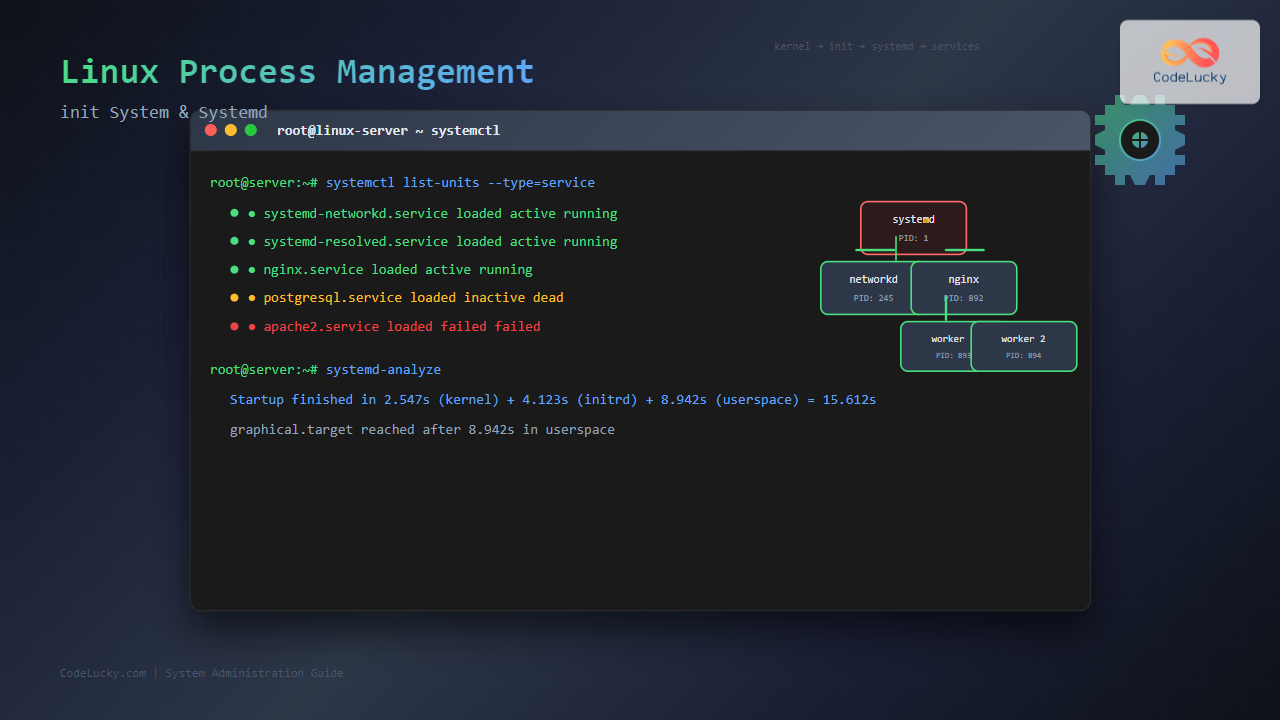
Process management is the cornerstone of Linux system administration, determining how your operating system starts, manages, and terminates processes. At the heart of this system lies the init process and its modern successor, systemd. Understanding these components is crucial for anyone working with Linux systems, from developers to system administrators.
Understanding the Init System
The init system is the first process started by the Linux kernel during boot. It receives Process ID (PID) 1 and becomes the parent of all other processes. When the kernel finishes its initialization, it transfers control to the init system, which then orchestrates the entire system startup sequence.

Traditional SysV Init
The traditional System V (SysV) init system dominated Unix-like systems for decades. It operates using runlevels – numbered states that define which services should be running:
- Runlevel 0: System halt
- Runlevel 1: Single-user mode
- Runlevel 2: Multi-user mode without networking
- Runlevel 3: Multi-user mode with networking
- Runlevel 4: Unused
- Runlevel 5: Graphical mode
- Runlevel 6: System reboot
SysV init uses shell scripts located in /etc/init.d/ to start and stop services. These scripts follow a standardized format:
#!/bin/bash
# Sample SysV init script
case "$1" in
    start)
        echo "Starting myservice..."
        /usr/bin/myservice &
        ;;
    stop)
        echo "Stopping myservice..."
        killall myservice
        ;;
    restart)
        $0 stop
        $0 start
        ;;
    *)
        echo "Usage: $0 {start|stop|restart}"
        exit 1
        ;;
esac
Introduction to Systemd
Systemd represents a paradigm shift in Linux process management. Developed by Lennart Poettering and Kay Sievers, systemd aims to address the limitations of traditional init systems while providing enhanced functionality and performance.
Key Advantages of Systemd
Parallel Service Startup: Unlike SysV’s sequential approach, systemd can start services simultaneously, significantly reducing boot times.
Dependency Management: Systemd understands service dependencies and can start services in the correct order automatically.
Socket Activation: Services can be started on-demand when clients connect to their sockets, reducing resource usage.
Unified Logging: The systemd journal provides centralized, structured logging with advanced querying capabilities.

Systemd Architecture and Components
Systemd consists of multiple components working together to manage the entire system:
Core Components
systemd: The main daemon (PID 1) that manages the system and services.
systemctl: The primary command-line interface for controlling systemd and managing services.
journald: The logging daemon that collects and stores log messages.
udevd: Device manager that handles hardware detection and management.
networkd: Network management daemon for handling network configuration.
Unit Files
Systemd manages units – resources that systemd can manage. Each unit is defined by a unit file with a specific syntax:
[Unit]
Description=My Custom Service
After=network.target

[Service]
Type=simple
User=myuser
ExecStart=/usr/bin/myapp
Restart=always
RestartSec=10

[Install]
WantedBy=multi-user.target
Unit Types
- .service: System services
- .target: Groups of units (similar to runlevels)
- .socket: Socket-based activation
- .timer: Timer-based activation
- .mount: Filesystem mount points
- .device: Hardware devices
Service Management with Systemctl
The systemctl command is your primary tool for interacting with systemd. Here are essential commands every Linux administrator should know:
Basic Service Operations
# Start a service
sudo systemctl start nginx

# Stop a service
sudo systemctl stop nginx

# Restart a service
sudo systemctl restart nginx

# Reload service configuration
sudo systemctl reload nginx

# Check service status
systemctl status nginx
When you run systemctl status nginx, you’ll see output similar to:
● nginx.service - A high performance web server and a reverse proxy server
   Loaded: loaded (/lib/systemd/system/nginx.service; enabled; vendor preset: enabled)
   Active: active (running) since Thu 2025-08-28 17:30:42 IST; 2h 12min ago
     Docs: man:nginx(8)
 Main PID: 1234 (nginx)
    Tasks: 5 (limit: 4915)
   Memory: 6.3M
   CGroup: /system.slice/nginx.service
           ├─1234 nginx: master process /usr/sbin/nginx -g daemon on; master_process on;
           ├─1235 nginx: worker process
           └─1236 nginx: worker process
Service Enablement and Boot Management
# Enable service to start at boot
sudo systemctl enable nginx

# Disable service from starting at boot
sudo systemctl disable nginx

# Check if service is enabled
systemctl is-enabled nginx

# List all enabled services
systemctl list-unit-files --state=enabled
Targets and Runlevels
Systemd replaces traditional runlevels with targets. Targets are special unit files that group other units together, representing different system states:

Common Targets
- poweroff.target: System shutdown
- rescue.target: Single-user rescue mode
- multi-user.target: Multi-user mode without GUI
- graphical.target: Multi-user mode with GUI
- reboot.target: System reboot
# Change to multi-user target
sudo systemctl isolate multi-user.target

# Set default target
sudo systemctl set-default graphical.target

# Get current target
systemctl get-default
Logging with Journald
Systemd’s journal provides powerful logging capabilities that surpass traditional syslog. The journalctl command offers numerous options for viewing and analyzing logs:
Basic Log Viewing
# View all logs
journalctl

# View logs for specific service
journalctl -u nginx

# Follow logs in real-time
journalctl -f

# View logs since boot
journalctl -b

# View logs for specific time range
journalctl --since "2025-08-28 10:00:00" --until "2025-08-28 18:00:00"
Advanced Filtering
# Filter by priority
journalctl -p err

# Filter by facility
journalctl -t systemd

# Show logs with specific fields
journalctl _PID=1234

# Export logs in JSON format
journalctl -o json
Process Dependencies and Ordering
One of systemd’s most powerful features is its dependency management system. Services can declare relationships with other services:

Dependency Types
Requires: Strong dependency – if the required unit fails, this unit fails too.
Wants: Weak dependency – this unit will start even if the wanted unit fails.
After/Before: Ordering dependencies that don’t imply requirement.
[Unit]
Description=Web Application
Requires=database.service
After=network.target database.service
Wants=redis.service

[Service]
ExecStart=/usr/bin/webapp
Creating Custom Services
Creating custom systemd services allows you to integrate your applications into the system management framework:
# Create service file: /etc/systemd/system/myapp.service
[Unit]
Description=My Custom Application
After=network.target
Wants=network.target

[Service]
Type=simple
User=myuser
Group=mygroup
WorkingDirectory=/opt/myapp
ExecStart=/opt/myapp/bin/myapp
ExecReload=/bin/kill -HUP $MAINPID
Restart=always
RestartSec=5
StandardOutput=journal
StandardError=journal

[Install]
WantedBy=multi-user.target
After creating the service file:
# Reload systemd configuration
sudo systemctl daemon-reload

# Enable and start the service
sudo systemctl enable myapp.service
sudo systemctl start myapp.service
Advanced Systemd Features
Socket Activation
Socket activation allows services to be started on-demand when clients connect:
# /etc/systemd/system/myapp.socket
[Unit]
Description=My App Socket

[Socket]
ListenStream=8080
Accept=false

[Install]
WantedBy=sockets.target
Timer Units
Systemd timers replace cron for scheduled tasks:
# /etc/systemd/system/backup.timer
[Unit]
Description=Daily Backup Timer

[Timer]
OnCalendar=daily
Persistent=true

[Install]
WantedBy=timers.target
Troubleshooting and Monitoring
Effective troubleshooting requires understanding systemd’s diagnostic tools:
System Analysis
# Analyze boot performance
systemd-analyze

# Show boot time by service
systemd-analyze blame

# Generate boot chart
systemd-analyze plot > boot.svg

# Check service dependencies
systemd-analyze critical-chain nginx.service
Common Issues and Solutions
Service Fails to Start:
# Check detailed status
systemctl status myservice.service -l

# View recent logs
journalctl -u myservice.service -n 50
Boot Issues:
# Enter emergency mode
systemctl emergency

# Check failed services
systemctl --failed
Performance Optimization
Optimizing systemd performance involves several strategies:
Service Tuning
- Disable unnecessary services: Use
systemctl disablefor services you don’t need - Optimize dependencies: Use
Wantsinstead ofRequireswhere appropriate - Implement socket activation: For infrequently used services
Resource Management
[Service]
# Limit memory usage
MemoryLimit=512M

# Limit CPU usage
CPUQuota=50%

# Set I/O weight
IOWeight=100
Migration from SysV to Systemd
When migrating from SysV init to systemd, consider these strategies:
Script Conversion
Convert SysV init scripts to systemd unit files by identifying:
- Service dependencies
- Start/stop commands
- Runtime user and group
- Environment variables
Compatibility
Systemd provides backward compatibility through:
- SysV init script support
- Runlevel emulation
- Legacy command compatibility
Security Considerations
Systemd offers several security features:
Service Hardening
[Service]
# Run with minimal privileges
User=nobody
Group=nobody

# Restrict filesystem access
ProtectSystem=strict
ProtectHome=true
ReadOnlyPaths=/etc

# Network restrictions
PrivateNetwork=true

# Capability restrictions
CapabilityBoundingSet=CAP_NET_BIND_SERVICE
Best Practices
Follow these best practices for effective systemd management:
- Use descriptive service names and documentation
- Implement proper logging with appropriate log levels
- Set resource limits to prevent resource exhaustion
- Use socket activation for better resource utilization
- Regularly monitor service health and performance
- Test service configurations thoroughly before deployment
Understanding Linux process management through init systems and systemd is fundamental for modern system administration. Systemd’s comprehensive feature set, from parallel service startup to advanced logging and dependency management, provides the tools necessary for efficient system management. By mastering these concepts and tools, you’ll be equipped to handle complex system administration tasks and optimize your Linux infrastructure for reliability and performance.
As Linux continues to evolve, systemd remains at the forefront of process management innovation, making it essential knowledge for anyone working with contemporary Linux distributions. Whether you’re troubleshooting boot issues, optimizing service performance, or implementing custom applications, the principles and techniques covered in this guide will serve as your foundation for success.





