
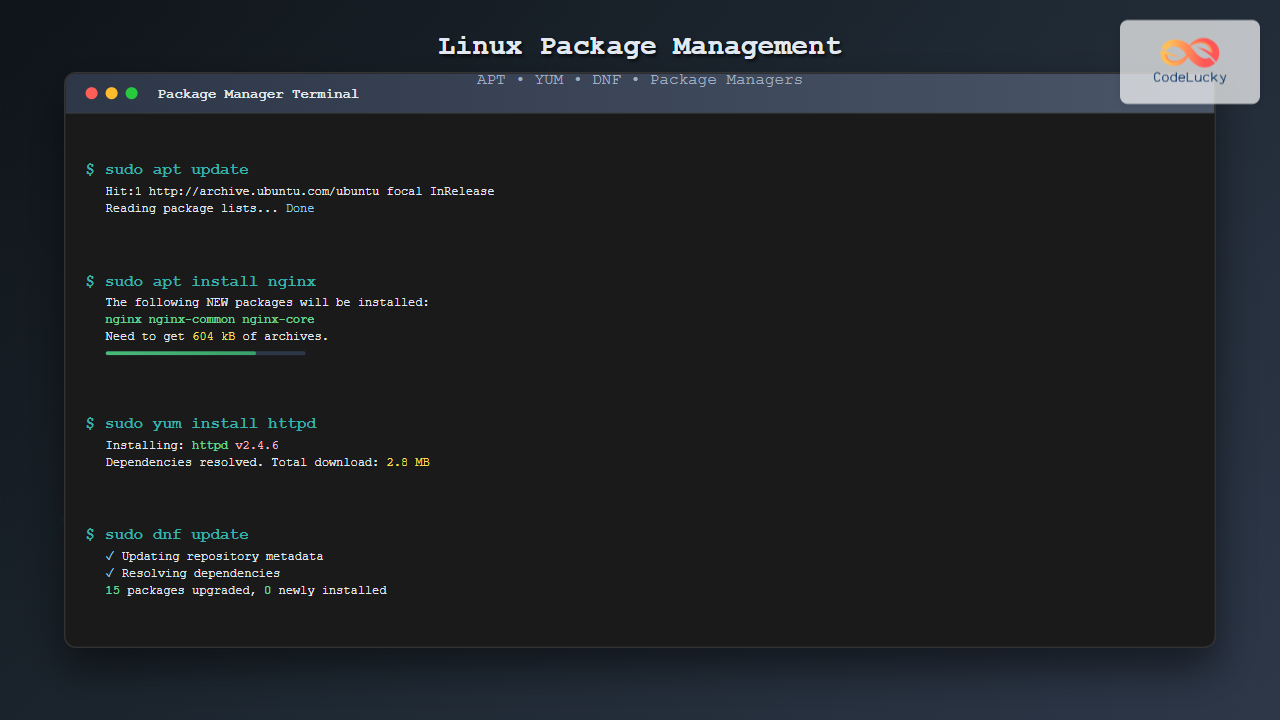
Introduction to Linux Package Management
Package management is the backbone of Linux system administration, providing a systematic approach to installing, updating, configuring, and removing software packages. Unlike Windows or macOS, where software installation often involves downloading executables or using app stores, Linux distributions rely on sophisticated package management systems that handle dependencies, security updates, and system integrity automatically.
A package manager serves as an intermediary between users and the vast repositories of pre-compiled software, ensuring that installations are secure, compatible, and properly integrated with the system. This comprehensive guide explores the most popular package managers used across different Linux distributions.

Understanding Package Management Fundamentals
What Are Software Packages?
Software packages are pre-compiled applications bundled with metadata, including version information, dependencies, installation scripts, and configuration files. Each package contains:
- Binary files: The actual executable programs
- Configuration files: Default settings and system integration files
- Metadata: Package information, dependencies, and version details
- Installation scripts: Pre and post-installation commands
- Documentation: Man pages, README files, and usage guides
Dependency Management
One of the most critical aspects of package management is handling dependencies. When you install a package, it might require other packages (libraries, tools, or frameworks) to function correctly. Package managers automatically:
- Identify required dependencies
- Check if dependencies are already installed
- Download and install missing dependencies
- Resolve version conflicts
- Maintain dependency trees for safe removal
APT (Advanced Package Tool) – Debian/Ubuntu Systems
APT is the default package manager for Debian-based distributions, including Ubuntu, Linux Mint, and elementary OS. It provides a command-line interface for managing packages with robust dependency resolution and repository management.
APT Architecture and Components

Essential APT Commands
Updating Package Lists
Before installing or upgrading packages, always update the package database:
sudo apt updateSample Output:
Hit:1 http://archive.ubuntu.com/ubuntu focal InRelease
Get:2 http://security.ubuntu.com/ubuntu focal-security InRelease [114 kB]
Get:3 http://archive.ubuntu.com/ubuntu focal-updates InRelease [114 kB]
Reading package lists... Done
Building dependency tree... Done
3 packages can be upgraded. Run 'apt list --upgradable' to see them.
Installing Packages
# Install a single package
sudo apt install nginx

# Install multiple packages
sudo apt install git curl wget vim

# Install specific version
sudo apt install nginx=1.18.0-0ubuntu1
Installation Output Example:
Reading package lists... Done
Building dependency tree... Done
The following additional packages will be installed:
  nginx-common nginx-core
Suggested packages:
  fcgiwrap nginx-doc
The following NEW packages will be installed:
  nginx nginx-common nginx-core
0 upgraded, 3 newly installed, 0 to remove and 0 not upgraded.
Need to get 604 kB of archives.
After this operation, 2,224 kB of additional disk space will be used.
Do you want to continue? [Y/n]
Upgrading Packages
# Upgrade all packages
sudo apt upgrade

# Upgrade specific package
sudo apt upgrade nginx

# Full system upgrade (handles dependencies better)
sudo apt full-upgrade
Removing Packages
# Remove package but keep configuration files
sudo apt remove nginx

# Completely remove package and configuration files
sudo apt purge nginx

# Remove orphaned dependencies
sudo apt autoremove
Searching and Information
# Search for packages
apt search nginx

# Show package information
apt show nginx

# List installed packages
apt list --installed

# Show upgradable packages
apt list --upgradable
Advanced APT Usage
Package Holding and Pinning
Sometimes you need to prevent certain packages from being updated:
# Hold a package at current version
sudo apt-mark hold nginx

# Unhold a package
sudo apt-mark unhold nginx

# List held packages
apt-mark showhold
Repository Management
APT repositories are configured in /etc/apt/sources.list and files in /etc/apt/sources.list.d/:
# Add a repository (example: Docker)
curl -fsSL https://download.docker.com/linux/ubuntu/gpg | sudo apt-key add -
sudo add-apt-repository "deb [arch=amd64] https://download.docker.com/linux/ubuntu $(lsb_release -cs) stable"

# Remove a repository
sudo add-apt-repository --remove "deb [arch=amd64] https://download.docker.com/linux/ubuntu $(lsb_release -cs) stable"
YUM (Yellowdog Updater Modified) – RHEL/CentOS Systems
YUM is the traditional package manager for Red Hat Enterprise Linux (RHEL), CentOS, and Fedora (older versions). It’s built on top of RPM (Red Hat Package Manager) and provides automatic dependency resolution.
YUM Architecture

Essential YUM Commands
Repository and Cache Management
# Update repository metadata
sudo yum makecache

# Clean package cache
sudo yum clean all

# List available repositories
yum repolist
Package Installation and Management
# Install package
sudo yum install httpd

# Install group of packages
sudo yum groupinstall "Development Tools"

# Update all packages
sudo yum update

# Update specific package
sudo yum update httpd
YUM Installation Output:
Dependencies Resolved
==================================================================================
 Package       Arch       Version              Repository                   Size
==================================================================================
Installing:
 httpd         x86_64     2.4.6-95.el7_9       updates                     2.7 M
Installing for dependencies:
 httpd-tools   x86_64     2.4.6-95.el7_9       updates                      92 k
 mailcap       noarch     2.1.41-2.el7         base                         31 k

Transaction Summary
==================================================================================
Install  1 Package (+2 Dependent packages)

Total download size: 2.8 M
Installed size: 9.6 M
Is this ok [y/d/N]:
Package Removal
# Remove package
sudo yum remove httpd

# Remove package and dependencies
sudo yum autoremove httpd
Package Information and Search
# Search for packages
yum search nginx

# Show package information
yum info nginx

# List installed packages
yum list installed

# Show package dependencies
yum deplist nginx
YUM Configuration and Repositories
YUM repositories are configured in /etc/yum.repos.d/:
# Example repository file: /etc/yum.repos.d/custom.repo
[custom-repo]
name=Custom Repository
baseurl=https://repo.example.com/centos/7/x86_64/
enabled=1
gpgcheck=1
gpgkey=https://repo.example.com/RPM-GPG-KEY
Managing Repositories
# Install EPEL repository
sudo yum install epel-release

# Enable/disable repository temporarily
sudo yum --enablerepo=epel install package-name
sudo yum --disablerepo=updates install package-name

# List repository contents
yum --disablerepo="*" --enablerepo="epel" list available
DNF (Dandified YUM) – Modern RPM Package Manager
DNF is the next-generation package manager that replaced YUM in Fedora 22+ and RHEL 8+. It offers better performance, improved dependency resolution, and a cleaner API while maintaining backward compatibility with YUM commands.
Key Improvements Over YUM
- Better Performance: Faster dependency resolution and reduced memory usage
- Improved API: More consistent command structure and better plugin support
- Enhanced Security: Better GPG signature verification and repository validation
- Modular Repositories: Support for application streams and module management
DNF Commands
# Basic package operations (same as YUM)
sudo dnf install nginx
sudo dnf update
sudo dnf remove nginx

# DNF-specific features
dnf module list
dnf module install nodejs:14
dnf history
dnf history undo 5
Module Management
DNF introduces modular repositories, allowing multiple versions of software:
# List available modules
dnf module list

# Install specific module stream
sudo dnf module install nodejs:16/development

# Switch module streams
sudo dnf module reset nodejs
sudo dnf module install nodejs:18
Other Notable Package Managers
Pacman (Arch Linux)
Pacman is known for its simplicity and speed, used in Arch Linux and derivatives:
# Update system
sudo pacman -Syu

# Install package
sudo pacman -S nginx

# Remove package and dependencies
sudo pacman -Rs nginx

# Search packages
pacman -Ss nginx
Zypper (openSUSE)
Zypper provides comprehensive package management for openSUSE:
# Install package
sudo zypper install nginx

# Update system
sudo zypper update

# Search packages
zypper search nginx

# Show package information
zypper info nginx
Package Manager Comparison
| Feature | APT | YUM | DNF | Pacman | Zypper |
|---|---|---|---|---|---|
| Primary Distribution | Debian/Ubuntu | RHEL/CentOS 7 | Fedora/RHEL 8+ | Arch Linux | openSUSE |
| Package Format | .deb | .rpm | .rpm | .pkg.tar.xz | .rpm |
| Dependency Resolution | Excellent | Good | Excellent | Good | Excellent |
| Performance | Fast | Moderate | Fast | Very Fast | Fast |
| Module Support | No | No | Yes | No | No |
Best Practices and Tips
Security Considerations
- Always verify GPG signatures: Ensure packages come from trusted sources
- Keep systems updated: Regular updates patch security vulnerabilities
- Use official repositories: Avoid third-party repositories unless absolutely necessary
- Review package contents: Check what files a package will install
Performance Optimization
# APT: Use faster mirrors
sudo apt install apt-transport-https ca-certificates
# Configure fastest mirror in /etc/apt/sources.list

# YUM/DNF: Enable fastest mirror plugin
sudo dnf install dnf-plugins-core
sudo dnf config-manager --set-enabled fastestmirror
Troubleshooting Common Issues
Broken Dependencies
# APT: Fix broken dependencies
sudo apt --fix-broken install

# YUM: Check for dependency issues
sudo yum check

# DNF: Resolve dependency problems
sudo dnf autoremove
sudo dnf clean all && sudo dnf makecache
Package Database Corruption
# APT: Rebuild package cache
sudo apt clean
sudo apt update

# YUM: Rebuild RPM database
sudo rpm --rebuilddb
sudo yum clean all
Advanced Package Management Techniques
Creating Custom Packages
For organizations, creating custom packages ensures consistent deployments:
# Debian package creation structure
mkdir -p mypackage/DEBIAN
mkdir -p mypackage/usr/local/bin

# Create control file
cat > mypackage/DEBIAN/control << EOF
Package: myapp
Version: 1.0
Section: base
Priority: optional
Architecture: amd64
Maintainer: Your Name
Description: Custom application package
EOF

# Build the package
dpkg-deb --build mypackage
Package Manager Automation

Repository Management
Setting up custom repositories for enterprise environments:
# Create APT repository
mkdir -p /var/www/apt/pool/main
cd /var/www/apt
dpkg-scanpackages pool/main /dev/null | gzip -9c > dists/stable/main/binary-amd64/Packages.gz

# Create YUM repository
mkdir -p /var/www/yum/packages
createrepo /var/www/yum/packages
Future of Package Management
Containerized Applications
Modern package management is evolving with containerization:
- Flatpak: Universal packages with sandboxing
- Snap: Ubuntu’s universal package format
- AppImage: Portable application format
Package Managers for Developers
Language-specific package managers complement system package managers:
- npm/yarn: Node.js packages
- pip: Python packages
- gem: Ruby packages
- cargo: Rust packages
Conclusion
Linux package management systems represent decades of evolution in software distribution and system administration. Whether you’re using APT on Ubuntu, YUM on CentOS, or DNF on modern RHEL systems, understanding these tools is crucial for effective Linux administration.
The key to mastering package management lies in understanding the underlying principles: dependency resolution, repository management, and security considerations. As the Linux ecosystem continues to evolve with containers, universal packages, and cloud-native deployments, these fundamental concepts remain essential.
Regular practice with different package managers, combined with understanding of best practices and troubleshooting techniques, will make you proficient in managing Linux systems regardless of the distribution. Remember to always keep systems updated, verify package integrity, and maintain clean, well-documented configurations for optimal system health and security.





