
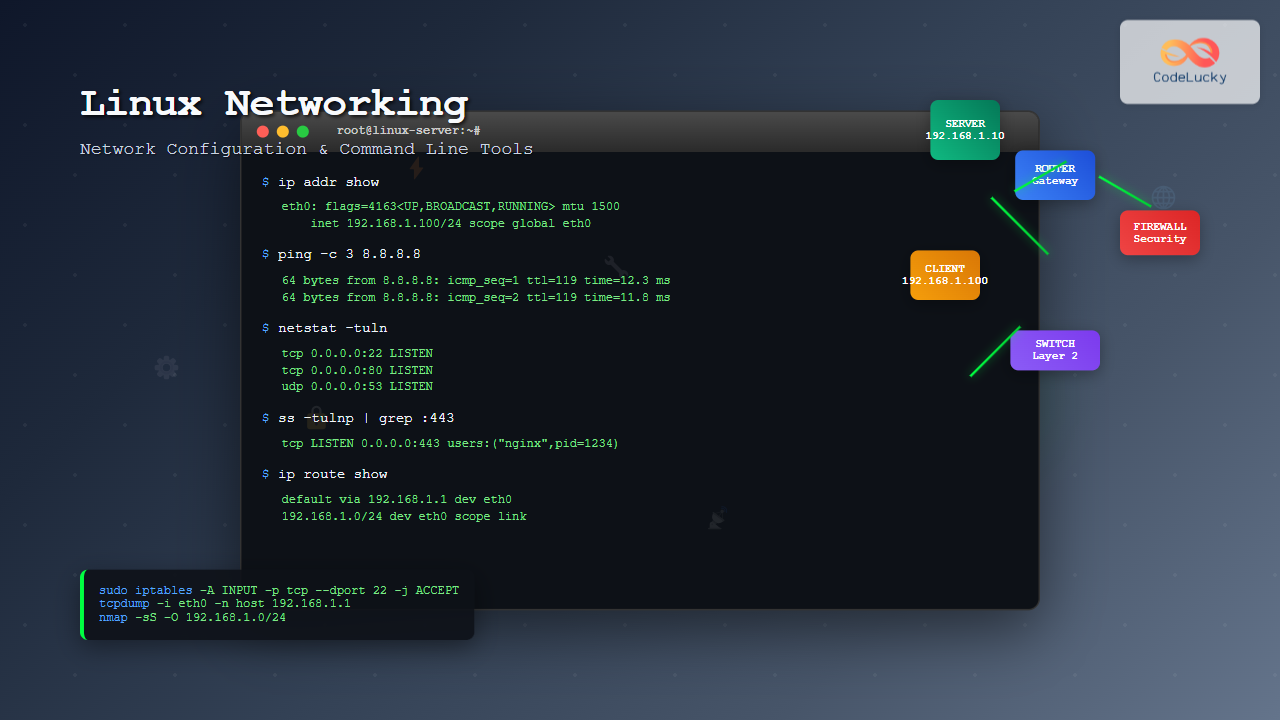
Introduction to Linux Networking
Linux networking is a fundamental aspect of system administration that enables communication between devices, services, and users across networks. Understanding network configuration and tools is crucial for maintaining robust, secure, and efficient network infrastructures. This comprehensive guide explores essential networking concepts, configuration methods, and powerful command-line tools that every Linux administrator should master.
Network Interface Fundamentals
Network interfaces in Linux represent the connection points between your system and the network. Each interface has unique properties including IP addresses, subnet masks, and hardware addresses (MAC addresses).
Viewing Network Interfaces
The most common command to view network interfaces is ip addr show or its shorter version ip a:
$ ip addr show
1: lo: <LOOPBACK,UP,LOWER_UP> mtu 65536 qdisc noqueue state UNKNOWN group default qlen 1000
    link/loopback 00:00:00:00:00:00 brd 00:00:00:00:00:00
    inet 127.0.0.1/8 scope host lo
       valid_lft forever preferred_lft forever
2: eth0: <BROADCAST,MULTICAST,UP,LOWER_UP> mtu 1500 qdisc pfifo_fast state UP group default qlen 1000
    link/ether 08:00:27:bb:5d:54 brd ff:ff:ff:ff:ff:ff
    inet 192.168.1.100/24 brd 192.168.1.255 scope global dynamic eth0
       valid_lft 86395sec preferred_lft 86395sec
You can also use the traditional ifconfig command, though it’s being phased out in favor of the ip suite:
$ ifconfig
eth0: flags=4163<UP,BROADCAST,RUNNING,MULTICAST>  mtu 1500
        inet 192.168.1.100  netmask 255.255.255.0  broadcast 192.168.1.255
        ether 08:00:27:bb:5d:54  txqueuelen 1000  (Ethernet)
        RX packets 1234  bytes 567890 (554.5 KiB)
        TX packets 987  bytes 123456 (120.5 KiB)
IP Address Configuration
Static IP Configuration
To configure a static IP address using the ip command:
# Assign IP address to interface
$ sudo ip addr add 192.168.1.150/24 dev eth0

# Bring interface up
$ sudo ip link set eth0 up

# Add default gateway
$ sudo ip route add default via 192.168.1.1
Dynamic IP Configuration (DHCP)
For DHCP configuration, you can use dhclient:
# Request IP from DHCP server
$ sudo dhclient eth0

# Release current DHCP lease
$ sudo dhclient -r eth0

# View DHCP lease information
$ cat /var/lib/dhcp/dhclient.leases
Persistent Network Configuration
For Ubuntu/Debian systems using Netplan:
# /etc/netplan/01-netcfg.yaml
network:
  version: 2
  renderer: networkd
  ethernets:
    eth0:
      addresses:
        - 192.168.1.150/24
      gateway4: 192.168.1.1
      nameservers:
        addresses: [8.8.8.8, 8.8.4.4]
Apply the configuration with:
$ sudo netplan applyEssential Network Configuration Tools
The ip Command Suite
The ip command is the modern replacement for several traditional networking tools:
| Function | ip Command | Legacy Command |
|---|---|---|
| Show interfaces | ip link show |
ifconfig -a |
| Show IP addresses | ip addr show |
ifconfig |
| Show routing table | ip route show |
route -n |
| Show ARP table | ip neigh show |
arp -a |
Network Interface Management
# Enable/disable interface
$ sudo ip link set eth0 up
$ sudo ip link set eth0 down

# Change MAC address
$ sudo ip link set eth0 down
$ sudo ip link set eth0 address 00:11:22:33:44:55
$ sudo ip link set eth0 up

# Set MTU size
$ sudo ip link set eth0 mtu 9000
Routing Configuration
Routing determines how packets travel between networks. Understanding routing is crucial for network connectivity.
Viewing and Managing Routes
# Show routing table
$ ip route show
default via 192.168.1.1 dev eth0 proto dhcp metric 100
192.168.1.0/24 dev eth0 proto kernel scope link src 192.168.1.100 metric 100

# Add static route
$ sudo ip route add 10.0.0.0/8 via 192.168.1.2

# Delete route
$ sudo ip route del 10.0.0.0/8 via 192.168.1.2

# Add route through specific interface
$ sudo ip route add 172.16.0.0/16 dev eth1
Network Troubleshooting Tools
Ping – Connectivity Testing
Ping tests basic connectivity using ICMP echo requests:
# Basic ping
$ ping google.com
PING google.com (142.250.191.14) 56(84) bytes of data.
64 bytes from lga25s62-in-f14.1e100.net (142.250.191.14): icmp_seq=1 ttl=119 time=12.3 ms

# Ping with specific count
$ ping -c 4 8.8.8.8

# Ping with specific interval
$ ping -i 2 192.168.1.1

# Ping with specific packet size
$ ping -s 1000 google.com
Traceroute – Path Discovery
# Show path to destination
$ traceroute google.com
traceroute to google.com (142.250.191.14), 30 hops max, 60 byte packets
 1  192.168.1.1 (192.168.1.1)  1.234 ms  1.123 ms  1.001 ms
 2  10.0.0.1 (10.0.0.1)  15.432 ms  15.234 ms  15.123 ms
 3  203.0.113.1 (203.0.113.1)  25.678 ms  25.456 ms  25.234 ms

# Use TCP instead of ICMP
$ traceroute -T google.com

# Specify port for TCP traceroute
$ traceroute -T -p 80 google.com
Netstat – Network Statistics
# Show all listening ports
$ netstat -tuln
Active Internet connections (only servers)
Proto Recv-Q Send-Q Local Address           Foreign Address         State
tcp        0      0 0.0.0.0:22              0.0.0.0:*               LISTEN
tcp        0      0 127.0.0.1:25            0.0.0.0:*               LISTEN

# Show established connections
$ netstat -tun

# Show network statistics
$ netstat -s

# Show routing table
$ netstat -rn
ss – Socket Statistics
The ss command is the modern replacement for netstat:
# Show all sockets
$ ss -tuln

# Show TCP connections
$ ss -t

# Show UDP connections
$ ss -u

# Show processes using sockets
$ ss -tulnp

# Show sockets by state
$ ss -t state established
Advanced Network Tools
Nmap – Network Discovery and Security
# Scan single host
$ nmap 192.168.1.1
Starting Nmap 7.80 ( https://nmap.org ) at 2025-08-28 18:07 IST
Nmap scan report for 192.168.1.1
Host is up (0.001s latency).
Not shown: 999 closed ports
PORT   STATE SERVICE
22/tcp open  ssh

# Scan network range
$ nmap 192.168.1.0/24

# Service version detection
$ nmap -sV 192.168.1.1

# OS detection
$ nmap -O 192.168.1.1
tcpdump – Packet Capture
# Capture packets on interface
$ sudo tcpdump -i eth0
tcpdump: verbose output suppressed, use -v or -vv for full protocol decode
listening on eth0, link-type EN10MB (Ethernet), capture size 262144 bytes
18:07:12.123456 IP 192.168.1.100.45678 > 8.8.8.8.53: UDP, length 32

# Capture specific protocol
$ sudo tcpdump -i eth0 icmp

# Capture and save to file
$ sudo tcpdump -i eth0 -w capture.pcap

# Read from file
$ tcpdump -r capture.pcap

# Filter by host
$ sudo tcpdump -i eth0 host 192.168.1.1
Wireshark Command Line (tshark)
# Capture with tshark
$ sudo tshark -i eth0

# Capture specific number of packets
$ sudo tshark -i eth0 -c 100

# Apply display filter
$ tshark -r capture.pcap -Y "http.request.method == GET"

# Extract specific fields
$ tshark -r capture.pcap -T fields -e ip.src -e ip.dst -e tcp.port
Network Security and Monitoring
iptables – Firewall Configuration
# View current rules
$ sudo iptables -L -n -v

# Allow SSH (port 22)
$ sudo iptables -A INPUT -p tcp --dport 22 -j ACCEPT

# Block specific IP
$ sudo iptables -A INPUT -s 192.168.1.50 -j DROP

# Allow HTTP and HTTPS
$ sudo iptables -A INPUT -p tcp --dport 80 -j ACCEPT
$ sudo iptables -A INPUT -p tcp --dport 443 -j ACCEPT

# Save rules (Ubuntu/Debian)
$ sudo iptables-save > /etc/iptables/rules.v4
Network Monitoring with iostat and sar
# Monitor network interface statistics
$ iostat -n 2
Linux 5.4.0-42-generic (hostname)     28/08/25     _x86_64_    (4 CPU)

avg-cpu:  %user   %nice %system %iowait  %steal   %idle
           1.23    0.00    0.45    0.12    0.00   98.20

Device             tps    kB_read/s    kB_wrtn/s    kB_dscd/s    kB_read    kB_wrtn    kB_dscd
eth0              12.34         45.67         23.45         0.00       1234       5678          0

# System activity report
$ sar -n DEV 1 5
Average:        IFACE   rxpck/s   txpck/s    rxkB/s    txkB/s   rxcmp/s   txcmp/s  rxmcst/s
Average:         eth0     12.34      8.92      5.67      3.21      0.00      0.00      0.00
Average:           lo      0.20      0.20      0.01      0.01      0.00      0.00      0.00
DNS Configuration and Tools
DNS Resolution Configuration
# View DNS configuration
$ cat /etc/resolv.conf
nameserver 8.8.8.8
nameserver 8.8.4.4
search localdomain

# Test DNS resolution
$ nslookup google.com
Server:     8.8.8.8
Address:    8.8.8.8#53

Non-authoritative answer:
Name:   google.com
Address: 142.250.191.14

# Detailed DNS query with dig
$ dig google.com
; <<>> DiG 9.16.1-Ubuntu <<>> google.com
;; global options: +cmd
;; Got answer:
;; ->>HEADER<<- opcode: QUERY, status: NOERROR, id: 12345
;; QUESTION SECTION:
;google.com.            IN  A

;; ANSWER SECTION:
google.com.     299 IN  A   142.250.191.14
Advanced DNS Queries
# Query specific record type
$ dig google.com MX
$ dig google.com NS
$ dig google.com TXT

# Reverse DNS lookup
$ dig -x 8.8.8.8

# Query specific DNS server
$ dig @1.1.1.1 google.com

# Trace DNS resolution path
$ dig +trace google.com
Network Performance Testing
Bandwidth Testing with iperf3
# Server mode
$ iperf3 -s
Server listening on 5201

# Client mode (test to server)
$ iperf3 -c 192.168.1.100
Connecting to host 192.168.1.100, port 5201
[  5] local 192.168.1.101 port 45678 connected to 192.168.1.100 port 5201
[ ID] Interval           Transfer     Bitrate         Retr  Cwnd
[  5]   0.00-1.00   sec  11.2 MBytes  94.1 Mbits/sec    0   87.3 KBytes

# UDP test
$ iperf3 -c 192.168.1.100 -u -b 100M

# Bidirectional test
$ iperf3 -c 192.168.1.100 --bidir
Wireless Network Configuration
Managing Wireless Interfaces
# View wireless interfaces
$ iwconfig
wlan0     IEEE 802.11  ESSID:"MyNetwork"
          Mode:Managed  Frequency:2.437 GHz  Access Point: 00:11:22:33:44:55
          Bit Rate=150 Mb/s   Tx-Power=20 dBm
          Retry short limit:7   RTS thr:off   Fragment thr:off

# Scan for available networks
$ sudo iwlist wlan0 scan | grep -E "(ESSID|Signal level)"
                    ESSID:"MyNetwork"
                    Signal level=-45 dBm
                    ESSID:"NeighborWiFi"
                    Signal level=-67 dBm

# Connect to wireless network
$ sudo iwconfig wlan0 essid "MyNetwork" key s:mypassword

# View wireless statistics
$ cat /proc/net/wireless
 Inter-| sta-|   Quality        |   Discarded packets               | Missed | WE
 face | tus | link level noise |  nwid  crypt   frag  retry   misc | beacon | 22
 wlan0: 0000   70.  -40.  -256        0      0      0      0      1        0
Modern Wireless Management with wpa_supplicant
# Generate PSK for WPA/WPA2
$ wpa_passphrase "MyNetwork" "mypassword"
network={
    ssid="MyNetwork"
    #psk="mypassword"
    psk=1234567890abcdef1234567890abcdef1234567890abcdef1234567890abcdef
}

# Connect using wpa_supplicant
$ sudo wpa_supplicant -B -i wlan0 -c /etc/wpa_supplicant/wpa_supplicant.conf

# Get IP via DHCP
$ sudo dhclient wlan0
Network Bonding and VLANs
Network Bonding Configuration
# Load bonding module
$ sudo modprobe bonding

# Create bond interface
$ sudo ip link add bond0 type bond mode active-backup

# Add interfaces to bond
$ sudo ip link set eth0 down
$ sudo ip link set eth1 down
$ sudo ip link set eth0 master bond0
$ sudo ip link set eth1 master bond0

# Bring up bond interface
$ sudo ip link set bond0 up

# View bond status
$ cat /proc/net/bonding/bond0
VLAN Configuration
# Create VLAN interface
$ sudo ip link add link eth0 name eth0.100 type vlan id 100

# Assign IP to VLAN interface
$ sudo ip addr add 192.168.100.10/24 dev eth0.100

# Bring up VLAN interface
$ sudo ip link set eth0.100 up

# View VLAN configuration
$ cat /proc/net/vlan/config
VLAN Dev name    | VLAN ID
Name-Type: VLAN_NAME_TYPE_RAW_PLUS_VID_NO_PAD
eth0.100       | 100  | eth0
Network Troubleshooting Methodology
Systematic Troubleshooting Approach
Layer 1 – Physical Layer:
# Check cable connections
$ ethtool eth0
Settings for eth0:
    Supported ports: [ TP ]
    Supported link modes:   10baseT/Half 10baseT/Full
                            100baseT/Half 100baseT/Full
                            1000baseT/Full
    Link detected: yes

# Check interface status
$ ip link show eth0
Layer 2 – Data Link Layer:
# Check ARP table
$ ip neigh show
192.168.1.1 dev eth0 lladdr 00:11:22:33:44:55 REACHABLE
192.168.1.50 dev eth0 lladdr 00:aa:bb:cc:dd:ee STALE

# Check for duplicate MAC addresses
$ arp-scan -l
Layer 3 – Network Layer:
# Test local connectivity
$ ping -c 4 127.0.0.1

# Test gateway connectivity
$ ping -c 4 $(ip route | grep default | awk '{print $3}')

# Test external connectivity
$ ping -c 4 8.8.8.8
Common Network Issues and Solutions
| Issue | Symptoms | Diagnostic Command | Solution |
|---|---|---|---|
| No Link | Interface down | ethtool eth0 |
Check cables, switch ports |
| IP Conflict | Intermittent connectivity | arping -I eth0 192.168.1.100 |
Change IP or find conflicting device |
| DNS Issues | Can’t resolve hostnames | nslookup google.com |
Check /etc/resolv.conf |
| Routing Problems | Can’t reach remote networks | traceroute destination |
Add/fix routing entries |
Performance Optimization
Network Buffer Tuning
# View current buffer sizes
$ sysctl net.core.rmem_max
$ sysctl net.core.wmem_max

# Increase buffer sizes for high-throughput networks
$ sudo sysctl -w net.core.rmem_max=134217728
$ sudo sysctl -w net.core.wmem_max=134217728

# TCP window scaling
$ sudo sysctl -w net.ipv4.tcp_window_scaling=1

# Make changes permanent
$ echo "net.core.rmem_max = 134217728" >> /etc/sysctl.conf
Interface Queue Optimization
# View current queue length
$ ip link show eth0 | grep qlen

# Increase queue length
$ sudo ip link set eth0 qlen 10000

# View network interface statistics
$ cat /proc/net/dev
Inter-|   Receive                                                |  Transmit
 face |bytes    packets errs drop fifo frame compressed multicast|bytes    packets errs drop fifo colls carrier compressed
  eth0: 1234567890 12345678    0    0    0     0          0         0 987654321  9876543    0    0    0     0       0          0
Best Practices and Security
Network Security Hardening
# Disable unused network services
$ sudo systemctl disable telnet
$ sudo systemctl disable rsh
$ sudo systemctl disable rlogin

# Enable fail2ban for SSH protection
$ sudo apt install fail2ban
$ sudo systemctl enable fail2ban

# Configure SSH key-based authentication
$ ssh-keygen -t rsa -b 4096
$ ssh-copy-id user@remote-host

# Disable SSH root login
$ sudo sed -i 's/#PermitRootLogin yes/PermitRootLogin no/' /etc/ssh/sshd_config
Network Monitoring Scripts
#!/bin/bash
# Network monitoring script
INTERFACE="eth0"
LOG_FILE="/var/log/network_monitor.log"

while true; do
    TIMESTAMP=$(date '+%Y-%m-%d %H:%M:%S')
    RX_BYTES=$(cat /sys/class/net/$INTERFACE/statistics/rx_bytes)
    TX_BYTES=$(cat /sys/class/net/$INTERFACE/statistics/tx_bytes)

    echo "$TIMESTAMP - RX: $RX_BYTES bytes, TX: $TX_BYTES bytes" >> $LOG_FILE
    sleep 60
done
Conclusion
Linux networking encompasses a vast array of tools and configuration options that enable robust network management. From basic interface configuration to advanced troubleshooting techniques, mastering these tools is essential for system administrators and network engineers. Regular practice with these commands and understanding the underlying networking principles will help you maintain efficient and secure network infrastructures.
The key to successful Linux networking lies in understanding the layered approach to network troubleshooting, utilizing the appropriate tools for each situation, and maintaining security best practices. As networks continue to evolve, staying current with new tools and methodologies will ensure your networking skills remain sharp and effective.





