
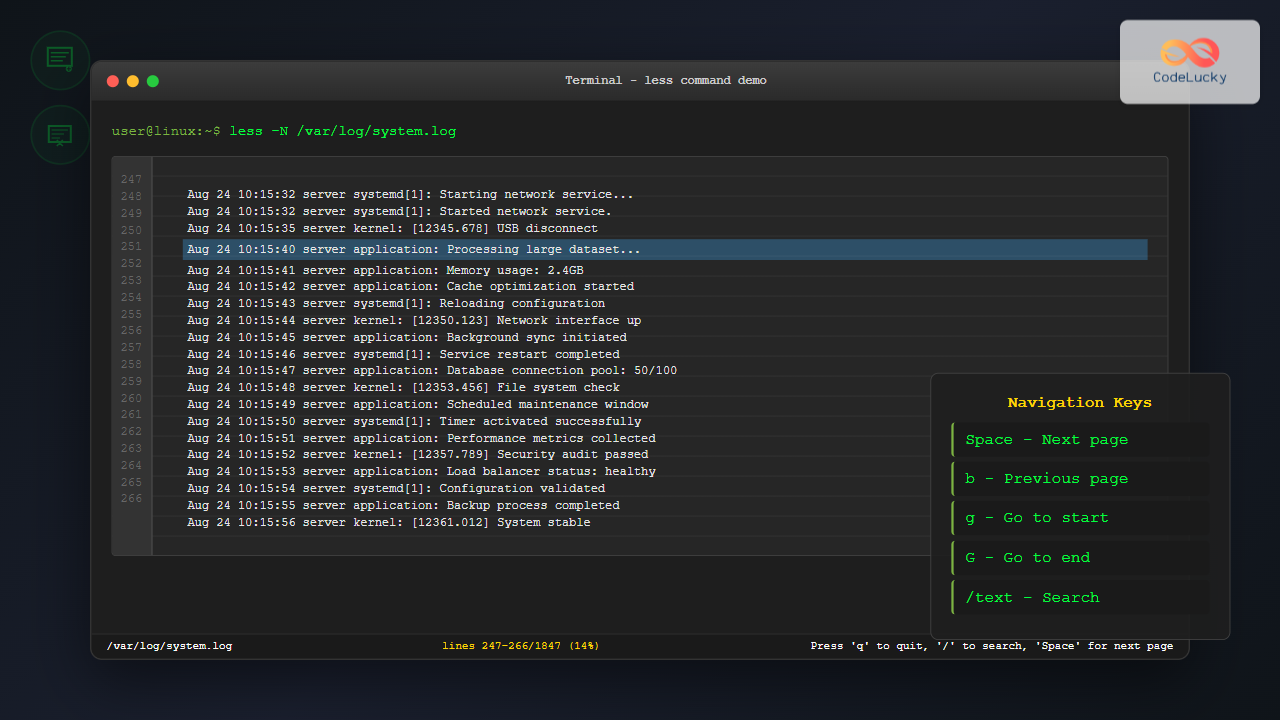
The less command is one of the most essential tools for Linux system administrators and developers who need to view large files efficiently. Unlike text editors that load entire files into memory, less allows you to navigate through files page by page, making it perfect for examining log files, configuration files, and large text documents without consuming system resources.
What is the less Command?
The less command is a terminal pager that displays file content one screen at a time. It’s an improved version of the older more command, offering backward navigation and enhanced features. The name “less” comes from the philosophy that “less is more” – it does more than the more command while being more efficient.
Key Features of less Command
- Memory Efficient: Loads only the visible portion of the file
- Bidirectional Navigation: Move forward and backward through files
- Search Functionality: Find text patterns within files
- Line Numbers: Display line numbers for reference
- Multiple File Support: Navigate between multiple files
Basic less Command Syntax
The basic syntax for the less command is straightforward:
less [options] filenameSimple Usage Example
To view a file using less:
less /var/log/syslogThis opens the system log file in the less pager, allowing you to scroll through it efficiently.
Essential Navigation Keys
Once you’re inside the less pager, you can use various keyboard shortcuts to navigate:
| Key | Action |
|---|---|
Space or f |
Move forward one page |
b |
Move backward one page |
Enter or j |
Move forward one line |
k |
Move backward one line |
g |
Go to beginning of file |
G |
Go to end of file |
q |
Quit less |
Searching Within Files
One of the most powerful features of less is its search capability:
Forward Search
To search forward in the file, type / followed by your search term:
/errorThis searches for the word “error” from the current position downward.
Backward Search
To search backward, use ? followed by your search term:
?warningNavigation Between Search Results
n– Move to next matchN– Move to previous match
Common less Command Options
Display Line Numbers (-N)
To show line numbers while viewing a file:
less -N /etc/passwdThis displays line numbers on the left side of each line, making it easier to reference specific locations in the file.
Case-Insensitive Search (-i)
Make searches case-insensitive:
less -i /var/log/messagesIgnore Case in Search (-I)
Force case-insensitive searching even when uppercase letters are used:
less -I /var/log/apache2/access.logSqueeze Multiple Blank Lines (-s)
Compress multiple consecutive blank lines into a single line:
less -s document.txtAdvanced Features and Techniques
Following File Changes (-F)
Similar to tail -f, you can follow a file as it grows:
less +F /var/log/syslogPress Ctrl+C to stop following and return to normal less navigation.
Starting at Specific Line (+n)
Open a file at a specific line number:
less +100 largefile.txtThis opens the file and positions the cursor at line 100.
Pattern Matching on Startup
Start less with a search pattern already applied:
less +/ERROR /var/log/application.logThis opens the file and immediately searches for “ERROR”.
Practical Examples
Example 1: Viewing System Logs
# View system log with line numbers
less -N /var/log/syslog

# Search for specific service errors
# Inside less, type: /ssh
# Navigate with 'n' and 'N'
Example 2: Examining Configuration Files
# View Apache configuration
less /etc/apache2/apache2.conf

# Search for Directory sections
# Inside less, type: /Directory
Example 3: Monitoring Log Files
# Follow a log file in real-time
less +F /var/log/nginx/access.log

# Stop following with Ctrl+C, then search
# /POST to find POST requests
Working with Multiple Files
The less command can handle multiple files simultaneously:
less file1.txt file2.txt file3.txtNavigation Between Files
:n– Go to next file:p– Go to previous file:e filename– Open a new file
Customizing less Behavior
Environment Variables
You can customize less behavior using environment variables:
# Set default options for less
export LESS="-N -i -R"

# Set custom prompt
export LESS="-P%f (%i/%m) Line %lt/%L"
Configuration File
Create a .lessrc file in your home directory for persistent settings:
# ~/.lessrc
--ignore-case
--line-numbers
--RAW-CONTROL-CHARS
Performance Tips for Large Files
Efficient Memory Usage
For extremely large files, use these options:
# Don't read entire file into memory
less -B hugefile.log

# Buffer only a few lines
less --buffers=100 largefile.txt
Quick File Assessment
Quickly check file size and type before opening:
# Check file size
ls -lh largefile.log

# View first few lines without opening entire file
head -20 largefile.log | less
Troubleshooting Common Issues
Binary File Handling
When less encounters binary files, it asks for confirmation. Force text viewing with:
less -f binaryfileColor and Formatting Issues
To preserve color codes in log files:
less -R colorized.logTerminal Compatibility
For better terminal compatibility:
less -X filenameThis prevents less from clearing the screen when exiting.
Comparison with Other Tools
| Command | Best Use Case | Memory Usage |
|---|---|---|
less |
Large files, navigation needed | Low |
cat |
Small files, full output | Medium |
more |
Simple forward navigation | Low |
tail |
End of files, monitoring | Very Low |
Security Considerations
When using less in production environments:
- File Permissions: Ensure you have appropriate read permissions
- Sensitive Data: Be cautious when viewing files containing passwords or keys
- Log Rotation: Be aware that log files might rotate while viewing
Conclusion
The less command is an indispensable tool for Linux users who frequently work with large files. Its efficient memory usage, powerful navigation features, and extensive customization options make it superior to basic file viewing commands. Whether you’re troubleshooting system issues, examining log files, or reviewing configuration files, mastering less will significantly improve your productivity and system administration skills.
By understanding the various options, navigation keys, and advanced features covered in this guide, you’ll be able to handle even the largest files with ease. Remember to practice these commands regularly to build muscle memory and become more efficient in your daily Linux operations.
Related Posts
more Command Linux: Complete Guide to Paginated File Viewing
The more command is one of the most essential Linux utilities for viewing file contents in a controlled, paginated manner....
head Command in Linux: Display First Lines of Files Efficiently
The head command is one of the most fundamental and frequently used utilities in Linux and Unix-like operating systems. It...

size Command Linux: Display Section Sizes of Object Files and Executables
The size command is a powerful utility in Linux systems that displays the section sizes of object files, executables, and...
ls Command Advanced Linux: Complete Guide to File Listing Mastery
The ls command is one of the most fundamental and frequently used commands in Linux and Unix-like operating systems. While...

cat Command in Linux: Complete Guide to Display and Concatenate Files
The cat command is one of the most fundamental and frequently used commands in Linux and Unix-like operating systems. Short...

free Command in Linux: Monitor Memory Usage and Swap Space Efficiently
The free command is one of the most essential utilities in Linux for monitoring system memory usage and swap space....
history Command Linux: Complete Guide to View and Manage Your Command History
The history command in Linux is one of the most powerful tools for managing and navigating your command line experience....
htop Command Linux: Complete Guide to Advanced Process Monitoring and Management
The htop command is an enhanced, interactive version of the traditional top command that provides real-time monitoring of system processes...
tail Command Linux: Complete Guide to Display Last Lines and Follow Logs in Real-Time
The tail command is one of the most essential tools in Linux for displaying the last lines of files and...
strip Command Linux: Complete Guide to Removing Symbols from Object Files
The strip command is a powerful Linux utility that removes symbols, debugging information, and other metadata from executable files, object...
vim Command Linux: Master the Ultimate Text Editor with Advanced Techniques
The vim command is one of the most powerful and versatile text editors available in Linux systems. Originally created as...

PHP Pagination: Splitting Content Across Pages
In the world of web development, efficiently managing large datasets is crucial for creating user-friendly and performant applications. One of...





