
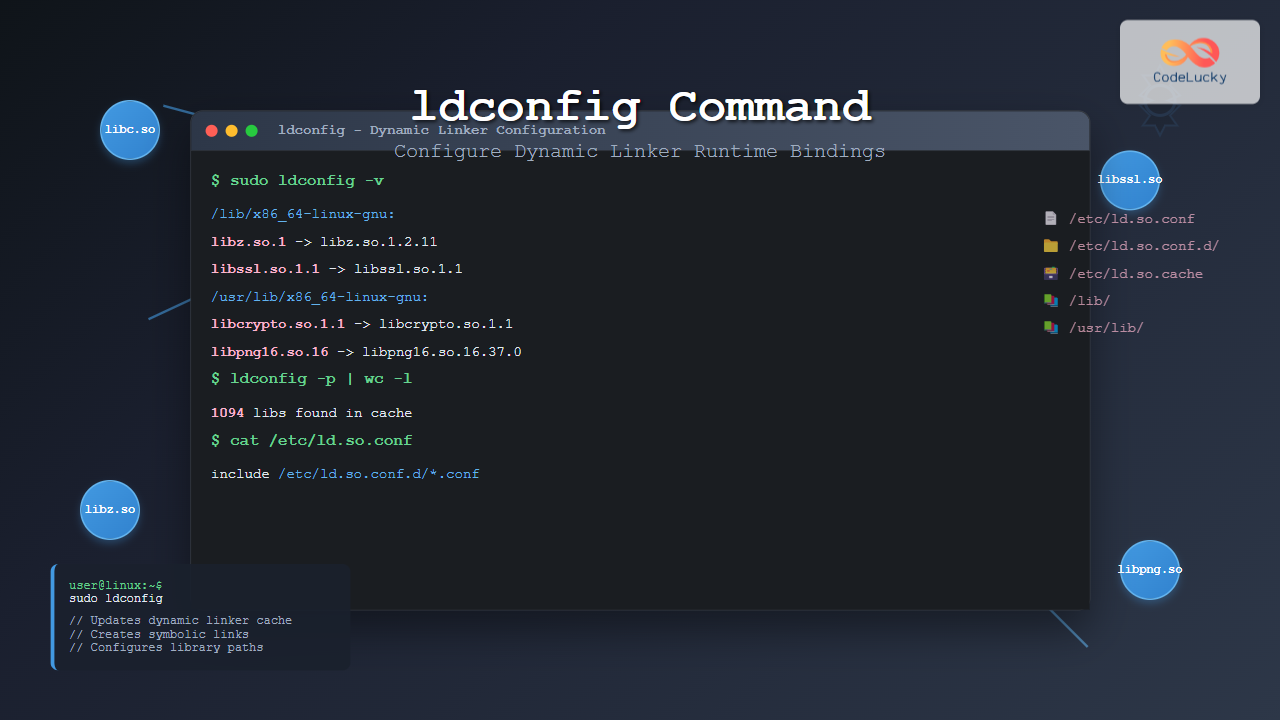
The ldconfig command is a fundamental Linux system administration tool that configures the dynamic linker’s runtime bindings for shared libraries. Understanding how to use ldconfig effectively is crucial for system administrators and developers who need to manage shared libraries and resolve linking issues in Linux environments.
What is ldconfig Command?
The ldconfig (dynamic linker configuration) command is used to configure the dynamic linker cache and symbolic links for shared libraries on Linux systems. It creates and updates the cache file /etc/ld.so.cache that the dynamic linker uses to locate shared libraries at runtime.
When a program starts, the dynamic linker needs to find and load all required shared libraries. Instead of searching through directories every time, it uses a pre-built cache created by ldconfig for faster library resolution.
Key Functions of ldconfig:
- Updates the dynamic linker cache
- Creates symbolic links for library versions
- Configures library search paths
- Manages shared library dependencies
Basic Syntax and Options
The basic syntax of ldconfig is straightforward:
ldconfig [options] [directories]Common Options:
| Option | Description |
|---|---|
-v |
Verbose mode – shows detailed output |
-n |
Only process directories on command line |
-N |
Don’t rebuild the cache |
-X |
Don’t update symbolic links |
-p |
Print current cache contents |
-c |
Specify format (old, new, compat) |
-r |
Change root directory |
How ldconfig Works
Understanding the ldconfig workflow helps in troubleshooting library issues:
- Configuration Reading: ldconfig reads
/etc/ld.so.confand files in/etc/ld.so.conf.d/ - Directory Scanning: It scans specified directories for shared libraries
- Symbolic Link Creation: Creates necessary symbolic links for library versions
- Cache Building: Builds or updates
/etc/ld.so.cache
Basic Usage Examples
Update the Dynamic Linker Cache
The most common use of ldconfig is updating the cache after installing new libraries:
sudo ldconfigThis command will:
- Read configuration files
- Scan library directories
- Update the cache
- Create necessary symbolic links
Verbose Output
To see what ldconfig is doing, use the verbose flag:
sudo ldconfig -vExample Output:
/lib/x86_64-linux-gnu:
    libz.so.1 -> libz.so.1.2.11
    libssl.so.1.1 -> libssl.so.1.1
/usr/lib/x86_64-linux-gnu:
    libcrypto.so.1.1 -> libcrypto.so.1.1
    libpng16.so.16 -> libpng16.so.16.37.0
Display Current Cache Contents
View all libraries currently in the cache:
ldconfig -pSample Output:
1094 libs found in cache `/etc/ld.so.cache'
    libz.so.1 (libc6,x86-64) => /lib/x86_64-linux-gnu/libz.so.1
    libssl.so.1.1 (libc6,x86-64) => /lib/x86_64-linux-gnu/libssl.so.1.1
    libpng16.so.16 (libc6,x86-64) => /usr/lib/x86_64-linux-gnu/libpng16.so.16
Advanced Configuration
Library Search Path Configuration
The primary configuration file is /etc/ld.so.conf:
cat /etc/ld.so.confExample Content:
include /etc/ld.so.conf.d/*.confAdditional configuration files are stored in /etc/ld.so.conf.d/:
ls /etc/ld.so.conf.d/Output:
fakeroot-x86_64-linux-gnu.conf
libc.conf
x86_64-linux-gnu.conf
Adding Custom Library Paths
To add a custom library directory, create a new configuration file:
sudo echo "/opt/myapp/lib" > /etc/ld.so.conf.d/myapp.conf
sudo ldconfig
Processing Specific Directories
Process only specific directories without reading configuration files:
sudo ldconfig -n /usr/local/libTroubleshooting with ldconfig
Finding Missing Libraries
When you encounter “library not found” errors, use ldconfig to diagnose:
# Check if library is in cache
ldconfig -p | grep libname

# Example: Looking for libssl
ldconfig -p | grep libssl
Fixing Broken Symbolic Links
Sometimes symbolic links become broken. ldconfig can recreate them:
sudo ldconfig -vThis will show broken links and attempt to fix them.
Testing Library Path Resolution
Use the ldd command in combination with ldconfig to test library resolution:
ldd /usr/bin/python3Example Output:
linux-vdso.so.1 (0x00007fff123456789)
libpython3.8.so.1.0 => /usr/lib/x86_64-linux-gnu/libpython3.8.so.1.0
libc.so.6 => /lib/x86_64-linux-gnu/libc.so.6
Working with Different Architecture Libraries
Multi-arch Support
Modern Linux systems support multiple architectures. ldconfig handles this automatically:
sudo ldconfig -v | grep -E "(x86_64|i386)"Cross-compilation Scenarios
For cross-compilation environments, use the root directory option:
sudo ldconfig -r /path/to/chroot/environmentPerformance Considerations
Cache Performance
The ldconfig cache significantly improves library loading performance. Check cache statistics:
sudo ldconfig -v | tail -5Selective Updates
For faster updates, process only changed directories:
sudo ldconfig -n /usr/local/lib /opt/custom/libSecurity Implications
Library Hijacking Prevention
Be cautious about library search order. System directories are processed first:
/lib/usr/lib- Directories in
/etc/ld.so.conf - Environment variables (LD_LIBRARY_PATH)
Trusted Directories
Only add trusted directories to ldconfig configuration to prevent security vulnerabilities.
Integration with Package Managers
Automatic Updates
Most package managers automatically run ldconfig after installing libraries:
# APT example (Debian/Ubuntu)
sudo apt install libexample-dev
# ldconfig runs automatically

# YUM/DNF example (Red Hat/Fedora)
sudo dnf install example-libs
# ldconfig runs automatically
Manual Intervention
Sometimes manual ldconfig execution is necessary:
# After manual library installation
sudo cp libcustom.so.1.0 /usr/local/lib/
sudo ldconfig
Debugging and Diagnostics
Environment Variables
Use environment variables for debugging library loading:
# Enable detailed debugging
export LD_DEBUG=libs
export LD_DEBUG_OUTPUT=debug.log
./myprogram

# Check the debug output
cat debug.log
Library Conflicts
Identify library version conflicts:
ldconfig -p | grep libname | sortBest Practices
Regular Maintenance
- Run ldconfig after installing new libraries
- Regularly clean up unused library directories
- Monitor library cache size and performance
- Keep configuration files organized
Documentation
- Document custom library paths
- Maintain change logs for library configurations
- Use descriptive names for configuration files
Common Issues and Solutions
Cache Corruption
If the cache becomes corrupted, rebuild it:
sudo rm /etc/ld.so.cache
sudo ldconfig
Permission Issues
Ensure proper permissions on library directories and files:
sudo chmod 755 /usr/local/lib
sudo chmod 644 /usr/local/lib/*.so*
Missing Dependencies
Check for missing library dependencies:
ldd -v /path/to/executableConclusion
The ldconfig command is an essential tool for managing shared libraries in Linux systems. Whether you’re a system administrator maintaining servers or a developer working with custom libraries, understanding ldconfig helps ensure proper library management and resolution.
Key takeaways include running ldconfig after library installations, understanding the library search path hierarchy, and using verbose output for troubleshooting. Regular maintenance of the library cache and configuration files ensures optimal system performance and prevents linking issues.
By mastering ldconfig, you’ll be better equipped to handle library management tasks, troubleshoot linking problems, and maintain robust Linux systems with properly configured shared libraries.
Related Posts
ldd Command Linux: Display Shared Library Dependencies
The ldd command is an essential Linux utility that displays the shared library dependencies of executable files and shared libraries....
ranlib Command Linux: Complete Guide to Generate Archive Index Files
The ranlib command is a crucial utility in Linux systems for managing static library archives. It generates an index for...

locate Command in Linux: Fast File Search Using Database Indexing
The locate command is one of Linux's most efficient file search utilities, offering lightning-fast results by leveraging a pre-built database...
make Command Linux: Complete Guide to Building Programs from Source Code
The make command is one of the most essential tools in Linux for building and compiling software from source code....

C Standard Library: <stdlib.h> Functions
The C Standard Library is a collection of header files that provide a wide array of functions, macros, and type...
ltrace Command Linux: Complete Guide to Trace Library Calls and Debug Programs
The ltrace command is a powerful debugging and analysis tool in Linux that allows you to trace library calls made...
modprobe Command Linux: Complete Guide to Load and Manage Kernel Modules
The modprobe command is one of the most powerful tools in Linux system administration for managing kernel modules. Whether you're...
C Makefiles: Automating Compilation Process
In the world of C programming, efficiency is key. As projects grow larger and more complex, manually compiling each source...
chkconfig Command Linux: Complete Guide to System Service Management
The chkconfig command is a powerful system administration tool in Red Hat-based Linux distributions that allows you to configure system...

locate Command Advanced Linux: Database Search Optimization Techniques
The locate command is one of Linux's most powerful file search utilities, offering lightning-fast file discovery through its pre-built database...

size Command Linux: Display Section Sizes of Object Files and Executables
The size command is a powerful utility in Linux systems that displays the section sizes of object files, executables, and...
modinfo Command Linux: Complete Guide to Display Kernel Module Information
The modinfo command is an essential Linux utility that displays detailed information about kernel modules. Whether you're troubleshooting hardware issues,...





