
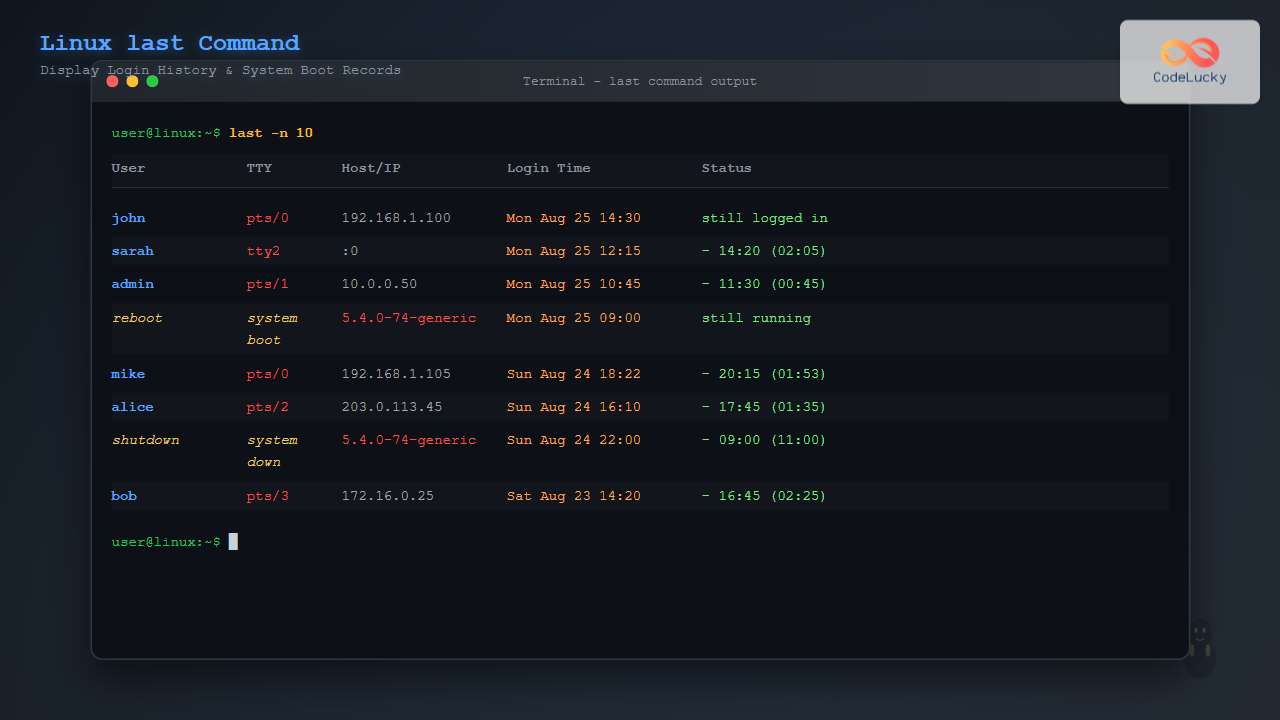
The last command is an essential Linux utility that displays a chronological list of user logins, system boots, and shutdowns by reading from the /var/log/wtmp file. This powerful command is invaluable for system administrators who need to track user activity, monitor system security, and analyze login patterns.
Understanding the last Command
The last command provides detailed information about:
- User login and logout times
- System boot and shutdown events
- Terminal sessions and their duration
- Remote connections via SSH, FTP, or other protocols
- System crashes and unexpected reboots
Basic Syntax and Usage
The basic syntax of the last command is:
last [options] [username] [tty]Simple last Command Examples
Running last without any arguments displays the complete login history:
$ lastExample output:
john     pts/0        192.168.1.100    Mon Aug 25 14:30   still logged in
sarah    tty2                          Mon Aug 25 12:15 - 14:20  (02:05)
admin    pts/1        10.0.0.50        Mon Aug 25 10:45 - 11:30  (00:45)
reboot   system boot  5.4.0-74-generic Mon Aug 25 09:00   still running
mike     pts/0        192.168.1.105    Sun Aug 24 18:22 - 20:15  (01:53)
shutdown system down  5.4.0-74-generic Sun Aug 24 22:00 - 09:00  (11:00)
Command Options and Parameters
Limiting Output with -n Option
Use the -n option to limit the number of entries displayed:
$ last -n 5This shows only the last 5 login entries:
john     pts/0        192.168.1.100    Mon Aug 25 14:30   still logged in
sarah    tty2                          Mon Aug 25 12:15 - 14:20  (02:05)
admin    pts/1        10.0.0.50        Mon Aug 25 10:45 - 11:30  (00:45)
reboot   system boot  5.4.0-74-generic Mon Aug 25 09:00   still running
mike     pts/0        192.168.1.105    Sun Aug 24 18:22 - 20:15  (01:53)
Displaying Specific User Information
To view login history for a specific user:
$ last johnOutput:
john     pts/0        192.168.1.100    Mon Aug 25 14:30   still logged in
john     pts/1        192.168.1.100    Mon Aug 25 08:15 - 12:00  (03:45)
john     tty1                          Sun Aug 24 16:30 - 18:00  (01:30)
john     pts/0        192.168.1.100    Sat Aug 23 14:22 - 16:45  (02:23)
Using Time-based Filtering
The -t option allows filtering by time. Show logins before a specific date:
$ last -t 20250824Use -s to show logins since a specific date:
$ last -s 20250824Advanced Usage Examples
Displaying Full Hostnames
Use the -a option to display full hostnames instead of truncated ones:
$ last -aOutput with full hostnames:
admin    pts/1        Mon Aug 25 10:45 - 11:30  (00:45)    office-desktop.company.com
user1    pts/2        Mon Aug 25 09:30 - 12:00  (02:30)    remote-server.example.org
Showing Boot Records Only
To display only system boot information:
$ last rebootExample output:
reboot   system boot  5.4.0-74-generic Mon Aug 25 09:00   still running
reboot   system boot  5.4.0-74-generic Sun Aug 24 08:30 - 22:00  (13:30)
reboot   system boot  5.4.0-74-generic Sat Aug 23 07:45 - 23:15  (15:30)
Displaying Shutdown Information
To see system shutdown history:
$ last shutdownOutput:
shutdown system down  5.4.0-74-generic Sun Aug 24 22:00 - 09:00  (11:00)
shutdown system down  5.4.0-74-generic Sat Aug 23 23:15 - 07:45  (08:30)
Output Format and Column Interpretation
Understanding the last command output format is crucial:
| Column | Description | Example |
|---|---|---|
| Username | Login name or system event | john, reboot, shutdown |
| Terminal | TTY or pseudo-terminal | pts/0, tty1, console |
| Host/IP | Remote host or IP address | 192.168.1.100, :0 |
| Login Time | When session started | Mon Aug 25 14:30 |
| Session Status | Duration or current state | still logged in, (02:05) |
Practical System Administration Use Cases
Security Monitoring
Monitor suspicious login attempts by combining last with other commands:
$ last | grep -E "(pts|ssh)" | head -10This filters remote connections to identify potential security threats.
System Uptime Analysis
Analyze system reliability by examining boot/shutdown patterns:
$ last reboot shutdown | head -20This helps identify system stability issues and maintenance windows.
User Activity Tracking
Track specific user activity during business hours:
$ last john | grep "Aug 25"Useful for attendance tracking and productivity monitoring.
Related Commands and Integration
Using with lastb Command
The lastb command shows failed login attempts:
$ sudo lastbCombine both for comprehensive security analysis:
$ last -n 5 && echo "--- Failed Logins ---" && sudo lastb -n 5Integration with who and w Commands
Compare current sessions with historical data:
$ who
$ last | head -5
Log File Locations and Maintenance
The last command reads from several log files:
/var/log/wtmp– Main login records (binary format)/var/log/btmp– Failed login attempts/var/run/utmp– Current login sessions
Log Rotation and Archival
These logs are typically rotated by logrotate. Check archived logs:
$ last -f /var/log/wtmp.1Troubleshooting Common Issues
Empty Output
If last returns no output:
- Check if the wtmp file exists:
ls -la /var/log/wtmp - Verify file permissions
- Check if logging is enabled in system configuration
Incomplete Information
For missing hostname information, ensure proper DNS resolution and network configuration.
Security Considerations
When using last for security monitoring:
- Regularly review login patterns for anomalies
- Monitor for logins from unexpected IP addresses
- Check for unusual login times (off-hours access)
- Combine with system logs for comprehensive analysis
Performance and Optimization
For systems with extensive login history:
- Use specific usernames to limit output
- Implement regular log rotation
- Consider archiving old logs for historical analysis
- Use time-based filtering for targeted searches
Best Practices
Follow these best practices when using the last command:
- Regular Monitoring: Include
lastchecks in routine system administration tasks - Automation: Create scripts to automatically flag suspicious login patterns
- Documentation: Maintain records of expected login patterns for comparison
- Integration: Combine with other monitoring tools for comprehensive system oversight
The last command is an indispensable tool for Linux system administrators, providing valuable insights into system usage, security events, and user behavior. By mastering its various options and understanding its output format, you can effectively monitor and maintain system security while tracking user activity across your Linux environment.
Related Posts
who Command in Linux: Complete Guide to Display Logged in Users
The who command is one of the most fundamental system administration tools in Linux, designed to display information about currently...

w Command Linux: Complete Guide to Monitor Active Users and System Activity
The w command is one of the most essential system monitoring tools in Linux, providing administrators and users with real-time...
loginctl Command Linux: Master Session Management with Practical Examples
The loginctl command is a powerful systemd utility that allows system administrators to introspect and control the systemd login manager...
logger Command Linux: Complete Guide to System Log Message Management
The logger command in Linux is a powerful utility that allows users and scripts to send messages directly to the...
history Command Linux: Complete Guide to View and Manage Your Command History
The history command in Linux is one of the most powerful tools for managing and navigating your command line experience....
runlevel Command Linux: Complete Guide to Display Current and Previous System States
The runlevel command is a fundamental system administration tool in Linux that displays the current and previous system runlevels. Understanding...
uptime Command Linux: Complete Guide to System Uptime and Load Average Monitoring
The uptime command is one of the most fundamental system monitoring tools in Linux, providing essential information about how long...
rsyslog Command Linux: System Logging Configuration with Examples
rsyslog is one of the most powerful and widely used system logging tools in Linux. It stands for “rocket-fast syslog”...

ps Command in Linux: Complete Guide to Process Monitoring and Management
The ps command is one of the most fundamental and powerful tools in Linux for displaying information about running processes....

top Command Linux: Complete Guide to Real-Time Process Monitoring
The top command is one of the most essential tools in a Linux system administrator's arsenal. It provides real-time information...
screen Command Linux: Complete Guide to Managing Multiple Terminal Sessions
The screen command is one of the most powerful tools in a Linux administrator's arsenal, allowing you to create, manage,...
lynis Command Linux: Complete Security Auditing Tool Guide
The lynis command is a powerful, open-source security auditing tool designed specifically for Unix-based systems including Linux, macOS, and BSD....





