
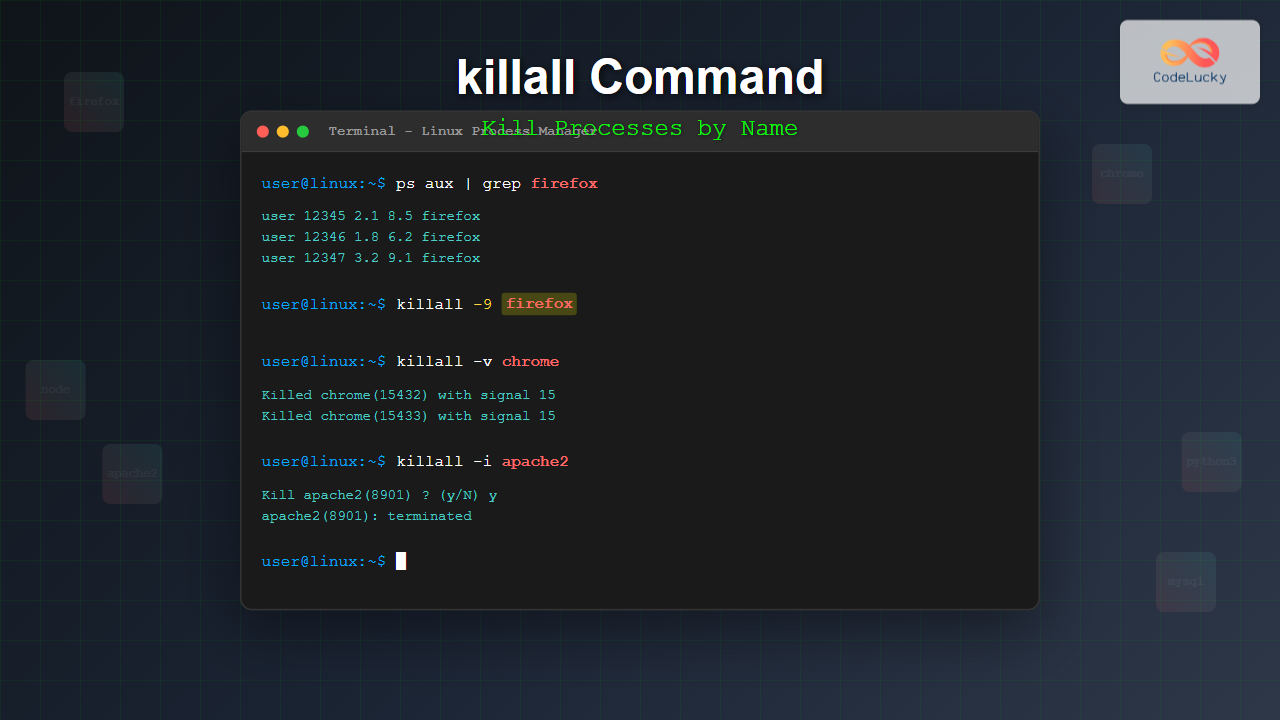
The killall command is a powerful Linux utility that allows system administrators and users to terminate processes by their name rather than their process ID (PID). Unlike the traditional kill command that requires specific process IDs, killall provides a more intuitive approach to process management by targeting processes using their executable names.
What is the killall Command?
The killall command is designed to send signals to processes based on their names. It searches for all running processes that match the specified name and sends a termination signal to them. This makes it particularly useful when you need to stop multiple instances of the same program or when you don’t know the exact PID of a process.
Basic Syntax
The basic syntax of the killall command follows this pattern:
killall [options] [signal] process_nameWhere:
- options: Various flags to modify the command behavior
- signal: The signal to send to the process (optional)
- process_name: The name of the process to terminate
Common Signals Used with killall
Understanding the different signals available is crucial for effective process management:
| Signal | Number | Description |
|---|---|---|
| SIGTERM | 15 | Graceful termination (default) |
| SIGKILL | 9 | Forceful termination |
| SIGINT | 2 | Interrupt signal |
| SIGHUP | 1 | Hang up signal |
| SIGSTOP | 19 | Stop process execution |
Basic Usage Examples
Example 1: Basic Process Termination
To terminate all instances of Firefox browser:
$ killall firefoxExpected output:
$ ps aux | grep firefox
user     12345  2.1  8.5 1234567 234567 ?   Sl   10:30   0:15 firefox
user     12346  1.8  6.2 987654  123456 ?   Sl   10:31   0:12 firefox
$ killall firefox
$ ps aux | grep firefox
(no output - processes terminated)
Example 2: Using Specific Signals
To forcefully kill all instances of a program using SIGKILL:
$ killall -9 chrome
# or alternatively
$ killall -KILL chrome
Example 3: Graceful Termination with SIGTERM
To send a graceful termination signal (default behavior):
$ killall -15 gedit
# or simply
$ killall gedit
Important Command Options
Interactive Mode (-i)
The -i option prompts for confirmation before killing each process:
$ killall -i firefoxSample interaction:
$ killall -i firefox
Kill firefox(12345) ? (y/N) y
Kill firefox(12346) ? (y/N) n
firefox(12345): terminated
firefox(12346): skipped
List Matching Processes (-l)
To list all processes that would be affected without actually killing them:
$ killall -l firefoxOutput:
firefox(12345)
firefox(12346)
firefox(12347)
Verbose Output (-v)
The -v option provides detailed feedback about the command execution:
$ killall -v firefoxOutput:
Killed firefox(12345) with signal 15
Killed firefox(12346) with signal 15
Exact Match (-e)
Use -e to match the exact process name:
$ killall -e firefox-esrRegular Expression Match (-r)
Enable regular expression matching with -r:
$ killall -r "fire.*"Advanced Usage Scenarios
Killing Processes by User
To kill processes belonging to a specific user, combine with the -u option:
$ killall -u username firefoxTimeout Operations
Set a timeout for the kill operation:
$ killall -w firefoxThis waits for the process to actually terminate before returning.
Ignore Case Sensitivity
Use -I to ignore case when matching process names:
$ killall -I FIREFOXPractical Examples with Output
Managing Multiple Browser Instances
Scenario: Multiple Chrome browser instances are consuming too much memory.
$ ps aux | grep chrome | head -5
user     15432  15.2 12.8 2345678 445567 ?  Sl   11:15   2:35 chrome
user     15433  12.1  9.4 1876543 278901 ?  Sl   11:15   2:12 chrome
user     15434   8.7  7.2 1456789 201234 ?  Sl   11:16   1:45 chrome
user     15435   6.3  5.1 1123456 145678 ?  Sl   11:17   1:28 chrome

$ killall -v chrome
Killed chrome(15432) with signal 15
Killed chrome(15433) with signal 15
Killed chrome(15434) with signal 15
Killed chrome(15435) with signal 15

$ ps aux | grep chrome
(no chrome processes found)
Handling Unresponsive Applications
When an application becomes unresponsive, you might need to use SIGKILL:
$ killall gimp
# If the above doesn't work, use force kill
$ killall -9 gimp
Safety Considerations and Best Practices
Always Use Interactive Mode for Critical Processes
When dealing with important system processes, always use the interactive flag:
$ sudo killall -i systemdCheck Process Lists Before Killing
Use the list option to verify what processes will be affected:
$ killall -l apache2Prefer Graceful Termination
Always try SIGTERM before resorting to SIGKILL:
# Try graceful termination first
$ killall mysql
# Wait a few seconds, then check if process still exists
$ pgrep mysql
# If still running, use force kill
$ killall -9 mysql
Common Use Cases
Web Server Management
Restarting web server processes:
$ sudo killall apache2
$ sudo systemctl start apache2
Development Environment Cleanup
Stopping development servers and processes:
$ killall node
$ killall python3
$ killall java
System Maintenance
Cleaning up resource-heavy processes during maintenance:
$ killall -u testuser bash
$ killall -r "test.*"
Troubleshooting Common Issues
Permission Denied Errors
If you encounter permission denied errors:
$ killall apache2
killall: apache2: Operation not permitted

# Solution: Use sudo
$ sudo killall apache2
No Process Found
When no matching processes are found:
$ killall nonexistent
nonexistent: no process found
Process Name Variations
Some processes might have different names in the process list:
$ ps aux | grep firefox
user 12345 firefox-bin

# Use the actual process name
$ killall firefox-bin
Alternatives to killall
Using pkill
The pkill command offers more flexible pattern matching:
$ pkill -f firefoxUsing ps and kill combination
Traditional approach using process IDs:
$ ps aux | grep firefox | awk '{print $2}' | xargs killSecurity Implications
Be cautious when using killall with sudo privileges, as it can affect system-critical processes. Always verify the process list before executing commands that might impact system stability.
Conclusion
The killall command is an essential tool for Linux system administration and process management. Its ability to terminate processes by name rather than PID makes it more intuitive and efficient for managing running applications. By understanding its various options and following best practices, you can effectively use killall to maintain system performance and resolve process-related issues.
Remember to always start with graceful termination signals before resorting to forceful killing, and use interactive mode when dealing with critical system processes. With these guidelines and examples, you’ll be able to confidently manage processes in your Linux environment using the killall command.
Related Posts

kill Command in Linux: Complete Guide to Terminate Processes by PID
The kill command is one of the most essential tools in Linux system administration, allowing users to terminate processes by...
Process in Operating System: Complete Guide to Definition, States and Lifecycle
What is a Process in Operating System? A process is a program in execution that consists of the program code...
Process Creation in OS: Fork, Exec and Process Spawning Complete Guide
Introduction to Process Creation in Operating Systems Process creation is one of the fundamental concepts in operating systems that enables...

ps Command in Linux: Complete Guide to Process Monitoring and Management
The ps command is one of the most fundamental and powerful tools in Linux for displaying information about running processes....
Windows Process Management: Complete Guide to Task Manager and Services
Windows process management is a fundamental aspect of system administration that every IT professional and power user should master. At...
bg Command in Linux: Resume Jobs in Background with Examples
The bg command in Linux is a powerful built-in shell command that allows you to resume suspended jobs in the...

ptrace Command Linux: Complete Guide to Process Tracing System Call
The ptrace system call is one of Linux's most powerful tools for process monitoring and debugging. It allows one process...
prlimit Command Linux: Complete Guide to Display and Set Process Resource Limits
The prlimit command is a powerful Linux utility that allows system administrators and users to view and modify resource limits...
jobs Command Linux: Complete Guide to Managing Background Jobs in Terminal
The jobs command is an essential tool for Linux users who need to manage multiple processes running in the background....

init Command Linux: Complete Guide to Process Control and System Initialization
The init command in Linux serves as the cornerstone of system initialization and process control. As the first process started...
fg Command Linux: Complete Guide to Managing Background and Foreground Jobs
The fg command in Linux is a powerful job control tool that allows you to bring background processes to the...
timeout Command Linux: Complete Guide to Running Commands with Time Limits
The timeout command in Linux is an essential utility that allows you to run commands with a specified time limit....





