
The jobs command is an essential tool for Linux users who need to manage multiple processes running in the background. Whether you’re running long scripts, monitoring system tasks, or handling multiple terminal operations simultaneously, understanding how to use the jobs command effectively can significantly improve your productivity and system management skills.
What is the jobs Command?
The jobs command is a built-in shell utility that displays information about active jobs in the current shell session. A “job” in Linux refers to a process or group of processes that the shell manages as a single unit. These jobs can be running in the foreground (blocking the terminal) or background (allowing you to continue using the terminal).
When you start a process in the background using the ampersand (&) symbol or suspend a foreground process using Ctrl+Z, the shell assigns it a job number and tracks its status. The jobs command provides a convenient way to view and manage these background processes.
Basic Syntax and Options
The basic syntax of the jobs command is straightforward:
jobs [options] [job_spec]Here are the most commonly used options:
-l: Display process IDs (PIDs) along with job information-p: Show only the process IDs of job leaders-n: Display only jobs that have changed status since last notification-r: Show only running jobs-s: Show only stopped jobs-x: Execute a command with job specifications replaced by PIDs
Understanding Job States
Before diving into examples, it’s important to understand the different states a job can be in:
- Running: The job is currently executing
- Stopped: The job has been suspended (usually with Ctrl+Z)
- Done: The job has completed successfully
- Terminated: The job was killed or ended abnormally
Practical Examples
Starting Background Jobs
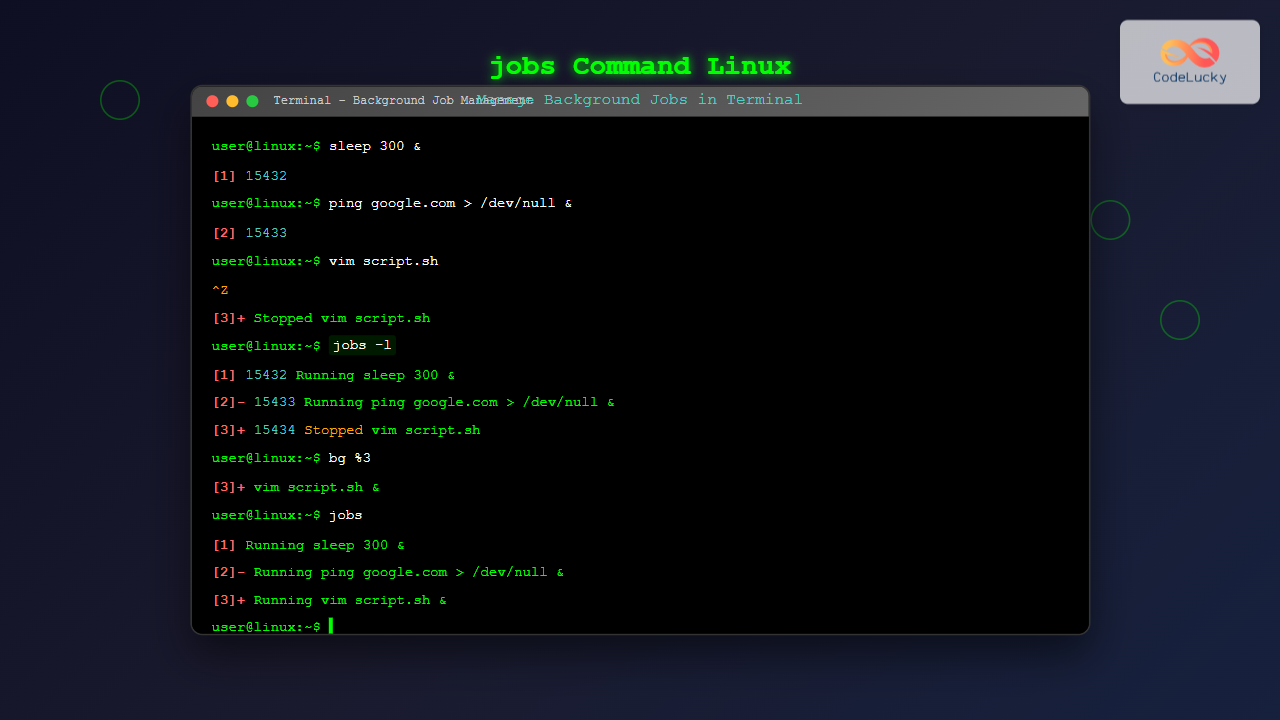
Let’s start with creating some background jobs to work with:
# Start a long-running process in the background
$ sleep 300 &
[1] 12345

# Start another background job
$ ping google.com > /dev/null &
[2] 12346

# Start a third job and suspend it
$ top
# Press Ctrl+Z to suspend
^Z
[3]+  Stopped                 top
In this example:
[1],[2], and[3]are job numbers12345and12346are process IDs- The
+symbol indicates the current job
Viewing All Jobs
Now let’s use the jobs command to see our active jobs:
$ jobs
[1]   Running                 sleep 300 &
[2]-  Running                 ping google.com > /dev/null &
[3]+  Stopped                 top
The output shows:
- Job numbers in square brackets
- Job status (Running or Stopped)
- The command that started the job
- Symbols:
+(current job),-(previous job)
Displaying Process IDs
To see the process IDs along with job information, use the -l option:
$ jobs -l
[1]  12345 Running                 sleep 300 &
[2]- 12346 Running                 ping google.com > /dev/null &
[3]+ 12347 Stopped                 top
Showing Only Process IDs
If you only need the process IDs, use the -p option:
$ jobs -p
12345
12346
12347
Filtering Jobs by Status
You can filter jobs based on their current status:
# Show only running jobs
$ jobs -r
[1]   Running                 sleep 300 &
[2]-  Running                 ping google.com > /dev/null &

# Show only stopped jobs
$ jobs -s
[3]+  Stopped                 top
Managing Jobs with Other Commands
Bringing Jobs to Foreground
Use the fg command to bring a background job to the foreground:
# Bring job 3 to foreground
$ fg %3

# Bring the current job (marked with +) to foreground
$ fg
Sending Jobs to Background
Use the bg command to resume a stopped job in the background:
# Resume job 3 in the background
$ bg %3
[3]+ top &

# Check the status
$ jobs
[1]   Running                 sleep 300 &
[2]-  Running                 ping google.com > /dev/null &
[3]+  Running                 top &
Killing Jobs
You can terminate jobs using the kill command with job specifications:
# Kill job 1
$ kill %1
[1]+  Terminated              sleep 300

# Kill all jobs
$ kill $(jobs -p)
Job Specifications
Linux provides several ways to reference jobs:
%n: Job number n%string: Job whose command begins with string%?string: Job whose command contains string%%or%+: Current job%-: Previous job
Examples:
# Reference by job number
$ fg %2

# Reference by command prefix
$ fg %slee    # Refers to "sleep 300"

# Reference by command substring
$ fg %?ping   # Refers to command containing "ping"

# Reference current job
$ fg %%
Monitoring Job Status Changes
The -n option shows only jobs that have changed status since the last notification:
$ jobs -n
[1]+  Done                    sleep 300
This is particularly useful in scripts where you need to check for completed jobs without seeing the entire job list repeatedly.
Advanced Usage Scenarios
Job Management in Scripts
Here’s an example of using jobs in a bash script:
#!/bin/bash

# Start multiple background jobs
echo "Starting background processes..."
sleep 10 &
ping -c 5 google.com > /dev/null &
find /home -name "*.log" > /tmp/logfiles.txt &

echo "Current jobs:"
jobs -l

# Wait for all jobs to complete
echo "Waiting for jobs to complete..."
wait

echo "All jobs completed."
jobs
Interactive Job Management
Create an interactive job manager:
#!/bin/bash

show_menu() {
    echo "=== Job Manager ==="
    echo "1. List all jobs"
    echo "2. List running jobs"
    echo "3. List stopped jobs"
    echo "4. Bring job to foreground"
    echo "5. Send job to background"
    echo "6. Kill a job"
    echo "7. Exit"
}

while true; do
    show_menu
    read -p "Choose an option: " choice

    case $choice in
        1) jobs -l ;;
        2) jobs -r ;;
        3) jobs -s ;;
        4)
            jobs
            read -p "Enter job number: " jobnum
            fg %$jobnum
            ;;
        5)
            jobs -s
            read -p "Enter job number: " jobnum
            bg %$jobnum
            ;;
        6)
            jobs
            read -p "Enter job number: " jobnum
            kill %$jobnum
            ;;
        7) exit 0 ;;
        *) echo "Invalid option" ;;
    esac
done
Best Practices and Tips
1. Regular Job Monitoring
Make it a habit to check your jobs regularly, especially when running multiple long processes:
# Add this alias to your ~/.bashrc for quick job checking
alias jl='jobs -l'
2. Proper Job Cleanup
Always clean up completed or unnecessary jobs to keep your environment organized:
# Kill all background jobs before logging out
$ kill $(jobs -p)
3. Using nohup with Background Jobs
For processes that should continue running even after you log out, combine nohup with background execution:
$ nohup long-running-script.sh &
[1] 12348
nohup: ignoring input and appending output to 'nohup.out'
4. Job Control in Different Shells
Remember that job control varies between shells. The examples in this article work in bash and similar shells, but may behave differently in other shells like fish or zsh.
Common Issues and Troubleshooting
Jobs Not Appearing
If jobs don’t appear when you run the jobs command:
- Ensure you’re in the same shell session where you started the jobs
- Check if the jobs have already completed
- Verify that job control is enabled:
set -m
Cannot Control Jobs
If you can’t bring jobs to foreground or background:
- Make sure you’re using the correct job specification syntax
- Check if the process is still running with
ps - Verify that the shell supports job control
Integration with Other Linux Tools
Combining with ps and top
You can combine job management with other process monitoring tools:
# Get detailed info about job processes
$ jobs -p | xargs ps -f

# Monitor job processes with top
$ jobs -p | xargs -I {} top -p {}
Using with Screen and tmux
While jobs manages processes within a single shell session, tools like screen and tmux provide more advanced session management:
# Start a job in screen
$ screen -S myjob
$ long-running-process
# Detach with Ctrl+A, D

# List screen sessions
$ screen -ls
Conclusion
The jobs command is a powerful tool for managing background processes in Linux. By mastering its various options and understanding how to integrate it with other job control commands like fg, bg, and kill, you can efficiently handle multiple processes and improve your overall terminal productivity.
Whether you’re a system administrator managing multiple scripts, a developer running various build processes, or a Linux enthusiast exploring the command line, the jobs command is an essential skill that will serve you well in your Linux journey. Practice these commands regularly, and soon managing background jobs will become second nature in your daily Linux workflow.
Related Posts
bg Command in Linux: Resume Jobs in Background with Examples
The bg command in Linux is a powerful built-in shell command that allows you to resume suspended jobs in the...
fg Command Linux: Complete Guide to Managing Background and Foreground Jobs
The fg command in Linux is a powerful job control tool that allows you to bring background processes to the...
nohup Command Linux: Run Commands After Logout and Keep Processes Running
The nohup command is one of the most essential tools for Linux system administrators and developers who need to run...

ps Command in Linux: Complete Guide to Process Monitoring and Management
The ps command is one of the most fundamental and powerful tools in Linux for displaying information about running processes....
at Command Linux: Complete Guide to Schedule One-time Tasks with Examples
The at command in Linux is a powerful utility for scheduling one-time tasks to run at specific times in the...
sleep Command Linux: Complete Guide to Delay Execution in Scripts and Terminal
The sleep command is one of the most fundamental utilities in Linux and Unix-like systems, designed to pause execution for...

bash Command Linux: Start New Shell Sessions and Execute Scripts Efficiently
The bash command is one of the most fundamental tools in Linux systems, serving as both a command-line interpreter and...
parallel Command Linux: Run Commands Concurrently for Maximum Efficiency
The parallel command in Linux is a powerful tool that allows you to execute multiple commands simultaneously, dramatically improving efficiency...
crontab Command Linux: Schedule Automated Tasks with Examples and Best Practices
The crontab command is one of the most powerful tools in Linux for scheduling automated tasks. Whether you need to...

w Command Linux: Complete Guide to Monitor Active Users and System Activity
The w command is one of the most essential system monitoring tools in Linux, providing administrators and users with real-time...
htop Command Linux: Complete Guide to Advanced Process Monitoring and Management
The htop command is an enhanced, interactive version of the traditional top command that provides real-time monitoring of system processes...
history Command Linux: Complete Guide to View and Manage Your Command History
The history command in Linux is one of the most powerful tools for managing and navigating your command line experience....





