
JavaScript Window innerHeight Property: Window Inner Height
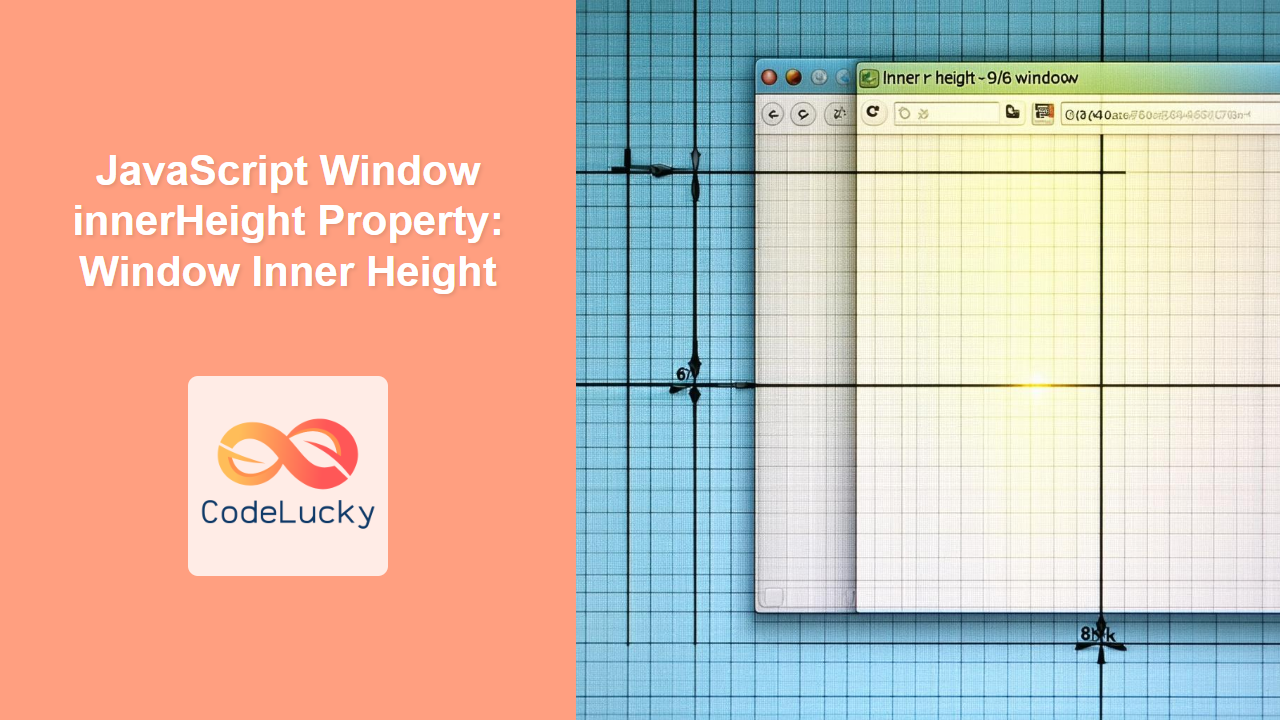
The window.innerHeight property in JavaScript returns the interior height of the browser window’s content area, measured in pixels. This includes the height of the document displayed within the window, excluding the height of browser toolbars, menu bars, scrollbars, and window borders. Understanding window.innerHeight is essential for creating responsive web designs and dynamic layouts that adapt to different screen sizes.
What is window.innerHeight?
The window.innerHeight property provides a way to determine the amount of vertical space available for displaying content within the browser window. This value is read-only and dynamically updates as the window is resized. It’s a critical component for ensuring your web applications provide an optimal viewing experience across various devices and screen resolutions.
Purpose of the window.innerHeight Property
The primary purpose of window.innerHeight is to:
- Determine the available vertical space for rendering content in the browser window.
- Create responsive designs that adapt to different screen sizes and resolutions.
- Dynamically adjust the layout and elements of a webpage based on the window’s height.
- Implement features such as full-screen modes and adaptive scrolling.
Syntax
The syntax for accessing the window.innerHeight property is straightforward:
let innerHeight = window.innerHeight;
The window object is the global scope in browsers, so you can also access innerHeight directly without specifying window.:
let innerHeight = innerHeight;
However, it is better to explicitly use window.innerHeight for readability and to avoid potential naming conflicts.
Important Points
- Read-Only: The
window.innerHeightproperty is read-only, meaning you cannot modify it directly. - Units: The value is always returned in pixels.
- Dynamic: The value updates automatically as the browser window is resized.
- Exclusions: It does not include the height of browser toolbars, menu bars, or window borders.
Examples
Let’s explore some practical examples of how to use the window.innerHeight property in JavaScript.
Basic Usage: Displaying the Inner Height
This example demonstrates how to retrieve and display the current inner height of the browser window.
<!DOCTYPE html>
<html>
<head>
  <title>Window innerHeight Example</title>
</head>
<body>
  <h1>Window innerHeight Example</h1>
  <p>The inner height of the window is: <span id="innerHeightValue"></span> pixels.</p>

  <script>
    const innerHeightValue_basic = document.getElementById('innerHeightValue');
    const displayInnerHeight = () => {
      innerHeightValue_basic.textContent = window.innerHeight;
    };

    // Initial display
    displayInnerHeight();

    // Update display on window resize
    window.addEventListener('resize', displayInnerHeight);
  </script>
</body>
</html>
In this example, the displayInnerHeight function retrieves the window.innerHeight value and updates the content of the <span> element with the ID innerHeightValue. The resize event listener ensures that the value is updated whenever the window is resized.
Creating a Responsive Layout
This example demonstrates how to use window.innerHeight to dynamically adjust the layout of a webpage, specifically setting the height of a content <div> to match the window’s inner height.
<!DOCTYPE html>
<html>
<head>
  <title>Responsive Layout Example</title>
  <style>
    #content {
      width: 100%;
      background-color: #f0f0f0;
      text-align: center;
      padding: 20px;
    }
  </style>
</head>
<body>
  <h1>Responsive Layout Example</h1>
  <div id="content">
    This content will dynamically adjust its height to match the window's inner height.
  </div>

  <script>
    const content_responsive = document.getElementById('content');
    const adjustContentHeight = () => {
      content_responsive.style.height = window.innerHeight + 'px';
    };

    // Initial adjustment
    adjustContentHeight();

    // Update adjustment on window resize
    window.addEventListener('resize', adjustContentHeight);
  </script>
</body>
</html>
In this example, the adjustContentHeight function sets the height style property of the <div> element with the ID content to the current window.innerHeight value. This ensures that the content <div> always occupies the full visible height of the browser window.
Implementing a Full-Screen Mode Toggle
This example demonstrates how to use window.innerHeight to implement a basic full-screen mode toggle for a <div> element. Note that actual full-screen API usage would be more appropriate for real full-screen functionality.
<!DOCTYPE html>
<html>
<head>
  <title>Full-Screen Mode Toggle Example</title>
  <style>
    #fullscreenDiv {
      width: 100%;
      height: 300px;
      background-color: #f0f0f0;
      text-align: center;
      padding: 20px;
      transition: height 0.3s ease;
    }
  </style>
</head>
<body>
  <h1>Full-Screen Mode Toggle Example</h1>
  <div id="fullscreenDiv">
    This div will toggle between a fixed height and full-screen height.
  </div>
  <button id="toggleButton">Toggle Full-Screen</button>

  <script>
    const fullscreenDiv_toggle = document.getElementById('fullscreenDiv');
    const toggleButton_toggle = document.getElementById('toggleButton');
    let isFullscreen = false;
    const defaultHeight = '300px';

    const toggleFullscreen = () => {
      if (isFullscreen) {
        fullscreenDiv_toggle.style.height = defaultHeight;
      } else {
        fullscreenDiv_toggle.style.height = window.innerHeight + 'px';
      }
      isFullscreen = !isFullscreen;
    };

    toggleButton_toggle.addEventListener('click', toggleFullscreen);
  </script>
</body>
</html>
In this example, clicking the “Toggle Full-Screen” button toggles the height of the <div> element with the ID fullscreenDiv between a fixed height (300px) and the full inner height of the window (window.innerHeight). This provides a simple full-screen effect.
Dynamically Adjusting Canvas Size
When working with the HTML Canvas API, window.innerHeight can be used to dynamically adjust the canvas size to fit the available screen space.
<!DOCTYPE html>
<html>
<head>
  <title>Dynamic Canvas Size Example</title>
  <style>
    #myCanvas_dynamic {
      border: 1px solid black;
    }
  </style>
</head>
<body>
  <h1>Dynamic Canvas Size Example</h1>
  <canvas id="myCanvas_dynamic"></canvas>

  <script>
    const canvas_dynamic = document.getElementById('myCanvas_dynamic');
    const ctx_dynamic = canvas_dynamic.getContext('2d');

    const adjustCanvasSize = () => {
      canvas_dynamic.width = window.innerWidth;
      canvas_dynamic.height = window.innerHeight;

      // Example drawing: a rectangle that fills the canvas
      ctx_dynamic.fillStyle = 'lightblue';
      ctx_dynamic.fillRect(0, 0, canvas_dynamic.width, canvas_dynamic.height);
    };

    // Initial adjustment
    adjustCanvasSize();

    // Update adjustment on window resize
    window.addEventListener('resize', adjustCanvasSize);
  </script>
</body>
</html>
In this example, the adjustCanvasSize function sets the width and height attributes of the <canvas> element with the ID myCanvas_dynamic to the current window.innerWidth and window.innerHeight values, respectively. This ensures that the canvas always fills the entire browser window. A blue rectangle is drawn to fill the canvas.
Creating a Responsive Navigation Bar
This example demonstrates how to use window.innerHeight to create a responsive navigation bar that collapses into a hamburger menu on smaller screens.
<!DOCTYPE html>
<html>
<head>
<title>Responsive Navigation Bar Example</title>
<style>
body {
margin: 0;
font-family: Arial, sans-serif;
}
.navbar {
background-color: #333;
overflow: hidden;
}
.navbar a {
float: left;
display: block;
color: white;
text-align: center;
padding: 14px 16px;
text-decoration: none;
}
.navbar a:hover {
background-color: #ddd;
color: black;
}
.navbar .icon {
display: none;
}
@media screen and (max-height: 600px) {
.navbar a:not(:first-child) {display: none;}
.navbar a.icon {
float: right;
display: block;
}
}
@media screen and (max-height: 600px) {
.navbar.responsive {position: relative;}
.navbar.responsive .icon {
position: absolute;
right: 0;
top: 0;
}
.navbar.responsive a {
float: none;
display: block;
text-align: left;
}
}
</style>
</head>
<body>
<div class="navbar" id="myNavbar">
<a href="#home">Home</a>
<a href="#news">News</a>
<a href="#contact">Contact</a>
<a href="#about">About</a>
<a href="javascript:void(0);" class="icon" onclick="myFunction()">
☰
</a>
</div>
<div style="padding:16px">
<h2>Responsive Navbar Example</h2>
<p>Resize the browser window to see the effect. When the screen is less than 600px high, the navigation links will disappear and be replaced by a hamburger menu icon.</p>
</div>
<script>
function myFunction() {
var x = document.getElementById("myNavbar");
if (x.className === "navbar") {
x.className += " responsive";
} else {
x.className = "navbar";
}
}
</script>
</body>
</html>
In this example, CSS media queries are used with max-height to determine when the navigation bar should collapse into a hamburger menu. When the browser window’s inner height is less than or equal to 600 pixels, the navigation links are hidden, and a hamburger menu icon is displayed. Clicking the icon toggles the navigation links’ visibility.
Browser Support
The window.innerHeight property is widely supported across all major browsers, including:
- Chrome
- Firefox
- Safari
- Edge
- Opera
- Internet Explorer (all versions)
This broad compatibility ensures that you can confidently use window.innerHeight in your web development projects without worrying about browser-specific issues.
Conclusion
The window.innerHeight property is a fundamental tool for creating responsive and dynamic web applications. By understanding how to use this property, you can create layouts and features that adapt to different screen sizes and resolutions, providing an optimal user experience across various devices. Whether you’re adjusting element heights, dynamically sizing canvases, or implementing full-screen modes, window.innerHeight offers a simple and effective way to interact with the browser window’s dimensions.
Related Posts
JavaScript Window outerHeight Property: Window Outer Height
JavaScript Window outerHeight Property: A Comprehensive Guide The JavaScript window.outerHeight property returns the height of the entire browser window, including...

JavaScript Window outerWidth Property: Window Outer Width
JavaScript Window outerWidth Property: A Comprehensive Guide The JavaScript window.outerWidth property returns the outer width of the browser window, including...

JavaScript Screen height Property: Screen Height
JavaScript screen.height Property: Understanding Screen Height The screen.height property in JavaScript is a read-only property that returns the total height...
JavaScript screen.width Property: Screen Width
JavaScript screen.width Property: Screen Width The screen.width property in JavaScript is a read-only property that returns the total width of...
JavaScript Window resizeTo() Method: Resizing Window
JavaScript Window resizeTo() Method: Resizing Browser Windows The JavaScript window.resizeTo() method is a powerful tool that allows you to programmatically...

JavaScript Screen availHeight Property: Available Height
JavaScript screen.availHeight Property: Understanding Available Screen Height The screen.availHeight property in JavaScript is a read-only property that returns the height...

HTML Element clientHeight Property: Element Height
HTML Element clientHeight Property: Understanding Element Height The clientHeight property is a read-only property of an HTML element in the...
JavaScript Window screenX Property: Window Screen X
JavaScript Window screenX Property: Understanding Window Screen X The screenX property of the JavaScript window object returns the horizontal distance...
JavaScript Screen availWidth Property: Available Width
JavaScript Screen availWidth Property: Available Width The availWidth property of the JavaScript Screen object returns the available horizontal space (in...

JavaScript Window document Property: Window Document
JavaScript Window document Property: Understanding the Window Document The document property of the JavaScript Window object provides a way to...

JavaScript Window scrollY Property: Window Scroll Y
Understanding the JavaScript Window scrollY Property The JavaScript window.scrollY property is a read-only property that returns the number of pixels...

HTML Element scrollHeight Property: Element Scroll Height
HTML Element scrollHeight Property: Understanding Element Scroll Height The scrollHeight property is a read-only property of an HTML element that...





