
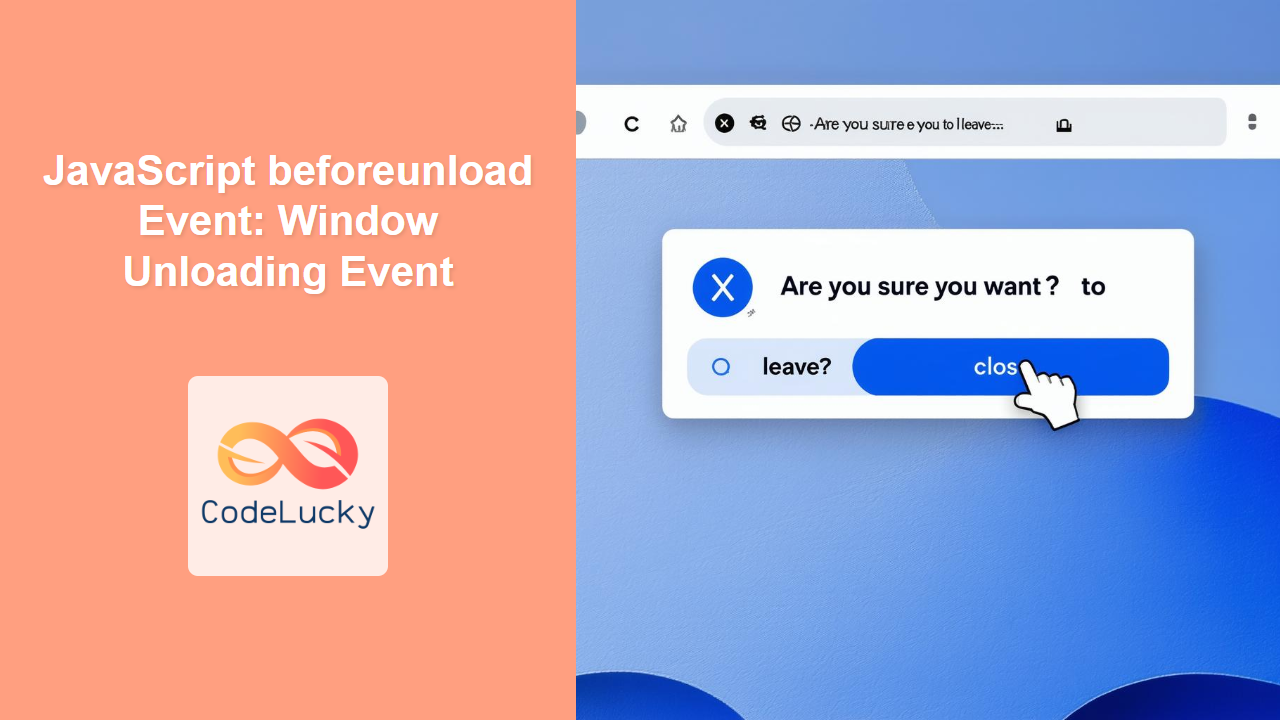
JavaScript beforeunload Event: Handling Window Unloading
The beforeunload event in JavaScript is triggered when the browser window or tab is about to be closed, refreshed, or navigated away from. This event provides an opportunity for developers to intercept the unloading process and potentially prevent it, often to warn users about unsaved changes. Understanding how to use the beforeunload event is crucial for maintaining data integrity and providing a seamless user experience.
What is the beforeunload Event?
The beforeunload event is a part of the window object and is triggered immediately before the browser window or tab unloads the current document. This unloading can occur due to several reasons:
- Closing the browser window or tab
- Refreshing the page
- Navigating to a different URL
- Clicking a link that navigates to a new page
- Submitting a form that redirects the user
The event allows you to display a confirmation dialog to the user, asking if they are sure they want to leave the page. If they confirm, the unloading process continues; otherwise, the browser cancels the navigation.
Purpose of the beforeunload Event
The primary purposes of the beforeunload event are:
- Preventing Data Loss: Ensuring users don’t lose unsaved changes or data entered in forms before navigating away.
- Enhancing User Experience: Providing clear prompts and warnings when navigating away from critical pages.
- Customizing Exit Behavior: Allowing developers to handle specific actions or cleanup before the page is unloaded.
Syntax and Usage
The beforeunload event is an event of the window object and can be attached using addEventListener or by setting the onbeforeunload property.
Using addEventListener
window.addEventListener("beforeunload", function(event) {
  // Your code here
  event.preventDefault(); // Prevent default unload action
  event.returnValue = "Are you sure you want to leave?"; // Set confirmation message (for older browsers)
  return "Are you sure you want to leave?"; // Return string message (for modern browsers)
});
Using onbeforeunload Property
window.onbeforeunload = function(event) {
  // Your code here
  event.preventDefault(); // Prevent default unload action
  event.returnValue = "Are you sure you want to leave?"; // Set confirmation message (for older browsers)
  return "Are you sure you want to leave?"; // Return string message (for modern browsers)
};
| Property | Type | Description |
|---|---|---|
| `event` | Object | The event object, which contains information about the `beforeunload` event. |
| `event.preventDefault()` | Method | Prevents the default unload behavior, allowing you to show a confirmation dialog. |
| `event.returnValue` | String | (Legacy) Sets the confirmation message shown to the user, primarily used in older browsers. |
| `return “message”` | String | (Modern) Returns a string message that is displayed as the confirmation message. This method is more consistent in modern browsers. |
Note: You must call event.preventDefault() to make sure the user gets prompt dialog. ⚠️
Basic Examples
Let’s look at some basic examples demonstrating how to use the beforeunload event.
Basic Confirmation Dialog
This example shows a simple confirmation dialog when the user tries to close or refresh the page.
<!DOCTYPE html>
<html>
<head>
    <title>beforeunload Example 1</title>
</head>
<body>
    <h1>Basic beforeunload Confirmation</h1>
    <p>Try closing or refreshing the page.</p>
    <script>
       window.addEventListener('beforeunload', function(event){
           event.preventDefault();
           event.returnValue = "Are you sure you want to leave?";
           return "Are you sure you want to leave?";
       });

</script>
</body>
</html>
Output: When attempting to close or refresh the page, a browser dialog will appear asking, “Are you sure you want to leave?”.
Preventing Unload with Unsaved Changes
Here’s an example of how to use the beforeunload event to prompt users when there are unsaved changes in a form:
<!DOCTYPE html>
<html>
<head>
    <title>beforeunload Example 2</title>
</head>
<body>
    <h1>beforeunload with Unsaved Changes</h1>
    <textarea id="myTextarea" rows="5" cols="50">Initial Text</textarea>
    <script>
    const myTextarea = document.getElementById('myTextarea');
    let unsavedChanges = false;

    myTextarea.addEventListener('input', () => {
      unsavedChanges = true;
    });

       window.addEventListener('beforeunload', function(event){
          if(unsavedChanges){
              event.preventDefault();
              event.returnValue = "You have unsaved changes. Are you sure you want to leave?";
              return "You have unsaved changes. Are you sure you want to leave?";
          }
       });

</script>
</body>
</html>
Output: If you modify the text area, a dialog will ask if you’re sure you want to leave when you attempt to close or refresh the page. Otherwise, there will not be any prompt if you haven’t changed the textarea content.
Dynamically Changing Confirmation Message
You can also dynamically change the confirmation message based on different conditions.
<!DOCTYPE html>
<html>
<head>
    <title>beforeunload Example 3</title>
</head>
<body>
    <h1>beforeunload Dynamic Message</h1>
    <button id="toggleButton">Enable Warning</button>
    <script>
    let showWarning = false;
    const toggleButton = document.getElementById('toggleButton');
    toggleButton.addEventListener('click', () => {
        showWarning = !showWarning;
        toggleButton.textContent = showWarning ? 'Disable Warning' : 'Enable Warning';
    });
    window.addEventListener('beforeunload', function(event){
      if (showWarning) {
           event.preventDefault();
           event.returnValue = "Warning is enabled. Are you sure you want to leave?";
           return "Warning is enabled. Are you sure you want to leave?";
        }
    });

</script>
</body>
</html>
Output: Clicking the button toggles whether the confirmation dialog appears when leaving the page. The message changes based on whether the warning is enabled or disabled.
Advanced Use Cases
Managing Multiple Forms
When dealing with multiple forms on a page, you can track changes in each form and prompt the user if any form has unsaved changes.
<!DOCTYPE html>
<html>
<head>
    <title>beforeunload Example 4</title>
</head>
<body>
    <h1>beforeunload with Multiple Forms</h1>
   <form id="form1">
    <input type="text" placeholder="Form 1" name="input1">
   </form>
   <form id="form2">
     <textarea rows="3" cols="20" placeholder="Form 2" name="textarea2"></textarea>
   </form>
    <script>
       const forms = Array.from(document.querySelectorAll('form'));
       let unsavedChanges = false;

       forms.forEach(form => {
           form.addEventListener('input', () => {
             unsavedChanges = true;
           });
       });

       window.addEventListener('beforeunload', function(event){
         if(unsavedChanges){
            event.preventDefault();
            event.returnValue = "You have unsaved changes in one or more forms. Are you sure you want to leave?";
            return "You have unsaved changes in one or more forms. Are you sure you want to leave?";
         }
       });

</script>
</body>
</html>
Output: If you modify any field in either form, the confirmation dialog will appear, prompting you before leaving the page.
Custom Dialog Implementation
Instead of relying on the browser’s default dialog, you might want to implement your custom dialog. While you cannot directly use a custom dialog with beforeunload event, you can simulate this behavior by setting a flag to remember if the user already declined before.
<!DOCTYPE html>
<html>
<head>
    <title>beforeunload Example 5</title>
  <style>
    #customDialog {
      display: none;
      position: fixed;
      top: 50%;
      left: 50%;
      transform: translate(-50%, -50%);
      background-color: white;
      border: 1px solid black;
      padding: 20px;
    }
  </style>
</head>
<body>
    <h1>beforeunload with Custom Dialog (Simulation)</h1>
    <button id="openButton">Open Custom Dialog</button>
    <div id="customDialog">
      <p>Are you sure you want to leave?</p>
      <button id="confirmButton">Leave</button>
      <button id="cancelButton">Stay</button>
    </div>
    <script>
        const openButton = document.getElementById('openButton');
        const customDialog = document.getElementById('customDialog');
        const confirmButton = document.getElementById('confirmButton');
        const cancelButton = document.getElementById('cancelButton');
        let preventUnload = false;

       openButton.addEventListener('click', () =>{
           customDialog.style.display = 'block';
           preventUnload = true;
       });
       confirmButton.addEventListener('click', ()=>{
           customDialog.style.display = 'none';
           preventUnload = false;
       })
       cancelButton.addEventListener('click', ()=>{
        customDialog.style.display = 'none';
           preventUnload = true;
       })

        window.addEventListener('beforeunload', function(event) {
            if (preventUnload) {
              event.preventDefault();
              event.returnValue = "";
            }
        });

</script>
</body>
</html>
Output: Clicking the “Open Custom Dialog” button will show custom dialog. If you attempt to close or refresh the page after opening the custom dialog, the dialog will not be shown by the browser, but if user clicks cancel or tries to leave the page before the click, it will not load as well.
Important Considerations
- User Experience: Use
beforeunloadjudiciously. Avoid overusing it, as it can be annoying for users. Only use it when there is a genuine risk of data loss. - Performance: Keep the code within the
beforeunloadevent handler minimal to avoid performance issues. The event is triggered frequently, so complex operations might slow down page unloading. - Mobile Browsers: Some mobile browsers might not display the message or might behave differently, so test thoroughly.
- Legacy Browsers: For better backward compatibility, always set both
event.returnValueand return the confirmation message in thebeforeunloadevent handler. - Security: The confirmation message is a user-facing string; avoid adding sensitive information.
Browser Support
The beforeunload event is widely supported across all major browsers, including:
- Chrome
- Firefox
- Safari
- Edge
- Opera
Note: While the event itself is supported, there may be slight differences in the implementation details and behavior across different browsers. Always test thoroughly across multiple browsers. 🧪
Conclusion
The beforeunload event is a valuable tool for web developers to handle the unloading of a page, prevent data loss, and enhance the user experience. Understanding its behavior and nuances will enable you to build more robust and user-friendly applications. From simple confirmation messages to managing multiple forms, the beforeunload event can be a critical component of your web development toolkit.
Related Posts

JavaScript onunload Event: Window Unloaded
JavaScript onunload Event: Handling Window Unloading The onunload event in JavaScript is triggered when a window or tab is about...

JavaScript onload Event: Browser Online
JavaScript onload Event: Triggering Actions After Page Load The onload event in JavaScript is a crucial event that fires when...

JavaScript onload Event: Element Loaded
JavaScript onload Event: Handling Element Loading The JavaScript onload event is a crucial mechanism for handling the loading of various...

JavaScript pageshow Event: Page Shown
JavaScript pageshow Event: A Comprehensive Guide The pageshow event in JavaScript is a critical part of the page lifecycle events....

JavaScript onloadstart Event: Resource Loading Started
JavaScript onloadstart Event: Resource Loading Started The onloadstart event in JavaScript is triggered when the browser begins to load a...

JavaScript onblur Event: Element Lost Focus
JavaScript onblur Event: Handling Element Focus Loss The JavaScript onblur event is a fundamental part of handling user interactions within...

JavaScript Window addEventListener() Method: Adding Event Listeners
JavaScript Window addEventListener() Method: Adding Event Listeners The window.addEventListener() method is a fundamental part of JavaScript, allowing you to listen...

JavaScript PageTransitionEvent Object: Page Transition Events
Understanding JavaScript PageTransitionEvent Object: Page Transition Events The PageTransitionEvent object in JavaScript is part of the HTML DOM API and...

JavaScript Window removeEventListener() Method: Removing Event Listeners
JavaScript Window removeEventListener() Method: Removing Event Listeners The window.removeEventListener() method in JavaScript is crucial for managing and cleaning up event...

JavaScript onresize Event: Window Resized
JavaScript onresize Event: Detecting Window Resizing The JavaScript onresize event is a fundamental part of creating responsive web applications. It...
JavaScript Event preventDefault() Method: Preventing Default Event Action
JavaScript Event preventDefault() Method: Preventing Default Event Action The preventDefault() method in JavaScript is a fundamental tool for web developers,...

JavaScript DOM Events: Handling User and Browser Events
JavaScript's ability to interact with the Document Object Model (DOM) is one of its most powerful features. This interaction is...





