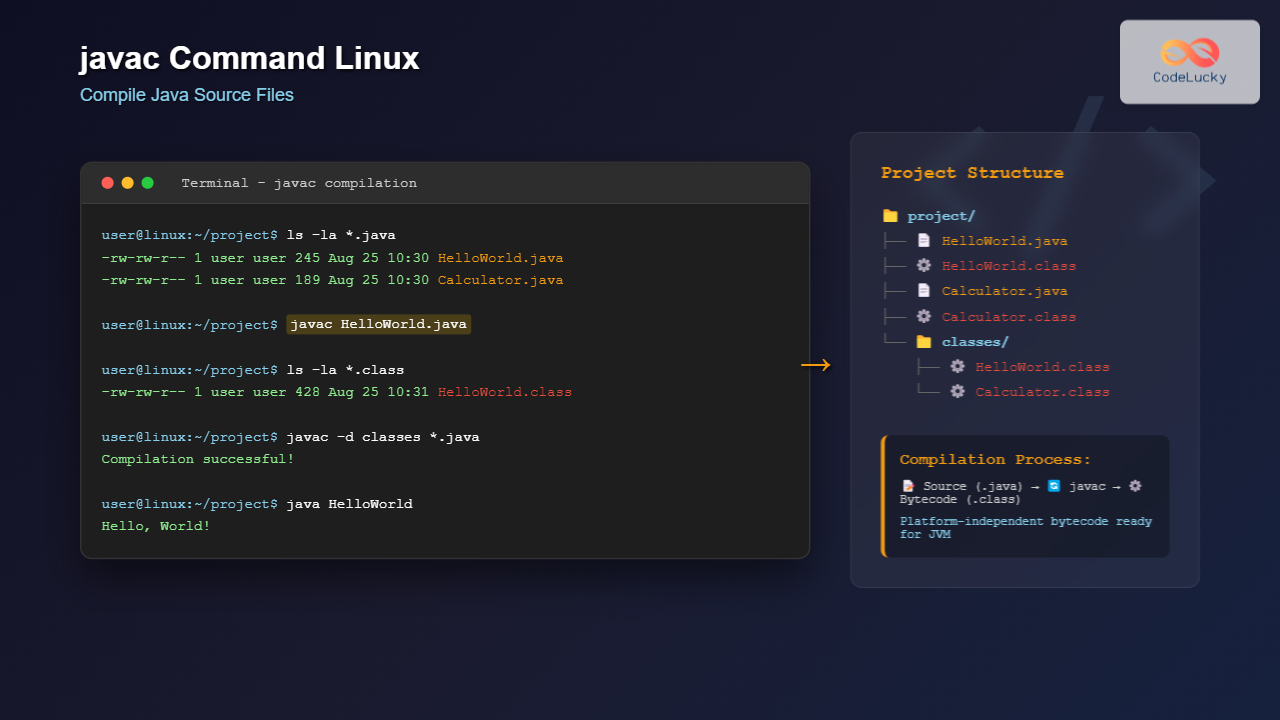
The javac command is the Java compiler that transforms Java source code (.java files) into bytecode (.class files) that can be executed by the Java Virtual Machine (JVM). As a fundamental tool in Java development on Linux systems, understanding javac is essential for any Java programmer working in command-line environments.
What is the javac Command?
The javac command is part of the Java Development Kit (JDK) and serves as the primary compiler for Java source files. It reads Java source code written in .java files and converts them into platform-independent bytecode stored in .class files. This compilation process is crucial for Java’s “write once, run anywhere” philosophy.
Basic Syntax
The basic syntax of the javac command follows this pattern:
javac [options] [source-files]Where:
- options: Various compilation flags and parameters
- source-files: One or more .java files to compile
Prerequisites
Before using javac, ensure you have the Java Development Kit (JDK) installed on your Linux system:
# Check if javac is installed
javac -version

# Install OpenJDK on Ubuntu/Debian
sudo apt update
sudo apt install default-jdk

# Install OpenJDK on CentOS/RHEL
sudo yum install java-devel

# Install OpenJDK on Fedora
sudo dnf install java-devel
Basic javac Examples
Example 1: Compiling a Simple Java File
Let’s start with a basic “Hello World” program:
# Create a Java source file
cat > HelloWorld.java << 'EOF'
public class HelloWorld {
    public static void main(String[] args) {
        System.out.println("Hello, World!");
    }
}
EOF

# Compile the Java file
javac HelloWorld.java

# List files to see the generated .class file
ls -la HelloWorld.*
Output:
-rw-rw-r-- 1 user user  118 Aug 25 10:30 HelloWorld.java
-rw-rw-r-- 1 user user  428 Aug 25 10:30 HelloWorld.class
The compilation creates a HelloWorld.class file containing the bytecode.
Example 2: Compiling Multiple Files
When working with multiple Java files, you can compile them together:
# Create multiple Java files
cat > Calculator.java << 'EOF'
public class Calculator {
    public int add(int a, int b) {
        return a + b;
    }

    public int multiply(int a, int b) {
        return a * b;
    }
}
EOF

cat > MathApp.java << 'EOF'
public class MathApp {
    public static void main(String[] args) {
        Calculator calc = new Calculator();
        System.out.println("5 + 3 = " + calc.add(5, 3));
        System.out.println("5 * 3 = " + calc.multiply(5, 3));
    }
}
EOF

# Compile all Java files in the directory
javac *.java

# Or compile specific files
javac Calculator.java MathApp.java
Important javac Command Options
1. -d (Destination Directory)
Specifies where to place generated class files:
# Create a directory for compiled classes
mkdir classes

# Compile and place .class files in the classes directory
javac -d classes HelloWorld.java

# Verify the structure
ls -la classes/
Output:
total 4
drwxrwxr-x 2 user user   60 Aug 25 10:35 .
drwxrwxr-x 3 user user  120 Aug 25 10:35 ..
-rw-rw-r-- 1 user user  428 Aug 25 10:35 HelloWorld.class
2. -cp or -classpath
Specifies the classpath for finding classes and packages:
# Create a package structure
mkdir -p com/example/utils

cat > com/example/utils/StringHelper.java << 'EOF'
package com.example.utils;

public class StringHelper {
    public static String reverse(String str) {
        return new StringBuilder(str).reverse().toString();
    }
}
EOF

cat > StringTest.java << 'EOF'
import com.example.utils.StringHelper;

public class StringTest {
    public static void main(String[] args) {
        String original = "Hello";
        String reversed = StringHelper.reverse(original);
        System.out.println("Original: " + original);
        System.out.println("Reversed: " + reversed);
    }
}
EOF

# Compile with classpath
javac -cp . com/example/utils/StringHelper.java StringTest.java
3. -sourcepath
Specifies where to find source files:
# Create source directory structure
mkdir -p src/main/java

# Move Java files to source directory
mv StringTest.java src/main/java/
mv com/ src/main/java/

# Compile using sourcepath
javac -sourcepath src/main/java -d classes src/main/java/StringTest.java
4. -verbose
Shows detailed information about the compilation process:
javac -verbose HelloWorld.javaOutput:
[parsing started RegularFileObject[HelloWorld.java]]
[parsing completed 15ms]
[search path for source files: .]
[search path for class files: /usr/lib/jvm/default-java/jre/lib/resources.jar, ...]
[loading java/lang/Object.class(java/lang/Object.class)]
[loading java/lang/String.class(java/lang/String.class)]
[checking HelloWorld]
[loading java/lang/System.class(java/lang/System.class)]
[loading java/io/PrintStream.class(java/io/PrintStream.class)]
[wrote RegularFileObject[HelloWorld.class]]
Advanced javac Options
Compilation with Different Java Versions
# Compile for specific Java version (backward compatibility)
javac -source 8 -target 8 HelloWorld.java

# Compile with specific encoding
javac -encoding UTF-8 HelloWorld.java

# Generate debugging information
javac -g HelloWorld.java

# Suppress warnings
javac -nowarn HelloWorld.java
Working with JAR Files in Classpath
# Assume you have external libraries
# Compile with JAR files in classpath
javac -cp "lib/commons-lang3.jar:lib/jackson-core.jar:." MyApplication.java

# For multiple JAR files, use wildcards (Linux)
javac -cp "lib/*:." MyApplication.java
Common Error Scenarios and Solutions
1. Class Not Found Error
# This will cause an error
cat > ErrorExample.java << 'EOF'
public class ErrorExample {
    public static void main(String[] args) {
        NonExistentClass obj = new NonExistentClass();
    }
}
EOF

javac ErrorExample.java
Error Output:
ErrorExample.java:3: error: cannot find symbol
        NonExistentClass obj = new NonExistentClass();
        ^
  symbol:   class NonExistentClass
  location: class ErrorExample
ErrorExample.java:3: error: cannot find symbol
        NonExistentClass obj = new NonExistentClass();
                                   ^
  symbol:   class NonExistentClass
  location: class ErrorExample
2 errors
2. Package Declaration Issues
# Create incorrect package structure
cat > WrongPackage.java << 'EOF'
package com.example;

public class WrongPackage {
    public static void main(String[] args) {
        System.out.println("Wrong package location");
    }
}
EOF

# This will compile but create incorrect directory structure
javac WrongPackage.java

# Correct approach
mkdir -p com/example
mv WrongPackage.java com/example/
javac com/example/WrongPackage.java
Best Practices for Using javac
1. Organize Source Code Structure
# Recommended project structure
project/
├── src/
│   └── main/
│       └── java/
│           └── com/
│               └── company/
│                   └── app/
│                       └── Main.java
├── classes/
├── lib/
└── docs/
2. Use Build Scripts
Create a simple build script for complex projects:
#!/bin/bash
# build.sh

# Clean previous builds
rm -rf classes/*

# Compile all Java files
find src/main/java -name "*.java" | xargs javac -d classes -cp "lib/*"

# Create JAR file
jar cf app.jar -C classes .

echo "Build completed successfully"
3. Environment Variables
# Set JAVA_HOME
export JAVA_HOME=/usr/lib/jvm/default-java

# Add to PATH
export PATH=$JAVA_HOME/bin:$PATH

# Set CLASSPATH
export CLASSPATH=.:lib/*:classes
Integration with IDEs and Build Tools
While javac is powerful for command-line compilation, modern Java development often uses build tools:
Maven Integration
# Maven uses javac internally
mvn compile

# Equivalent javac command
javac -d target/classes -cp "~/.m2/repository/..." src/main/java/**/*.java
Gradle Integration
# Gradle also uses javac
./gradlew compileJava

# Shows underlying javac commands with --debug flag
./gradlew compileJava --debug
Performance Optimization Tips
1. Incremental Compilation
# Only recompile changed files
javac -d classes $(find src -name "*.java" -newer classes/timestamp)

# Create timestamp file after successful compilation
touch classes/timestamp
2. Memory Management
# Increase heap size for large projects
javac -J-Xms512m -J-Xmx2g LargeProject.java

# Enable parallel garbage collection
javac -J-XX:+UseParallelGC MyProject.java
Debugging Compilation Issues
Verbose Output Analysis
# Get detailed compilation information
javac -verbose -Xlint:all HelloWorld.java 2>&1 | tee compilation.log

# Check for deprecation warnings
javac -Xlint:deprecation OldCode.java

# Check for unchecked operations
javac -Xlint:unchecked GenericCode.java
Cross-Platform Considerations
When developing Java applications on Linux for deployment on multiple platforms:
# Generate cross-platform compatible bytecode
javac -target 8 Application.java

# Ensure proper line endings
javac -encoding UTF-8 CrossPlatformApp.java

# Include debugging information for all platforms
javac -g:lines,vars,source Application.java
Troubleshooting Common Issues
Permission Problems
# Fix file permissions
chmod 644 *.java
chmod 755 directory/

# Ensure javac is executable
which javac
ls -la $(which javac)
Memory Issues
# Check available memory
free -h

# Compile with limited memory
javac -J-Xmx512m LargeFile.java
Conclusion
The javac command is an essential tool for Java development on Linux systems. From simple single-file compilation to complex multi-module projects, understanding javac options and best practices enables efficient Java development workflows. Whether you’re compiling individual files for testing or integrating javac into larger build processes, mastering this command provides a solid foundation for Java programming on Linux.
By following the examples and practices outlined in this guide, you’ll be able to leverage javac effectively for all your Java compilation needs, troubleshoot common issues, and optimize your development workflow for better productivity.
Related Posts
java Command Linux: Complete Guide to Running Java Applications and Programs
The java command is one of the most essential tools for developers working with Java applications on Linux systems. This...

Java Hello World: Your First Java Program
Welcome to the exciting world of Java programming! 🚀 In this comprehensive guide, we'll walk you through creating your very...
Java Environment Setup: Installation and Configuration
Java, one of the world's most popular programming languages, powers countless applications across various platforms. Whether you're a budding developer...

Java JVM: Java Virtual Machine Basics
Java's "Write Once, Run Anywhere" philosophy is made possible by the Java Virtual Machine (JVM). This powerful component of the...

Java Documentation: Javadoc and Best Practices
In the world of software development, writing clean, maintainable code is only half the battle. The other crucial aspect is...
Java Syntax: Basic Rules and Structure
Java, one of the most popular programming languages in the world, is known for its simplicity, versatility, and "write once,...
Java Annotations: Metadata for Your Code
Java annotations are a powerful feature that allows you to add metadata to your code. Introduced in Java 5, annotations...
Java Methods: Defining and Calling Functions
Java methods are the building blocks of any Java program, serving as reusable units of code that perform specific tasks....

Java 9 Features: Modules and API Improvements
Java 9, released in September 2017, brought significant enhancements to the Java platform. This version introduced a modular system and...

Java Scanner Methods: User Input Operations
Java's Scanner class is a powerful tool for reading user input from various sources, including the console, files, and even...

Java If…Else: Conditional Statements
Java, like many programming languages, uses conditional statements to control the flow of execution in a program. The if...else statement...
Java Packages: Organizing Classes
Java packages are a fundamental concept in Java programming that allows developers to organize and structure their code effectively. By...