
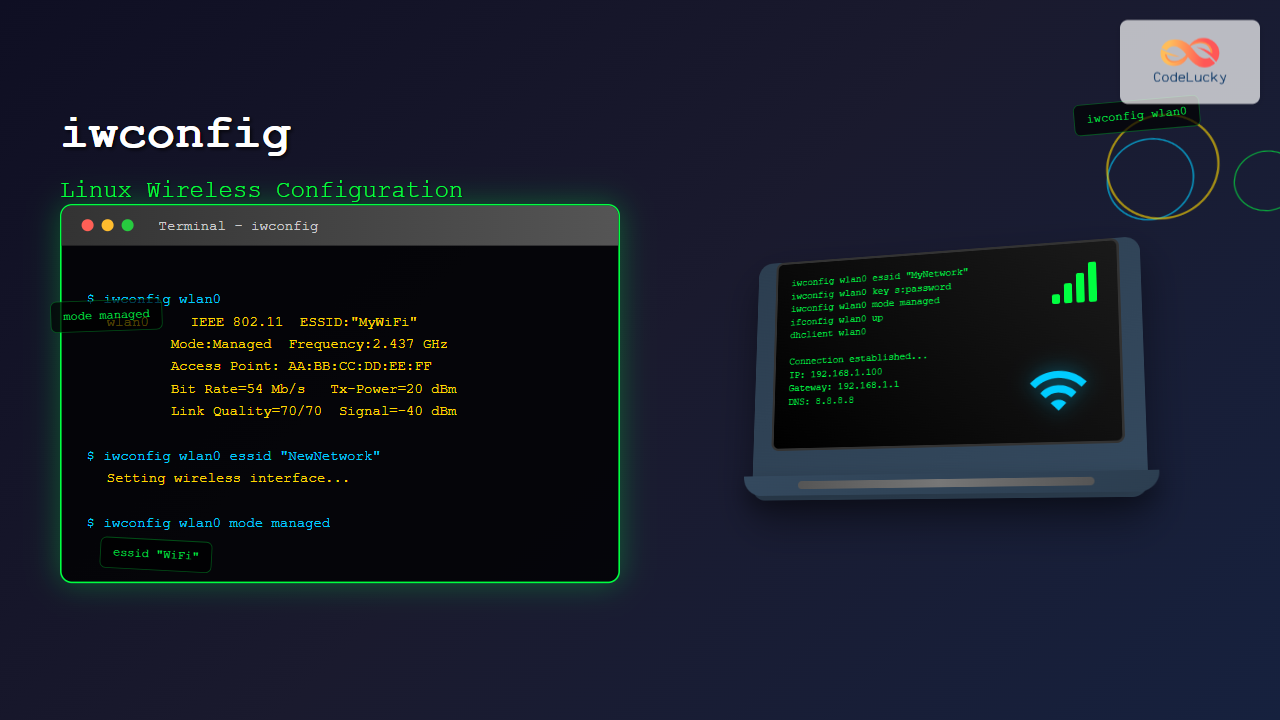
The iwconfig command is a powerful Linux utility that allows you to configure and manage wireless network interfaces from the command line. Part of the wireless-tools package, iwconfig provides comprehensive control over WiFi adapters, enabling you to set network parameters, manage connections, and troubleshoot wireless networking issues.
What is iwconfig Command?
The iwconfig command is similar to the traditional ifconfig command but specifically designed for wireless network interfaces. It allows system administrators and users to configure wireless network interface parameters such as SSID, frequency, encryption keys, and transmission power.
Key Features of iwconfig
- Configure wireless network interface settings
- Set and manage WiFi network names (SSID)
- Configure WEP and WPA encryption keys
- Adjust transmission power and frequency
- Monitor wireless connection status
- Set operating modes (managed, ad-hoc, monitor)
Installation and Prerequisites
Before using iwconfig, ensure the wireless-tools package is installed on your Linux system:
Installing wireless-tools
Ubuntu/Debian:
sudo apt update
sudo apt install wireless-tools
CentOS/RHEL/Fedora:
sudo yum install wireless-tools
# or for newer versions
sudo dnf install wireless-tools
Arch Linux:
sudo pacman -S wireless_toolsBasic iwconfig Syntax
The general syntax for iwconfig is:
iwconfig [interface] [parameter] [value]Where:
interface– The wireless network interface name (e.g., wlan0, wlp2s0)parameter– The configuration parameter to modifyvalue– The value to assign to the parameter
Viewing Wireless Interface Information
Display All Wireless Interfaces
To view information about all wireless interfaces:
iwconfigExample Output:
wlan0     IEEE 802.11  ESSID:"MyWiFiNetwork"
          Mode:Managed  Frequency:2.437 GHz  Access Point: AA:BB:CC:DD:EE:FF
          Bit Rate=54 Mb/s   Tx-Power=20 dBm
          Retry:off   RTS thr:off   Fragment thr:off
          Power Management:on
          Link Quality=70/70  Signal level=-40 dBm
          Rx invalid nwid:0  Rx invalid crypt:0  Rx invalid frag:0
          Tx excessive retries:0  Invalid misc:0   Missed beacon:0

lo        no wireless extensions.

eth0      no wireless extensions.
Display Specific Interface Information
To view information for a specific wireless interface:
iwconfig wlan0Common iwconfig Parameters and Configuration
Setting the ESSID (Network Name)
To connect to a specific wireless network by setting the ESSID:
sudo iwconfig wlan0 essid "MyWiFiNetwork"To connect to any available network:
sudo iwconfig wlan0 essid anyTo disconnect from the current network:
sudo iwconfig wlan0 essid offConfiguring Encryption Keys
WEP Key Configuration
Setting a WEP key in hexadecimal format:
sudo iwconfig wlan0 key 1234567890Setting a WEP key in ASCII format:
sudo iwconfig wlan0 key s:mypasswordUsing a specific key index:
sudo iwconfig wlan0 key [1] 1234567890Disabling encryption:
sudo iwconfig wlan0 key offWPA/WPA2 Configuration
While iwconfig can set basic WPA parameters, it’s recommended to use wpa_supplicant for full WPA/WPA2 support:
sudo iwconfig wlan0 key openSetting Operating Mode
Configure the wireless interface operating mode:
Managed Mode (Infrastructure)
sudo iwconfig wlan0 mode managedAd-hoc Mode (Peer-to-Peer)
sudo iwconfig wlan0 mode ad-hocMonitor Mode (Packet Capture)
sudo iwconfig wlan0 mode monitorFrequency and Channel Configuration
Set a specific frequency (in GHz):
sudo iwconfig wlan0 freq 2.437GSet a specific channel:
sudo iwconfig wlan0 channel 6Allow automatic frequency selection:
sudo iwconfig wlan0 freq autoTransmission Power Settings
Set transmission power in dBm:
sudo iwconfig wlan0 txpower 15Set transmission power in milliwatts:
sudo iwconfig wlan0 txpower 30mWEnable automatic power control:
sudo iwconfig wlan0 txpower autoDisable transmission:
sudo iwconfig wlan0 txpower offAdvanced iwconfig Configuration
Setting Access Point Address
Connect to a specific access point by MAC address:
sudo iwconfig wlan0 ap AA:BB:CC:DD:EE:FFAllow automatic access point selection:
sudo iwconfig wlan0 ap anyConfiguring Rate and Bit Rate
Set a specific bit rate:
sudo iwconfig wlan0 rate 11MEnable automatic rate selection:
sudo iwconfig wlan0 rate autoSet rate to fixed mode:
sudo iwconfig wlan0 rate 54M fixedRTS/CTS Threshold Configuration
Set RTS threshold:
sudo iwconfig wlan0 rts 250Disable RTS:
sudo iwconfig wlan0 rts offFragmentation Threshold
Set fragmentation threshold:
sudo iwconfig wlan0 frag 512Disable fragmentation:
sudo iwconfig wlan0 frag offPower Management
Enable power management:
sudo iwconfig wlan0 power onDisable power management:
sudo iwconfig wlan0 power offSet power management period:
sudo iwconfig wlan0 power period 2Practical Examples and Use Cases
Complete WiFi Connection Setup
Here’s a complete example of connecting to a WEP-encrypted network:
# Step 1: Set the interface to managed mode
sudo iwconfig wlan0 mode managed

# Step 2: Set the network name
sudo iwconfig wlan0 essid "MyOfficeWiFi"

# Step 3: Set the WEP key
sudo iwconfig wlan0 key s:mypassword

# Step 4: Set the access point (optional)
sudo iwconfig wlan0 ap any

# Step 5: Bring the interface up
sudo ifconfig wlan0 up

# Step 6: Get an IP address via DHCP
sudo dhclient wlan0
Creating an Ad-hoc Network
To create a peer-to-peer wireless network:
# Set ad-hoc mode
sudo iwconfig wlan0 mode ad-hoc

# Set network name
sudo iwconfig wlan0 essid "MyAdHocNetwork"

# Set channel
sudo iwconfig wlan0 channel 6

# Set encryption key (optional)
sudo iwconfig wlan0 key s:adhockey

# Assign IP address
sudo ifconfig wlan0 192.168.1.1 netmask 255.255.255.0
Monitor Mode Setup for Network Analysis
Configure the interface for packet monitoring:
# Bring interface down
sudo ifconfig wlan0 down

# Set monitor mode
sudo iwconfig wlan0 mode monitor

# Set specific channel
sudo iwconfig wlan0 channel 11

# Bring interface up
sudo ifconfig wlan0 up
Troubleshooting with iwconfig
Common Issues and Solutions
Interface Not Found
If iwconfig doesn’t show your wireless interface:
# Check if the wireless driver is loaded
lsmod | grep -i wireless

# Check for USB wireless devices
lsusb | grep -i wireless

# Check dmesg for driver messages
dmesg | grep -i wireless
Connection Problems
To troubleshoot connection issues:
# Check current configuration
iwconfig wlan0

# Scan for available networks
sudo iwlist wlan0 scan | grep ESSID

# Check signal strength
iwconfig wlan0 | grep "Signal level"
Permission Denied Errors
Most iwconfig commands require root privileges:
# Use sudo for configuration commands
sudo iwconfig wlan0 essid "NetworkName"

# Or switch to root user
su -
iwconfig wlan0 essid "NetworkName"
Monitoring Connection Quality
Use iwconfig to monitor your wireless connection:
# Continuous monitoring
watch -n 1 'iwconfig wlan0 | grep -E "(Link Quality|Signal level)"'
Example Output:
Link Quality=65/70 Signal level=-45 dBmiwconfig vs Modern Alternatives
Comparison with iw Command
The newer iw command is the modern replacement for iwconfig:
| iwconfig | iw equivalent |
|---|---|
iwconfig wlan0 |
iw dev wlan0 info |
iwlist wlan0 scan |
iw dev wlan0 scan |
iwconfig wlan0 essid "Network" |
iw dev wlan0 connect "Network" |
NetworkManager Integration
For desktop environments, NetworkManager provides a higher-level interface:
# Command line NetworkManager control
nmcli device wifi list
nmcli device wifi connect "NetworkName" password "password"
Security Considerations
Key Management Best Practices
- Avoid using WEP encryption (use WPA2/WPA3 instead)
- Don’t include passwords in shell scripts without proper protection
- Use wpa_supplicant for secure WPA/WPA2 connections
- Monitor your wireless interfaces regularly for unauthorized access
Secure Configuration Example
# Disable the interface first
sudo ifconfig wlan0 down

# Configure basic settings
sudo iwconfig wlan0 mode managed
sudo iwconfig wlan0 essid "SecureNetwork"

# Use wpa_supplicant for WPA2
sudo wpa_supplicant -B -i wlan0 -c /etc/wpa_supplicant/wpa_supplicant.conf

# Bring interface up and get IP
sudo ifconfig wlan0 up
sudo dhclient wlan0
Automating iwconfig Configuration
Creating Configuration Scripts
Create a script to automate wireless configuration:
#!/bin/bash
# wifi-connect.sh

INTERFACE="wlan0"
ESSID="MyNetwork"
KEY="mypassword"

echo "Configuring wireless interface..."

# Set managed mode
sudo iwconfig $INTERFACE mode managed

# Set network name
sudo iwconfig $INTERFACE essid "$ESSID"

# Set key if provided
if [ ! -z "$KEY" ]; then
    sudo iwconfig $INTERFACE key s:"$KEY"
fi

# Bring interface up
sudo ifconfig $INTERFACE up

# Get IP address
sudo dhclient $INTERFACE

echo "Wireless configuration complete!"
Using iwconfig in System Startup
Add iwconfig commands to network interface configuration files:
/etc/network/interfaces (Debian/Ubuntu):
auto wlan0
iface wlan0 inet dhcp
    wireless-essid MyNetwork
    wireless-key s:mypassword
    wireless-mode managed
Performance Optimization with iwconfig
Optimizing Transmission Power
Adjust transmission power for optimal performance:
# Check current power level
iwconfig wlan0 | grep "Tx-Power"

# Set optimal power level
sudo iwconfig wlan0 txpower 20

# Monitor signal quality
watch -n 2 'iwconfig wlan0 | grep "Link Quality"'
Channel Optimization
Find the best channel for your connection:
# Scan for networks and their channels
sudo iwlist wlan0 scan | grep -E "(ESSID|Channel)"

# Set less congested channel
sudo iwconfig wlan0 channel 1
Conclusion
The iwconfig command remains a fundamental tool for wireless network configuration in Linux, despite the availability of newer alternatives. Understanding iwconfig is essential for system administrators, security professionals, and Linux enthusiasts who need direct control over wireless interfaces.
While modern tools like NetworkManager and the iw command provide more user-friendly interfaces, iwconfig offers granular control and is particularly useful in scripting, troubleshooting, and embedded systems where minimal toolsets are preferred.
Master the iwconfig command to gain deeper insights into wireless networking and maintain better control over your Linux system’s connectivity. Remember to always use secure protocols like WPA2/WPA3 and follow security best practices when configuring wireless networks.
For production environments, consider combining iwconfig with other networking tools and proper configuration management to ensure reliable and secure wireless connectivity across your infrastructure.
Related Posts
iwlist Command Linux: Complete Guide to Scanning Wireless Networks
The iwlist command is a powerful Linux utility that allows users to scan and display detailed information about wireless networks...
ifconfig Command Linux: Complete Guide to Network Interface Configuration (Deprecated)
The ifconfig (interface configuration) command has been a cornerstone of Linux network administration for decades. While officially deprecated in favor...
nmcli Command Linux: Complete Guide to NetworkManager Command Line Tool
The nmcli (NetworkManager Command Line Interface) is a powerful command-line tool that allows you to control NetworkManager and configure network...
wpa_supplicant Linux: Complete Guide to WPA/WPA2 Wireless Authentication
wpa_supplicant is a crucial Linux daemon that handles WPA/WPA2 wireless authentication, making it possible to connect to secure wireless networks....
NetworkManager Linux: Complete Guide to Network Management Service
NetworkManager is a powerful network management service that provides automatic network detection and configuration for Linux systems. It simplifies network...
ip Command Linux: Complete Guide to Advanced Network Configuration and Management
The ip command is one of the most powerful and versatile networking tools in Linux, serving as the modern replacement...
nmtui Command Linux: Complete Guide to NetworkManager Text User Interface
The nmtui (NetworkManager Text User Interface) command is a powerful, menu-driven tool that provides an intuitive way to configure network...

hostapd Linux: Complete Guide to IEEE 802.11 AP and Authentication Server Setup
hostapd (Host Access Point Daemon) is a powerful user-space daemon that enables Linux systems to function as IEEE 802.11 access...
snmpset Command Linux: Complete Guide to Setting SNMP Variables
The snmpset command is a powerful Linux utility that allows network administrators to modify SNMP (Simple Network Management Protocol) variables...
systemd-networkd Linux: Complete Network Configuration Manager Guide
systemd-networkd is a powerful system daemon that manages network configurations on Linux systems. As part of the systemd ecosystem, it...
dhclient Command Linux: Complete Guide to Dynamic Host Configuration Protocol Client
The dhclient command is a powerful Linux utility that serves as a Dynamic Host Configuration Protocol (DHCP) client. It automatically...
iftop Command Linux: Monitor Network Traffic and Display Bandwidth Usage by Connection
The iftop command is a powerful network monitoring tool in Linux that displays real-time bandwidth usage by network connections. Similar...





