
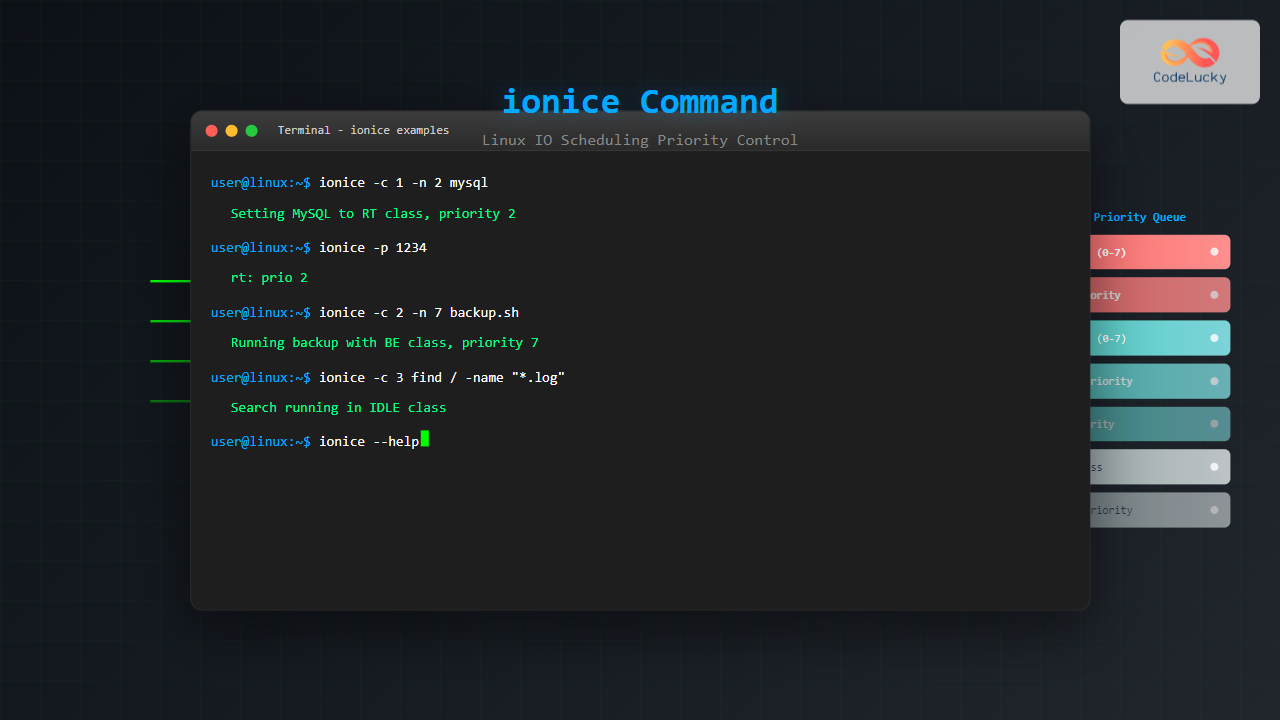
The ionice command is a powerful Linux utility that allows system administrators and developers to control the Input/Output (IO) scheduling priority of processes. By managing how processes access disk resources, ionice helps optimize system performance, especially on systems running multiple disk-intensive applications simultaneously.
Understanding IO Scheduling in Linux
Before diving into the ionice command, it’s essential to understand how Linux handles IO scheduling. The Linux kernel uses IO schedulers to determine the order in which read and write requests are sent to storage devices. This scheduling directly impacts system responsiveness and overall performance.
The ionice command works with the Completely Fair Queuing (CFQ) IO scheduler, which is designed to provide fair access to IO resources across different processes. It allows you to set both the scheduling class and priority level for processes, giving you fine-grained control over disk access patterns.
ionice Command Syntax and Options
The basic syntax of the ionice command is:
ionice [options] [command [arguments]]Essential Options
-c, --class CLASS: Set the IO scheduling class (0-3)-n, --classdata DATA: Set the IO scheduling priority within the class (0-7)-p, --pid PID: Apply settings to an existing process ID-P, --pgid PGID: Apply settings to a process group-t, --ignore: Ignore failures to set the priority-u, --uid UID: Apply settings to all processes owned by a user
IO Scheduling Classes Explained
The ionice command supports four different scheduling classes, each with distinct characteristics:
Class 0: None (Default)
Processes use the default IO scheduling policy. The kernel determines the appropriate class based on the process’s CPU nice value.
Class 1: Real-time (RT)
Highest priority class with immediate access to disk resources. Use with extreme caution as it can starve other processes. Priority levels range from 0 (highest) to 7 (lowest).
Class 2: Best-effort (BE)
Default class for most processes. Provides fair access to IO resources with priority levels from 0 (highest) to 7 (lowest). This class balances performance and fairness.
Class 3: Idle
Lowest priority class. Processes only get IO access when no other processes require disk resources. No priority levels within this class.
Basic ionice Command Examples
Checking Current IO Priority
To check the current IO scheduling class and priority of a process:
$ ionice -p 1234
none: prio 4
This output indicates the process with PID 1234 is using the default (none) class with priority 4.
Setting IO Priority for New Processes
Launch a new process with specific IO priority:
$ ionice -c 2 -n 7 find / -name "*.log" 2>/dev/null
/var/log/syslog
/var/log/kern.log
/var/log/auth.log
This command runs find with best-effort class (2) and lowest priority (7), ensuring it doesn’t interfere with other IO operations.
Modifying Existing Process Priority
Change the IO priority of a running process:
$ ionice -c 3 -p 5678
$ ionice -p 5678
idle: prio 4
The first command sets process 5678 to idle class, and the second confirms the change.
Advanced ionice Usage Scenarios
Database Optimization
For database servers, you might want to prioritize the database process:
$ sudo ionice -c 1 -n 2 -p $(pgrep mysqld)
$ ionice -p $(pgrep mysqld)
rt: prio 2
This sets MySQL to real-time class with high priority, ensuring database operations get preferential disk access.
Backup Operations
For backup scripts that shouldn’t impact system performance:
$ ionice -c 3 rsync -av /home/user/ /backup/user/
sending incremental file list
./
documents/
documents/report.pdf
photos/
photos/vacation.jpg
Running backups in idle class ensures they only use disk resources when the system is otherwise inactive.
Log Processing
Process log files with low priority to avoid impacting user applications:
$ ionice -c 2 -n 6 grep "ERROR" /var/log/*.log
/var/log/apache2/error.log:[ERROR] Database connection failed
/var/log/syslog:[ERROR] Network timeout occurred
Monitoring and Troubleshooting
Checking Multiple Processes
To check IO priorities for multiple processes simultaneously:
$ for pid in $(pgrep -f "backup"); do
    echo -n "PID $pid: "
    ionice -p $pid
done
PID 1234: idle: prio 4
PID 5678: idle: prio 4
User-based Priority Settings
Set IO priority for all processes owned by a specific user:
$ sudo ionice -c 2 -n 5 -u backupuser
$ ps -u backupuser -o pid,comm,ionice
  PID COMMAND         IONICE
 1234 backup-script   be/5
 5678 rsync           be/5
Performance Considerations and Best Practices
Real-time Class Caution
Use real-time class sparingly and only for critical processes. Incorrect usage can cause system freezes:
# Good: Critical database with moderate RT priority
$ sudo ionice -c 1 -n 4 -p $(pgrep postgres)

# Bad: Setting too many processes to RT can starve the system
# Avoid: ionice -c 1 -n 0 -p $(pgrep -f ".*")
Batch Processing Optimization
For batch jobs, use idle or low-priority best-effort classes:
$ ionice -c 3 nice -n 19 ./heavy-computation.sh &
[1] 9876
$ jobs -l
[1]+  9876 Running    ionice -c 3 nice -n 19 ./heavy-computation.sh &
Integration with System Scripts
Systemd Service Configuration
Configure IO priority in systemd service files:
[Unit]
Description=Backup Service
After=network.target

[Service]
Type=oneshot
ExecStart=/usr/local/bin/backup-script.sh
IOSchedulingClass=3
IOSchedulingPriority=4

[Install]
WantedBy=multi-user.target
Cron Job Integration
Use ionice in cron jobs for automated tasks:
# Run nightly backup with idle priority
0 2 * * * ionice -c 3 /usr/local/bin/nightly-backup.sh

# Process logs with low priority every hour
0 * * * * ionice -c 2 -n 7 /usr/local/bin/process-logs.sh
Common Use Cases and Examples
Web Server Optimization
Prioritize web server processes for better user experience:
$ sudo ionice -c 2 -n 1 -p $(pgrep apache2)
$ sudo ionice -c 2 -n 1 -p $(pgrep nginx)
Development Environment
Run development tools with appropriate priorities:
# High priority for IDE
$ ionice -c 2 -n 2 code &

# Low priority for automated tests
$ ionice -c 2 -n 6 npm test
Troubleshooting Common Issues
Permission Denied Errors
Some operations require root privileges:
$ ionice -c 1 -n 0 -p 1234
ionice: failed to set priority: Operation not permitted

# Solution: Use sudo
$ sudo ionice -c 1 -n 0 -p 1234
Checking IO Scheduler Support
Verify your system supports CFQ scheduler:
$ cat /sys/block/sda/queue/scheduler
noop deadline [cfq]
The brackets indicate the active scheduler. If CFQ isn’t available, ionice functionality may be limited.
Conclusion
The ionice command is an invaluable tool for Linux system administrators seeking to optimize IO performance and ensure fair resource allocation. By understanding the different scheduling classes and implementing appropriate priority settings, you can significantly improve system responsiveness and prevent resource starvation.
Remember to use real-time priority judiciously, monitor system performance after making changes, and document your IO priority configurations for future reference. With proper implementation, ionice can help create a more balanced and efficient Linux environment that meets the demands of both interactive users and background processes.
Whether you’re managing database servers, processing large datasets, or running automated backups, mastering the ionice command will enhance your ability to fine-tune Linux systems for optimal performance across diverse workloads.
Related Posts

Device Scheduling: Complete Guide to I/O Request Scheduling Algorithms
Device scheduling is a critical component of operating system design that determines how I/O requests are ordered and executed to...

Completely Fair Scheduler: Linux CFS Algorithm Deep Dive
The Linux Completely Fair Scheduler (CFS) revolutionized process scheduling in the Linux kernel when it was introduced in version 2.6.23....

Process Scheduling in Operating System: Algorithms, Types & Implementation Guide
Process scheduling is one of the most critical components of an operating system that determines how the CPU time is...
Nice Command Linux: Complete Guide to Process Priority Management
The nice command in Linux is a powerful system administration tool that allows you to control the priority of processes,...
iotop Command Linux: Complete Guide to Monitor Disk IO Usage and Performance
The iotop command is an essential Linux utility that provides real-time monitoring of disk I/O usage by processes and threads....
renice Command Linux: Complete Guide to Changing Process Priority
The renice command in Linux is a powerful system administration tool that allows you to modify the scheduling priority of...

Multilevel Queue Scheduling: Multiple Priority Levels in Operating Systems
Introduction to Multilevel Queue Scheduling Multilevel queue scheduling is a sophisticated CPU scheduling algorithm used in operating systems to manage...

Priority Scheduling Algorithm: Complete Implementation Guide with Examples
What is Priority Scheduling Algorithm? Priority scheduling is a CPU scheduling algorithm where each process is assigned a priority value,...

CPU Scheduling Algorithms: FCFS, SJF, Round Robin Complete Guide
CPU scheduling is a fundamental concept in operating systems that determines how processes are allocated processor time. The CPU scheduler...

Disk Scheduling Algorithms: FCFS, SSTF, SCAN, C-SCAN – Complete Implementation Guide
Disk scheduling algorithms are fundamental components of operating systems that determine the order in which disk I/O requests are processed....
Virtual CPU Scheduling: Complete Guide to Time-sharing Physical Processors
Virtual CPU scheduling is the cornerstone of modern operating systems, enabling multiple processes to share limited physical processors efficiently. This...

Preemptive vs Non-Preemptive Scheduling: Complete Guide to CPU Scheduling in Operating Systems
Understanding CPU Scheduling in Operating Systems CPU scheduling is one of the most critical functions of an operating system, determining...





