
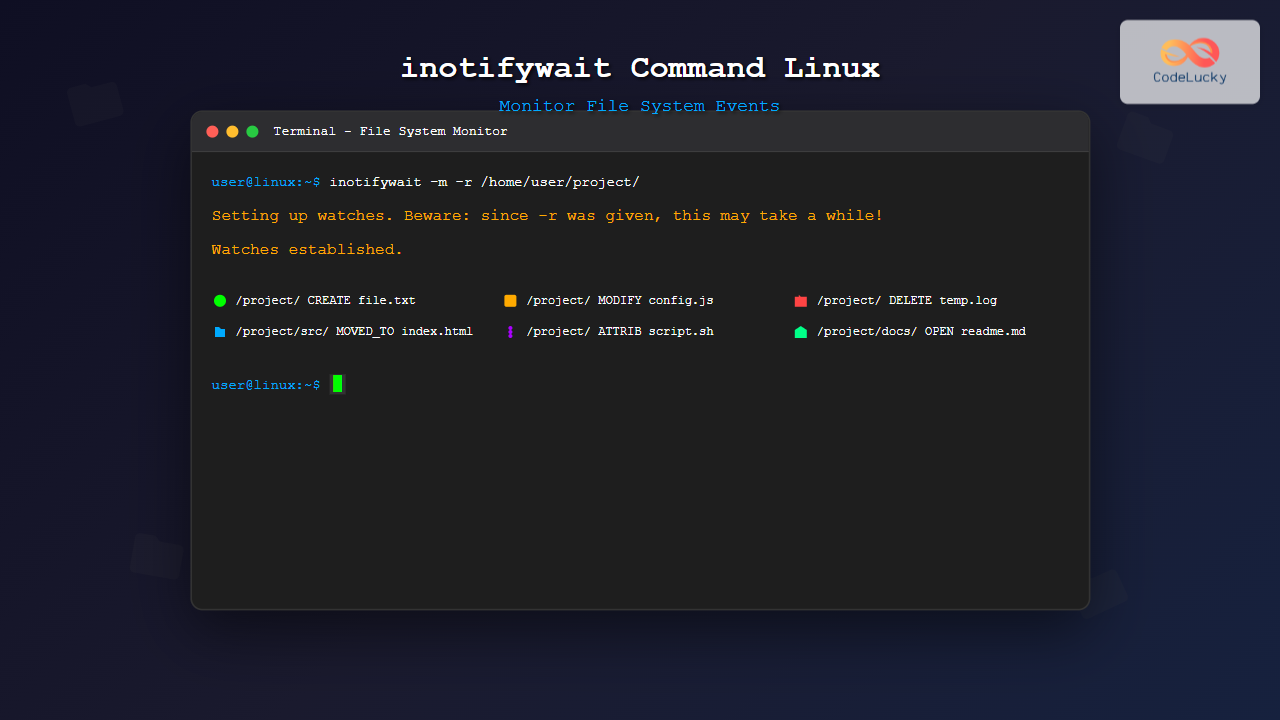
The inotifywait command is a powerful Linux utility that enables real-time monitoring of file system events. Whether you’re tracking file modifications, deletions, or creations, this command provides an efficient way to watch directory changes without constantly polling the file system.
What is inotifywait Command?
The inotifywait command is part of the inotify-tools package, which utilizes the Linux kernel’s inotify API to monitor file system events efficiently. Unlike traditional polling methods, inotify provides event-driven notifications, making it resource-efficient and responsive.
Key Features:
- Real-time file system event monitoring
- Low system resource usage
- Support for recursive directory monitoring
- Customizable event filtering
- Integration with shell scripts and automation tools
Installation
Before using inotifywait, ensure the inotify-tools package is installed:
Ubuntu/Debian:
sudo apt update
sudo apt install inotify-tools
CentOS/RHEL/Fedora:
# For CentOS/RHEL 7/8
sudo yum install inotify-tools

# For Fedora/RHEL 9+
sudo dnf install inotify-tools
Arch Linux:
sudo pacman -S inotify-toolsBasic Syntax
inotifywait [OPTIONS] FILE1 [FILE2] [FILE3] ...Common Options
| Option | Description |
|---|---|
-m, --monitor |
Keep listening for events (don’t exit after first event) |
-r, --recursive |
Watch directories recursively |
-e, --event |
Specify events to watch for |
-q, --quiet |
Print less information (only event information) |
--format |
Specify output format |
-t, --timeout |
Set timeout in seconds |
--exclude |
Exclude files matching pattern |
Event Types
Understanding different event types is crucial for effective monitoring:
| Event | Description |
|---|---|
modify |
File or directory contents were modified |
create |
File or directory was created |
delete |
File or directory was deleted |
move |
File or directory was moved |
open |
File or directory was opened |
close |
File or directory was closed |
access |
File or directory was accessed |
attrib |
Attributes were changed |
Basic Examples
1. Monitor Single File
inotifywait /home/user/document.txtOutput:
/home/user/ MODIFY document.txt2. Continuous Monitoring
inotifywait -m /home/user/document.txtThis command continues running and reports every event on the file.
3. Monitor Directory
inotifywait -m /home/user/Documents/Sample Output:
/home/user/Documents/ CREATE newfile.txt
/home/user/Documents/ MODIFY newfile.txt
/home/user/Documents/ DELETE oldfile.txt
Advanced Examples
1. Recursive Directory Monitoring
inotifywait -mr /home/user/project/This monitors all subdirectories within the project folder.
2. Specific Event Monitoring
inotifywait -m -e create,delete /home/user/Downloads/Output:
/home/user/Downloads/ CREATE download.zip
/home/user/Downloads/ DELETE temp.txt
3. Custom Output Format
inotifywait -m --format '%T %w %e %f' --timefmt '%Y-%m-%d %H:%M:%S' /home/user/logs/Output:
2025-08-25 10:30:45 /home/user/logs/ MODIFY application.log
2025-08-25 10:31:02 /home/user/logs/ CREATE error.log
Format Specifiers:
%w– Watched filename%f– Event-related filename%e– Event name%T– Current time (requires –timefmt)
Practical Use Cases
1. Automated Backup Script
#!/bin/bash

# Monitor important directory and trigger backup
inotifywait -m -e create,modify,delete /home/user/important/ |
while read path event file; do
    echo "$(date): $event detected on $file"
    # Trigger backup
    rsync -av /home/user/important/ /backup/location/
done
2. Log File Monitoring
#!/bin/bash

# Monitor log file for changes and alert
inotifywait -m -e modify /var/log/application.log |
while read path event file; do
    # Check for error patterns
    if tail -n 1 "$path$file" | grep -q "ERROR"; then
        echo "Error detected in log file!"
        # Send alert (email, notification, etc.)
    fi
done
3. Development File Watcher
#!/bin/bash

# Auto-compile when source files change
inotifywait -m -e modify --include '.*\.c$' /home/user/project/src/ |
while read path event file; do
    echo "Source file $file modified, recompiling..."
    cd /home/user/project/
    make
done
Filtering and Exclusions
1. Include Specific File Types
inotifywait -m -r --include '.*\.txt$' /home/user/documents/This monitors only .txt files in the directory.
2. Exclude Temporary Files
inotifywait -m -r --exclude '.*\.tmp$|.*\.swp$' /home/user/project/3. Multiple Exclusions
inotifywait -m -r --exclude '(.*\.log$|.*\.tmp$|\.git/.*)' /home/user/project/Performance Optimization
1. Limit Events
# Only monitor essential events
inotifywait -m -e create,delete,modify /path/to/watch
2. Use Timeout
# Exit after 60 seconds if no events
inotifywait -t 60 /path/to/file
3. Quiet Mode
# Reduce output for better performance
inotifywait -q -m -e modify /path/to/watch
Integration with Other Tools
1. With Find Command
#!/bin/bash

# Monitor all Python files in project
find /home/user/project -name "*.py" | while read file; do
    inotifywait -m -e modify "$file" &
done
wait
2. With systemd
Create a service file for continuous monitoring:
# /etc/systemd/system/file-monitor.service
[Unit]
Description=File Monitor Service
After=multi-user.target

[Service]
Type=simple
ExecStart=/usr/bin/inotifywait -m -r -e create,modify,delete /home/user/watched/
Restart=always
User=user

[Install]
WantedBy=multi-user.target
Troubleshooting
Common Issues and Solutions:
1. “No space left on device” Error
Increase inotify limits:
echo 8192 | sudo tee /proc/sys/fs/inotify/max_user_watches
echo 128 | sudo tee /proc/sys/fs/inotify/max_user_instances
2. High CPU Usage
Reduce monitoring scope or exclude unnecessary directories:
inotifywait -m -r --exclude '(\.git/.*|\.cache/.*)' /path/to/monitor3. Events Not Triggering
Verify the file system supports inotify:
cat /proc/filesystems | grep -E "(ext[234]|xfs|btrfs)"Best Practices
- Specific Event Monitoring: Only monitor necessary events to reduce resource usage
- Use Exclusions: Exclude temporary files and system directories
- Implement Timeouts: Prevent indefinite hanging in scripts
- Error Handling: Always include proper error handling in scripts
- Resource Limits: Monitor system resource usage when watching large directories
Security Considerations
- Ensure proper permissions when monitoring system directories
- Validate file paths to prevent unauthorized access
- Use specific event types rather than monitoring all events
- Implement proper logging for audit trails
Alternative Commands
While inotifywait is powerful, consider these alternatives for specific use cases:
inotifywatch– Collect statistics about file system eventsfswatch– Cross-platform file change monitorentr– Run arbitrary commands when files change
Conclusion
The inotifywait command is an essential tool for Linux system administrators and developers who need efficient file system monitoring. Its event-driven approach makes it superior to traditional polling methods, offering real-time notifications with minimal system overhead.
By mastering the various options, event types, and integration techniques covered in this guide, you can implement robust file monitoring solutions for backup automation, development workflows, system administration, and security monitoring.
Remember to consider performance implications when monitoring large directory structures and always implement proper error handling in production scripts. With these best practices, inotifywait becomes a powerful ally in maintaining efficient and responsive Linux systems.
Related Posts
watch Command Linux: Monitor and Execute Commands Repeatedly in Real-Time
The watch command is one of the most powerful utilities in Linux for executing commands repeatedly at regular intervals and...
touch Command Linux: Create Empty Files and Update Timestamps Efficiently
The touch command is one of the most fundamental yet versatile utilities in Linux and Unix-like systems. While its primary...

stat Command Linux: Complete Guide to Display File and Filesystem Status Information
The stat command is a powerful Linux utility that displays detailed information about files and filesystems. Unlike basic commands like...
aide Command Linux: Complete Guide to Advanced Intrusion Detection Environment
The AIDE (Advanced Intrusion Detection Environment) command is a powerful security tool for Linux systems that monitors file and directory...
xfs_check Command Linux: Complete Guide to XFS Filesystem Consistency Verification
The xfs_check command is a crucial system administration tool in Linux for verifying the consistency and integrity of XFS filesystems....
tripwire Linux: Complete Guide to File Integrity Monitoring and Security
Tripwire is a powerful file integrity monitoring (FIM) tool that helps system administrators detect unauthorized changes to critical system files,...

tune2fs Command Linux: Complete Guide to Ext2/3/4 Filesystem Tuning
The tune2fs command is a powerful Linux utility that allows system administrators to modify and tune various parameters of ext2,...

File System Types: FAT32, NTFS, ext4 and Modern Linux Filesystems Explained
Understanding File Systems: The Foundation of Data Storage A file system is the method and data structure that an operating...
File System in Operating System: Complete Guide to Structure and Organization
Introduction to File Systems A file system is a fundamental component of any operating system that provides a structured way...
xattr Command Linux: Complete Guide to Extended File Attributes Management
Extended file attributes in Linux provide a powerful mechanism to store additional metadata beyond traditional file permissions and ownership. The...

filebeat Linux: Complete Guide to Ship Log Files to Elasticsearch with Real Examples
Filebeat is a lightweight log shipper that belongs to the Elastic Stack (formerly ELK Stack) ecosystem. It's designed to monitor...
tail Command Linux: Complete Guide to Display Last Lines and Follow Logs in Real-Time
The tail command is one of the most essential tools in Linux for displaying the last lines of files and...





