
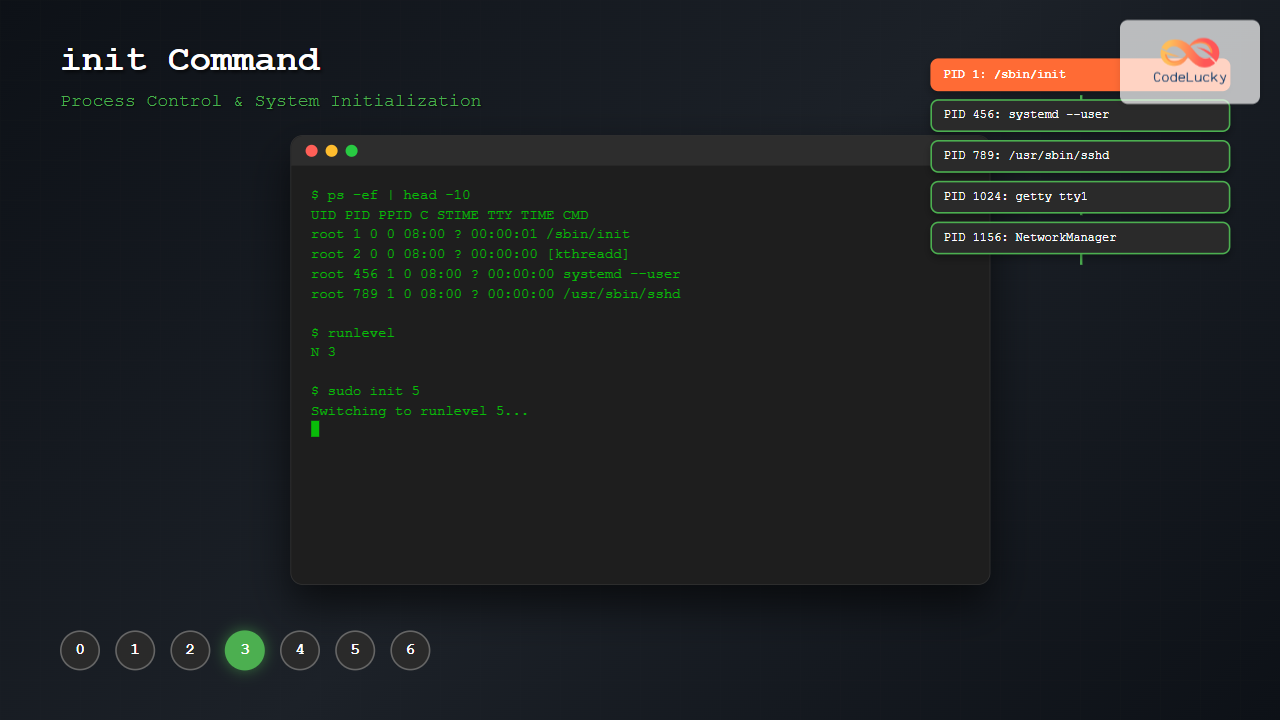
The init command in Linux serves as the cornerstone of system initialization and process control. As the first process started by the kernel during boot, it carries the Process ID (PID) 1 and acts as the parent of all other processes in the system. Understanding the init command is crucial for system administrators and Linux enthusiasts who need to manage system states, control services, and troubleshoot boot-related issues.
What is the init Command?
The init command is a system initialization program that manages the transition between different system states, known as runlevels in traditional Unix systems. It reads configuration files to determine which processes to start, stop, or restart during system startup, shutdown, or when changing runlevels.
Key Functions of init:
- Initialize the system during boot process
- Manage system runlevels and transitions
- Start and stop system services
- Handle orphaned processes
- Control system shutdown and restart procedures
Basic Syntax and Usage
The basic syntax of the init command is straightforward:
init [OPTION] [RUNLEVEL]Common Options:
-t SECONDS: Specify timeout between warning and kill signals-k: Send kill signal to all processes (used with runlevel)-r: Reboot after shutdown-h: Halt after shutdown-f: Force immediate shutdown without proper cleanup
Understanding Runlevels
Runlevels define different operational states of a Linux system. Each runlevel determines which services are running and how the system behaves:
| Runlevel | Description | Purpose |
|---|---|---|
0 |
Halt/Shutdown | System shutdown |
1 |
Single-user mode | Maintenance and recovery |
2 |
Multi-user without networking | Local multi-user access |
3 |
Multi-user with networking | Full multi-user text mode |
4 |
Unused/Custom | User-defined configuration |
5 |
Multi-user with GUI | Full desktop environment |
6 |
Reboot | System restart |
Practical Examples and Usage
1. Checking Current Runlevel
To check the current runlevel of your system:
$ runlevel
N 3
This output shows that the system started at runlevel 3 (multi-user with networking). The ‘N’ indicates no previous runlevel.
2. Changing Runlevels
Switch to single-user mode for maintenance:
$ sudo init 1Change to multi-user mode with GUI:
$ sudo init 53. System Shutdown Using init
Shutdown the system immediately:
$ sudo init 0Reboot the system:
$ sudo init 64. Graceful Shutdown with Timeout
Allow 30 seconds for processes to terminate gracefully:
$ sudo init -t 30 0Configuration Files
/etc/inittab
The primary configuration file for traditional init systems. Here’s an example structure:
# The default runlevel
id:3:initdefault:

# System initialization
si::sysinit:/etc/rc.d/rc.sysinit

# Runlevel configurations
l0:0:wait:/etc/rc.d/rc 0
l1:1:wait:/etc/rc.d/rc 1
l2:2:wait:/etc/rc.d/rc 2
l3:3:wait:/etc/rc.d/rc 3
l4:4:wait:/etc/rc.d/rc 4
l5:5:wait:/etc/rc.d/rc 5
l6:6:wait:/etc/rc.d/rc 6

# Terminal configurations
1:2345:respawn:/sbin/getty 38400 tty1
2:2345:respawn:/sbin/getty 38400 tty2
Entry Format Explanation:
- ID: Unique identifier for the entry
- Runlevels: Runlevels where this entry applies
- Action: What action to take (wait, respawn, once, etc.)
- Process: Command or script to execute
Modern Init Systems: systemd Integration
Most modern Linux distributions use systemd instead of traditional init. However, the init command still works as a compatibility layer:
systemd Targets vs Runlevels
| Runlevel | systemd Target | Description |
|---|---|---|
| 0 | poweroff.target | System shutdown |
| 1 | rescue.target | Single-user mode |
| 3 | multi-user.target | Multi-user text mode |
| 5 | graphical.target | Multi-user with GUI |
| 6 | reboot.target | System reboot |
systemd Equivalent Commands
Instead of using init with systemd, you can use these equivalent commands:
# Change to rescue mode (equivalent to init 1)
$ sudo systemctl isolate rescue.target

# Change to multi-user mode (equivalent to init 3)
$ sudo systemctl isolate multi-user.target

# Shutdown system (equivalent to init 0)
$ sudo systemctl poweroff

# Reboot system (equivalent to init 6)
$ sudo systemctl reboot
Troubleshooting and Advanced Usage
Emergency Boot Recovery
When your system fails to boot properly, you can use init parameters at the GRUB prompt:
# Boot into single-user mode
linux /boot/vmlinuz root=/dev/sda1 init=/bin/bash

# Boot with specific runlevel
linux /boot/vmlinuz root=/dev/sda1 3
Process Monitoring
Monitor processes started by init:
$ ps -ef | grep init
root         1     0  0 08:00 ?        00:00:01 /sbin/init
root       456     1  0 08:00 ?        00:00:00 /sbin/init --user
Custom Init Scripts
Create custom initialization scripts in /etc/init.d/:
#!/bin/bash
# /etc/init.d/myservice
# Custom service script

case "$1" in
    start)
        echo "Starting MyService..."
        # Start commands here
        ;;
    stop)
        echo "Stopping MyService..."
        # Stop commands here
        ;;
    restart)
        $0 stop
        $0 start
        ;;
    *)
        echo "Usage: $0 {start|stop|restart}"
        exit 1
        ;;
esac
Security Considerations
When working with the init command, keep these security aspects in mind:
- Root Privileges: Most init operations require root access
- System Impact: Changing runlevels affects all users and services
- Emergency Access: Single-user mode bypasses normal authentication
- Service Dependencies: Understand service relationships before making changes
Best Practices
1. Always Use Appropriate Runlevels
- Use runlevel 1 for maintenance tasks
- Use runlevel 3 for server environments
- Use runlevel 5 for desktop environments
2. Backup Configuration Files
$ sudo cp /etc/inittab /etc/inittab.backup3. Test Changes Carefully
Always test runlevel changes in a controlled environment before applying to production systems.
4. Use Appropriate Shutdown Methods
- Use
shutdowncommand for scheduled shutdowns - Use
init 0for immediate shutdowns - Use
systemctlcommands on systemd systems
Common Error Messages and Solutions
Error: “init: cannot execute”
Cause: Permission issues or corrupted init binary
Solution: Boot from rescue media and repair the init binary
Error: “INIT: no more processes left in this runlevel”
Cause: All processes for the current runlevel have terminated
Solution: Check inittab configuration and restart necessary services
Conclusion
The init command remains a fundamental tool for Linux system administration, despite the widespread adoption of systemd. Understanding its functionality, runlevels, and integration with modern init systems enables administrators to effectively manage system states, troubleshoot boot issues, and maintain system stability.
Whether you’re working with traditional init systems or modern systemd implementations, mastering the init command provides valuable insights into Linux system architecture and process management. Regular practice with these commands in safe environments will build the confidence needed for effective system administration.
Pro Tip: Always maintain system backups and test init command changes in development environments before applying them to production systems. The init command has system-wide impact and should be used with appropriate caution and planning.
Related Posts

systemd Linux: Complete Guide to System and Service Manager
systemd is a powerful system and service manager that has become the default init system for most modern Linux distributions....

sysvinit Linux: Complete Guide to System V Initialization System
The System V initialization system (sysvinit) is a traditional init system that has been the backbone of Unix and Linux...
service Command Linux: Complete Guide to Managing System Services
The service command is a fundamental tool in Linux system administration that allows you to manage system services and daemons...
runit Linux: Complete Guide to Unix Init Scheme with Service Supervision
runit is a lightweight, cross-platform Unix init scheme with service supervision that provides a reliable alternative to traditional init systems....
upstart Linux: Complete Guide to Event-Based System Initialization
The upstart initialization system revolutionized Linux system startup processes by introducing event-based service management. Unlike traditional SysV init systems that...
runlevel Command Linux: Complete Guide to Display Current and Previous System States
The runlevel command is a fundamental system administration tool in Linux that displays the current and previous system runlevels. Understanding...
telinit Command Linux: Complete Guide to System Runlevel Management
The telinit command is a powerful Linux utility that allows system administrators to change the current runlevel of a Linux...
systemctl Command Linux: Complete Guide to Control Systemd Services
The systemctl command is the primary tool for controlling systemd services in modern Linux distributions. As the central management utility...

update-rc.d Command Linux: Complete Guide to Managing System Services and Run Levels
The update-rc.d command is a powerful utility in Debian-based Linux distributions that manages the symbolic links for System V init...

sv Command Linux: Master Runit Service Control and Management
The sv command is a powerful utility in Linux systems that serves as the primary interface for controlling services managed...

rc-update Command Linux: Complete Guide to Managing OpenRC Services
The rc-update command is a powerful utility in Linux systems that use OpenRC as their init system, primarily found in...
openrc Linux: Complete Guide to Dependency-based Init System Management
OpenRC is a lightweight, dependency-based init system that serves as an alternative to systemd and SysV init. Originally developed for...





