
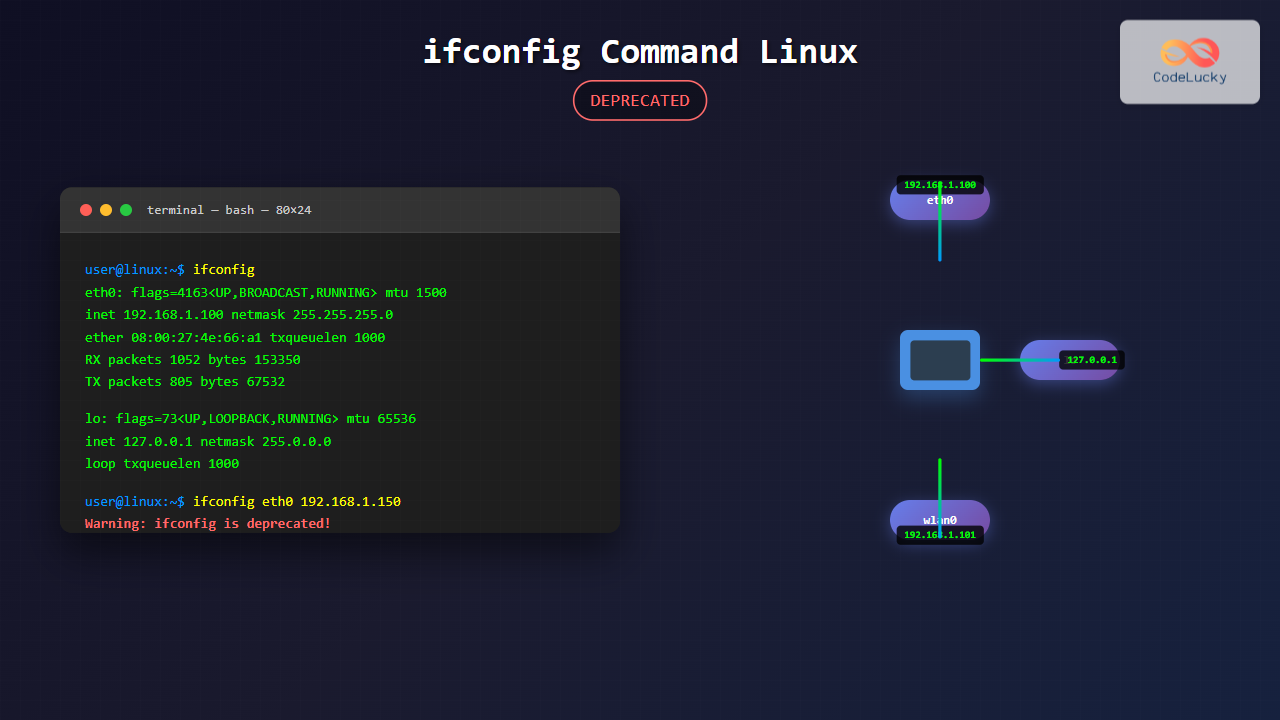
The ifconfig (interface configuration) command has been a cornerstone of Linux network administration for decades. While officially deprecated in favor of the ip command, understanding ifconfig remains crucial for system administrators working with legacy systems and scripts.
What is ifconfig Command?
The ifconfig command is a system administration utility used to configure, control, and query TCP/IP network interface parameters from the command line. It allows administrators to assign IP addresses, enable or disable interfaces, and view network interface statistics.
ip command from the iproute2 package is the recommended replacement.
ifconfig Command Syntax
The basic syntax of the ifconfig command is:
ifconfig [interface] [options] [address]Parameters:
interface: Network interface name (eth0, wlan0, lo, etc.)options: Configuration options like up, down, netmask, etc.address: IP address to assign
Installing ifconfig
On modern Linux distributions, ifconfig might not be installed by default. Here’s how to install it:
Ubuntu/Debian:
sudo apt update
sudo apt install net-tools
CentOS/RHEL/Fedora:
# For CentOS/RHEL
sudo yum install net-tools

# For Fedora
sudo dnf install net-tools
Basic ifconfig Commands with Examples
1. Display All Network Interfaces
To view all network interfaces and their configurations:
ifconfigSample Output:
eth0: flags=4163<UP,BROADCAST,RUNNING,MULTICAST>  mtu 1500
        inet 192.168.1.100  netmask 255.255.255.0  broadcast 192.168.1.255
        inet6 fe80::a00:27ff:fe4e:66a1  prefixlen 64  scopeid 0x20<link>
        ether 08:00:27:4e:66:a1  txqueuelen 1000  (Ethernet)
        RX packets 1052  bytes 153350 (149.7 KiB)
        RX errors 0  dropped 0  overruns 0  frame 0
        TX packets 805  bytes 67532 (65.9 KiB)
        TX errors 0  dropped 0 overruns 0  carrier 0  collisions 0

lo: flags=73<UP,LOOPBACK,RUNNING>  mtu 65536
        inet 127.0.0.1  netmask 255.0.0.0
        inet6 ::1  prefixlen 128  scopeid 0x10<host>
        loop  txqueuelen 1000  (Local Loopback)
        RX packets 68  bytes 5287 (5.1 KiB)
        RX errors 0  dropped 0  overruns 0  frame 0
        TX packets 68  bytes 5287 (5.1 KiB)
        TX errors 0  dropped 0 overruns 0  carrier 0  collisions 0
2. Display Specific Interface
To view configuration of a specific interface:
ifconfig eth0Sample Output:
eth0: flags=4163<UP,BROADCAST,RUNNING,MULTICAST>  mtu 1500
        inet 192.168.1.100  netmask 255.255.255.0  broadcast 192.168.1.255
        ether 08:00:27:4e:66:a1  txqueuelen 1000  (Ethernet)
        RX packets 1052  bytes 153350 (149.7 KiB)
        TX packets 805  bytes 67532 (65.9 KiB)
3. Display Only Active Interfaces
To show only interfaces that are currently up:
ifconfig -sSample Output:
Iface   MTU    RX-OK RX-ERR RX-DRP RX-OVR    TX-OK TX-ERR TX-DRP TX-OVR Flg
eth0   1500     1052      0      0 0           805      0      0      0 BMRU
lo    65536       68      0      0 0            68      0      0      0 LRU
Network Interface Configuration
1. Assign IP Address
To assign an IP address to an interface:
sudo ifconfig eth0 192.168.1.1502. Assign IP Address with Netmask
sudo ifconfig eth0 192.168.1.150 netmask 255.255.255.03. Assign IP Address with Broadcast
sudo ifconfig eth0 192.168.1.150 netmask 255.255.255.0 broadcast 192.168.1.2554. Enable Network Interface
To bring an interface up (activate it):
sudo ifconfig eth0 up5. Disable Network Interface
To bring an interface down (deactivate it):
sudo ifconfig eth0 downAdvanced ifconfig Operations
1. Change MAC Address
To change the hardware address (MAC) of an interface:
sudo ifconfig eth0 down
sudo ifconfig eth0 hw ether 00:11:22:33:44:55
sudo ifconfig eth0 up
2. Set MTU Size
To change the Maximum Transmission Unit:
sudo ifconfig eth0 mtu 12003. Add Alias Interface
To create a virtual interface alias:
sudo ifconfig eth0:0 192.168.1.200 netmask 255.255.255.0This creates a virtual interface eth0:0 with a different IP address.
4. Remove Alias Interface
To remove a virtual interface:
sudo ifconfig eth0:0 downUnderstanding ifconfig Output
Let’s break down the key components of ifconfig output:
| Field | Description |
|---|---|
flags |
Interface status flags (UP, BROADCAST, RUNNING, etc.) |
mtu |
Maximum Transmission Unit size |
inet |
IPv4 address assigned to interface |
netmask |
Subnet mask for the network |
broadcast |
Broadcast address for the network |
ether |
MAC address of the interface |
RX packets |
Number of packets received |
TX packets |
Number of packets transmitted |
Common Interface Flags
- UP: Interface is active
- BROADCAST: Interface supports broadcast
- RUNNING: Interface is operational
- MULTICAST: Interface supports multicast
- LOOPBACK: Interface is a loopback interface
- POINTOPOINT: Interface is a point-to-point link
Practical Examples and Use Cases
Example 1: Quick Network Diagnostics
Check if network interfaces are properly configured:
# Check all interfaces
ifconfig

# Check specific interface
ifconfig eth0

# Quick status overview
ifconfig -s
Example 2: Temporary IP Configuration
Temporarily assign a new IP address for testing:
# Backup current configuration
ifconfig eth0 > /tmp/eth0_backup.txt

# Assign temporary IP
sudo ifconfig eth0 10.0.0.50 netmask 255.255.255.0

# Test connectivity
ping -c 4 10.0.0.1

# Restore original configuration if needed
sudo ifconfig eth0 192.168.1.100 netmask 255.255.255.0
Example 3: Setting up Virtual Interface
Create multiple IP addresses on single interface:
# Create virtual interface
sudo ifconfig eth0:1 192.168.1.200 netmask 255.255.255.0 up

# Verify creation
ifconfig eth0:1

# Test both IPs work
ping -c 2 192.168.1.100  # Original IP
ping -c 2 192.168.1.200  # Virtual IP
Troubleshooting Common Issues
Interface Not Found
If you get “Device not found” error:
# List available interfaces
ip link show
# or
ls /sys/class/net/
Permission Denied
Most ifconfig operations require root privileges:
sudo ifconfig eth0 192.168.1.100Interface Won’t Come Up
Check interface status and bring it up manually:
# Check current status
ifconfig eth0

# Bring interface down and up
sudo ifconfig eth0 down
sudo ifconfig eth0 up
Modern Alternatives to ifconfig
Since ifconfig is deprecated, here are modern alternatives:
Using ip command:
| ifconfig Command | ip Command Equivalent |
|---|---|
ifconfig |
ip addr show |
ifconfig eth0 |
ip addr show eth0 |
ifconfig eth0 up |
ip link set eth0 up |
ifconfig eth0 down |
ip link set eth0 down |
ifconfig eth0 192.168.1.100 |
ip addr add 192.168.1.100/24 dev eth0 |
Security Considerations
- Root Privileges: Most ifconfig operations require sudo/root access
- Temporary Changes: Changes made with ifconfig are not persistent across reboots
- MAC Address Changes: Changing MAC addresses might trigger security alerts
- Network Isolation: Incorrect configuration can lead to network connectivity issues
Best Practices
- Backup Configuration: Always backup current settings before making changes
- Use Persistent Configuration: For permanent changes, modify network configuration files
- Test Changes: Verify connectivity after making network changes
- Document Changes: Keep records of network configuration modifications
- Migrate to Modern Tools: Consider using
ipcommand for new deployments
Conclusion
While the ifconfig command is deprecated, it remains an important tool for understanding Linux networking fundamentals. Its straightforward syntax and comprehensive output make it valuable for troubleshooting and learning network configuration concepts. However, system administrators should transition to modern alternatives like the ip command for production environments.
Understanding both ifconfig and its modern replacements ensures you can work effectively across different Linux environments, from legacy systems that still rely on net-tools to modern distributions that have fully embraced iproute2.
ip commands into your daily workflow to stay current with modern Linux networking practices.
Related Posts
ip Command Linux: Complete Guide to Advanced Network Configuration and Management
The ip command is one of the most powerful and versatile networking tools in Linux, serving as the modern replacement...

netstat Command Linux: Complete Guide to Network Connection Monitoring
The netstat command is one of the most essential network monitoring tools in Linux systems. It provides comprehensive information about...
iwconfig Command Linux: Complete Guide to Wireless Network Configuration
The iwconfig command is a powerful Linux utility that allows you to configure and manage wireless network interfaces from the...
nmcli Command Linux: Complete Guide to NetworkManager Command Line Tool
The nmcli (NetworkManager Command Line Interface) is a powerful command-line tool that allows you to control NetworkManager and configure network...
nmtui Command Linux: Complete Guide to NetworkManager Text User Interface
The nmtui (NetworkManager Text User Interface) command is a powerful, menu-driven tool that provides an intuitive way to configure network...

iptraf Command Linux: Complete Interactive Network Monitoring Guide
The iptraf command is a powerful console-based network monitoring utility for Linux systems that provides real-time IP LAN monitoring capabilities....
route Command Linux: Configure Network Routing Tables (Deprecated Guide)
The route command in Linux has been a fundamental tool for network administrators to view and manipulate the kernel's IP...
NetworkManager Linux: Complete Guide to Network Management Service
NetworkManager is a powerful network management service that provides automatic network detection and configuration for Linux systems. It simplifies network...
iftop Command Linux: Monitor Network Traffic and Display Bandwidth Usage by Connection
The iftop command is a powerful network monitoring tool in Linux that displays real-time bandwidth usage by network connections. Similar...
chkconfig Command Linux: Complete Guide to System Service Management
The chkconfig command is a powerful system administration tool in Red Hat-based Linux distributions that allows you to configure system...
ip6tables Command Linux: Complete Guide to IPv6 Firewall Management and Security
The ip6tables command is the IPv6 counterpart to the popular iptables firewall utility in Linux. As IPv6 adoption continues to...

whatsup Linux: Complete Network Monitoring and System Administration Guide
whatsup is a powerful network monitoring and system administration tool for Linux that provides real-time insights into network connectivity, system...





