
The id command is a fundamental Linux utility that displays user and group identification information for the current user or a specified user. This powerful command is essential for system administrators, developers, and anyone working with Linux systems who needs to verify user permissions, troubleshoot access issues, or understand user contexts.
What is the id Command?
The id command prints real and effective user and group IDs (UIDs and GIDs) along with their corresponding names. It’s particularly useful for:
- Verifying user identity and group memberships
- Troubleshooting permission issues
- Writing shell scripts that need user information
- System administration and security auditing
- Understanding security contexts in multi-user environments
Basic Syntax
The basic syntax of the id command is:
id [OPTION]... [USER]...If no user is specified, the command displays information for the current user.
Understanding User and Group IDs
Before diving into examples, let’s understand the key concepts:
- UID (User ID): A unique numerical identifier assigned to each user
- GID (Group ID): A unique numerical identifier assigned to each group
- Real ID: The actual user/group who owns the process
- Effective ID: The user/group ID used for permission checks
- Supplementary Groups: Additional groups a user belongs to
Basic Usage Examples
Display Current User Information
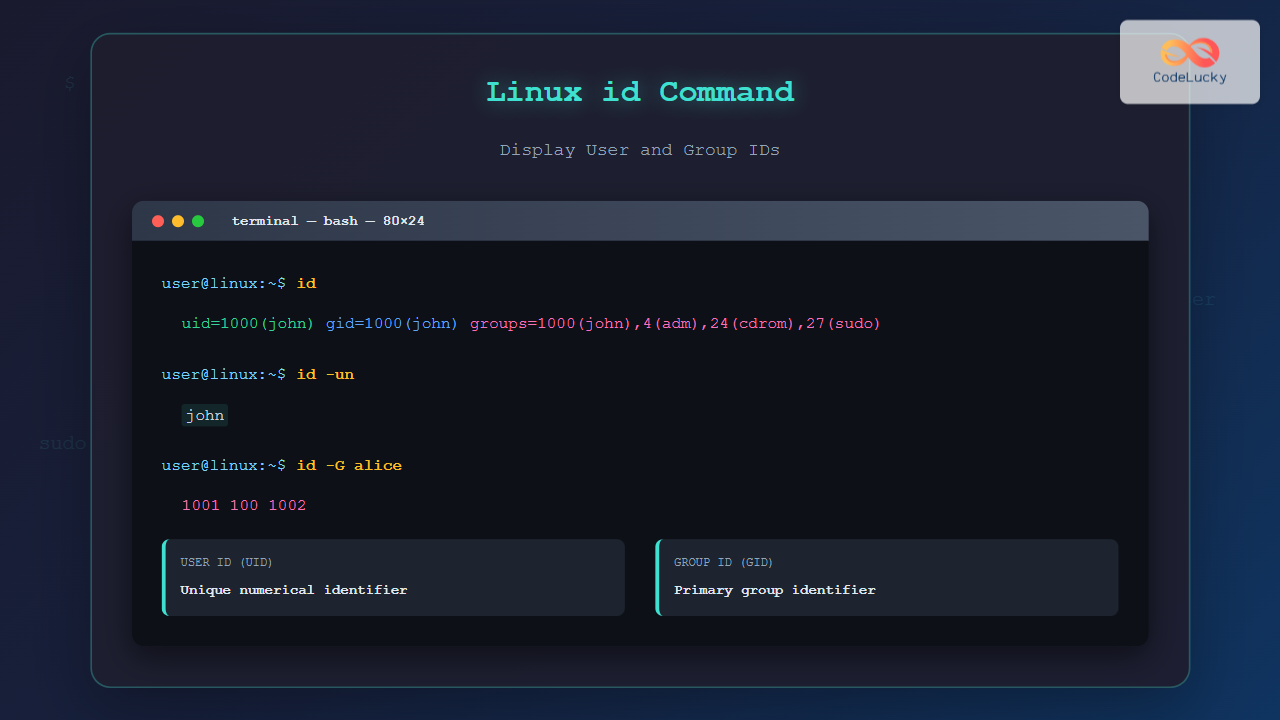
Running id without any arguments shows information for the current user:
$ id
uid=1000(john) gid=1000(john) groups=1000(john),4(adm),24(cdrom),27(sudo),30(dip),46(plugdev),120(lpadmin),131(lxd),132(sambashare)
This output shows:
uid=1000(john): User ID 1000 with username “john”gid=1000(john): Primary group ID 1000 with group name “john”groups=...: All groups the user belongs to
Display Information for Specific User
To check information for a different user:
$ id alice
uid=1001(alice) gid=1001(alice) groups=1001(alice),100(users),1002(developers)
Command Options and Flags
Display Only User ID (-u)
The -u option displays only the effective user ID:
$ id -u
1000

$ id -u alice
1001
Display Only Group ID (-g)
The -g option shows only the effective group ID:
$ id -g
1000

$ id -g alice
1001
Display All Group IDs (-G)
The -G option lists all group IDs the user belongs to:
$ id -G
1000 4 24 27 30 46 120 131 132

$ id -G alice
1001 100 1002
Display Names Instead of Numbers (-n)
Combine -n with other options to show names instead of numerical IDs:
$ id -un
john

$ id -gn
john

$ id -Gn
john adm cdrom sudo dip plugdev lpadmin lxd sambashare
Display Real IDs (-r)
The -r option shows real IDs instead of effective IDs:
$ id -ru
1000

$ id -rg
1000
Security Context (-Z)
On SELinux-enabled systems, use -Z to display security context:
$ id -Z
unconfined_u:unconfined_r:unconfined_t:s0-s0:c0.c1023
Practical Examples and Use Cases
Shell Script Integration
The id command is frequently used in shell scripts for user verification:
#!/bin/bash

# Check if running as root
if [ $(id -u) -eq 0 ]; then
    echo "Running as root user"
    # Execute privileged operations
else
    echo "Please run as root"
    exit 1
fi
Checking Group Membership
Verify if a user belongs to a specific group:
$ id -Gn alice | grep -q "developers" && echo "User is in developers group" || echo "User not in developers group"
User is in developers group
Comparing Multiple Users
Compare group memberships between users:
$ echo "John's groups:" && id -Gn john
John's groups:
john adm cdrom sudo dip plugdev lpadmin lxd sambashare

$ echo "Alice's groups:" && id -Gn alice
Alice's groups:
alice users developers
System Administration Tasks
Check system users and their IDs:
$ id root
uid=0(root) gid=0(root) groups=0(root)

$ id daemon
uid=1(daemon) gid=1(daemon) groups=1(daemon)

$ id www-data
uid=33(www-data) gid=33(www-data) groups=33(www-data)
Advanced Usage Scenarios
Troubleshooting Permission Issues
When files or directories show permission denied errors, use id to understand the current user context:
$ ls -la /var/log/apache2/
ls: cannot open directory '/var/log/apache2/': Permission denied

$ id
uid=1000(john) gid=1000(john) groups=1000(john),4(adm),24(cdrom),27(sudo)

$ ls -ld /var/log/apache2/
drwxr-x--- 2 root adm 4096 Aug 25 12:30 /var/log/apache2/
The directory is owned by root with group adm, and since the user belongs to the adm group, they should have access.
Auditing User Accounts
Create a simple audit script to check multiple users:
#!/bin/bash
users=("john" "alice" "bob")

for user in "${users[@]}"; do
    echo "=== User: $user ==="
    if id "$user" >/dev/null 2>&1; then
        echo "UID: $(id -u "$user")"
        echo "Primary GID: $(id -g "$user")"
        echo "Groups: $(id -Gn "$user")"
    else
        echo "User does not exist"
    fi
    echo
done
Working with sudo and su
Compare user context before and after using sudo:
$ id
uid=1000(john) gid=1000(john) groups=1000(john),27(sudo)

$ sudo id
uid=0(root) gid=0(root) groups=0(root)

$ su - alice
$ id
uid=1001(alice) gid=1001(alice) groups=1001(alice),100(users)
Common Options Summary
| Option | Description | Example Output |
|---|---|---|
-u |
Show only user ID | 1000 |
-g |
Show only group ID | 1000 |
-G |
Show all group IDs | 1000 4 24 27 |
-n |
Show names instead of numbers | john |
-r |
Show real IDs | 1000 |
-un |
Show user name only | john |
-gn |
Show primary group name | john |
-Gn |
Show all group names | john adm sudo |
Error Handling and Troubleshooting
User Not Found
When specifying a non-existent user:
$ id nonexistentuser
id: 'nonexistentuser': no such user
Permission Denied
In some restricted environments, you might encounter permission issues:
$ id someuser
id: cannot find name for group ID 1001
This typically occurs when the system cannot resolve group names from the group database.
Integration with Other Commands
Using with find Command
Find files owned by the current user:
$ find /home -user $(id -un) -type fUsing with ps Command
Show processes running under current user:
$ ps -u $(id -un)Using with grep for Log Analysis
Filter logs for current user activities:
$ grep "$(id -un)" /var/log/auth.logSecurity Considerations
The id command is generally safe to use, but keep these points in mind:
- Information Disclosure: The command reveals user and group information that could be useful to attackers
- Script Security: Always validate user input when using
idin scripts - Privilege Escalation: Understanding user contexts helps identify potential privilege escalation paths
Best Practices
- Use in Scripts: Always check return codes when using
idin scripts - Error Handling: Implement proper error handling for non-existent users
- Security Auditing: Regular use of
idhelps maintain security awareness - Documentation: Document expected user contexts in system procedures
Conclusion
The id command is an essential tool for Linux system administration and user management. It provides crucial information about user and group identities, making it invaluable for troubleshooting permissions, writing secure scripts, and maintaining system security. Whether you’re a system administrator, developer, or Linux enthusiast, mastering the id command will enhance your ability to work effectively with Linux systems.
By understanding its various options and use cases, you can leverage the id command to solve complex user management challenges and maintain better control over your Linux environment. Remember to combine it with other Linux commands for more powerful system administration workflows.
Related Posts
groups Command Linux: Complete Guide to Display User Group Memberships
The groups command is a fundamental Linux utility that displays the group memberships of users on your system. Understanding how...
who Command in Linux: Complete Guide to Display Logged in Users
The who command is one of the most fundamental system administration tools in Linux, designed to display information about currently...
usermod Command Linux: Complete Guide to Modify User Account Properties
The usermod command is a powerful Linux utility that allows system administrators to modify existing user account properties without deleting...
useradd Command Linux: Complete Guide to Add New User Accounts
The useradd command is one of the most essential tools in Linux system administration for creating new user accounts. Whether...
whoami Command Linux: Display Current Username and Identity Information
The whoami command is one of the most fundamental and frequently used commands in Linux systems. This simple yet powerful...

w Command Linux: Complete Guide to Monitor Active Users and System Activity
The w command is one of the most essential system monitoring tools in Linux, providing administrators and users with real-time...

chown Command Linux: Master File and Directory Ownership Management
The chown command is one of the most fundamental tools in Linux system administration, allowing users to change file and...
loginctl Command Linux: Master Session Management with Practical Examples
The loginctl command is a powerful systemd utility that allows system administrators to introspect and control the systemd login manager...
chgrp Command in Linux: Complete Guide to Change Group Ownership
The chgrp command is an essential Linux utility that allows you to change the group ownership of files and directories....
chmod Command in Linux: Complete File Permissions Tutorial with Examples
The chmod command is one of the most essential Linux commands for managing file and directory permissions. Whether you're a...

userdel Command Linux: Complete Guide to Safely Delete User Accounts
The userdel command is a crucial system administration tool in Linux that allows you to safely remove user accounts from...
uname Command Linux: Complete Guide to Display System Information
The uname command is one of the most fundamental Linux utilities for retrieving system information. Whether you're a system administrator,...
- What is the id Command?
- Basic Syntax
- Understanding User and Group IDs
- Basic Usage Examples
- Command Options and Flags
- Practical Examples and Use Cases
- Advanced Usage Scenarios
- Common Options Summary
- Error Handling and Troubleshooting
- Integration with Other Commands
- Security Considerations
- Best Practices
- Conclusion





