
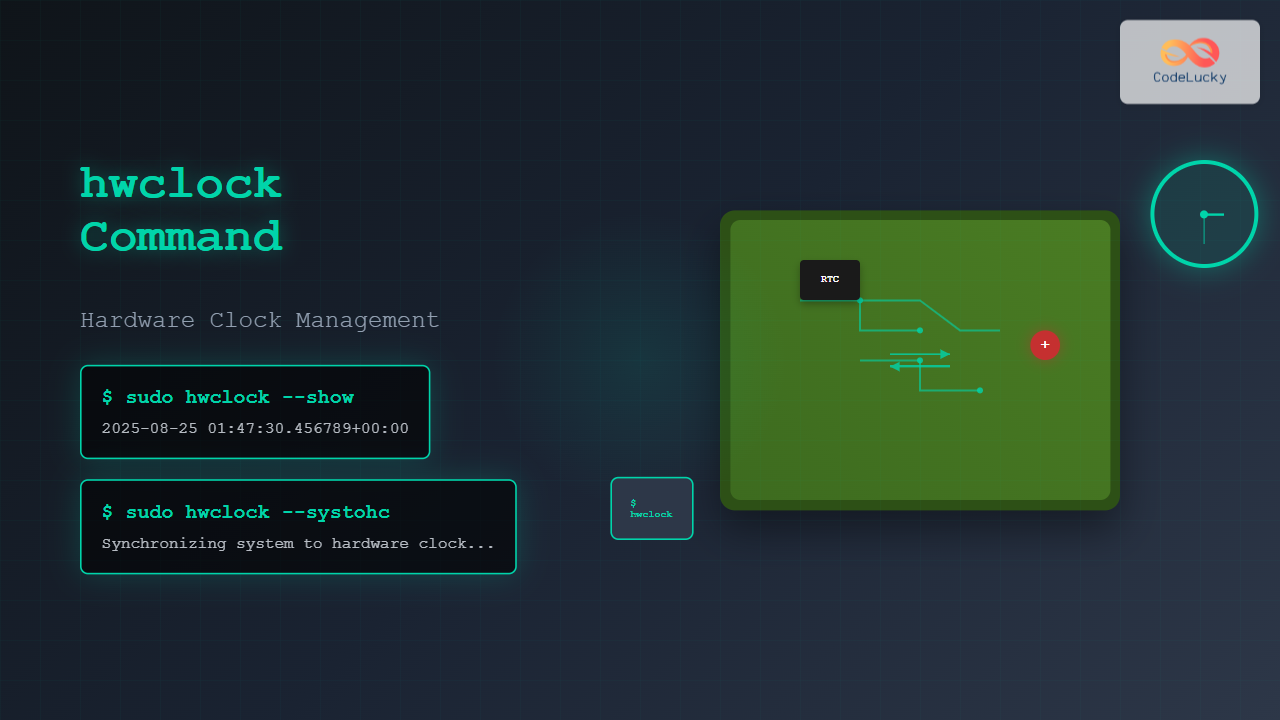
The hwclock command is a powerful Linux utility for managing your system’s hardware clock, also known as the Real-Time Clock (RTC). This essential tool allows system administrators to synchronize system time with hardware time, set the hardware clock, and troubleshoot time-related issues in Linux systems.
Understanding Hardware Clock vs System Clock
Before diving into the hwclock command, it’s crucial to understand the difference between two types of clocks in your Linux system:
- Hardware Clock (RTC): A battery-powered clock on the motherboard that keeps time even when the system is powered off
- System Clock: The software clock maintained by the Linux kernel during system operation
The hardware clock typically runs in either UTC (Coordinated Universal Time) or local time, depending on your system configuration. Most Linux systems are configured to use UTC for the hardware clock.
Basic hwclock Syntax
The general syntax for the hwclock command is:
hwclock [OPTIONS]Most hwclock operations require root privileges, so you’ll typically need to use sudo when executing these commands.
Essential hwclock Commands and Examples
Reading the Hardware Clock
To display the current hardware clock time:
sudo hwclock --showExample output:
2025-08-25 01:47:23.456789+00:00You can also use the short form:
sudo hwclock -rReading Hardware Clock in Different Formats
To display the hardware clock in UTC:
sudo hwclock --show --utcTo display in local time:
sudo hwclock --show --localtimeSynchronizing System Clock to Hardware Clock
To set the system clock from the hardware clock:
sudo hwclock --hctosysThis command reads the hardware clock and sets the system clock accordingly. The short form is:
sudo hwclock -sSynchronizing Hardware Clock to System Clock
To set the hardware clock from the current system time:
sudo hwclock --systohcShort form:
sudo hwclock -wExample workflow:
$ date
Mon Aug 25 07:17:30 IST 2025
$ sudo hwclock --systohc
$ sudo hwclock --show
2025-08-25 01:47:30.123456+00:00
Advanced hwclock Operations
Setting Hardware Clock Manually
To set the hardware clock to a specific date and time:
sudo hwclock --set --date="2025-08-25 12:30:00"Example with verification:
$ sudo hwclock --set --date="2025-08-25 12:30:00"
$ sudo hwclock --show
2025-08-25 12:30:02.789123+00:00
Adjusting Hardware Clock
To make small adjustments to the hardware clock:
sudo hwclock --adjustThis command uses the drift information stored in /etc/adjtime to correct systematic drift in the hardware clock.
Working with Time Zones
For systems where the hardware clock is set to local time:
sudo hwclock --show --localtimeTo explicitly work with UTC:
sudo hwclock --show --utcImportant hwclock Options
Debug and Verbose Output
For troubleshooting, use the debug flag:
sudo hwclock --show --debugExample debug output:
hwclock from util-linux 2.36.1
System Time: 1724566650.789123
Trying to open: /dev/rtc0
Using the rtc interface to the clock.
Assuming hardware clock is kept in UTC time.
Waiting for clock tick...
...got clock tick
Time read from Hardware Clock: 2025/08/25 01:47:30
Hw clock time : 2025/08/25 01:47:30 = 1724566650 seconds since 1969
2025-08-25 01:47:30.456789+00:00
Specifying RTC Device
To use a specific RTC device:
sudo hwclock --show --rtc=/dev/rtc1Configuration Files and System Integration
The /etc/adjtime File
The /etc/adjtime file stores drift correction information:
cat /etc/adjtimeExample content:
0.000000 1724566650 0.000000
1724566650
UTC
The three lines represent:
- Drift rate, last adjustment time, and adjustment status
- Last calibration time
- Clock mode (UTC or LOCAL)
Systemd Integration
Modern Linux systems often use systemd services for time synchronization. Check the status:
systemctl status systemd-timesyncdCommon Use Cases and Scenarios
Dual Boot Systems
For systems dual-booting with Windows, you might need to set the hardware clock to local time:
sudo hwclock --set --date="$(date)" --localtimeThen update the configuration:
sudo hwclock --systohc --localtimeVirtual Machines
In virtual environments, hardware clock behavior might differ. Check if your system has RTC:
ls -l /dev/rtc*Embedded Systems
For embedded systems without internet connectivity, manually sync hardware and system clocks:
sudo hwclock --hctosys --utcTroubleshooting Common Issues
Permission Denied Errors
If you encounter permission errors:
$ hwclock --show
hwclock: cannot access the Hardware Clock via any known method.
Solution: Use sudo and check RTC device permissions:
sudo hwclock --show
ls -l /dev/rtc*
RTC Device Not Found
Check available RTC devices:
find /sys/class/rtc -name "rtc*"Load RTC kernel module if necessary:
sudo modprobe rtcTime Drift Issues
For systems with significant time drift, calibrate the hardware clock:
sudo hwclock --systohc
sudo hwclock --adjust
Best Practices and Security Considerations
Regular Synchronization
Create a cron job for regular hardware clock synchronization:
echo "0 */6 * * * root /sbin/hwclock --systohc" | sudo tee -a /etc/crontabBackup Before Changes
Before making significant changes, note the current time:
date; sudo hwclock --showSystem Logs
Monitor system logs for time-related messages:
journalctl | grep -i "clock\|time"Integration with Network Time Protocol (NTP)
While hwclock manages local time synchronization, NTP handles network-based time synchronization. Use them together:
sudo ntpdate pool.ntp.org
sudo hwclock --systohc
Check NTP synchronization status:
timedatectl statusConclusion
The hwclock command is an essential tool for Linux system administrators managing time synchronization between hardware and system clocks. Whether you’re configuring a new server, troubleshooting time drift issues, or managing dual-boot systems, understanding hwclock operations ensures your system maintains accurate time.
Remember to always use appropriate privileges when working with hardware clock settings, and consider the implications of time changes on system logs, scheduled tasks, and applications that depend on accurate timestamps. Regular monitoring and maintenance of your system’s time configuration will prevent many common issues related to time synchronization in Linux environments.
Related Posts
timedatectl Advanced Linux: Complete Time and Date Management Guide
The timedatectl command is a powerful Linux utility that provides comprehensive control over system time and date settings. As part...
timedatectl Command Linux: Complete Guide to System Time and Date Management
The timedatectl command is a powerful utility in modern Linux distributions that provides a unified interface for managing system time,...
ntpdate Command Linux: Complete Guide to Network Time Synchronization (Deprecated Tool)
The ntpdate command was once a cornerstone tool for Linux system administrators to synchronize system time with Network Time Protocol...
ntpd Command Linux: Complete Guide to Network Time Protocol Daemon Management
The ntpd (Network Time Protocol daemon) is a crucial system service in Linux that maintains accurate system time by synchronizing...
systemd-timesyncd Linux: Complete Guide to Network Time Synchronization
Time synchronization is a critical aspect of system administration that ensures your Linux servers maintain accurate time across distributed networks....
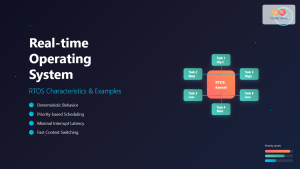
Real-time Operating System: Complete Guide to RTOS Characteristics and Examples
A Real-time Operating System (RTOS) is a specialized operating system designed to handle tasks with strict timing constraints. Unlike traditional...
chrony Linux: Complete Guide to NTP Client and Server Configuration
Network Time Protocol (NTP) synchronization is crucial for maintaining accurate time across Linux systems. chrony is a modern, versatile NTP...

C Time Functions: Date and Time Operations with <time.h>
Time is an essential concept in programming, and C provides a robust set of functions for working with dates and...
uptime Command Linux: Complete Guide to System Uptime and Load Average Monitoring
The uptime command is one of the most fundamental system monitoring tools in Linux, providing essential information about how long...
date Command Linux: Complete Guide to Display and Set System Date
The date command is one of the most fundamental utilities in Linux systems, allowing users to display and manipulate system...

C++ Date and Time: Working with <chrono> and <ctime>
In the world of C++ programming, handling dates and times is a crucial skill that every developer should master. Whether...
Real-time Scheduling: Hard and Soft Real-time Systems in Operating Systems
Real-time scheduling is a critical component of operating systems that manage tasks with strict timing requirements. Unlike traditional scheduling systems...





