Every website you have ever visited — a personal blog, an online store, the dashboard you log into at work — is built on the same two languages. Strip away the fancy frameworks and you are left with structure and style: HTML and CSS. The good news? You can start writing both today with nothing more than a text editor and a browser you already have installed.
This guide to HTML and CSS for beginners walks you from a blank file to a real, styled, responsive web page. You will write working code, understand why each piece matters, and finish with a small website you actually built yourself. No prior experience required.
What Are HTML and CSS?
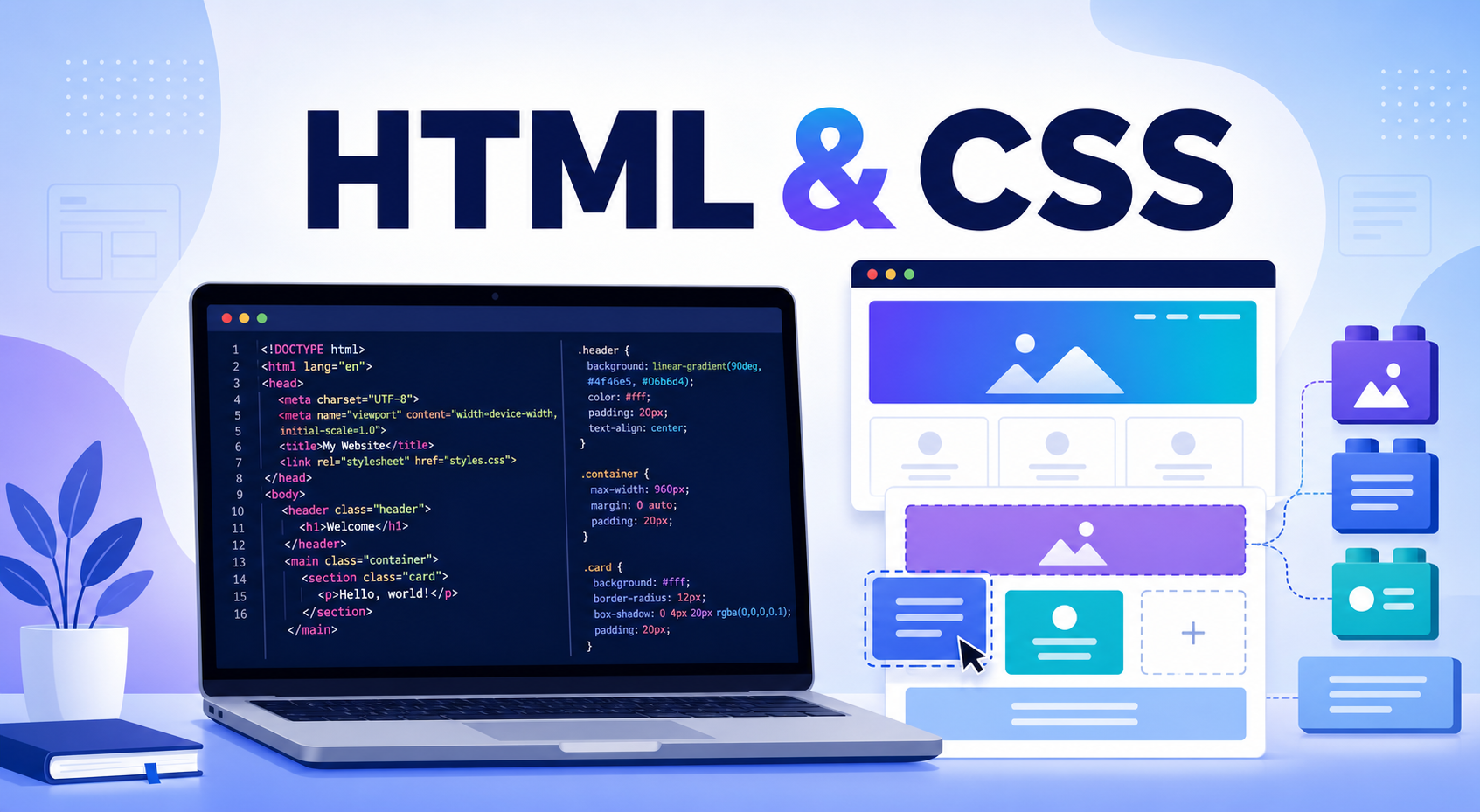
HTML (HyperText Markup Language) is the language that defines the structure and content of a web page, while CSS (Cascading Style Sheets) controls how that content looks. HTML places the headings, paragraphs, images, and buttons; CSS decides their colors, spacing, fonts, and layout. Together they form the foundation of every page on the web.
A helpful analogy: think of a house. HTML is the framing — the walls, floors, and doorways that decide where everything goes. CSS is the paint, furniture, and lighting that make the house pleasant to live in. You need the structure first, but no one wants to live in bare framing.
HTML answers the question “what is this?” CSS answers “how should it look?” Keeping those two jobs separate is the single most important habit a beginner can build.
Setting Up Your Workspace
You do not need expensive software to start. A free code editor and a web browser are enough. Here is the minimal setup most developers use in 2026:
- A code editor — Visual Studio Code is the most popular free choice. It highlights your code, auto-closes tags, and warns you about mistakes.
- A modern browser — Chrome, Firefox, or Edge. You will use its built-in developer tools (press
F12) to inspect and debug your pages. - A project folder — create a folder named
my-first-siteto keep your files organized.
Inside that folder, create two files: index.html and styles.css. The name index.html is special — browsers and servers treat it as the default home page of a folder.
Writing Your First HTML Page
Open index.html and type the following. Resist the urge to copy and paste the first time — typing it builds muscle memory.
<!DOCTYPE html>
<html lang="en">
<head>
  <meta charset="UTF-8">
  <meta name="viewport" content="width=device-width, initial-scale=1.0">
  <title>My First Website</title>
</head>
<body>
  <h1>Hello, world!</h1>
  <p>This is my very first web page.</p>
</body>
</html>
Save the file, then double-click it to open it in your browser. You should see a large heading and a paragraph. That is a real web page. Let’s break down what each line does, because understanding this skeleton makes everything else easier.
The Essential HTML Structure
<!DOCTYPE html>tells the browser to use modern HTML5 rules.<html lang="en">wraps the whole document and declares its language for screen readers and search engines.<head>holds information about the page that visitors don’t see directly — the character set, the viewport setting for mobile devices, and the title shown in the browser tab.<body>contains everything visitors actually see and interact with.
That <meta name="viewport"> tag is easy to overlook but critical: without it, your page will look tiny and zoomed-out on phones. Always include it.
Common HTML Tags You’ll Use Daily
HTML is made of elements, and most elements have an opening tag, content, and a closing tag — like <p>Hello</p>. Here are the tags you will reach for constantly:
<h1>Main heading</h1>
<h2>Section heading</h2>
<p>A paragraph of text.</p>
<a href="https://example.com">A clickable link</a>
<img src="photo.jpg" alt="A short description of the image">
<ul>
  <li>A list item</li>
  <li>Another item</li>
</ul>
Notice the alt attribute on the image. It describes the picture for visually impaired users and shows up if the image fails to load. Writing meaningful alt text is a small habit with a big accessibility payoff. For a complete catalog of elements, the MDN HTML elements reference is the authoritative source.
Styling with CSS: Making It Look Good
Right now your page is functional but plain. CSS changes that. A CSS rule targets an element with a selector and applies one or more declarations inside curly braces:
/* selector { property: value; } */
h1 {
  color: #6c5ce7;       /* purple text */
  font-family: Arial, sans-serif;
  text-align: center;
}
This rule selects every <h1> on the page and makes the text purple, centered, and Arial. The pattern is always the same: pick what you want to style, then describe how it should look.
Three Ways to Add CSS
You can attach CSS to HTML in three ways, but only one of them is a good habit:
- Inline — a
styleattribute on a single element. Quick but messy and hard to maintain. - Internal — a
<style>block inside the<head>. Fine for tiny experiments. - External — a separate
.cssfile linked from your HTML. This is the professional standard.
Use the external approach. Add this line inside the <head> of your HTML file to connect your stylesheet:
<link rel="stylesheet" href="styles.css">Now any rule you write in styles.css applies to your page automatically. Keeping style in its own file means you can restyle an entire site by editing one place — the core benefit of separating structure from presentation.
The CSS Box Model Explained
Every element on a page is a rectangular box, and understanding that box is the key to controlling layout. The box model has four layers, from the inside out: the content, the padding (space inside the border), the border itself, and the margin (space outside the border).
.card {
  width: 300px;
  padding: 16px;          /* space between text and border */
  border: 2px solid #6c5ce7;
  margin: 20px;           /* space between this card and others */
  border-radius: 8px;     /* rounded corners */
}
Beginners are often confused when an element looks wider than expected. By default, padding and border are added to the declared width. A single rule fixes this for good and is considered best practice:
* {
  box-sizing: border-box;
}
With box-sizing: border-box, the width you set includes padding and border, so a 300px box stays 300px. The MDN box model guide visualizes this clearly if you want to go deeper.
Building a Responsive Layout with Flexbox
Modern sites need to look good on phones, tablets, and desktops. Flexbox is a CSS layout tool that arranges items in a row or column and handles spacing for you — no more fighting with floats like developers did a decade ago.
.navbar {
  display: flex;                  /* turn on flexbox */
  justify-content: space-between; /* push items to the edges */
  align-items: center;           /* vertically center them */
  gap: 16px;                     /* consistent space between items */
  padding: 12px 24px;
}
Apply this to a container and its children line up neatly with even spacing. Change justify-content to center and they cluster in the middle; switch flex-direction to column and they stack vertically. Flexbox does the math so you don’t have to. The MDN Flexbox basics page is worth bookmarking as you experiment.
Putting It Together: Your First Website
Let’s combine everything into one small but complete page — a personal landing card. Replace the contents of index.html:
<!DOCTYPE html>
<html lang="en">
<head>
  <meta charset="UTF-8">
  <meta name="viewport" content="width=device-width, initial-scale=1.0">
  <title>Priya Sharma — Web Developer</title>
  <link rel="stylesheet" href="styles.css">
</head>
<body>
  <header class="navbar">
    <strong>Priya Sharma</strong>
    <a href="#contact">Contact</a>
  </header>

  <main class="card">
    <h1>Hi, I'm Priya 👋</h1>
    <p>I'm learning HTML and CSS, and this is my first website.</p>
  </main>
</body>
</html>
Then write the matching styles.css:
* {
  box-sizing: border-box;
  margin: 0;
}

body {
  font-family: Arial, sans-serif;
  background: #f4f3ff;
  color: #2d3436;
}

.navbar {
  display: flex;
  justify-content: space-between;
  align-items: center;
  padding: 16px 24px;
  background: #6c5ce7;
  color: white;
}

.navbar a {
  color: white;
  text-decoration: none;
}

.card {
  max-width: 480px;
  margin: 48px auto;      /* center horizontally */
  padding: 32px;
  background: white;
  border-radius: 12px;
  text-align: center;
}
Refresh your browser. You now have a styled navigation bar, a centered card, custom colors, and a layout that adapts to screen width — built entirely with HTML and CSS. The margin: 48px auto trick centers a fixed-width block horizontally, a pattern you’ll use constantly.
HTML and CSS for Beginners: Common Pitfalls to Avoid
Most beginner frustration comes from a short list of repeatable mistakes. Knowing them in advance saves hours of confusion.
- Forgetting to close tags. An unclosed
<div>can break your whole layout. A good editor highlights this, so don’t ignore the warning. - Skipping the viewport meta tag. Your site will look broken on mobile without it.
- Overusing
<div>for everything (“divitis”). Use semantic tags like<header>,<nav>,<main>, and<footer>— they help accessibility and SEO. - Hard-coding fixed pixel widths everywhere. Mixing in percentages,
max-width, and flexbox keeps pages responsive. - Scattering inline styles. Keep styling in your CSS file so changes stay manageable.
- Forgetting
alttext on images. It hurts accessibility and search ranking.
HTML vs CSS: A Quick Comparison
If you ever forget which language does what, this table sums it up:
| Aspect | HTML | CSS |
|---|---|---|
| Purpose | Structure and content | Appearance and layout |
| File extension | .html |
.css |
| Example | <p>Hello</p> |
p { color: blue; } |
| Is it a programming language? | No — a markup language | No — a style sheet language |
| Can it work alone? | Yes (unstyled) | No (needs HTML to style) |
Frequently Asked Questions
Should I learn HTML or CSS first?
Learn HTML first. You need content and structure on the page before there is anything to style. A weekend on HTML basics is enough to start layering CSS on top, and the two reinforce each other from then on.
How long does it take to learn HTML and CSS?
Most beginners can build simple static pages within two to four weeks of consistent practice. Reaching a comfortable, job-ready level with responsive layouts typically takes a few focused months. The key is building real projects, not just reading tutorials.
Can I build a complete website with only HTML and CSS?
Yes. Many landing pages, portfolios, and small business sites use nothing but HTML and CSS. You only need JavaScript when you want interactivity — things like form validation, sliders, or live data updates.
Is HTML a programming language?
No. HTML is a markup language: it describes and structures content rather than performing logic or calculations. The same is true of CSS, which is a style sheet language. Programming languages like JavaScript add behavior on top of them.
What is the best code editor for a beginner?
Visual Studio Code is the most widely recommended free editor in 2026. It has built-in HTML and CSS support, helpful extensions, and a gentle learning curve. Any plain text editor works in a pinch, but a dedicated editor catches mistakes early.
Do I need to memorize every tag and property?
No. Even experienced developers look things up constantly. Focus on understanding the core concepts — structure, the box model, and flexbox — and keep a reference like MDN open while you work.
Conclusion
You started this guide with a blank folder and now understand the building blocks of every website: HTML for structure, CSS for style, and flexbox for responsive layout. More importantly, you wrote real code and saw it render in a browser — the moment most people fall in love with web development.
The path forward is simple: keep building. Recreate a page you admire, add a contact form, experiment with colors and spacing until they feel natural. Mastering HTML and CSS for beginners is less about memorization and more about repetition, and every small project sharpens your instincts. Open your editor, start a new file, and build the next thing — you already have everything you need to begin.