
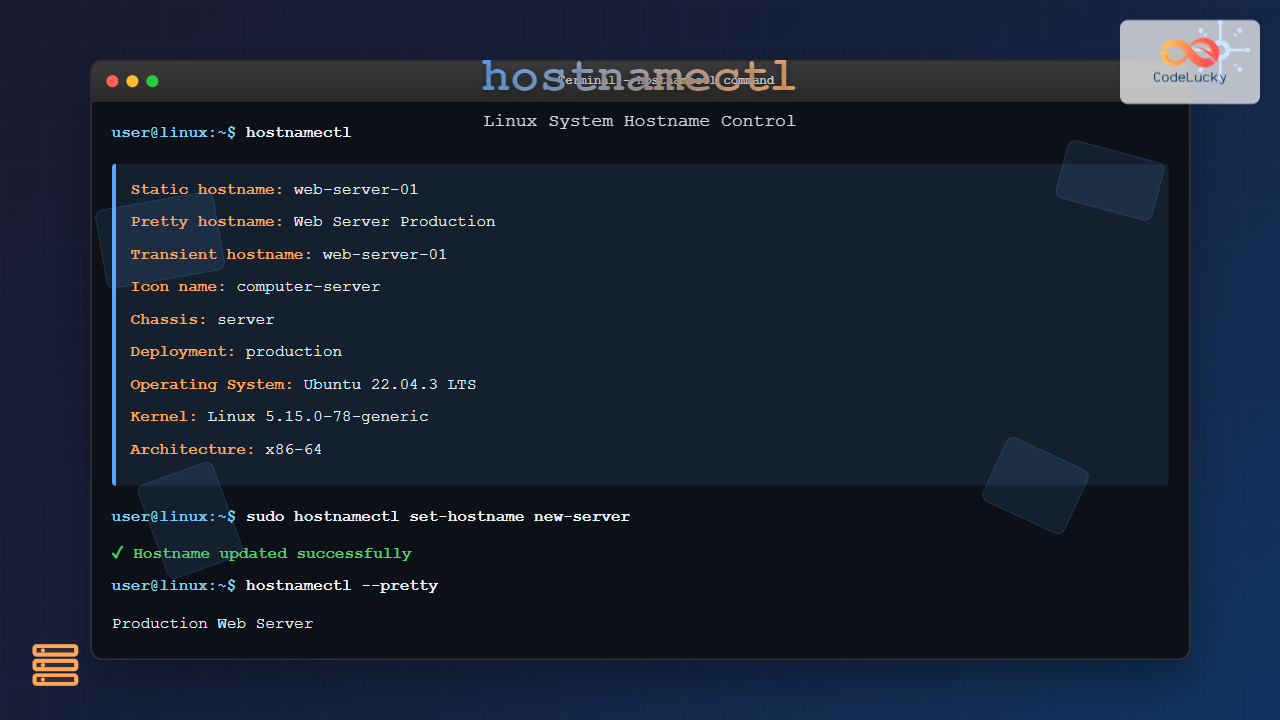
The hostnamectl command is a powerful systemd utility that allows Linux administrators to query and change the system hostname and related settings. As part of the systemd ecosystem, it provides a standardized way to manage hostname configuration across different Linux distributions that use systemd as their init system.
What is hostnamectl?
hostnamectl is a command-line tool that interacts with the systemd-hostnamed service to control system hostname settings. Unlike traditional methods of changing hostnames, hostnamectl provides a unified interface that handles multiple hostname types and automatically updates relevant configuration files.
Key Features
- View current hostname and system information
- Set static, transient, and pretty hostnames
- Configure system chassis type and deployment environment
- Automatic synchronization with configuration files
- Integration with systemd services
Basic Syntax
hostnamectl [OPTIONS...] {COMMAND}Viewing System Information
The most common use of hostnamectl is to display current system information without any arguments:
hostnamectlThis command displays comprehensive system information including:
   Static hostname: ubuntu-server
   Pretty hostname: Ubuntu Development Server
Transient hostname: ubuntu-server
         Icon name: computer-vm
           Chassis: vm
        Machine ID: 12345678901234567890123456789012
           Boot ID: abcdef12-3456-7890-abcd-ef1234567890
  Operating System: Ubuntu 22.04.3 LTS
            Kernel: Linux 5.15.0-78-generic
      Architecture: x86-64
Understanding Hostname Types
Linux systems maintain three different types of hostnames:
- Static hostname: The traditional hostname stored in
/etc/hostname - Transient hostname: Dynamic hostname maintained by the kernel
- Pretty hostname: Human-readable hostname with special characters and spaces
Setting Hostnames
Setting the Static Hostname
To change the static hostname permanently:
sudo hostnamectl set-hostname new-hostnameExample:
sudo hostnamectl set-hostname web-server-01This command updates the static hostname and automatically modifies /etc/hostname and /etc/hosts files.
Setting the Pretty Hostname
The pretty hostname allows spaces and special characters:
sudo hostnamectl set-hostname --pretty "Web Server 01 - Production"Setting Only Transient Hostname
To set a temporary hostname that doesn’t persist across reboots:
sudo hostnamectl set-hostname --transient temp-hostnameAdvanced Configuration Options
Setting Chassis Type
You can specify the chassis type to indicate the physical form factor:
sudo hostnamectl set-chassis desktopCommon chassis types include:
- desktop
- laptop
- server
- tablet
- vm (virtual machine)
- container
Setting Deployment Environment
Specify the deployment environment:
sudo hostnamectl set-deployment productionCommon deployment types:
- development
- integration
- staging
- production
Practical Examples
Example 1: Complete Server Setup
Setting up a web server with comprehensive hostname configuration:
# Set all hostname types at once
sudo hostnamectl set-hostname web-prod-01 --pretty "Web Server Production 01" --static web-prod-01

# Configure chassis and deployment
sudo hostnamectl set-chassis server
sudo hostnamectl set-deployment production

# Verify configuration
hostnamectl
Output:
   Static hostname: web-prod-01
   Pretty hostname: Web Server Production 01
Transient hostname: web-prod-01
         Icon name: computer-server
           Chassis: server
      Deployment: production
        Machine ID: 12345678901234567890123456789012
           Boot ID: abcdef12-3456-7890-abcd-ef1234567890
  Operating System: Ubuntu 22.04.3 LTS
            Kernel: Linux 5.15.0-78-generic
      Architecture: x86-64
Example 2: Development Environment Setup
# Quick development setup
sudo hostnamectl set-hostname dev-workstation --pretty "Development Workstation"
sudo hostnamectl set-chassis laptop
sudo hostnamectl set-deployment development
Command Options and Flags
Common Options
| Option | Description |
|---|---|
--help |
Display help information |
--version |
Show version information |
--no-ask-password |
Don’t prompt for password |
--static |
Only change static hostname |
--transient |
Only change transient hostname |
--pretty |
Only change pretty hostname |
Specific Commands
# View only static hostname
hostnamectl --static

# View only pretty hostname
hostnamectl --pretty

# View only transient hostname
hostnamectl --transient
Integration with System Files
hostnamectl automatically manages several system files:
/etc/hostname
Contains the static hostname:
cat /etc/hostname
web-prod-01
/etc/hosts
Updated to include the new hostname:
127.0.0.1   localhost
127.0.1.1   web-prod-01

# The following lines are desirable for IPv6 capable hosts
::1     ip6-localhost ip6-loopback
/etc/machine-info
Stores pretty hostname and other machine information:
PRETTY_HOSTNAME="Web Server Production 01"
CHASSIS="server"
DEPLOYMENT="production"
Troubleshooting Common Issues
Permission Denied
Always use sudo when setting hostnames:
# Wrong
hostnamectl set-hostname new-name

# Correct
sudo hostnamectl set-hostname new-name
Hostname Not Updating
If hostname changes don’t take effect immediately, restart the systemd-hostnamed service:
sudo systemctl restart systemd-hostnamedInvalid Hostname Characters
Static hostnames must follow specific rules:
- Only contain lowercase letters, numbers, and hyphens
- Cannot start or end with a hyphen
- Maximum length of 64 characters
Best Practices
Hostname Naming Conventions
- Use descriptive names that indicate purpose:
web-prod-01,db-staging-02 - Include environment indicators:
dev,staging,prod - Use consistent numbering schemes for multiple servers
- Avoid special characters in static hostnames
Documentation
Always document hostname changes and maintain an inventory of your systems:
| Hostname | Purpose | Environment | IP Address |
|---|---|---|---|
| web-prod-01 | Web Server | Production | 192.168.1.10 |
| db-prod-01 | Database Server | Production | 192.168.1.11 |
Automation and Scripting
For automated deployments, you can script hostname configuration:
#!/bin/bash
# hostname-setup.sh

HOSTNAME=$1
PRETTY_NAME=$2
ENVIRONMENT=$3

if [ $# -ne 3 ]; then
    echo "Usage: $0 <hostname> <pretty_name> <environment>"
    exit 1
fi

# Set hostname
sudo hostnamectl set-hostname "$HOSTNAME" --pretty "$PRETTY_NAME"

# Set deployment environment
sudo hostnamectl set-deployment "$ENVIRONMENT"

# Display results
echo "Hostname configuration completed:"
hostnamectl
Usage:
chmod +x hostname-setup.sh
./hostname-setup.sh web-prod-02 "Web Server Production 02" production
Security Considerations
When managing hostnames in production environments:
- Avoid revealing sensitive information in hostnames
- Use consistent naming that doesn’t expose system architecture
- Implement proper access controls for hostname changes
- Monitor hostname changes in security logs
Conclusion
The hostnamectl command provides a modern, systematic approach to hostname management in Linux systems. It offers comprehensive control over different hostname types while automatically maintaining system consistency. By understanding its various options and best practices, system administrators can effectively manage system identity across their infrastructure.
Whether you’re setting up a single server or managing a large fleet of machines, hostnamectl streamlines hostname configuration and ensures your systems are properly identified on the network. Its integration with systemd makes it the preferred method for hostname management on modern Linux distributions.
Related Posts
resolvectl Command Linux: Complete Guide to systemd-resolved DNS Management
The resolvectl command is a powerful utility in modern Linux distributions that provides control over the systemd-resolved service. This command...
systemctl Command Linux: Complete Guide to Control Systemd Services
The systemctl command is the primary tool for controlling systemd services in modern Linux distributions. As the central management utility...
systemd-resolved Linux: Complete Guide to Network Name Resolution Management
The systemd-resolved service is a fundamental component of modern Linux systems that handles network name resolution, DNS caching, and LLMNR...
timedatectl Command Linux: Complete Guide to System Time and Date Management
The timedatectl command is a powerful utility in modern Linux distributions that provides a unified interface for managing system time,...

machinectl Command Linux: Complete Guide to Managing systemd Containers and VMs
The machinectl command is a powerful utility in Linux systems that provides comprehensive management capabilities for systemd containers and virtual...
systemd-networkd Linux: Complete Network Configuration Manager Guide
systemd-networkd is a powerful system daemon that manages network configurations on Linux systems. As part of the systemd ecosystem, it...
loginctl Command Linux: Master Session Management with Practical Examples
The loginctl command is a powerful systemd utility that allows system administrators to introspect and control the systemd login manager...
snmpset Command Linux: Complete Guide to Setting SNMP Variables
The snmpset command is a powerful Linux utility that allows network administrators to modify SNMP (Simple Network Management Protocol) variables...

systemd Linux: Complete Guide to System and Service Manager
systemd is a powerful system and service manager that has become the default init system for most modern Linux distributions....

HTML Anchor hostname Property: Link Hostname
HTML Anchor hostname Property: Link Hostname The hostname property of the HTML <a> (anchor) element interface represents a string containing...
localectl Command Linux: Complete Guide to System Locale Management
The localectl command is a powerful system administration tool in Linux that allows users to query and modify system locale...
service Command Linux: Complete Guide to Managing System Services
The service command is a fundamental tool in Linux system administration that allows you to manage system services and daemons...





