
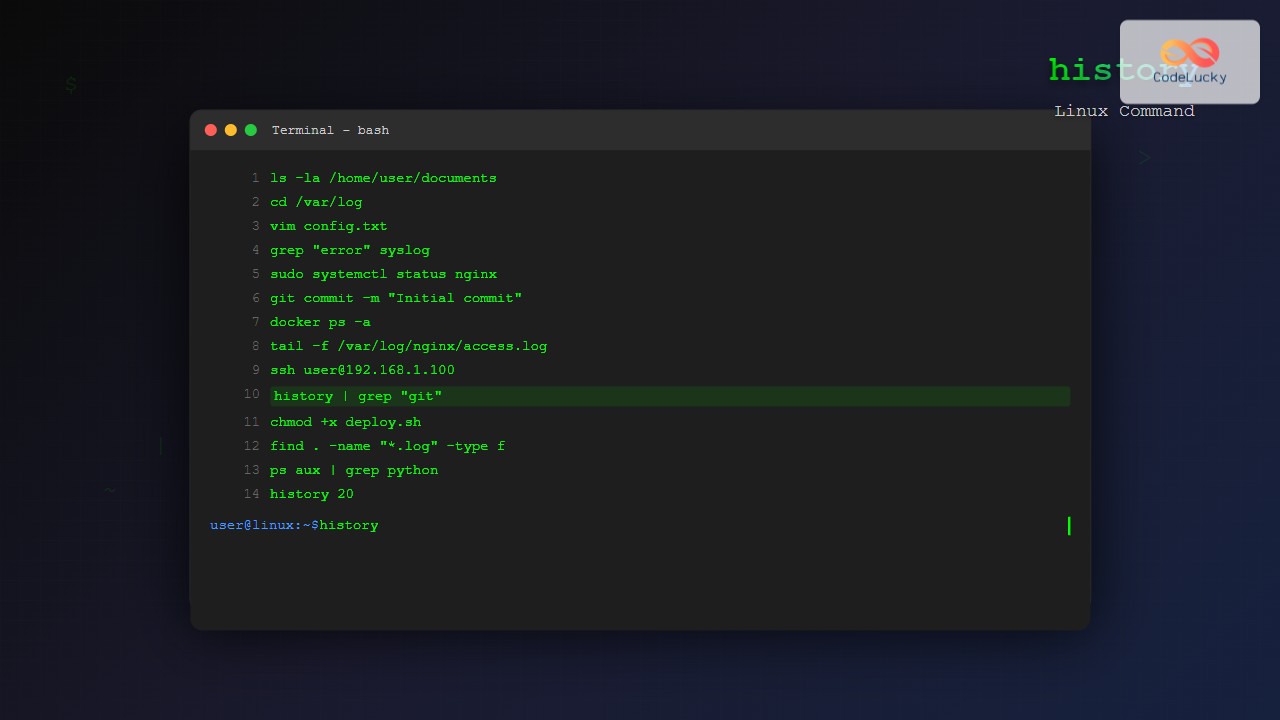
The history command in Linux is one of the most powerful tools for managing and navigating your command line experience. It allows you to view, search, and manipulate your command history, making it easier to repeat previous commands, track your activities, and boost your productivity in the terminal.
What is the history Command?
The history command displays a numbered list of previously executed commands in your current shell session and those stored in your history file. By default, bash stores command history in the ~/.bash_history file, while other shells use their respective history files.
Basic Syntax
history [options] [n]Where:
options– Various flags to modify behaviorn– Number of recent commands to display
Basic Usage Examples
Display All Command History
$ historySample Output:
    1  ls -la
    2  cd /home/user/documents
    3  vim example.txt
    4  grep "pattern" file.txt
    5  sudo apt update
    6  history
Display Last N Commands
$ history 5Output:
    2  cd /home/user/documents
    3  vim example.txt
    4  grep "pattern" file.txt
    5  sudo apt update
    6  history 5
Advanced history Command Options
Clear Command History
$ history -cThis clears the entire command history from memory but doesn’t affect the history file.
Delete Specific History Entry
$ history -d 15Deletes the command at line number 15 from history.
Write Current Session to History File
$ history -wForces writing the current session’s history to the history file immediately.
Read History File
$ history -rReads the history file and appends its contents to the current session’s history.
Append Current Session to History File
$ history -aAppends new history lines from the current session to the history file.
Interactive History Navigation
Using Arrow Keys
The most common way to navigate history:
- Up Arrow – Move to previous command
- Down Arrow – Move to next command
Keyboard Shortcuts
| Shortcut | Description |
|---|---|
| Ctrl + R | Reverse search through history |
| Ctrl + S | Forward search through history |
| Ctrl + P | Previous command (same as up arrow) |
| Ctrl + N | Next command (same as down arrow) |
| Alt + < | Move to beginning of history |
| Alt + > | Move to end of history |
History Expansion
History expansion allows you to reference and execute previous commands using special syntax.
Basic History Expansion
$ !!        # Execute last command
$ !n        # Execute command number n
$ !string   # Execute last command starting with 'string'
$ !?string  # Execute last command containing 'string'
Example:
$ ls -la /var/log
$ !!        # Executes: ls -la /var/log
$ !ls       # Executes the last command starting with 'ls'
Word Designators
$ !^        # First argument of last command
$ !$        # Last argument of last command
$ !*        # All arguments of last command
$ !:n       # nth argument of last command
Example:
$ cp /home/user/file1.txt /backup/
$ ls !$     # Executes: ls /backup/
$ vim !^    # Executes: vim /home/user/file1.txt
Searching Command History
Using grep with history
$ history | grep "git"Sample Output:
   45  git status
   52  git add .
   53  git commit -m "Initial commit"
   67  git push origin main
Reverse Search (Ctrl + R)
Press Ctrl + R and start typing to search backwards through your history:
(reverse-i-search)`git': git statusContinue pressing Ctrl + R to cycle through matches.
Customizing History Behavior
Environment Variables
Add these to your ~/.bashrc file:
# Set history size
export HISTSIZE=1000        # Commands in memory
export HISTFILESIZE=2000    # Commands in history file

# Control history format
export HISTTIMEFORMAT="%Y-%m-%d %H:%M:%S "

# Ignore duplicate commands and commands starting with space
export HISTCONTROL=ignoreboth

# Ignore specific commands
export HISTIGNORE="ls:ll:cd:pwd:clear:history"
History with Timestamps
$ export HISTTIMEFORMAT="%Y-%m-%d %H:%M:%S "
$ history 5
Output:
  1001  2025-08-25 13:45:12 ls -la
  1002  2025-08-25 13:45:20 cd /home/user
  1003  2025-08-25 13:45:25 vim config.txt
  1004  2025-08-25 13:46:10 grep "error" /var/log/syslog
  1005  2025-08-25 13:46:15 history 5
History File Management
Viewing History File
$ cat ~/.bash_history | tail -10Backup History File
$ cp ~/.bash_history ~/.bash_history.backupClear History File
$ > ~/.bash_history    # Clear file contents
$ history -c           # Clear memory history
$ history -w           # Save empty history to file
Advanced History Techniques
Multiple Terminal Sessions
By default, each terminal session maintains its own history. To share history across sessions:
# Add to ~/.bashrc
export PROMPT_COMMAND="history -a; history -c; history -r; $PROMPT_COMMAND"
History Substitution and Modification
$ ^old^new^         # Replace 'old' with 'new' in last command
$ !!:s/old/new/     # Same as above
$ !cp:s/txt/bak/    # Replace 'txt' with 'bak' in last 'cp' command
Example:
$ cp file.txt /backup/
$ ^txt^bak^         # Executes: cp file.bak /backup/
Security Considerations
Disable History for Sensitive Commands
$ set +o history    # Disable history temporarily
$ sensitive_command
$ set -o history    # Re-enable history
Private Session
$ unset HISTFILE    # Don't save history to file
$ export HISTSIZE=0 # Don't keep history in memory
Remove Sensitive Commands
$ history | grep -n "password"
$ history -d 156    # Delete line 156
Troubleshooting Common Issues
History Not Saving
Check these common causes:
# Check if HISTFILE is set
$ echo $HISTFILE

# Check file permissions
$ ls -la ~/.bash_history

# Verify HISTSIZE and HISTFILESIZE
$ echo $HISTSIZE $HISTFILESIZE
History Not Loading
# Manually load history
$ history -r

# Check if .bashrc is being sourced
$ source ~/.bashrc
Best Practices
- Regular Backups: Backup your history file regularly
- Size Management: Set appropriate HISTSIZE and HISTFILESIZE values
- Security: Use HISTCONTROL to avoid storing sensitive commands
- Timestamps: Enable HISTTIMEFORMAT for better tracking
- Cleanup: Periodically review and clean your history
Alternative History Tools
fzf Integration
$ history | fzf # Interactive history search with fzfmcfly
A replacement for Ctrl+R that provides better search capabilities:
$ cargo install mcfly
$ eval "$(mcfly init bash)"
Conclusion
The history command is an essential tool for any Linux user looking to improve their command line productivity. By mastering history navigation, search techniques, and customization options, you can significantly speed up your workflow and reduce repetitive typing. Whether you’re a system administrator tracking your activities or a developer looking to quickly access previous commands, understanding the history command will make you more efficient in the terminal.
Remember to implement proper security practices when dealing with command history, especially in environments where sensitive information might be handled. Regular maintenance of your history file and thoughtful configuration of history-related environment variables will ensure you get the most out of this powerful feature.
Related Posts

Linux Commands Tutorial: Complete Beginner’s Guide to Terminal Basics
The Linux terminal is a powerful command-line interface that gives you direct control over your operating system. While it might...

bash Command Linux: Start New Shell Sessions and Execute Scripts Efficiently
The bash command is one of the most fundamental tools in Linux systems, serving as both a command-line interpreter and...

echo Command in Linux: Complete Guide to Print Text and Variables in Terminal
The echo command is one of the most fundamental and frequently used commands in Linux and Unix-like operating systems. It...
type Command Linux: Complete Guide to Display Command Type and Location
The type command is an essential Linux utility that helps you identify the nature and location of commands in your...
who Command in Linux: Complete Guide to Display Logged in Users
The who command is one of the most fundamental system administration tools in Linux, designed to display information about currently...
export Command Linux: Complete Guide to Environment Variables Management
The export command is one of the most fundamental tools in Linux for managing environment variables. Whether you're a system...
last Command Linux: Display Login History and System Boot Records
The last command is an essential Linux utility that displays a chronological list of user logins, system boots, and shutdowns...
which Command Linux: Complete Guide to Locating Executable Commands in PATH
The which command is a fundamental Linux utility that helps you locate executable files in your system's PATH environment variable....
pwd Command in Linux: Complete Guide to Display Current Working Directory Path
The pwd command is one of the fundamental Linux commands that every user should master. Standing for "Print Working Directory,"...
more Command Linux: Complete Guide to Paginated File Viewing
The more command is one of the most essential Linux utilities for viewing file contents in a controlled, paginated manner....
logger Command Linux: Complete Guide to System Log Message Management
The logger command in Linux is a powerful utility that allows users and scripts to send messages directly to the...
jobs Command Linux: Complete Guide to Managing Background Jobs in Terminal
The jobs command is an essential tool for Linux users who need to manage multiple processes running in the background....





