
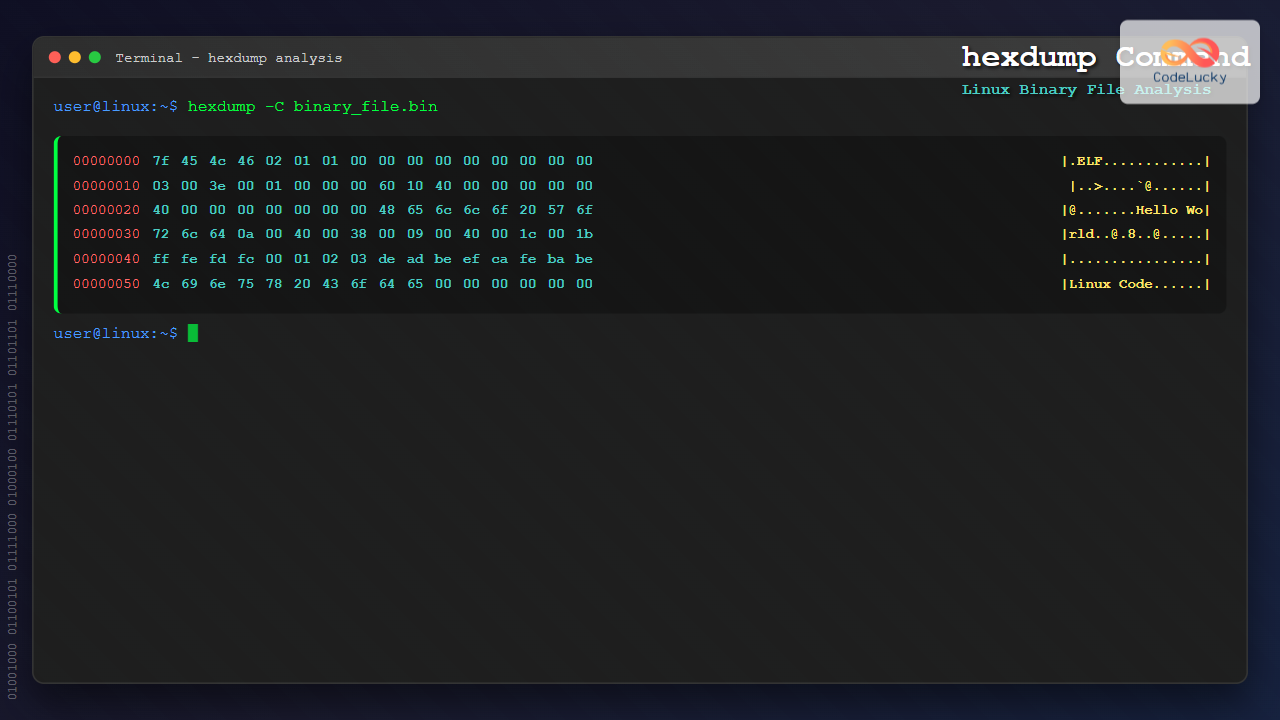
The hexdump command is a powerful Linux utility that displays the contents of files in hexadecimal format, making it an essential tool for developers, system administrators, and security professionals. This comprehensive guide will teach you everything you need to know about using hexdump effectively.
What is the hexdump Command?
The hexdump command is a standard Unix/Linux utility that reads files and displays their contents in various formats, primarily hexadecimal. It’s particularly useful for examining binary files, debugging data corruption issues, and understanding file structures that aren’t human-readable in their raw form.
Basic Syntax and Usage
The basic syntax of the hexdump command is:
hexdump [options] [file...]If no file is specified, hexdump reads from standard input. Let’s start with a simple example:
$ echo "Hello World" | hexdump
0000000 6548 6c6c 206f 6f57 6c72 0a64
000000c
This output shows the hexadecimal representation of “Hello World” with addresses on the left and hex values on the right.
Essential hexdump Options
-C (Canonical Format)
The -C option displays output in canonical format, showing both hex and ASCII representations:
$ echo "Hello World" | hexdump -C
00000000  48 65 6c 6c 6f 20 57 6f  72 6c 64 0a              |Hello World.|
0000000c
This format is most readable, showing:
- Offset address (00000000)
- Hex bytes (48 65 6c 6c…)
- ASCII representation (Hello World.)
-x (Two-byte Hexadecimal)
The -x option displays two-byte hex output:
$ echo "Hello World" | hexdump -x
0000000    6548    6c6c    206f    6f57    6c72    0a64
000000c
-d (Decimal Format)
To display output in decimal format:
$ echo "Hello World" | hexdump -d
0000000   25928   27756    8303   28503   27762    2660
000000c
-o (Octal Format)
For octal representation:
$ echo "Hello World" | hexdump -o
0000000  062510  066154  020157  067527  066562  005144
000000c
Advanced Options and Formatting
-n (Limit Bytes)
The -n option limits the number of bytes to display:
$ echo "Hello World" | hexdump -C -n 5
00000000  48 65 6c 6c 6f                                    |Hello|
00000005
-s (Skip Bytes)
Skip a specified number of bytes from the beginning:
$ echo "Hello World" | hexdump -C -s 6
00000006  57 6f 72 6c 64 0a                                 |World.|
0000000c
-v (Verbose)
The -v option displays all data without suppressing duplicate lines:
$ printf "AAAAAAAA" | hexdump
0000000 4141 4141 4141 4141
0000008

$ printf "AAAAAAAA" | hexdump -v
0000000 4141 4141 4141 4141
0000008
Custom Format Strings
hexdump supports custom format strings using the -e option. The format string syntax is:
-e 'format_string'Format String Examples
Display each byte as a two-digit hex number:
$ echo "ABC" | hexdump -e '1/1 "%02x " "\n"'
41 42 43 0a
Display with custom formatting:
$ echo "Hello" | hexdump -e '"%08_ax: " 8/1 "%02x " " |" 8/1 "%_p" "|\n"'
00000000: 48 65 6c 6c 6f 0a        |Hello.|
Practical Examples and Use Cases
Examining Binary Files
Create a binary file and examine it:
$ printf "\x00\x01\x02\x03\xff\xfe\xfd" > binary_file
$ hexdump -C binary_file
00000000  00 01 02 03 ff fe fd                              |.......|
00000007
Analyzing ELF Headers
Examine the header of an executable:
$ hexdump -C -n 64 /bin/ls | head -5
00000000  7f 45 4c 46 02 01 01 00  00 00 00 00 00 00 00 00  |.ELF............|
00000010  03 00 3e 00 01 00 00 00  30 6a 00 00 00 00 00 00  |..>.....0j......|
00000020  40 00 00 00 00 00 00 00  e8 f5 01 00 00 00 00 00  |@...............|
00000030  00 00 00 00 40 00 38 00  0d 00 40 00 1f 00 1e 00  |[email protected]...@.....|
Debugging Network Packets
When working with network data or packet captures:
$ printf "\x45\x00\x00\x3c\x1c\x46\x40\x00\x40\x06" > packet.bin
$ hexdump -C packet.bin
00000000  45 00 00 3c 1c 46 40 00  40 06                    |E..<.F@.@.|
0000000a
Comparing hexdump with Related Commands
hexdump vs od (Octal Dump)
Both commands serve similar purposes, but od is more traditional:
$ echo "Hello" | hexdump -C
00000000  48 65 6c 6c 6f 0a                                 |Hello.|
00000006

$ echo "Hello" | od -t x1z
0000000 48 65 6c 6c 6f 0a                                >Hello.<
0000006
hexdump vs xxd
xxd is another popular hex viewer that comes with vim:
$ echo "Hello" | xxd
00000000: 4865 6c6c 6f0a                           Hello.
Advanced Tips and Tricks
Creating Colorized Output
While hexdump doesn’t have built-in color support, you can pipe it through other tools:
$ echo "Hello World" | hexdump -C | grep --color=always -E '[0-9a-f]{2}'Reverse Engineering with hexdump
For reverse engineering, combine hexdump with other tools:
$ hexdump -C suspicious_file | grep -i "password\|key\|secret"Finding File Type Signatures
Check file magic numbers:
$ hexdump -C -n 16 image.jpg
00000000  ff d8 ff e0 00 10 4a 46  49 46 00 01 01 01 00 48  |......JFIF.....H|
Troubleshooting Common Issues
Large File Handling
For large files, use the -n option to limit output:
$ hexdump -C -n 1024 large_file.bin | head -20Binary vs Text Files
Remember that hexdump treats all files as binary. For text files, you might see unexpected characters:
$ printf "Line1\nLine2\n" | hexdump -C
00000000  4c 69 6e 65 31 0a 4c 69  6e 65 32 0a              |Line1.Line2.|
0000000c
Performance Considerations
For better performance with large files:
- Use
-nto limit bytes read - Use
-sto skip unnecessary data - Consider using
ddto extract specific portions first
$ dd if=large_file bs=1024 count=1 2>/dev/null | hexdump -CSecurity and Forensics Applications
hexdump is valuable for security analysis:
Detecting Hidden Data
$ hexdump -C document.pdf | tail -20  # Check end of file
$ hexdump -C image.jpg | grep -i "password\|user"  # Search for strings
Malware Analysis
Examine suspicious executables:
$ hexdump -C -n 512 suspicious_binary | grep -E "(call|jmp|int)"Conclusion
The hexdump command is an indispensable tool for anyone working with binary data, debugging applications, or performing security analysis. Its flexibility in output formats and ability to handle any file type makes it perfect for low-level file examination. Whether you’re debugging network protocols, analyzing file formats, or investigating security incidents, mastering hexdump will significantly enhance your troubleshooting capabilities.
Practice with different file types and experiment with various options to become proficient with this powerful utility. Remember that hexdump works best when combined with other Linux tools like grep, awk, and sed for more advanced data analysis tasks.
Related Posts
od Command Linux: Complete Guide to Octal Dump File Contents and Binary Analysis
The od (octal dump) command is a powerful Linux utility that displays file contents in various formats including octal, hexadecimal,...

file Command Advanced Linux: Master Detailed File Type Analysis and Detection
The file command is one of the most powerful and underutilized utilities in Linux for determining file types and analyzing...
strings Command Linux: Extract and Analyze Text from Binary Files
The strings command is a powerful Linux utility that extracts printable character sequences from binary files. Whether you're analyzing executables,...
file Command in Linux: Complete Guide to Determine File Types and Formats
The file command is one of the most essential utilities in Linux for determining file types and formats. Unlike relying...
objdump Command Linux: Complete Guide to Display Object File Information
The objdump command is a powerful utility in Linux systems that allows developers and system administrators to examine the contents...
readelf Command Linux: Complete Guide to ELF File Analysis and Debugging
The readelf command is an essential tool for Linux developers, system administrators, and security analysts who need to examine Executable...
nm Command Linux: Complete Guide to Display Symbol Tables from Object Files
The nm command is a powerful utility in Linux that displays the symbol table of object files, executables, shared libraries,...

stat Command Linux: Complete Guide to Display File and Filesystem Status Information
The stat command is a powerful Linux utility that displays detailed information about files and filesystems. Unlike basic commands like...

C File Handling: Creating, Writing, and Reading Files
File handling is a crucial aspect of programming in C, allowing developers to interact with external data sources, store information...

size Command Linux: Display Section Sizes of Object Files and Executables
The size command is a powerful utility in Linux systems that displays the section sizes of object files, executables, and...

cat Command in Linux: Complete Guide to Display and Concatenate Files
The cat command is one of the most fundamental and frequently used commands in Linux and Unix-like operating systems. Short...
iconv Command Linux: Convert Character Encodings Efficiently
The iconv command in Linux is a powerful utility designed to convert text files from one character encoding to another....





