
The head command is one of the most fundamental and frequently used utilities in Linux and Unix-like operating systems. It allows users to display the first few lines of text files, making it an essential tool for file examination, log analysis, and text processing workflows. Whether you’re a system administrator checking log files or a developer reviewing code, the head command provides a quick and efficient way to peek into file contents without opening the entire file.
What is the head Command?
The head command is a built-in Linux utility that displays the first N lines of one or more files. By default, it shows the first 10 lines of a file, but this behavior can be customized using various command-line options. The command is particularly useful when dealing with large files where you only need to see the beginning content.
Basic Syntax and Usage
The basic syntax of the head command follows this pattern:
head [OPTION]... [FILE]...Here’s the simplest example of using head:
head filename.txtThis command will display the first 10 lines of filename.txt. If no file is specified, head reads from standard input, making it useful in command pipelines.
Example Output
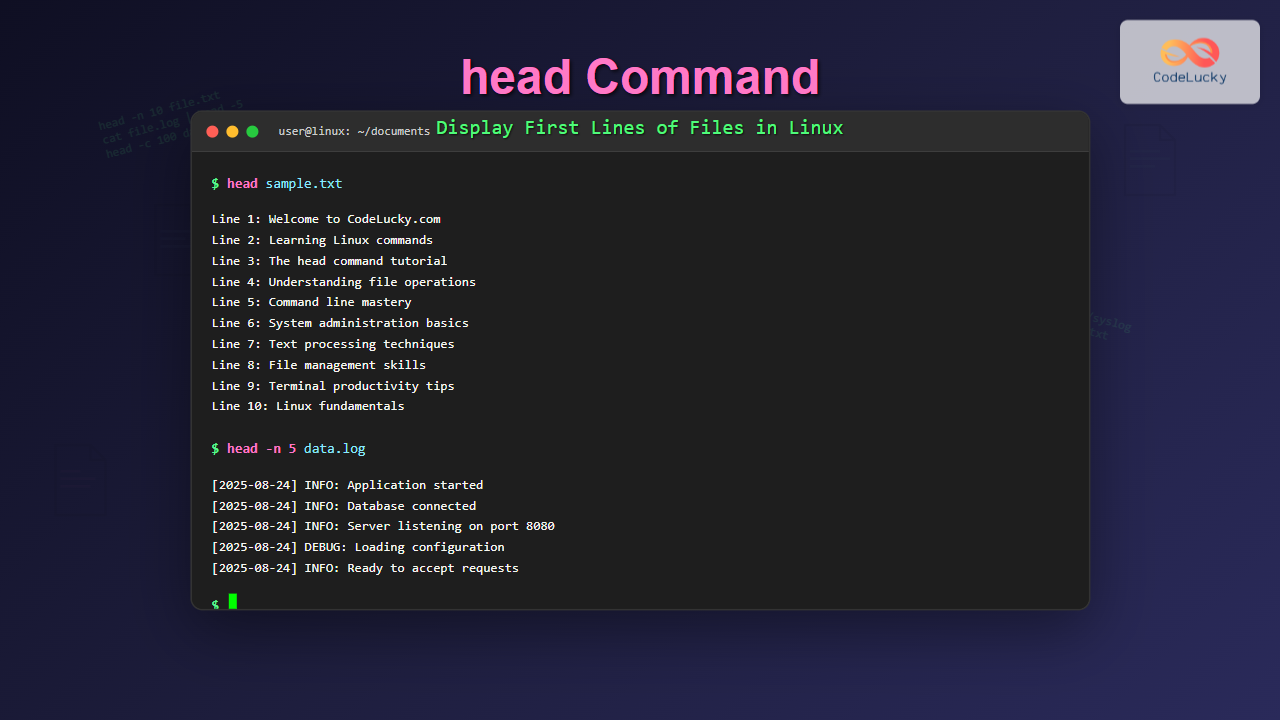
Let’s say we have a file called sample.txt with the following content:
$ cat sample.txt
Line 1: Welcome to CodeLucky.com
Line 2: Learning Linux commands
Line 3: The head command tutorial
Line 4: Understanding file operations
Line 5: Command line mastery
Line 6: System administration basics
Line 7: Text processing techniques
Line 8: File management skills
Line 9: Terminal productivity tips
Line 10: Linux fundamentals
Line 11: Advanced command usage
Line 12: Shell scripting basics
Line 13: Automation techniques
Line 14: System monitoring
Line 15: Performance optimization
Running head sample.txt would produce:
$ head sample.txt
Line 1: Welcome to CodeLucky.com
Line 2: Learning Linux commands
Line 3: The head command tutorial
Line 4: Understanding file operations
Line 5: Command line mastery
Line 6: System administration basics
Line 7: Text processing techniques
Line 8: File management skills
Line 9: Terminal productivity tips
Line 10: Linux fundamentals
Essential Command Options
Specifying Number of Lines (-n)
The -n option allows you to specify exactly how many lines to display:
head -n 5 sample.txtOutput:
Line 1: Welcome to CodeLucky.com
Line 2: Learning Linux commands
Line 3: The head command tutorial
Line 4: Understanding file operations
Line 5: Command line mastery
You can also use the shorthand syntax without the -n flag:
head -5 sample.txtDisplaying Bytes Instead of Lines (-c)
The -c option displays the first N bytes instead of lines:
head -c 50 sample.txtOutput:
Line 1: Welcome to CodeLucky.com
Line 2: Learnin
Quiet Mode (-q)
When processing multiple files, head normally displays headers showing the filename. The -q option suppresses these headers:
head -q file1.txt file2.txtVerbose Mode (-v)
The -v option forces the display of headers even when processing a single file:
head -v sample.txtOutput:
==> sample.txt <==
Line 1: Welcome to CodeLucky.com
Line 2: Learning Linux commands
Line 3: The head command tutorial
Line 4: Understanding file operations
Line 5: Command line mastery
Line 6: System administration basics
Line 7: Text processing techniques
Line 8: File management skills
Line 9: Terminal productivity tips
Line 10: Linux fundamentals
Working with Multiple Files
The head command can process multiple files simultaneously. When multiple files are specified, head displays a header for each file by default:
head file1.txt file2.txt file3.txtExample output:
==> file1.txt <==
First line of file1
Second line of file1
Third line of file1

==> file2.txt <==
First line of file2
Second line of file2
Third line of file2

==> file3.txt <==
First line of file3
Second line of file3
Third line of file3
Practical Use Cases and Examples
Log File Analysis
System administrators frequently use head to examine log files:
# Check the beginning of system log
head /var/log/syslog

# Show first 20 lines of Apache access log
head -20 /var/log/apache2/access.log
Configuration File Review
When examining configuration files, head helps you quickly see the file structure:
# Check the beginning of SSH configuration
head /etc/ssh/sshd_config

# View first few lines of hosts file
head -5 /etc/hosts
CSV File Inspection
For data analysis, head is perfect for examining CSV headers and sample data:
# View CSV headers and first few rows
head -10 data.csv
Code File Overview
Developers use head to quickly review file headers, imports, or initial code blocks:
# Check imports and initial code
head -15 script.py

# View file headers and comments
head -20 main.cpp
Combining head with Other Commands
Using head in Pipelines
The head command works excellently in command pipelines:
# Show first 5 processes with highest CPU usage
ps aux --sort=-%cpu | head -6

# Display first 10 largest files in current directory
ls -la | sort -k5 -nr | head -10

# Show first few lines of command output
dmesg | head -15
Combining with tail for Middle Content
You can combine head and tail to extract specific line ranges:
# Show lines 10-15 of a file
head -15 file.txt | tail -6

# Display lines 5-10
head -10 file.txt | tail -6
Using with grep for Filtered Results
# Show first 5 error messages from log
grep "ERROR" /var/log/application.log | head -5

# Display first few matching patterns
grep "warning" system.log | head -10
Advanced Techniques and Tips
Monitoring File Changes
While head shows static content, you can combine it with watch to monitor file changes:
# Watch the first 10 lines of a log file every 2 seconds
watch -n 2 'head /var/log/syslog'
Processing Large Files Efficiently
For very large files, head is much more efficient than opening the entire file in a text editor:
# Quickly examine a large database dump
head -50 large_database.sql

# Check the structure of a big CSV file
head -20 massive_dataset.csv
Comparing File Beginnings
Use head to compare the beginning of multiple files:
# Compare first lines of configuration files
head -5 /etc/nginx/nginx.conf /etc/apache2/apache2.conf
Error Handling and Troubleshooting
Common Error Messages
File not found:
head: cannot open 'nonexistent.txt' for reading: No such file or directoryPermission denied:
head: cannot open '/root/private.txt' for reading: Permission deniedInvalid option:
head: invalid option -- 'x'Best Practices
- Check file existence: Use
lsortestcommands to verify file existence before using head - Handle permissions: Ensure you have read permissions for the files you want to examine
- Use absolute paths: When working with system files, use absolute paths to avoid confusion
- Combine with other commands: Leverage head’s power by combining it with other Unix utilities
Performance Considerations
The head command is highly optimized for performance. It reads only the required number of lines and then stops, making it extremely efficient even with very large files. This behavior makes it ideal for:
- Quick file previews without loading entire files into memory
- Processing large log files where you only need recent entries
- Examining file structure and format before processing
- Creating efficient shell scripts that need to sample file content
Conclusion
The head command is an indispensable tool in the Linux command-line arsenal. Its simplicity and efficiency make it perfect for quick file examination, log analysis, and text processing tasks. By mastering the various options and combining head with other commands, you can significantly improve your productivity when working with files in Linux environments.
Whether you’re a beginner learning Linux basics or an experienced system administrator managing complex systems, understanding the head command will enhance your ability to work efficiently with text files and system logs. Practice these examples and incorporate head into your daily workflow to become more proficient in Linux file management.
Remember that head is just one part of a powerful suite of text processing tools available in Linux. Combined with commands like tail, grep, awk, and sed, it forms the foundation for sophisticated text manipulation and analysis workflows that are essential for modern system administration and development tasks.
Related Posts
tail Command Linux: Complete Guide to Display Last Lines and Follow Logs in Real-Time
The tail command is one of the most essential tools in Linux for displaying the last lines of files and...

less Command Linux: Complete Guide to View Large Files Page by Page
The less command is one of the most essential tools for Linux system administrators and developers who need to view...

cat Command in Linux: Complete Guide to Display and Concatenate Files
The cat command is one of the most fundamental and frequently used commands in Linux and Unix-like operating systems. Short...
more Command Linux: Complete Guide to Paginated File Viewing
The more command is one of the most essential Linux utilities for viewing file contents in a controlled, paginated manner....

file Command Advanced Linux: Master Detailed File Type Analysis and Detection
The file command is one of the most powerful and underutilized utilities in Linux for determining file types and analyzing...
file Command in Linux: Complete Guide to Determine File Types and Formats
The file command is one of the most essential utilities in Linux for determining file types and formats. Unlike relying...
grep Command in Linux: Complete Guide to Text Pattern Search and File Operations
The grep command is one of the most powerful and frequently used text processing utilities in Linux and Unix systems....
hexdump Command Linux: Complete Guide to Display File Contents in Hexadecimal Format
The hexdump command is a powerful Linux utility that displays the contents of files in hexadecimal format, making it an...
ls Command Advanced Linux: Complete Guide to File Listing Mastery
The ls command is one of the most fundamental and frequently used commands in Linux and Unix-like operating systems. While...
sed Advanced Linux: Stream Editor Advanced Techniques for Text Processing
The sed (Stream Editor) command stands as one of the most powerful text processing tools in Linux systems. While basic...
sed Command Linux: Complete Guide to Stream Editor for Text Manipulation
The sed (Stream Editor) command is one of the most powerful text processing utilities in Linux and Unix systems. It...

size Command Linux: Display Section Sizes of Object Files and Executables
The size command is a powerful utility in Linux systems that displays the section sizes of object files, executables, and...





