
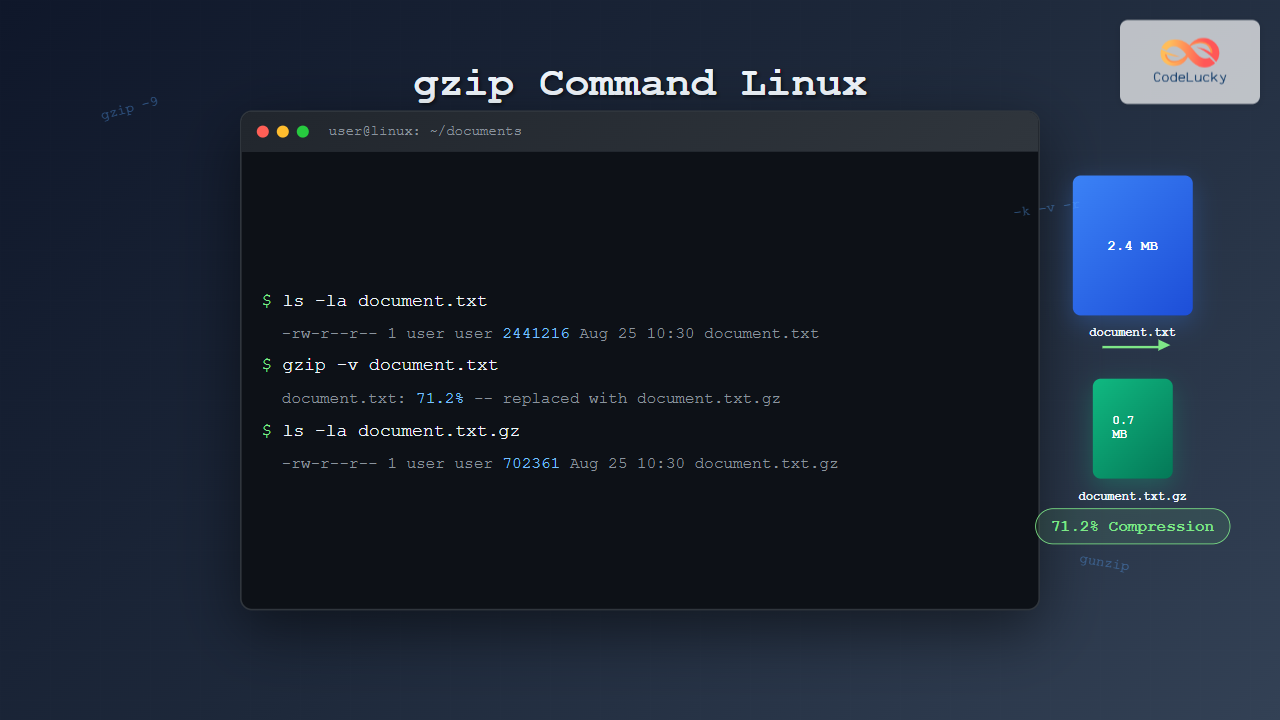
The gzip command is one of the most essential file compression utilities in Linux systems. It provides efficient compression using the GNU zip algorithm, helping you save disk space and reduce file transfer times. Whether you’re managing log files, backing up data, or preparing files for distribution, mastering gzip is crucial for any Linux user.
What is gzip Command?
The gzip command (GNU zip) is a compression utility that reduces file sizes using the LZ77 algorithm combined with Huffman coding. Unlike other compression tools, gzip focuses on single file compression and is widely supported across Unix-like systems. It typically achieves compression ratios of 60-70% for text files.
Basic gzip Syntax
The basic syntax for the gzip command is straightforward:
gzip [OPTIONS] [FILE...]Key components:
- OPTIONS: Various flags to modify behavior
- FILE: One or more files to compress
Installing gzip
Most Linux distributions come with gzip pre-installed. To verify or install gzip:
Check if gzip is installed:
which gzip
gzip --version
Install gzip (if needed):
Ubuntu/Debian:
sudo apt update
sudo apt install gzip
CentOS/RHEL/Fedora:
sudo yum install gzip  # CentOS 7/RHEL 7
sudo dnf install gzip  # Fedora/CentOS 8+
Basic gzip Operations
Compressing Files
The most basic operation is compressing a single file:
gzip filename.txtOutput:
$ ls -la
-rw-r--r-- 1 user user 1024 Aug 25 10:30 filename.txt

$ gzip filename.txt

$ ls -la
-rw-r--r-- 1 user user 312 Aug 25 10:30 filename.txt.gz
Note: The original file is replaced with the compressed version automatically.
Keeping Original Files
To preserve the original file while creating a compressed copy:
gzip -k filename.txtOutput:
$ ls -la
-rw-r--r-- 1 user user 1024 Aug 25 10:30 filename.txt

$ gzip -k filename.txt

$ ls -la
-rw-r--r-- 1 user user 1024 Aug 25 10:30 filename.txt
-rw-r--r-- 1 user user  312 Aug 25 10:30 filename.txt.gz
Compressing Multiple Files
gzip file1.txt file2.txt file3.txtOutput:
$ ls -la
-rw-r--r-- 1 user user 2048 Aug 25 10:30 file1.txt
-rw-r--r-- 1 user user 1536 Aug 25 10:30 file2.txt
-rw-r--r-- 1 user user 3072 Aug 25 10:30 file3.txt

$ gzip file1.txt file2.txt file3.txt

$ ls -la
-rw-r--r-- 1 user user  624 Aug 25 10:30 file1.txt.gz
-rw-r--r-- 1 user user  468 Aug 25 10:30 file2.txt.gz
-rw-r--r-- 1 user user  936 Aug 25 10:30 file3.txt.gz
Decompressing Files
Using gzip -d
gzip -d filename.txt.gzOutput:
$ ls -la
-rw-r--r-- 1 user user 312 Aug 25 10:30 filename.txt.gz

$ gzip -d filename.txt.gz

$ ls -la
-rw-r--r-- 1 user user 1024 Aug 25 10:30 filename.txt
Using gunzip
The gunzip command is equivalent to gzip -d:
gunzip filename.txt.gzEssential gzip Options
Compression Levels
gzip offers 9 compression levels (1-9), where 1 is fastest but least compression, and 9 is slowest but maximum compression:
# Fast compression (level 1)
gzip -1 largefile.txt

# Maximum compression (level 9)
gzip -9 largefile.txt

# Default compression (level 6)
gzip largefile.txt
Comparison Example:
$ ls -la largefile.txt
-rw-r--r-- 1 user user 10485760 Aug 25 10:30 largefile.txt

$ cp largefile.txt test1.txt && cp largefile.txt test9.txt

$ time gzip -1 test1.txt
real    0m0.156s

$ time gzip -9 test9.txt
real    0m1.243s

$ ls -la test*.gz
-rw-r--r-- 1 user user 3298432 Aug 25 10:30 test1.txt.gz
-rw-r--r-- 1 user user 3154687 Aug 25 10:30 test9.txt.gz
Verbose Mode
Display compression statistics:
gzip -v filename.txtOutput:
$ gzip -v document.txt
document.txt:    69.5% -- replaced with document.txt.gz
Testing Compressed Files
Verify the integrity of compressed files:
gzip -t filename.txt.gzOutput for valid file:
$ gzip -t document.txt.gz
$ echo $?
0
Output for corrupted file:
$ gzip -t corrupted.txt.gz
gzip: corrupted.txt.gz: invalid compressed data--crc error
$ echo $?
1
Advanced gzip Usage
Working with Standard Input/Output
Compress data from stdin:
echo "Hello World" | gzip > output.gzDecompress and display:
gzip -dc output.gzOutput:
$ echo "Hello World from Linux!" | gzip > message.gz

$ gzip -dc message.gz
Hello World from Linux!
Recursive Directory Compression
Compress all files in a directory recursively:
gzip -r /path/to/directoryExample:
$ find testdir -type f
testdir/file1.txt
testdir/subdir/file2.txt
testdir/subdir/file3.log

$ gzip -r testdir

$ find testdir -type f
testdir/file1.txt.gz
testdir/subdir/file2.txt.gz
testdir/subdir/file3.log.gz
Force Compression
Compress files even if compressed version exists:
gzip -f filename.txtPractical Examples and Use Cases
Log File Management
Compress old log files to save space:
# Compress logs older than 7 days
find /var/log -name "*.log" -mtime +7 -exec gzip {} \;

# Compress with verbose output
find /var/log -name "*.log" -mtime +7 -exec gzip -v {} \;
Backup Script Integration
#!/bin/bash
# Simple backup script with compression

BACKUP_DIR="/backup"
SOURCE_DIR="/home/user/documents"
DATE=$(date +%Y%m%d)

tar -cf - "$SOURCE_DIR" | gzip -9 > "$BACKUP_DIR/backup_$DATE.tar.gz"
echo "Backup completed: backup_$DATE.tar.gz"
Viewing Compressed Files
View compressed text files without decompressing:
zcat filename.txt.gz
zless filename.txt.gz
zgrep "pattern" filename.txt.gz
Performance Optimization
Choosing the Right Compression Level
| Level | Speed | Compression Ratio | Use Case |
|---|---|---|---|
| 1-3 | Fast | Lower | Network transfers, temporary compression |
| 4-6 | Balanced | Good | General purpose (default is 6) |
| 7-9 | Slow | Maximum | Archival, storage optimization |
Memory Usage Considerations
For large files, monitor memory usage:
# Check memory before compression
free -h

# Compress with specific level
gzip -6 largefile.dat

# Monitor process
top -p $(pgrep gzip)
Common gzip Options Reference
| Option | Description | Example |
|---|---|---|
| -1 to -9 | Compression level (1=fast, 9=best) | gzip -9 file.txt |
| -c | Write to stdout, keep original | gzip -c file.txt > file.gz |
| -d | Decompress | gzip -d file.gz |
| -f | Force compression | gzip -f file.txt |
| -k | Keep original file | gzip -k file.txt |
| -r | Recursive compression | gzip -r directory/ |
| -t | Test compressed file | gzip -t file.gz |
| -v | Verbose mode | gzip -v file.txt |
Error Handling and Troubleshooting
Common Error Messages
File already exists:
$ gzip file.txt
gzip: file.txt.gz already exists; do you wish to overwrite (y or n)?
Solution: Use -f flag to force overwrite:
gzip -f file.txtPermission denied:
$ gzip /etc/important.conf
gzip: /etc/important.conf: Permission denied
Solution: Use appropriate permissions or sudo:
sudo gzip /etc/important.confFile Recovery
If compression is interrupted, you might have incomplete files:
# Check file integrity
gzip -t suspicious.gz

# If corrupted, try to recover
gzip -fv suspicious.gz
Best Practices
- Always test compressed files: Use
gzip -tto verify integrity - Use appropriate compression levels: Balance speed vs. compression ratio
- Keep originals for critical files: Use
-kflag for important data - Monitor disk space: Ensure sufficient space for compression operations
- Use verbose mode for scripts: Include
-vfor logging and monitoring - Combine with other tools: Use with
tarfor directory archiving
Integration with Other Commands
Pipeline Operations
# Compress MySQL dump
mysqldump database_name | gzip > backup.sql.gz

# Search in compressed logs
zgrep "ERROR" /var/log/application.log.gz

# Count lines in compressed file
zcat file.txt.gz | wc -l
Automation Scripts
#!/bin/bash
# Automated log compression script

LOG_DIR="/var/log/myapp"
DAYS_OLD=7

find "$LOG_DIR" -name "*.log" -mtime +$DAYS_OLD | while read file; do
    if gzip -v "$file"; then
        echo "Compressed: $file"
    else
        echo "Failed to compress: $file"
    fi
done
Conclusion
The gzip command is an indispensable tool for Linux system administration and file management. Its efficiency, reliability, and widespread support make it the go-to choice for file compression tasks. From simple file compression to complex automation scripts, gzip provides the flexibility and performance needed for various scenarios.
By mastering the various options and understanding the trade-offs between compression levels, you can optimize your workflow and significantly reduce storage requirements. Whether you’re managing server logs, creating backups, or preparing files for distribution, gzip remains one of the most valuable commands in your Linux toolkit.
Remember to always test your compressed files and choose appropriate compression levels based on your specific needs. With the knowledge gained from this guide, you’re well-equipped to leverage gzip effectively in your daily Linux operations.
Related Posts
7z Command Linux: Complete Guide to 7zip Archives Management
The 7z command is a powerful command-line utility for working with 7zip archives in Linux systems. As one of the...
gunzip Command Linux: Complete Guide to Decompress Gzip Files
The gunzip command is an essential Linux utility for decompressing files that have been compressed with the gzip compression algorithm....

unzip Command Linux: Complete Guide to Extract ZIP Archives Efficiently
The unzip command is one of the most essential tools in Linux for extracting ZIP archive files. Whether you're dealing...

zip Command Linux: Complete Guide to Creating ZIP Archives with Examples
The zip command in Linux is a powerful utility for creating compressed archives and managing files efficiently. Whether you're backing...

tar Command in Linux: Complete Archive and Extract Files Tutorial with Examples
The tar command is one of the most essential utilities in Linux for creating archives and extracting files. Originally designed...

CSS Compression: Complete Guide to Minification and Gzip Optimization for Faster Websites
Website performance is crucial for user experience and SEO rankings. One of the most effective ways to improve loading times...

ar Command Linux: Complete Guide to Archive File Management
The ar command in Linux is a powerful archiving utility primarily used for creating and managing archive files, especially static...
logrotate Command Linux: Complete Guide to Rotate and Archive Log Files
Log files are essential for monitoring system health, debugging applications, and maintaining security. However, without proper management, these files can...
hexdump Command Linux: Complete Guide to Display File Contents in Hexadecimal Format
The hexdump command is a powerful Linux utility that displays the contents of files in hexadecimal format, making it an...

file Command Advanced Linux: Master Detailed File Type Analysis and Detection
The file command is one of the most powerful and underutilized utilities in Linux for determining file types and analyzing...
strings Command Linux: Extract and Analyze Text from Binary Files
The strings command is a powerful Linux utility that extracts printable character sequences from binary files. Whether you're analyzing executables,...

size Command Linux: Display Section Sizes of Object Files and Executables
The size command is a powerful utility in Linux systems that displays the section sizes of object files, executables, and...





