
The grep command is one of the most powerful and frequently used text processing utilities in Linux and Unix systems. Standing for “Global Regular Expression Print,” grep allows you to search for specific patterns within files, making it an indispensable tool for system administrators, developers, and power users.
What is the grep Command?
grep searches through text files line by line, looking for patterns that match a specified regular expression or string. When a match is found, grep prints the entire line containing the match to standard output. This simple yet powerful functionality makes it essential for log analysis, code searching, and data extraction tasks.
Basic Syntax and Usage
The basic syntax for the grep command is:
grep [OPTIONS] PATTERN [FILE...]Let’s start with simple examples:
Basic Text Search
# Search for "error" in a log file
grep "error" /var/log/syslog

# Output example:
Aug 24 10:15:23 server kernel: [12345.678901] error: device not found
Aug 24 10:20:45 server systemd: error in service startup
Aug 24 11:30:12 server application: connection error timeout
Case-Insensitive Search
Use the -i option to ignore case differences:
# Search for "ERROR" regardless of case
grep -i "error" application.log

# Output example:
ERROR: Database connection failed
Warning: error in configuration file
Info: Error handling completed successfully
Essential grep Options
Line Numbers with -n
Display line numbers where matches occur:
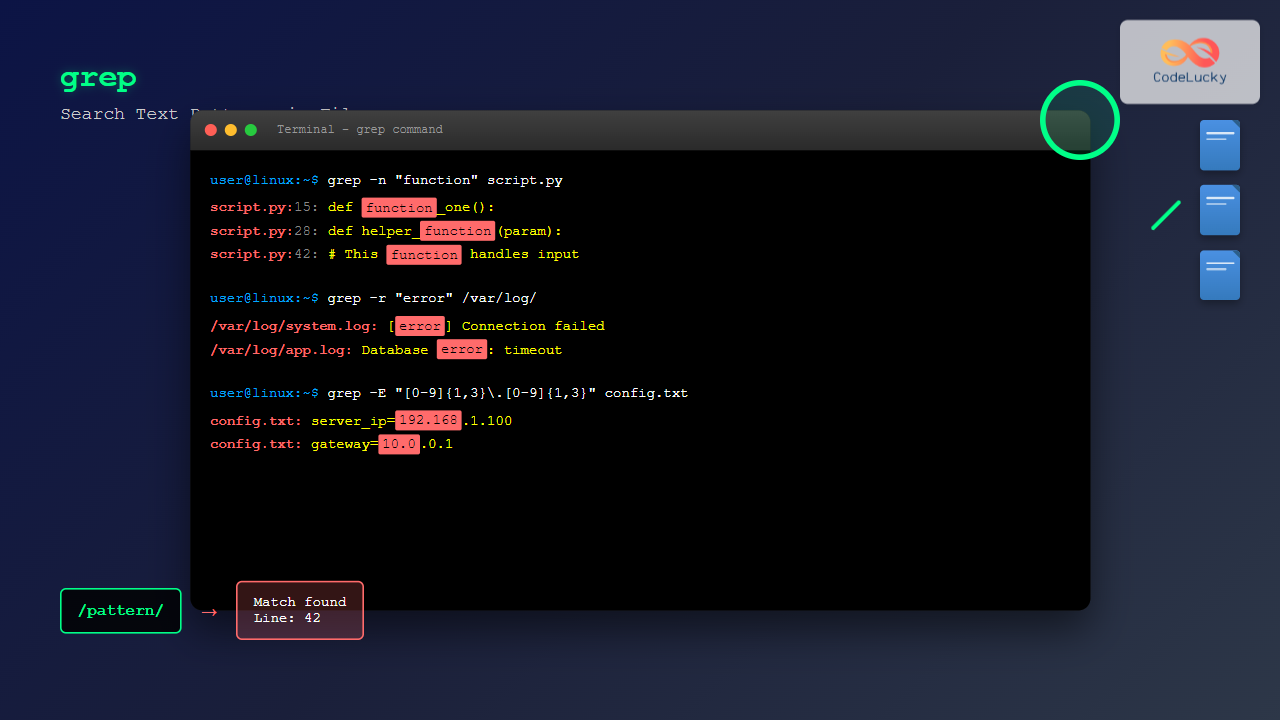
grep -n "function" script.py

# Output example:
15: def function_one():
28: def helper_function(param):
42: # This function handles user input
67: return function_result
Count Matches with -c
Count the number of matching lines:
grep -c "TODO" source_code.js

# Output example:
7
Invert Match with -v
Show lines that do NOT match the pattern:
grep -v "^#" config.conf

# Output example (shows non-comment lines):
server_port=8080
database_url=localhost:5432
debug_mode=false
Whole Word Match with -w
Match complete words only:
# Search for complete word "cat" (not "category" or "locate")
grep -w "cat" animals.txt

# Output example:
The cat sat on the mat
A wild cat appeared
My cat is very friendly
Working with Multiple Files
Search in Multiple Files
grep "import" *.py

# Output example:
main.py:import os
main.py:import sys
utils.py:import json
utils.py:import requests
config.py:import configparser
Recursive Search with -r
Search through directories recursively:
grep -r "password" /etc/

# Output example:
/etc/mysql/mysql.conf.d/mysqld.cnf:#password = your_password
/etc/ssh/sshd_config:# PasswordAuthentication yes
/etc/security/pwquality.conf:# password quality requirements
Show Only Filenames with -l
grep -l "django" *.py

# Output example:
views.py
models.py
settings.py
Regular Expressions with grep
Basic Regular Expressions
grep supports powerful pattern matching with regular expressions:
# Match lines starting with "Error"
grep "^Error" logfile.txt

# Match lines ending with ".jpg"
grep "\.jpg$" file_list.txt

# Match any single character with .
grep "c.t" words.txt
# Matches: cat, cot, cut, c1t, etc.
Extended Regular Expressions with -E
Use -E flag for extended regular expressions:
# Match one or more digits
grep -E "[0-9]+" data.txt

# Match email addresses
grep -E "[a-zA-Z0-9._%+-]+@[a-zA-Z0-9.-]+\.[a-zA-Z]{2,}" contacts.txt

# Output example:
[email protected]
[email protected]
[email protected]
Character Classes and Quantifiers
# Match IP addresses
grep -E "([0-9]{1,3}\.){3}[0-9]{1,3}" network.log

# Output example:
192.168.1.1
10.0.0.255
172.16.42.100

# Match words with 3 or more consecutive vowels
grep -E "[aeiou]{3,}" dictionary.txt
Advanced grep Techniques
Context Lines
Show surrounding lines for better context:
# Show 2 lines before and after match
grep -C 2 "exception" error.log

# Show 3 lines before match
grep -B 3 "fatal" system.log

# Show 2 lines after match
grep -A 2 "warning" application.log
Multiple Patterns
# Match multiple patterns with -e
grep -e "error" -e "warning" -e "critical" system.log

# Use file containing patterns with -f
echo -e "error\nwarning\ncritical" > patterns.txt
grep -f patterns.txt system.log
Combining with Other Commands
grep works excellently in pipelines:
# Find processes and filter
ps aux | grep "python"

# Check running services
systemctl list-units | grep -i "active"

# Monitor real-time logs
tail -f /var/log/apache2/access.log | grep "404"
Practical Examples
System Administration Tasks
# Find failed login attempts
grep "Failed password" /var/log/auth.log

# Check disk usage warnings
df -h | grep -E "9[0-9]%|100%"

# Monitor CPU intensive processes
top -bn1 | grep -E "([5-9][0-9]\.[0-9]|100\.0).*%CPU"
Development and Debugging
# Find TODO comments in code
grep -rn "TODO\|FIXME\|HACK" src/

# Search for function definitions
grep -n "def \|function " *.py *.js

# Find hardcoded passwords or secrets
grep -ri "password\|secret\|api_key" . --exclude-dir=.git
Log Analysis
# Find all 404 errors in Apache logs
grep " 404 " /var/log/apache2/access.log

# Monitor for specific error patterns
grep -E "(timeout|connection.*failed|out of memory)" /var/log/syslog

# Extract specific time range
grep "2025-08-24 1[0-5]:" application.log
Performance Tips and Best Practices
Optimize Search Performance
- Use fixed strings with -F: When searching for literal strings without regex, use
-Ffor faster performance - Limit search scope: Specify exact files or directories instead of searching entire filesystem
- Use appropriate options:
-lto stop after first match per file,-m NUMto limit matches
# Fast literal string search
grep -F "exact.string.to.find" large_file.txt

# Limit to first 10 matches
grep -m 10 "pattern" huge_file.log
Exclude Unwanted Files
# Exclude binary files and specific directories
grep -r --exclude-dir={.git,.svn,node_modules} --exclude="*.log" "search_term" .
Common Pitfalls and Troubleshooting
Special Characters
Remember to escape special regex characters:
# Wrong: searches for regex pattern
grep "192.168.1.1" network.conf

# Correct: escape dots for literal search
grep "192\.168\.1\.1" network.conf

# Or use -F for literal search
grep -F "192.168.1.1" network.conf
Binary Files
Handle binary files appropriately:
# Skip binary files
grep -I "pattern" *

# Show binary file matches
grep -a "pattern" binary_file
Alternative Commands
While grep is powerful, consider these alternatives for specific use cases:
- ripgrep (rg): Faster recursive searching with better defaults
- ack: Developer-focused search tool
- ag (The Silver Searcher): Fast code searching
- pcregrep: Perl-compatible regular expressions
Conclusion
The grep command is an essential tool in every Linux user’s toolkit. From simple text searches to complex pattern matching with regular expressions, grep provides the flexibility and power needed for efficient text processing. By mastering its various options and combining it with other Unix tools, you can perform sophisticated text analysis and system administration tasks.
Start with basic searches and gradually incorporate advanced features like regular expressions and context options. Practice with real-world scenarios like log analysis and code searching to build proficiency. Remember that effective use of grep can significantly improve your productivity in Linux environments.
Whether you’re debugging applications, analyzing system logs, or searching through large codebases, grep remains one of the most reliable and efficient tools for pattern matching and text extraction in Linux systems.
Related Posts
Regex in Linux: Complete Guide to Regular Expressions and Pattern Matching
Regular expressions (regex) are powerful pattern-matching tools that form the backbone of text processing in Linux systems. Whether you're searching...
awk Command in Linux: Complete Pattern Scanning and Processing Tutorial
The awk command is one of the most powerful text processing tools available in Linux and Unix systems. Named after...
strings Command Linux: Extract and Analyze Text from Binary Files
The strings command is a powerful Linux utility that extracts printable character sequences from binary files. Whether you're analyzing executables,...
find Command Linux: Ultimate Guide to Search Files and Directories by Name, Size, and Attributes
The find command is one of the most powerful and versatile tools in Linux for searching files and directories. Whether...

C++ Regular Expressions: Using <regex>
Regular expressions are powerful tools for pattern matching and text manipulation. In C++, the <regex> library provides robust support for...

file Command Advanced Linux: Master Detailed File Type Analysis and Detection
The file command is one of the most powerful and underutilized utilities in Linux for determining file types and analyzing...

JavaScript String search() Method: Searching String Pattern
JavaScript String search() Method: Searching for String Patterns The search() method in JavaScript is used to find the first match...

Java RegEx: Regular Expressions in Java
Regular expressions, often abbreviated as RegEx, are powerful tools for pattern matching and text manipulation in Java. They provide a...

PHP Regular Expressions: Pattern Matching with preg_match()
Regular expressions are powerful tools for pattern matching and text manipulation in PHP. They allow developers to search, validate, and...

awk Advanced Linux: Mastering Complex Text Processing and Pattern Matching
The awk command is one of the most powerful text processing tools in Linux, capable of performing complex data manipulation...
file Command in Linux: Complete Guide to Determine File Types and Formats
The file command is one of the most essential utilities in Linux for determining file types and formats. Unlike relying...
find Command Advanced Linux: Master Complex Search Patterns and Powerful Operations
The find command is one of the most powerful and versatile tools in the Linux arsenal, capable of performing complex...





