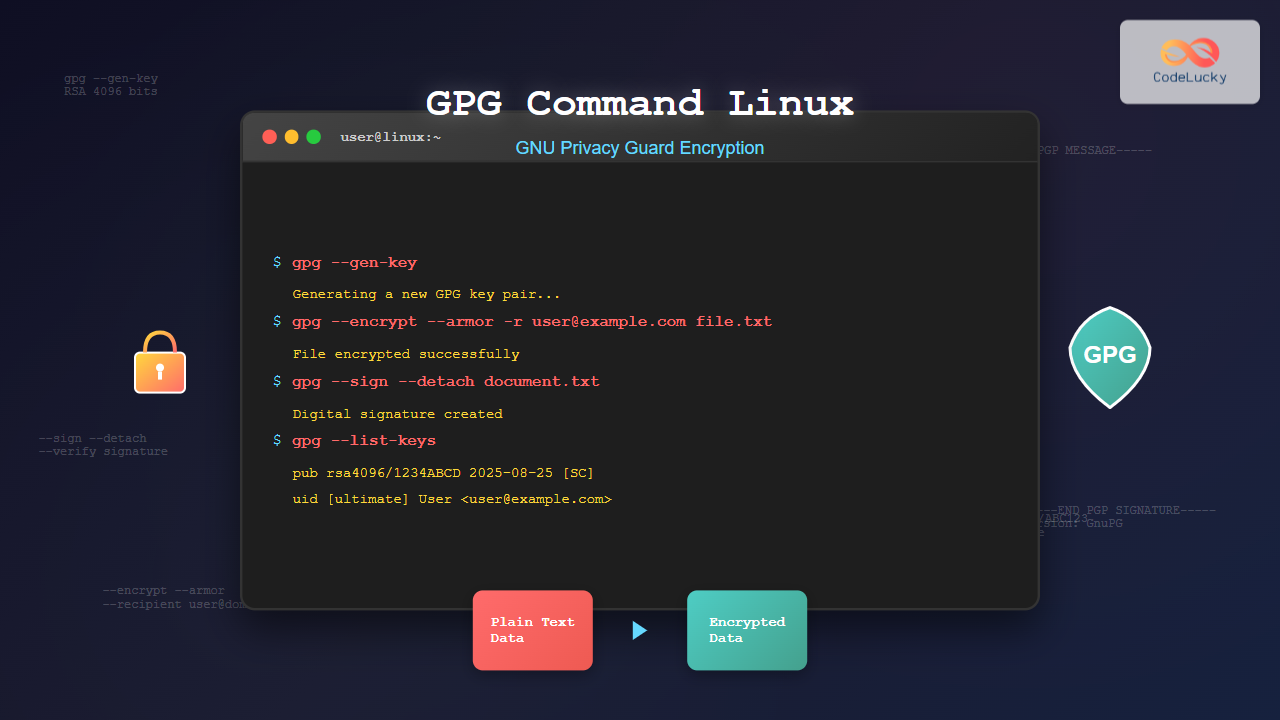
GNU Privacy Guard (GPG) is a powerful encryption tool that implements the OpenPGP standard, providing cryptographic privacy and authentication for data communication. The gpg command in Linux enables users to encrypt files, create digital signatures, and manage cryptographic keys for secure communication.
Understanding GPG Fundamentals
GPG uses public-key cryptography, also known as asymmetric encryption. This system employs two mathematically related keys:
- Public Key: Shared openly and used by others to encrypt messages for you
- Private Key: Kept secret and used to decrypt messages encrypted with your public key
This dual-key system ensures that only the intended recipient can decrypt messages, providing both confidentiality and authenticity.
Installing GPG
Most Linux distributions include GPG by default. To verify installation or install it:
# Check if GPG is installed
gpg --version

# Install on Ubuntu/Debian
sudo apt update && sudo apt install gnupg

# Install on CentOS/RHEL/Fedora
sudo yum install gnupg2
# or for newer versions
sudo dnf install gnupg2
Generating Your First GPG Key Pair
Creating a GPG key pair is the first step in using encryption. Here’s how to generate keys:
# Generate a new key pair
gpg --gen-key
During key generation, you’ll be prompted for:
- Real name
- Email address
- Passphrase (choose a strong one)
For more control over key parameters:
# Full key generation with advanced options
gpg --full-gen-key
Example output:
gpg (GnuPG) 2.2.19
Copyright (C) 2019 Free Software Foundation, Inc.
Please select what kind of key you want:
   (1) RSA and RSA (default)
   (2) DSA and Elgamal
   (3) DSA (sign only)
   (4) RSA (sign only)
Your selection? 1
RSA keys may be between 1024 and 4096 bits long.
What keysize do you want? (3072) 4096
Key is valid for? (0) 0
Is this correct? (y/N) y
Managing GPG Keys
Listing Keys
# List your public keys
gpg --list-keys

# List your private keys
gpg --list-secret-keys

# List keys with key IDs
gpg --list-keys --keyid-format LONG
Example output:
pub   rsa4096/1234567890ABCDEF 2024-08-25 [SC]
      ABCD1234EFGH5678IJKL9012MNOP3456QRST7890
uid                 [ultimate] John Doe <[email protected]>
sub   rsa4096/FEDCBA0987654321 2024-08-25 [E]
Exporting Keys
# Export your public key
gpg --export --armor [email protected] > public_key.asc

# Export your private key (keep secure!)
gpg --export-secret-keys --armor [email protected] > private_key.asc

# Export to a specific file
gpg --output john_public.key --export [email protected]
Importing Keys
# Import a public key
gpg --import public_key.asc

# Import from keyserver
gpg --recv-keys 1234567890ABCDEF

# Search for keys on keyserver
gpg --search-keys [email protected]
File Encryption and Decryption
Encrypting Files
# Encrypt a file for a specific recipient
gpg --encrypt --recipient [email protected] document.txt

# Encrypt with armor (ASCII format)
gpg --encrypt --armor --recipient [email protected] document.txt

# Encrypt for multiple recipients
gpg --encrypt --recipient [email protected] --recipient [email protected] file.txt
This creates an encrypted file (e.g., document.txt.gpg).
Decrypting Files
# Decrypt a file
gpg --decrypt document.txt.gpg > decrypted_document.txt

# Decrypt with output specification
gpg --output decrypted.txt --decrypt document.txt.gpg
You’ll be prompted for your passphrase during decryption.
Digital Signatures
Digital signatures verify the authenticity and integrity of data.
Creating Signatures
# Create a detached signature
gpg --detach-sign document.txt

# Create an ASCII armored signature
gpg --detach-sign --armor document.txt

# Sign and encrypt simultaneously
gpg --sign --encrypt --recipient [email protected] document.txt
Verifying Signatures
# Verify a detached signature
gpg --verify document.txt.sig document.txt

# Verify an integrated signature
gpg --verify signed_document.txt.gpg
Example verification output:
gpg: Signature made Mon 25 Aug 2025 06:34:12 AM IST
gpg:                using RSA key ABCD1234EFGH5678IJKL9012MNOP3456QRST7890
gpg: Good signature from "John Doe <[email protected]>" [ultimate]
Symmetric Encryption
For simpler scenarios, you can use symmetric encryption with a password:
# Encrypt with symmetric cipher
gpg --symmetric document.txt

# Specify cipher algorithm
gpg --symmetric --cipher-algo AES256 document.txt

# Decrypt symmetric encryption
gpg --decrypt document.txt.gpg
Advanced GPG Operations
Key Management
# Edit key (add/remove UIDs, change expiration)
gpg --edit-key [email protected]

# Delete public key
gpg --delete-key [email protected]

# Delete secret key
gpg --delete-secret-key [email protected]

# Generate revocation certificate
gpg --gen-revoke [email protected] > revoke_cert.asc
Trust Management
# Set trust level for a key
gpg --edit-key [email protected]
gpg> trust
gpg> 5
gpg> y
gpg> quit
Trust levels:
- 1 = Unknown
- 2 = Never trust
- 3 = Marginal trust
- 4 = Full trust
- 5 = Ultimate trust
Working with Keyservers
# Send key to keyserver
gpg --send-keys 1234567890ABCDEF

# Receive key from keyserver
gpg --recv-keys 1234567890ABCDEF

# Refresh keys from keyserver
gpg --refresh-keys

# Specify keyserver
gpg --keyserver hkps://keys.openpgp.org --recv-keys 1234567890ABCDEF
Practical Examples
Secure File Backup
# Create encrypted backup
tar -czf - ~/important_files | gpg --encrypt --recipient [email protected] > backup.tar.gz.gpg

# Restore encrypted backup
gpg --decrypt backup.tar.gz.gpg | tar -xzf -
Email Integration
# Sign an email
echo "Important message" | gpg --clear-sign

# Encrypt email content
echo "Confidential info" | gpg --encrypt --armor --recipient [email protected]
Configuration and Best Practices
GPG Configuration
Create ~/.gnupg/gpg.conf for default settings:
# Default key preferences
personal-digest-preferences SHA256
cert-digest-algo SHA256
default-preference-list SHA512 SHA384 SHA256 SHA224 AES256 AES192 AES CAST5 ZLIB BZIP2 ZIP Uncompressed

# Keyserver configuration
keyserver hkps://keys.openpgp.org
auto-key-retrieve

# Display options
with-fingerprint
list-options show-uid-validity
verify-options show-uid-validity
Security Best Practices
- Use strong passphrases: At least 12 characters with mixed case, numbers, and symbols
- Keep private keys secure: Store on encrypted filesystems or hardware tokens
- Regular key rotation: Set expiration dates and update keys periodically
- Backup keys securely: Create encrypted backups of private keys
- Verify fingerprints: Always verify key fingerprints through secure channels
Troubleshooting Common Issues
Key Trust Issues
# If you see "There is no indication that the signature belongs to the owner"
gpg --edit-key [email protected]
gpg> trust
# Set appropriate trust level
Expired Keys
# Extend key expiration
gpg --edit-key [email protected]
gpg> expire
# Set new expiration date
gpg> save
Permission Problems
# Fix GPG directory permissions
chmod 700 ~/.gnupg
chmod 600 ~/.gnupg/*
Integration with Other Tools
Git Signing
# Configure Git to use GPG
git config --global user.signingkey 1234567890ABCDEF
git config --global commit.gpgsign true

# Sign commits
git commit -S -m "Signed commit"
Password Managers
# Pass password manager integration
pass init [email protected]
pass insert email/work
pass show email/work
The gpg command is an essential tool for maintaining privacy and security in the Linux environment. By mastering these commands and following best practices, you can ensure secure communication and data protection. Remember to regularly backup your keys, keep your software updated, and verify the authenticity of keys you import from others.
Whether you’re securing personal documents, signing software releases, or establishing secure communication channels, GPG provides the cryptographic foundation necessary for modern digital security.
Related Posts
openssl Command Linux: Complete Guide to Cryptography and SSL Certificate Management
The openssl command is one of the most powerful and versatile cryptographic tools available in Linux systems. This comprehensive toolkit...
Vault Linux: Complete Guide to HashiCorp Vault for Secrets Management and Security
HashiCorp Vault is a powerful open-source tool designed to securely store and manage secrets, passwords, certificates, and encryption keys. In...

Python Cryptography: Securing Data with Encryption
In today's digital age, data security is paramount. Whether you're developing a web application, handling sensitive user information, or simply...
cryptsetup Command Linux: Complete Guide to LUKS Disk Encryption
The cryptsetup command is a powerful Linux utility that provides disk encryption capabilities through the Linux Unified Key Setup (LUKS)...
ssh-keygen Linux: Complete Guide to Generate SSH Key Pairs Securely
SSH key authentication is one of the most secure methods for connecting to remote servers. The ssh-keygen command is a...
ssh Command Linux: Secure Shell Remote Access Tutorial with Examples
The ssh command in Linux, short for Secure Shell, is one of the most essential tools for system administrators, developers,...

Encryption in Operating System: Complete Guide to Data Protection Methods
Operating system encryption serves as the cornerstone of modern data protection, safeguarding sensitive information from unauthorized access, data breaches, and...
sftp Command Linux: Complete Guide to Secure File Transfer Protocol
The sftp command (Secure File Transfer Protocol) is a powerful Linux utility that provides secure file transfer capabilities over an...
scp Command Linux: Complete Guide to Secure File Transfer Over SSH
The scp (Secure Copy Protocol) command is one of the most essential tools in Linux for securely transferring files between...

tiger Command Linux: Complete Security Audit and Intrusion Detection Guide
The tiger command is a powerful security auditing tool designed specifically for Unix-like systems, including Linux distributions. This comprehensive security...
Security in Operating System: Complete Guide to Access Control and Authentication
Introduction to Operating System Security Operating system security forms the foundation of computer security, protecting system resources and user data...
Digital Signatures: Complete Guide to Authentication and Non-repudiation in Modern Computing
Digital signatures represent one of the most crucial security mechanisms in modern computing, providing both authentication and non-repudiation capabilities that...