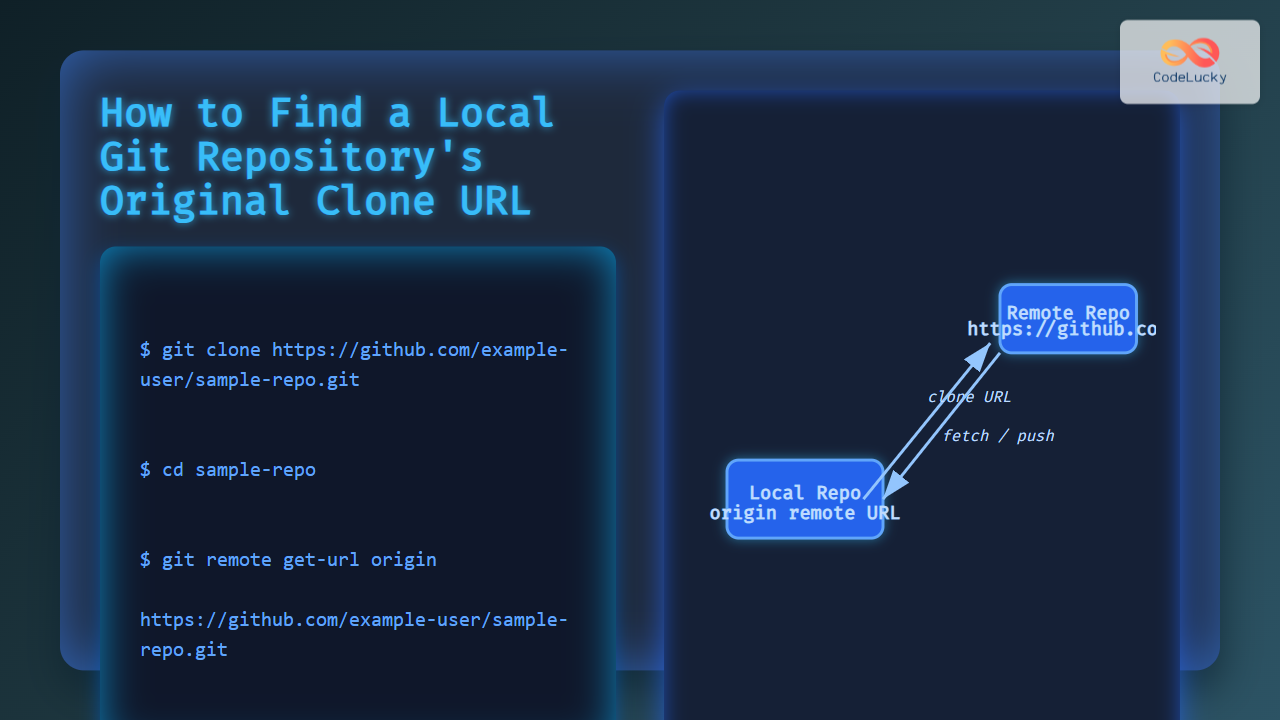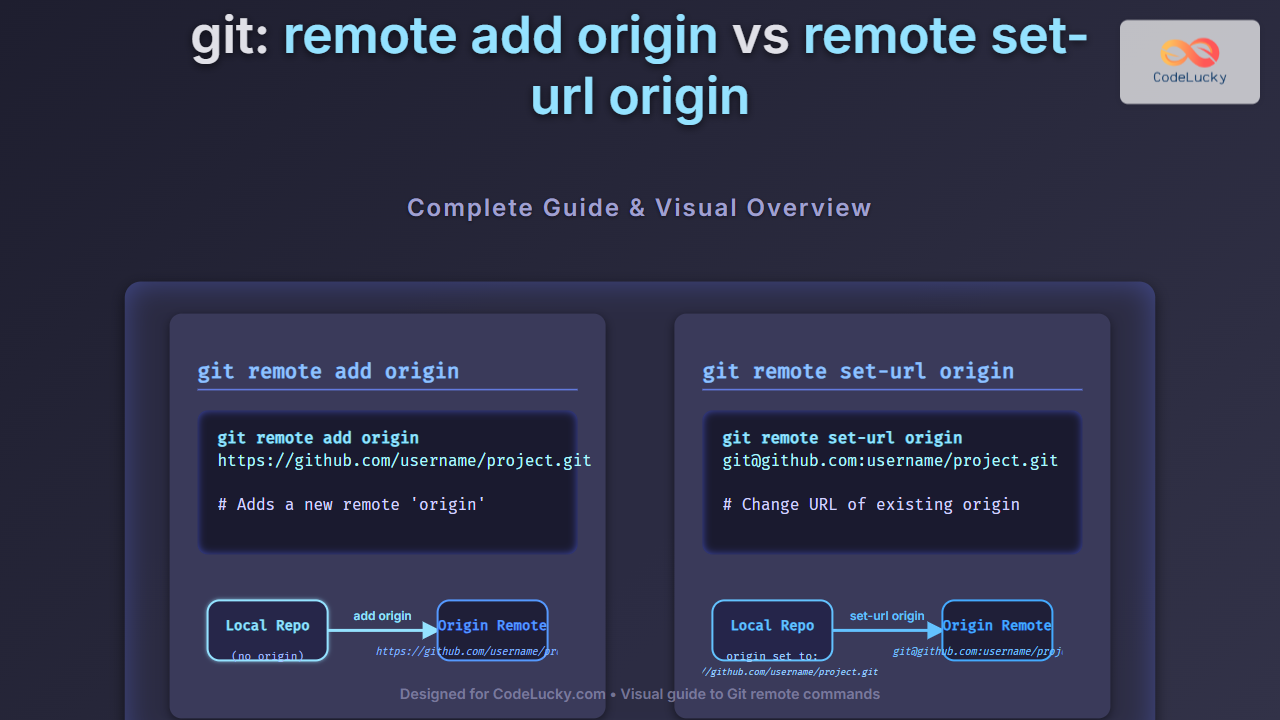
In Git, managing remote repositories is an essential skill for collaborating on projects effectively. Two powerful commands you will often encounter are git remote add origin and git remote set-url origin. Though related, they serve distinct purposes in handling remote repository URLs and understanding their differences is crucial for smooth workflow management. This guide covers everything from basics to practical usage with examples, output visuals, and helpful diagrams to clarify the concepts.
What is a Git Remote?
A Git remote is essentially a bookmark that points to a URL of a remote repository. This allows you to synchronize your local repository with others, usually hosted on platforms like GitHub, GitLab, or Bitbucket. Managing these remotes correctly ensures you push and pull changes to the correct source.
git remote add origin: Definition and Usage
The git remote add origin command is used to add a new remote repository to your local Git repository. “origin” is the conventional name given to the main remote repository but can be any name you choose.
When to use git remote add origin?
- You have cloned a new repository or initialized a repository locally and need to link it to a remote repository for the first time.
- You want to add a new remote source that did not exist before in your local config.
Syntax
git remote add name urlExample:
git remote add origin https://github.com/username/myproject.gitEffect
This command creates a remote called origin that points to https://github.com/username/myproject.git. After this, you can push or fetch changes from this remote.
Example with Terminal Output
$ git remote add origin https://github.com/username/myproject.git
$ git remote -v
origin  https://github.com/username/myproject.git (fetch)
origin  https://github.com/username/myproject.git (push)
git remote set-url origin: Definition and Usage
git remote set-url origin is used to change or update the URL of an existing remote repository named origin. This is especially helpful if the remote repository URL changes, e.g., when moving a repository or changing remote hosts.
When to use git remote set-url origin?
- You already have a remote named
originconfigured but its URL has changed. - You want to update the remote URL from HTTPS to SSH or vice versa.
- You need to fix an incorrectly set remote URL.
Syntax
git remote set-url name new_urlExample:
git remote set-url origin [email protected]:username/myproject.gitEffect
This updates the existing remote origin with the new URL provided.
Example with Terminal Output
$ git remote set-url origin [email protected]:username/myproject.git
$ git remote -v
origin  [email protected]:username/myproject.git (fetch)
origin  [email protected]:username/myproject.git (push)
Key Differences: remote add origin vs remote set-url origin
| Aspect | git remote add origin |
git remote set-url origin |
|---|---|---|
| Purpose | Add a new remote repository | Update URL of existing remote |
| Usage Context | Adding remote for the first time | Changing URL after remote exists |
| Precondition | Remote with the name should not exist | Remote must already exist |
| Command Error | Error if remote name already exists | No error; always updates URL |
| Typical use case | Initial linking of local repo to remote | Switching remote URL from HTTPS to SSH or other updates |
Checking Remote URLs
To verify the current remotes and their URLs, use:
git remote -vPractical Examples: Full Workflow
Here is a common scenario combining both commands:
- Initialize Git repo locally
- Add remote repository URL
- Verify remote URL added
- Later, change URL to SSH protocol
- Verify update
$ git init$ git remote add origin https://github.com/username/myproject.git$ git remote -v
origin https://github.com/username/myproject.git (fetch)
origin https://github.com/username/myproject.git (push)$ git remote set-url origin [email protected]:username/myproject.git$ git remote -v
origin [email protected]:username/myproject.git (fetch)
origin [email protected]:username/myproject.git (push)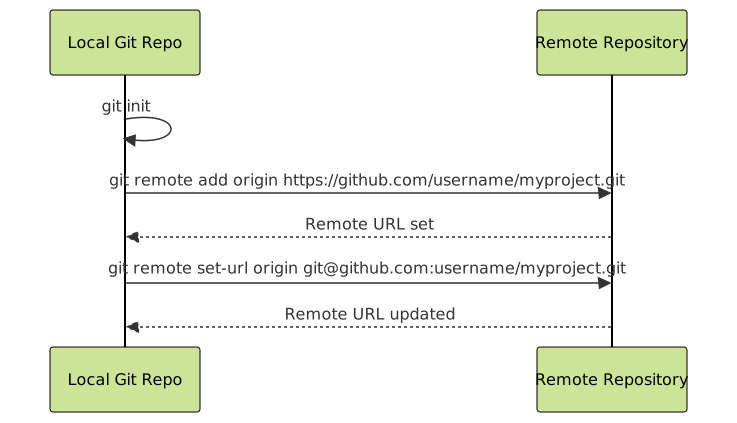
Troubleshooting Common Errors
- Error: remote origin already exists: This happens when you try to add a remote that already exists. Use
git remote set-url originto update instead. - Remote URL not found or inaccessible: Confirm the URL is correct and your access rights (SSH keys, credentials) are properly configured.
- Multiple remotes with same name: Git only allows unique remote names per repo. Rename or remove conflicting remotes with
git remote renameorgit remote remove.
Summary
git remote add origin is used to initially add your remote repository URL, while git remote set-url origin is used to update or change that URL later if needed. Understanding when and how to use these commands avoids common pitfalls and ensures your Git workflow stays smooth and efficient.
With this clear understanding and practical examples, developers can confidently manage remote repositories in their projects.