Git is the most widely used distributed version control system that helps developers track changes, collaborate on projects, and manage code efficiently. Originally created by Linus Torvalds for Linux kernel development, Git has become the industry standard for version control across all platforms.
In this comprehensive guide, we’ll explore Git commands on Linux, from basic operations to advanced workflows that will make you a proficient Git user.
What is Git?
Git is a distributed version control system that tracks changes in files and coordinates work among multiple developers. Unlike centralized version control systems, Git allows every developer to have a complete copy of the project history on their local machine.
Key Features of Git:
- Distributed Architecture: Every clone is a full backup
- Branching and Merging: Lightweight and efficient
- Speed: Fast operations for most commands
- Data Integrity: Everything is checksummed
- Staging Area: Prepare commits precisely
Installing Git on Linux
Most Linux distributions include Git in their package repositories. Here’s how to install it on popular distributions:
Ubuntu/Debian:
sudo apt update
sudo apt install git
CentOS/RHEL/Fedora:
# For CentOS/RHEL
sudo yum install git

# For Fedora
sudo dnf install git
Arch Linux:
sudo pacman -S gitVerify the installation:
git --versionExpected Output:
git version 2.34.1Initial Git Configuration
Before using Git, configure your identity and preferences:
# Set your name and email
git config --global user.name "Your Name"
git config --global user.email "[email protected]"

# Set default editor
git config --global core.editor "nano"

# Set default branch name
git config --global init.defaultBranch main
View your configuration:
git config --listEssential Git Commands
Repository Initialization
Creating a New Repository
mkdir my-project
cd my-project
git init
Output:
Initialized empty Git repository in /home/user/my-project/.git/Cloning an Existing Repository
git clone https://github.com/user/repository.git
git clone [email protected]:user/repository.git
Basic Workflow Commands
Checking Repository Status
git statusExample Output:
On branch main
Your branch is up to date with 'origin/main'.

Changes to be committed:
  (use "git reset HEAD <file>..." to unstage)
        modified:   README.md

Changes not staged for commit:
  (use "git add <file>..." to update what will be committed)
  (use "git checkout -- <file>..." to discard changes)
        modified:   src/main.js

Untracked files:
  (use "git add <file>..." to include in what will be committed)
        config.json
Adding Files to Staging Area
# Add specific file
git add filename.txt

# Add all files in current directory
git add .

# Add all files with specific extension
git add *.js

# Add files interactively
git add -i
Committing Changes
# Commit with message
git commit -m "Add user authentication feature"

# Commit and add all tracked files
git commit -am "Fix login bug"

# Open editor for detailed commit message
git commit
Viewing Commit History
# Basic log
git log

# One line per commit
git log --oneline

# Graph view
git log --graph --oneline --all

# Last 5 commits
git log -5
Example Output:
commit 1a2b3c4d5e6f7g8h9i0j (HEAD -> main, origin/main)
Author: John Doe <[email protected]>
Date:   Mon Aug 25 10:30:00 2025 +0530

    Add user authentication feature

commit 9i8h7g6f5e4d3c2b1a0j
Author: Jane Smith <[email protected]>
Date:   Sun Aug 24 15:45:00 2025 +0530

    Update README with installation instructions
Branch Management
Working with Branches
Creating and Switching Branches
# Create new branch
git branch feature-login

# Switch to branch
git checkout feature-login

# Create and switch in one command
git checkout -b feature-payment

# Using newer switch command
git switch feature-login
git switch -c feature-dashboard
Listing Branches
# Local branches
git branch

# All branches (local and remote)
git branch -a

# Remote branches only
git branch -r
Example Output:
  feature-login
* feature-payment
  main
  remotes/origin/main
  remotes/origin/development
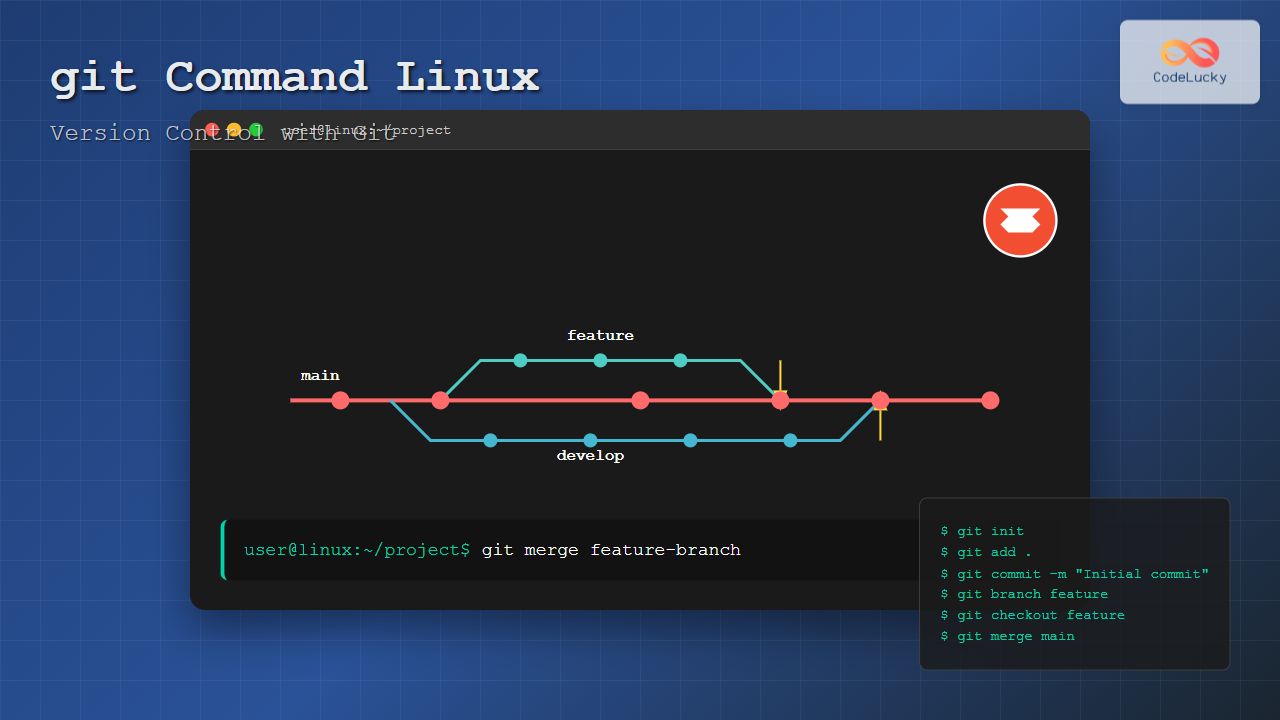
Merging Branches
# Switch to target branch
git checkout main

# Merge feature branch
git merge feature-login
Merge Output:
Updating 1a2b3c4..9i8h7g6
Fast-forward
 login.js | 45 +++++++++++++++++++++++++++++++++++++++++++++
 1 file changed, 45 insertions(+)
Deleting Branches
# Delete local branch (safe)
git branch -d feature-login

# Force delete local branch
git branch -D feature-login

# Delete remote branch
git push origin --delete feature-login
Remote Repository Operations
Managing Remotes
# Add remote
git remote add origin https://github.com/user/repo.git

# List remotes
git remote -v

# Remove remote
git remote remove origin

# Rename remote
git remote rename origin upstream
Synchronizing with Remote
Pushing Changes
# Push to default remote and branch
git push

# Push to specific remote and branch
git push origin main

# Push new branch
git push -u origin feature-branch

# Force push (use carefully)
git push --force
Fetching and Pulling
# Fetch changes without merging
git fetch origin

# Pull changes (fetch + merge)
git pull origin main

# Pull with rebase
git pull --rebase origin main
Advanced Git Commands
Stashing Changes
# Stash current changes
git stash

# Stash with message
git stash save "Work in progress on feature X"

# List stashes
git stash list

# Apply latest stash
git stash pop

# Apply specific stash
git stash apply stash@{2}

# Drop stash
git stash drop stash@{1}
Stash List Output:
stash@{0}: WIP on main: 1a2b3c4 Add user authentication
stash@{1}: On feature-login: 9i8h7g6 Temporary login changes
Resetting and Reverting
Reset Commands
# Soft reset (keep changes staged)
git reset --soft HEAD~1

# Mixed reset (default, unstage changes)
git reset HEAD~1

# Hard reset (discard all changes)
git reset --hard HEAD~1

# Reset to specific commit
git reset --hard 1a2b3c4
Reverting Commits
# Revert latest commit
git revert HEAD

# Revert specific commit
git revert 1a2b3c4

# Revert without auto-commit
git revert --no-commit HEAD
Interactive Rebase
# Rebase last 3 commits
git rebase -i HEAD~3

# Rebase onto main branch
git rebase -i main
Interactive rebase opens an editor with options:
pick 1a2b3c4 Add login feature
pick 9i8h7g6 Fix login bug
pick 5d4c3b2 Update tests

# Commands:
# p, pick = use commit
# r, reword = use commit, but edit message
# e, edit = use commit, but stop for amending
# s, squash = use commit, but meld into previous commit
# f, fixup = like "squash", but discard this commit's log message
# d, drop = remove commit
Working with Tags
# Create lightweight tag
git tag v1.0.0

# Create annotated tag
git tag -a v1.0.0 -m "Version 1.0.0 release"

# List tags
git tag

# Show tag information
git show v1.0.0

# Push tags to remote
git push origin --tags

# Delete tag
git tag -d v1.0.0
Git Diff and Log
Viewing Differences
# Show unstaged changes
git diff

# Show staged changes
git diff --staged

# Compare branches
git diff main..feature-branch

# Compare specific commits
git diff 1a2b3c4..9i8h7g6

# Show changes for specific file
git diff HEAD~1 filename.js
Advanced Log Options
# Show commits by author
git log --author="John Doe"

# Show commits in date range
git log --since="2025-08-01" --until="2025-08-25"

# Show commits affecting specific file
git log -- filename.js

# Show commits with file changes
git log --stat

# Search commit messages
git log --grep="bug fix"
Git Workflow Strategies
Git Flow
A branching model that defines specific branch types:
- main: Production-ready code
- develop: Integration branch
- feature/*: New features
- release/*: Release preparation
- hotfix/*: Emergency fixes
GitHub Flow
Simplified workflow:
- Create feature branch from main
- Make changes and commit
- Create pull request
- Review and merge
- Deploy from main
Git Configuration and Aliases
Useful Git Aliases
# Create shortcuts for common commands
git config --global alias.st status
git config --global alias.co checkout
git config --global alias.br branch
git config --global alias.ci commit
git config --global alias.unstage 'reset HEAD --'
git config --global alias.last 'log -1 HEAD'
git config --global alias.visual '!gitk'
Advanced Configuration
# Set up automatic cleanup
git config --global fetch.prune true

# Configure merge tool
git config --global merge.tool vimdiff

# Set up color output
git config --global color.ui auto

# Configure line ending handling
git config --global core.autocrlf input
Troubleshooting Common Issues
Merge Conflicts
When Git cannot automatically merge changes:
# Check conflict status
git status

# Edit conflicted files manually, then:
git add conflicted-file.js
git commit

# Or use merge tool
git mergetool
Undoing Mistakes
# Undo last commit (keep changes)
git reset HEAD~1

# Undo changes to file
git checkout -- filename.js

# Recover deleted branch
git reflog
git checkout -b recovered-branch HEAD@{2}
Git Best Practices
Commit Message Guidelines
- Use imperative mood (“Add feature” not “Added feature”)
- Keep first line under 50 characters
- Add detailed description after blank line if needed
- Reference issues/tickets when applicable
Repository Organization
- Use meaningful branch names
- Keep commits atomic and focused
- Regularly sync with remote
- Use .gitignore for unnecessary files
- Tag releases consistently
Conclusion
Git is an powerful tool that becomes more valuable as you master its features. Start with basic commands like add, commit, and push, then gradually incorporate advanced features like rebasing, stashing, and custom workflows.
The key to Git proficiency is regular practice and understanding the underlying concepts of version control. Whether you’re working solo or with a team, Git’s flexibility and robustness make it an indispensable tool for any developer.
Remember that Git’s power comes with responsibility—always review your changes before committing and be cautious with destructive operations like reset --hard and force pushes. With consistent practice and adherence to best practices, Git will become an intuitive part of your development workflow.
Related Posts
Mastering Git: The Cornerstone of DevOps Collaboration
Welcome back to our "DevOps from Scratch" series! In our previous post, we explored the fundamentals of DevOps and its...
svn Command Linux: Complete Guide to Subversion Version Control System
What is SVN (Subversion)? SVN (Subversion) is a centralized version control system that helps developers track changes in files and...
cp Command Linux: Copy Files and Directories with Examples and Best Practices
The cp command is one of the most fundamental and frequently used commands in Linux systems. It allows you to...
make Command Linux: Complete Guide to Building Programs from Source Code
The make command is one of the most essential tools in Linux for building and compiling software from source code....
history Command Linux: Complete Guide to View and Manage Your Command History
The history command in Linux is one of the most powerful tools for managing and navigating your command line experience....

rsync Command Linux: Complete Guide to Sync Files and Directories Efficiently
The rsync command is one of the most powerful and versatile file synchronization utilities available in Linux systems. Whether you're...
Mastering Continuous Deployment: Automating Your Way to Rapid, Reliable Releases
Welcome back to our "DevOps from Scratch" series! In our previous posts, we've explored the fundamentals of DevOps, Git workflows,...

Spacewalk Linux: Complete Systems Management Solution Guide
Spacewalk is a powerful open-source systems management solution that enables administrators to efficiently manage multiple Linux systems from a centralized...

Zookeeper Linux: Complete Guide to Centralized Service Configuration Management
Apache Zookeeper is a centralized service for maintaining configuration information, naming, providing distributed synchronization, and providing group services in distributed...
mv Command in Linux: Complete Guide to Moving and Renaming Files
The mv command is one of the most fundamental and frequently used commands in Linux systems. Whether you're a system...
Vagrant Linux: Complete Guide to Development Environment Management
Vagrant revolutionizes development environment management by providing a consistent, reproducible way to create and manage virtual development environments. This comprehensive...
Katello Linux: Complete Guide to Enterprise Content and Configuration Management
Introduction to Katello Linux Katello is a powerful open-source content and configuration management platform that serves as the upstream project...