
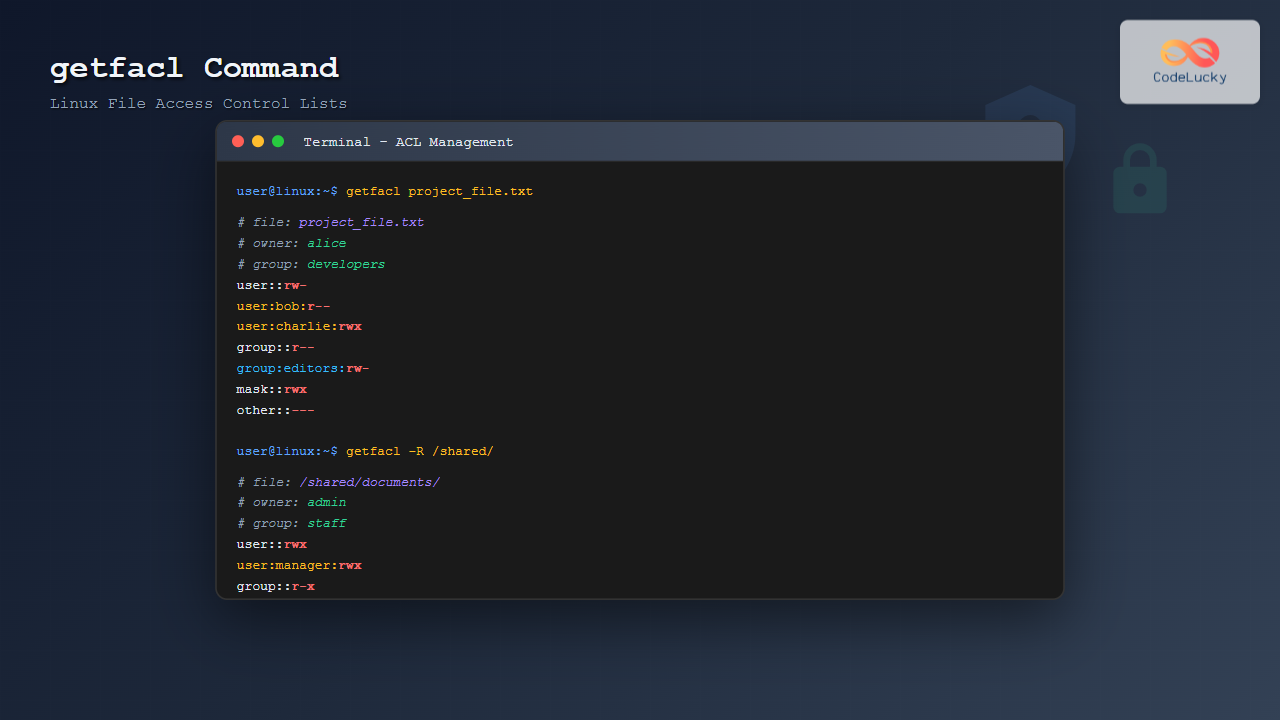
The getfacl command in Linux is a powerful utility that allows system administrators and users to view Access Control Lists (ACLs) for files and directories. Unlike traditional Unix permissions that only support owner, group, and other permissions, ACLs provide fine-grained access control by allowing specific permissions for individual users and groups.
What is getfacl Command?
The getfacl (get file access control list) command displays the Access Control List of files and directories. It’s part of the ACL utilities package and works in conjunction with setfacl to provide comprehensive ACL management capabilities.
Key Features:
- Display extended file permissions beyond standard Unix permissions
- Show specific user and group access rights
- Reveal default ACL entries for directories
- Support for recursive operations on directory trees
- Multiple output formats for different use cases
Basic Syntax
getfacl [options] file(s)Common Options:
| Option | Description |
|---|---|
-a, --access |
Display access ACL only |
-d, --default |
Display default ACL only |
-c, --omit-header |
Do not display comment header |
-e, --all-effective |
Print all effective rights |
-E, --no-effective |
Print no effective rights |
-s, --skip-base |
Skip files with only base entries |
-R, --recursive |
Recurse into subdirectories |
-L, --logical |
Follow symbolic links |
-P, --physical |
Do not follow symbolic links |
-t, --tabular |
Use tabular output format |
-n, --numeric |
Print numeric user/group identifiers |
-p, --absolute-names |
Do not strip leading slash from pathnames |
Understanding ACL Output Format
Before diving into examples, it’s crucial to understand the ACL output format:
# file: filename
# owner: username
# group: groupname
user::rwx
user:username:rwx
group::r-x
group:groupname:rwx
mask::rwx
other::r--
ACL Entry Types:
- user:: File owner permissions
- user:username: Named user permissions
- group:: File group permissions
- group:groupname: Named group permissions
- mask:: Maximum permissions for named users and groups
- other:: Permissions for all other users
Basic Examples
Example 1: Display ACL for a Single File
$ getfacl myfile.txtOutput:
# file: myfile.txt
# owner: john
# group: developers
user::rw-
group::r--
other::r--
This shows a file with standard Unix permissions – no extended ACL entries.
Example 2: File with Extended ACL
Let’s assume we have a file with additional ACL entries:
$ getfacl project_report.pdfOutput:
# file: project_report.pdf
# owner: alice
# group: marketing
user::rw-
user:bob:r--
user:charlie:rw-
group::r--
group:editors:rw-
mask::rw-
other::---
This output shows:
- Owner (alice) has read and write permissions
- User ‘bob’ has read-only access
- User ‘charlie’ has read and write access
- Group ‘editors’ has read and write access
- Other users have no access
Example 3: Directory with Default ACL
$ getfacl shared_folder/Output:
# file: shared_folder/
# owner: admin
# group: staff
user::rwx
user:developer:rwx
group::r-x
mask::rwx
other::r-x
default:user::rwx
default:user:developer:rwx
default:group::r-x
default:mask::rwx
default:other::r-x
Default ACL entries (prefixed with default:) are inherited by new files and directories created within this directory.
Advanced Usage Examples
Example 4: Omitting Header Information
$ getfacl -c document.txtOutput:
user::rw-
user:editor:rw-
group::r--
mask::rw-
other::r--
The -c option removes the comment header, showing only the ACL entries.
Example 5: Displaying Only Access ACL
$ getfacl -a shared_folder/Output:
# file: shared_folder/
# owner: admin
# group: staff
user::rwx
user:developer:rwx
group::r-x
mask::rwx
other::r-x
The -a option shows only access ACL, excluding default ACL entries.
Example 6: Displaying Only Default ACL
$ getfacl -d shared_folder/Output:
# file: shared_folder/
# owner: admin
# group: staff
default:user::rwx
default:user:developer:rwx
default:group::r-x
default:mask::rwx
default:other::r-x
Example 7: Recursive ACL Display
$ getfacl -R project_directory/This command displays ACLs for the directory and all its subdirectories and files recursively.
Example 8: Tabular Output Format
$ getfacl -t myfile.txtOutput:
# file: myfile.txt
USER   john      rw-
GROUP  developers r--
OTHER            r--
The tabular format provides a more structured view of permissions.
Example 9: Numeric User/Group IDs
$ getfacl -n document.pdfOutput:
# file: document.pdf
# owner: 1001
# group: 1005
user::rw-
user:1002:r--
group::r--
mask::rw-
other::r--
The -n option displays numeric user and group IDs instead of names.
Practical Use Cases
1. Security Auditing
Use getfacl to audit file permissions across your system:
$ getfacl -R /var/www/ > web_permissions_audit.txtThis creates a comprehensive audit file of all web server permissions.
2. Backup and Restore ACLs
Create a backup of ACL settings:
$ getfacl -R /home/users > acl_backup.txtRestore ACLs using:
$ setfacl --restore=acl_backup.txt3. Troubleshooting Access Issues
When users report access problems, check effective permissions:
$ getfacl -e problematic_file.txt4. Monitoring Shared Directories
Regular monitoring of shared directory permissions:
$ getfacl -s /shared/projects/ | grep -v "^#"This shows only files with extended ACLs, skipping base permissions.
Understanding Effective Permissions
The mask entry in ACLs defines the maximum permissions for named users and groups. Use the -e option to see effective permissions:
$ getfacl -e sensitive_data.txtOutput:
# file: sensitive_data.txt
# owner: root
# group: secure
user::rw-
user:analyst:rwx    #effective:rw-
group::r--
group:researchers:rwx   #effective:rw-
mask::rw-
other::---
The #effective: comments show the actual permissions after applying the mask.
Working with Symbolic Links
Following Symbolic Links
$ getfacl -L symlink_to_fileThis follows the symbolic link and shows ACL of the target file.
Not Following Symbolic Links
$ getfacl -P symlink_to_fileThis shows ACL of the symbolic link itself (usually not very useful as symlinks don’t have meaningful ACLs).
Error Handling and Troubleshooting
Common Error Messages
Error: Operation not supported
Solution: The filesystem doesn’t support ACLs. Ensure the filesystem is mounted with ACL support:
$ mount -o remount,acl /filesystemError: Permission denied
Solution: You need appropriate permissions to read ACLs. Some systems require read permission on the file to view its ACL.
Checking ACL Support
Verify if your filesystem supports ACLs:
$ tune2fs -l /dev/sda1 | grep "Default mount options"Look for acl in the output.
Performance Considerations
When working with large directory trees, consider these performance tips:
- Use
-soption to skip files with only base ACL entries - Combine with
findcommand for specific file types - Use output redirection for large datasets
$ find /large/directory -name "*.conf" -exec getfacl {} \;Integration with Other Commands
Combining with grep
Find files with specific user permissions:
$ getfacl -R /project/ | grep -B3 "user:developer"Using with awk for Parsing
Extract only user permissions:
$ getfacl file.txt | awk '/^user:/ {print $0}'Best Practices
- Regular Audits: Periodically audit ACLs on sensitive directories
- Documentation: Document ACL policies and maintain backup files
- Minimal Permissions: Follow the principle of least privilege
- Default ACLs: Use default ACLs on directories to ensure consistent permissions
- Monitoring: Set up monitoring for ACL changes on critical files
Conclusion
The getfacl command is an essential tool for managing file security in Linux environments. It provides detailed visibility into access control lists, enabling administrators to implement fine-grained permission controls beyond traditional Unix permissions. Whether you’re auditing security, troubleshooting access issues, or maintaining backup policies, mastering getfacl is crucial for effective Linux system administration.
By understanding the various options and output formats, you can leverage getfacl to maintain secure and well-organized file systems. Remember to combine it with setfacl for complete ACL management and always test permission changes in a safe environment before applying them to production systems.
Related Posts
setfacl Command Linux: Complete Guide to File Access Control Lists Management
The setfacl command is a powerful Linux utility that allows you to set and modify File Access Control Lists (ACLs)...

File Permissions in Operating System: Complete Guide to Access Control Lists (ACLs)
Introduction to File Permissions and Access Control File permissions form the backbone of operating system security, controlling who can access,...
chmod Command in Linux: Complete File Permissions Tutorial with Examples
The chmod command is one of the most essential Linux commands for managing file and directory permissions. Whether you're a...
Access Control Matrix: Comprehensive Guide to Permission Management Systems
Introduction to Access Control Matrix An Access Control Matrix (ACM) is a fundamental security model used in operating systems to...
umask Command Linux: Set Default File Permissions with Examples
The umask command is a fundamental Linux utility that controls the default permissions assigned to newly created files and directories....
groups Command Linux: Complete Guide to Display User Group Memberships
The groups command is a fundamental Linux utility that displays the group memberships of users on your system. Understanding how...
chgrp Command in Linux: Complete Guide to Change Group Ownership
The chgrp command is an essential Linux utility that allows you to change the group ownership of files and directories....

chown Command Linux: Master File and Directory Ownership Management
The chown command is one of the most fundamental tools in Linux system administration, allowing users to change file and...

ls Command in Linux: Complete Guide to List Files and Directories with Examples
The ls command is one of the most fundamental and frequently used commands in Linux and Unix-like operating systems. It...
xattr Command Linux: Complete Guide to Extended File Attributes Management
Extended file attributes in Linux provide a powerful mechanism to store additional metadata beyond traditional file permissions and ownership. The...

stat Command Linux: Complete Guide to Display File and Filesystem Status Information
The stat command is a powerful Linux utility that displays detailed information about files and filesystems. Unlike basic commands like...

lsattr Command Linux: Complete Guide to List and Manage File Attributes
The lsattr command is a powerful Linux utility that displays the extended attributes of files and directories on ext2, ext3,...





