
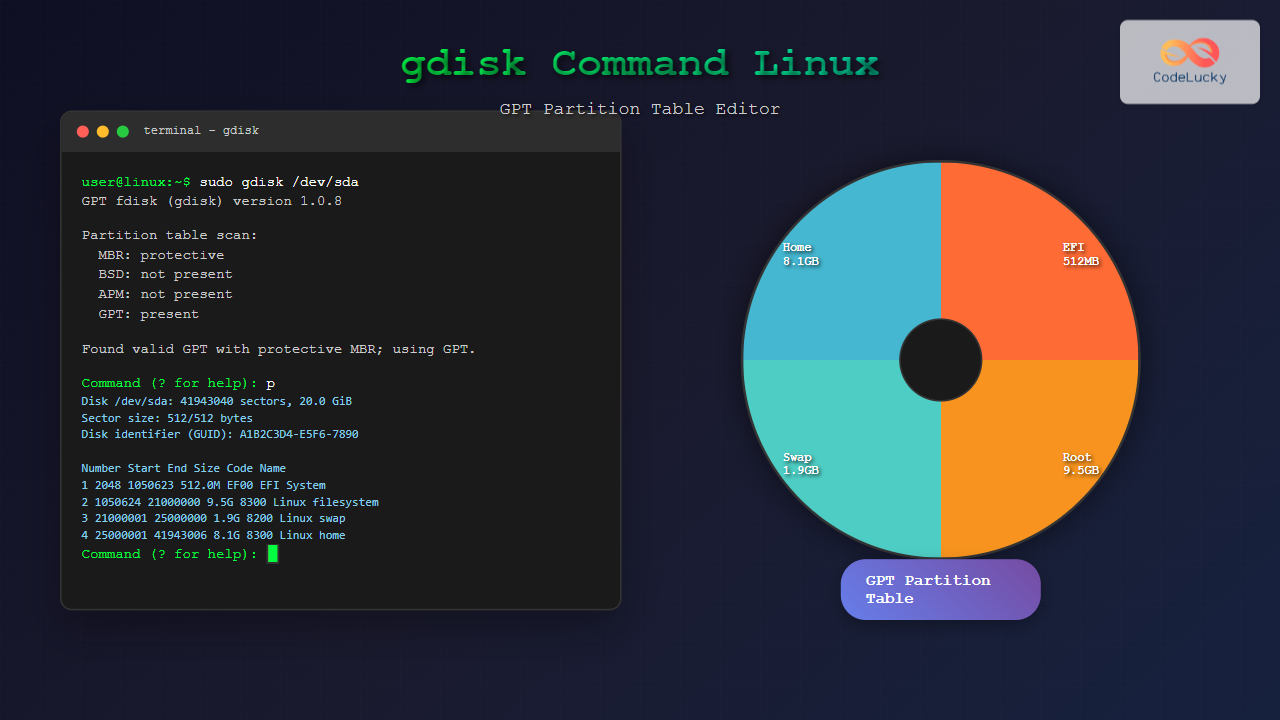
The gdisk command is a powerful GPT (GUID Partition Table) partition editor for Linux systems that provides advanced capabilities for managing modern disk partitions. Unlike traditional MBR (Master Boot Record) partitioning tools, gdisk is specifically designed to work with GPT partition tables, supporting larger disks, more partitions, and enhanced data integrity features.
Understanding GPT vs MBR
Before diving into gdisk usage, it’s essential to understand the key differences between GPT and MBR partition schemes:
- Partition Limits: MBR supports only 4 primary partitions, while GPT supports up to 128 partitions by default
- Disk Size: MBR is limited to 2TB disks, GPT supports disks up to 9.4 ZB
- Data Integrity: GPT includes CRC32 checksums for error detection and recovery
- UEFI Compatibility: GPT is required for UEFI boot systems
Installing gdisk
Most modern Linux distributions include gdisk by default. If not installed, you can install it using your package manager:
# Ubuntu/Debian
sudo apt update && sudo apt install gdisk

# CentOS/RHEL/Fedora
sudo yum install gdisk
# or
sudo dnf install gdisk

# Arch Linux
sudo pacman -S gptfdisk
Basic gdisk Syntax and Options
The basic syntax for gdisk is:
gdisk [options] deviceCommon Options
-l– List partition tables for all devices-t– Display all known partition type codes-v– Display version information-z– Zap (destroy) GPT data structures
Viewing Partition Information
List All Partition Tables
To view partition information for all available devices:
sudo gdisk -lSample Output:
GPT fdisk (gdisk) version 1.0.8

Partition table scan:
  MBR: protective
  BSD: not present
  APM: not present
  GPT: present

Found valid GPT with protective MBR; using GPT.
Disk /dev/sda: 41943040 sectors, 20.0 GiB
Sector size (logical/physical): 512/512 bytes
Disk identifier (GUID): A1B2C3D4-E5F6-7890-ABCD-1234567890AB
Partition table holds up to 128 entries
Main partition table begins at sector 2 and ends at sector 33
First usable sector is 34, last usable sector is 41943006
Partitions will be aligned on 2048-sector boundaries
Total free space is 2014 sectors (1007.0 KiB)

Number  Start (sector)    End (sector)  Size       Code  Name
   1            2048         1050623   512.0 MiB   EF00  EFI System Partition
   2         1050624        41943006   19.5 GiB    8300  Linux filesystem
View Specific Device Information
To examine a specific device:
sudo gdisk -l /dev/sdaInteractive gdisk Mode
The real power of gdisk lies in its interactive mode. Launch it by specifying a device:
sudo gdisk /dev/sdaThis opens the gdisk interactive prompt:
GPT fdisk (gdisk) version 1.0.8

Partition table scan:
  MBR: protective
  BSD: not present
  APM: not present
  GPT: present

Found valid GPT with protective MBR; using GPT.

Command (? for help):
Essential Interactive Commands
| Command | Description |
|---|---|
? |
Display help menu |
p |
Print partition table |
n |
Create new partition |
d |
Delete partition |
t |
Change partition type |
c |
Change partition name |
w |
Write changes to disk |
q |
Quit without saving |
v |
Verify disk integrity |
Creating Partitions with gdisk
Step-by-Step Partition Creation
Let’s create a new partition on an empty disk:
sudo gdisk /dev/sdb

Command (? for help): n
Partition number (1-128, default 1): 1
First sector (2048-20971486, default = 2048):
Last sector (2048-20971486, default = 20971486): +5G
Current type is 8300 (Linux filesystem)
Hex code or GUID (L to show codes, Enter = 8300):
Changed type of partition to 'Linux filesystem'

Command (? for help): p
Disk /dev/sdb: 20971520 sectors, 10.0 GiB
Sector size (logical/physical): 512/512 bytes
Disk identifier (GUID): F1E2D3C4-B5A6-9780-1234-567890ABCDEF
Partition table holds up to 128 entries
Main partition table begins at sector 2 and ends at sector 33
First usable sector is 34, last usable sector is 20971486
Partitions will be aligned on 2048-sector boundaries
Total free space is 10485693 sectors (5.0 GiB)

Number  Start (sector)    End (sector)  Size       Code  Name
   1            2048        10487807   5.0 GiB     8300  Linux filesystem
Creating Multiple Partitions
Create additional partitions for a complete setup:
# Create swap partition
Command (? for help): n
Partition number (2-128, default 2): 2
First sector (10487808-20971486, default = 10487808):
Last sector (10487808-20971486, default = 20971486): +1G
Current type is 8300 (Linux filesystem)
Hex code or GUID (L to show codes, Enter = 8300): 8200
Changed type of partition to 'Linux swap'

# Create data partition
Command (? for help): n
Partition number (3-128, default 3): 3
First sector (12584960-20971486, default = 12584960):
Last sector (12584960-20971486, default = 20971486):
Current type is 8300 (Linux filesystem)
Hex code or GUID (L to show codes, Enter = 8300):
Changed type of partition to 'Linux filesystem'
Partition Type Codes
gdisk uses hexadecimal codes to identify partition types. Common codes include:
EF00– EFI System Partition8300– Linux filesystem8200– Linux swap8301– Linux reserved8302– Linux /homeFD00– Linux RAID8E00– Linux LVM
To view all available type codes:
Command (? for help): LAdvanced gdisk Operations
Changing Partition Names
Assign descriptive names to partitions:
Command (? for help): c
Partition number (1-3): 1
Enter name: Root Filesystem

Command (? for help): c
Partition number (1-3): 2
Enter name: Swap Space

Command (? for help): c
Partition number (1-3): 3
Enter name: Data Storage
Verifying Disk Integrity
Check for partition table errors:
Command (? for help): v

No problems found. 2014 free sectors (1007.0 KiB) available in 1
segments, the largest of which is 2014 (1007.0 KiB) in size.
Backup and Recovery
Create a backup of the partition table:
Command (? for help): b
Enter backup filename to save: /home/user/gpt-backup.bin
The backup GPT and MBR have been saved to /home/user/gpt-backup.bin.
Load a backup:
Command (? for help): l
Enter backup filename to load: /home/user/gpt-backup.bin
The backup GPT and MBR have been loaded.
Converting Between MBR and GPT
Convert MBR to GPT
gdisk can convert MBR partition tables to GPT while preserving data:
sudo gdisk /dev/sda

GPT fdisk (gdisk) version 1.0.8

Partition table scan:
  MBR: MBR only
  BSD: not present
  APM: not present
  GPT: not present

Found valid MBR and corrupt GPT. Which do you want to use?
 1 - MBR
 2 - GPT
 3 - Create blank GPT

Your answer: 2

Command (? for help): w
Expert Menu Options
Access advanced features through the expert menu:
Command (? for help): x

Expert command (? for help): ?
Expert menu commands include:
a– Set attributesc– Change partition GUIDd– Display sector alignmente– Relocate backup headerg– Change disk GUIDh– Recompute CHS valuesi– Show detailed informationl– Set sector alignmentm– Return to main menun– Create new protective MBRo– Print protective MBR datap– Print partition tableq– Quit without savingr– Recovery and transformations– Resize partition tablev– Verify diskw– Write table and exitz– Zap (destroy) GPT structures
Practical Examples and Use Cases
Setting Up a Boot Disk
Create a complete boot setup with EFI system partition:
sudo gdisk /dev/sda

# Create EFI System Partition
Command (? for help): n
Partition number: 1
First sector: (default)
Last sector: +512M
Hex code: EF00

# Create root partition
Command (? for help): n
Partition number: 2
First sector: (default)
Last sector: +20G
Hex code: 8300

# Create swap partition
Command (? for help): n
Partition number: 3
First sector: (default)
Last sector: +4G
Hex code: 8200

# Create home partition
Command (? for help): n
Partition number: 4
First sector: (default)
Last sector: (default - use remaining space)
Hex code: 8302
RAID Setup Preparation
Prepare partitions for software RAID:
# Create RAID partition
Command (? for help): n
Partition number: 1
First sector: (default)
Last sector: (default)
Hex code: FD00

# Set partition name
Command (? for help): c
Partition number: 1
Enter name: RAID Member
Troubleshooting Common Issues
Fixing Corrupted GPT Headers
When encountering corrupted GPT headers:
sudo gdisk /dev/sda

# Access recovery menu
Command (? for help): r

# List recovery options
Recovery command (? for help): ?
Alignment Issues
Check and fix partition alignment:
# In expert mode
Expert command (? for help): d

Partition alignment:
Partition 1: 2048 sectors (1024K)
Partition 2: 2048 sectors (1024K)

# Verify alignment is optimal for SSD performance
Best Practices and Tips
Performance Optimization
- SSD Alignment: Ensure partitions are aligned to 2048 sectors (1MB) for optimal SSD performance
- Partition Order: Place frequently accessed partitions (like root) in faster outer tracks
- Reserve Space: Leave some unpartitioned space for over-provisioning on SSDs
Safety Measures
- Always Backup: Create partition table backups before making changes
- Verify Changes: Use the verify command (v) before writing changes
- Test First: Practice on virtual machines or test disks
- Double-check Device: Ensure you’re modifying the correct device
Integration with Other Tools
Working with mkfs
After creating partitions, format them appropriately:
# Format EFI system partition
sudo mkfs.fat -F32 /dev/sda1

# Format root partition
sudo mkfs.ext4 /dev/sda2

# Setup swap
sudo mkswap /dev/sda3
LVM Integration
Create LVM physical volumes on gdisk partitions:
# Create LVM partition with gdisk (type 8E00)
sudo pvcreate /dev/sda3
sudo vgcreate vg01 /dev/sda3
sudo lvcreate -L 10G -n lv_root vg01
Comparison with Other Tools
| Tool | Best For | Partition Types | Interface |
|---|---|---|---|
| gdisk | GPT partitions, UEFI systems | GPT only | Interactive CLI |
| fdisk | MBR partitions, legacy systems | MBR primary | Interactive CLI |
| parted | Both GPT and MBR | GPT, MBR | CLI/scriptable |
| cfdisk | User-friendly partitioning | MBR, basic GPT | Text-based UI |
Conclusion
The gdisk command is an essential tool for modern Linux system administrators working with GPT partition tables. Its comprehensive feature set, interactive interface, and robust error handling make it the preferred choice for managing large disks, UEFI systems, and complex partition layouts. Whether you’re setting up new systems, converting legacy MBR setups, or troubleshooting partition issues, gdisk provides the precision and reliability needed for professional disk management.
Remember to always backup important data and partition tables before making changes, and take advantage of gdisk’s verification features to ensure data integrity. With practice and understanding of GPT concepts, gdisk becomes an invaluable tool in your Linux administration toolkit.
Related Posts
sgdisk Command Linux: Complete Guide to Script-Friendly GPT Partition Management
The sgdisk command is a powerful script-friendly alternative to the interactive gdisk utility for managing GPT (GUID Partition Table) partitions...
cgdisk Command Linux: Complete Guide to Curses-Based GPT Partition Management
The cgdisk command is a powerful curses-based GPT (GUID Partition Table) partition editor for Linux systems. Unlike traditional command-line tools,...
parted Command Linux: Complete Guide to Disk Partition Management
The parted command is a powerful disk partition manipulation program in Linux that allows you to create, resize, move, and...
fdisk Command Linux: Complete Guide to Disk Partition Management
The fdisk command is one of the most powerful and essential tools for disk partition management in Linux systems. Whether...
sfdisk Command Linux: Complete Guide to Scriptable Partition Table Editor
The sfdisk command is a powerful and scriptable partition table editor in Linux that provides advanced functionality for managing disk...
gparted Command Linux: Complete Guide to Graphical Partition Management
The gparted command in Linux provides access to one of the most powerful and user-friendly graphical partition editors available for...
cfdisk Command Linux: Complete Guide to Curses-based Partition Management
The cfdisk command is a powerful, user-friendly partition table editor for Linux systems that provides a curses-based interface for managing...
kpartx Command Linux: Create and Manage Partition Maps with Complete Examples
The kpartx command is a powerful Linux utility that creates device maps from partition tables, enabling you to access partitions...
mkfs Command Linux: Complete Guide to Creating Filesystems on Partitions
The mkfs command in Linux is a fundamental tool for creating filesystems on disk partitions. Whether you're setting up a...
vgdisplay Command Linux: Complete Guide to Display Volume Group Information
The vgdisplay command is an essential tool in Linux systems for displaying detailed information about Volume Groups (VGs) in Logical...
vgcreate Command Linux: Complete Guide to Volume Group Creation
The vgcreate command is a fundamental tool in Linux Logical Volume Manager (LVM) that allows system administrators to create volume...

MySQL Partitioning: Optimize Large Tables for Performance
Partitioning in MySQL is a powerful technique to manage large tables by dividing them into smaller, more manageable pieces. This...





