
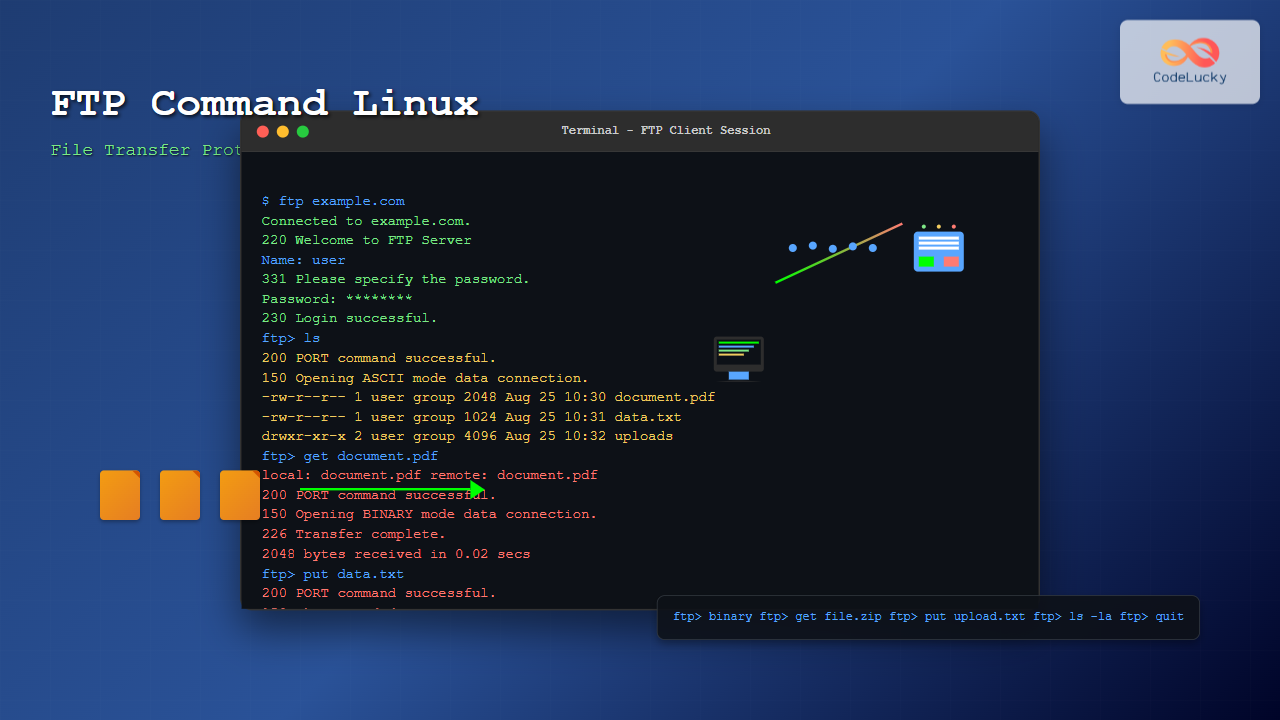
The ftp command in Linux is a powerful client utility for transferring files between local and remote systems using the File Transfer Protocol (FTP). This comprehensive guide will walk you through every aspect of the ftp command, from basic connections to advanced file operations.
What is the ftp Command?
The ftp command is a built-in Linux utility that provides an interactive interface for connecting to FTP servers and performing file operations. It supports both active and passive FTP modes and offers a wide range of commands for managing files and directories on remote servers.
Basic Syntax
ftp [options] [hostname]Installation and Availability
Most Linux distributions come with the ftp client pre-installed. If it’s not available, you can install it using your package manager:
Ubuntu/Debian:
sudo apt update
sudo apt install ftp
CentOS/RHEL/Fedora:
sudo yum install ftp
# or for newer versions
sudo dnf install ftp
Connecting to FTP Servers
Basic Connection
To connect to an FTP server, use the following command:
ftp example.comExample Output:
Connected to example.com.
220 Welcome to FTP Server
Name (example.com:username): myuser
331 Please specify the password.
Password:
230 Login successful.
Remote system type is UNIX.
Using binary mode to transfer files.
ftp>
Connection with Port Specification
ftp example.com 2121Anonymous FTP Connection
For anonymous FTP servers, use “anonymous” as the username and your email as the password:
ftp ftp.example.com
Name: anonymous
Password: [email protected]
Essential FTP Commands
Navigation Commands
pwd – Print Working Directory
ftp> pwd
257 "/home/username" is the current directory
ls – List Directory Contents
ftp> ls
200 PORT command successful.
150 Opening ASCII mode data connection.
-rw-r--r--   1 user  group     1024 Aug 25 10:30 file1.txt
-rw-r--r--   1 user  group     2048 Aug 25 10:31 file2.txt
drwxr-xr-x   2 user  group     4096 Aug 25 10:32 documents
226 Transfer complete.
cd – Change Directory
ftp> cd documents
250 Directory successfully changed.
lcd – Local Change Directory
ftp> lcd /home/user/downloads
Local directory now /home/user/downloads
File Transfer Commands
get – Download Files
Download a single file:
ftp> get file1.txt
local: file1.txt remote: file1.txt
200 PORT command successful.
150 Opening BINARY mode data connection for file1.txt (1024 bytes).
226 Transfer complete.
1024 bytes received in 0.00 secs (1.2 MB/s)
Download with different local name:
ftp> get remote_file.txt local_file.txtmget – Download Multiple Files
ftp> mget *.txt
mget file1.txt? y
200 PORT command successful.
150 Opening BINARY mode data connection for file1.txt
226 Transfer complete.
mget file2.txt? y
200 PORT command successful.
150 Opening BINARY mode data connection for file2.txt
226 Transfer complete.
put – Upload Files
ftp> put local_file.txt
local: local_file.txt remote: local_file.txt
200 PORT command successful.
150 Opening BINARY mode data connection for local_file.txt.
226 Transfer complete.
1024 bytes sent in 0.00 secs (1.1 MB/s)
mput – Upload Multiple Files
ftp> mput *.txt
mput file1.txt? y
200 PORT command successful.
150 Opening BINARY mode data connection for file1.txt
226 Transfer complete.
mput file2.txt? y
Advanced FTP Operations
Transfer Modes
ASCII Mode
ftp> ascii
200 Switching to ASCII mode.
Binary Mode
ftp> binary
200 Switching to Binary mode.
Directory Management
mkdir – Create Directory
ftp> mkdir new_folder
257 "/home/username/new_folder" created.
rmdir – Remove Directory
ftp> rmdir empty_folder
250 Remove directory operation successful.
delete – Delete Files
ftp> delete unwanted_file.txt
250 Delete operation successful.
mdelete – Delete Multiple Files
ftp> mdelete *.tmp
mdelete temp1.tmp? y
250 Delete operation successful.
mdelete temp2.tmp? y
250 Delete operation successful.
File Information
size – Get File Size
ftp> size large_file.zip
213 104857600
rename – Rename Files
ftp> rename old_name.txt new_name.txt
350 Ready for RNTO.
250 Rename successful.
Command-Line Options
Common Options
| Option | Description |
|---|---|
-v |
Verbose mode – shows all server responses |
-n |
Disables auto-login |
-i |
Turns off interactive prompting during multiple file transfers |
-d |
Enables debugging |
-g |
Disables filename globbing |
Example with Options
ftp -v -n example.com
# Connects with verbose output and no auto-login
Automation with Scripts
Using .netrc File
Create a .netrc file in your home directory for automatic authentication:
machine example.com
login myusername
password mypassword
Set proper permissions:
chmod 600 ~/.netrcBatch Mode Operations
Create a script file with FTP commands:
#!/bin/bash
ftp -n example.com << EOF
user myusername mypassword
binary
cd remote_directory
lcd /local/directory
mget *.zip
quit
EOF
Interactive Example Session
Here’s a complete interactive session demonstrating common operations:
$ ftp demo.example.com
Connected to demo.example.com.
220 Welcome to Demo FTP Server
Name (demo.example.com:user): testuser
331 Please specify the password.
Password:
230 Login successful.

ftp> pwd
257 "/home/testuser" is the current directory

ftp> ls -la
200 PORT command successful.
150 Here comes the directory listing.
drwxr-xr-x    3 testuser testuser     4096 Aug 25 10:00 .
drwxr-xr-x    4 root     root         4096 Aug 25 09:00 ..
-rw-r--r--    1 testuser testuser      512 Aug 25 10:01 readme.txt
drwxr-xr-x    2 testuser testuser     4096 Aug 25 10:02 uploads
226 Directory send OK.

ftp> get readme.txt
local: readme.txt remote: readme.txt
200 PORT command successful.
150 Opening BINARY mode data connection for readme.txt (512 bytes).
226 Transfer complete.
512 bytes received in 0.00 secs (890.5 kB/s)

ftp> cd uploads
250 Directory successfully changed.

ftp> put local_file.txt
local: local_file.txt remote: local_file.txt
200 PORT command successful.
150 Ok to send data.
226 Transfer complete.
1024 bytes sent in 0.00 secs (1.8 MB/s)

ftp> quit
221 Goodbye.
Troubleshooting Common Issues
Connection Problems
Firewall Issues
If you encounter connection problems, check if passive mode helps:
ftp> passive
Passive mode on.
Port Issues
Some servers use non-standard ports:
ftp server.com 2121Transfer Mode Issues
Always use binary mode for non-text files to prevent corruption:
ftp> binary
200 Switching to Binary mode.
Permission Errors
Check file permissions and ownership on both local and remote systems:
ftp> ls -la
# Check remote permissions

$ ls -la local_file.txt
# Check local permissions
Security Considerations
Password Security
- Avoid using FTP over unsecured networks
- Consider using SFTP or FTPS for encrypted connections
- Use strong passwords and change them regularly
- Protect your
.netrcfile with proper permissions
Alternative Secure Protocols
For better security, consider these alternatives:
- SFTP: SSH File Transfer Protocol
- FTPS: FTP over SSL/TLS
- SCP: Secure Copy Protocol
Best Practices
- Always use binary mode for non-text files
- Check transfer completion by verifying file sizes
- Use passive mode when behind firewalls
- Keep sessions short to avoid timeouts
- Verify file integrity after large transfers
- Use appropriate transfer modes (ASCII vs Binary)
Conclusion
The ftp command is a versatile and powerful tool for file transfers in Linux environments. While it may seem basic compared to modern alternatives, understanding its functionality is crucial for system administrators and developers working with legacy systems or specific network configurations.
By mastering the commands and techniques outlined in this guide, you’ll be able to efficiently manage file transfers, automate routine tasks, and troubleshoot common FTP-related issues. Remember to prioritize security by using encrypted alternatives when possible, especially when transferring sensitive data over untrusted networks.
Practice these commands in a safe environment to become proficient with FTP operations, and always keep security best practices in mind when working with file transfers in production environments.
Related Posts
curl Command Linux: Complete Guide to Transfer Data from Servers with Examples
The curl command is one of the most powerful and versatile tools in the Linux command-line arsenal for transferring data...
sftp Command Linux: Complete Guide to Secure File Transfer Protocol
The sftp command (Secure File Transfer Protocol) is a powerful Linux utility that provides secure file transfer capabilities over an...
scp Command Linux: Complete Guide to Secure File Transfer Over SSH
The scp (Secure Copy Protocol) command is one of the most essential tools in Linux for securely transferring files between...
wget Command Linux: Complete Guide to Download Files from Internet
The wget command is one of the most powerful and versatile tools in Linux for downloading files from the internet....

rsync Command Linux: Complete Guide to Sync Files and Directories Efficiently
The rsync command is one of the most powerful and versatile file synchronization utilities available in Linux systems. Whether you're...
ssh Command Linux: Secure Shell Remote Access Tutorial with Examples
The ssh command in Linux, short for Secure Shell, is one of the most essential tools for system administrators, developers,...

unzip Command Linux: Complete Guide to Extract ZIP Archives Efficiently
The unzip command is one of the most essential tools in Linux for extracting ZIP archive files. Whether you're dealing...

zip Command Linux: Complete Guide to Creating ZIP Archives with Examples
The zip command in Linux is a powerful utility for creating compressed archives and managing files efficiently. Whether you're backing...

PHP File Download: Serving Files to Users
In the world of web development, providing users with the ability to download files is a common requirement. Whether it's...
cp Command Linux: Copy Files and Directories with Examples and Best Practices
The cp command is one of the most fundamental and frequently used commands in Linux systems. It allows you to...

Linux Commands Tutorial: Complete Beginner’s Guide to Terminal Basics
The Linux terminal is a powerful command-line interface that gives you direct control over your operating system. While it might...
ip Command Linux: Complete Guide to Advanced Network Configuration and Management
The ip command is one of the most powerful and versatile networking tools in Linux, serving as the modern replacement...





