
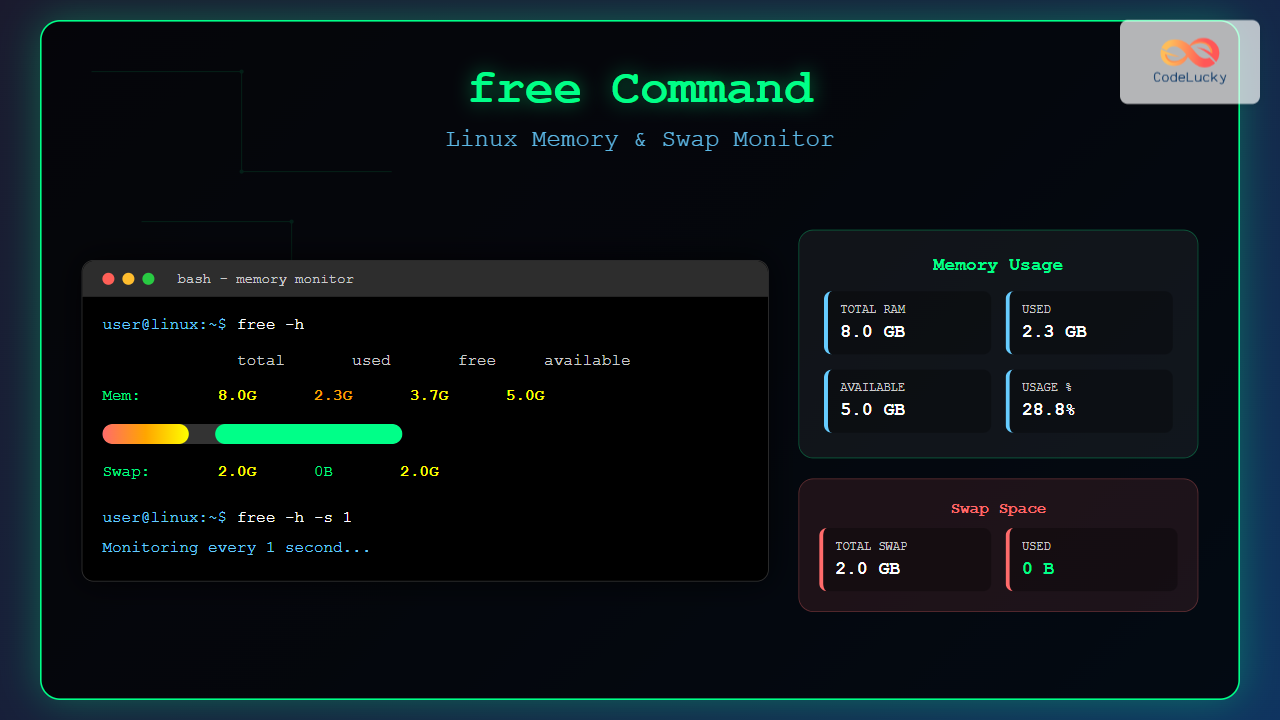
The free command is one of the most essential utilities in Linux for monitoring system memory usage and swap space. Whether you’re a system administrator managing servers or a developer optimizing applications, understanding how to effectively use the free command is crucial for maintaining optimal system performance.
What is the free Command?
The free command displays information about the system’s physical memory (RAM) and swap space usage in real-time. It provides a quick snapshot of how much memory is being used, how much is available, and how the system is utilizing swap space when physical memory becomes insufficient.
Basic Syntax
free [options]When executed without any options, free displays memory information in kilobytes by default.
Understanding free Command Output
Let’s examine the standard output format:
$ free
               total        used        free      shared  buff/cache   available
Mem:         8147788     2456744     3891236      156892     1799808     5234556
Swap:        2097148           0     2097148
Memory Row Explanation
- total: Total amount of physical RAM installed
- used: Memory currently in use by processes
- free: Completely unused memory
- shared: Memory used by tmpfs filesystems
- buff/cache: Memory used for buffers and cache
- available: Estimation of memory available for starting new applications
Swap Row Explanation
- total: Total swap space available
- used: Currently used swap space
- free: Available swap space
Essential free Command Options
Display in Human-Readable Format (-h)
The -h option displays memory values in human-readable format using appropriate units:
$ free -h
               total        used        free      shared  buff/cache   available
Mem:           7.8G        2.3G        3.7G        153M        1.7G        5.0G
Swap:          2.0G          0B        2.0G
Display in Specific Units
You can specify different units for memory display:
# Display in megabytes
$ free -m
               total        used        free      shared  buff/cache   available
Mem:            7956        2399        3803         153        1754        5112
Swap:           2047           0        2047

# Display in gigabytes
$ free -g
               total        used        free      shared  buff/cache   available
Mem:               7           2           3           0           1           4
Swap:              1           0           1
Continuous Monitoring (-s)
Monitor memory usage continuously with specified intervals:
# Update every 2 seconds
$ free -s 2

# Update every 5 seconds in human-readable format
$ free -h -s 5
Display Total Line (-t)
Show a total line that sums up memory and swap:
$ free -h -t
               total        used        free      shared  buff/cache   available
Mem:           7.8G        2.3G        3.7G        153M        1.7G        5.0G
Swap:          2.0G          0B        2.0G
Total:         9.8G        2.3G        5.7G
Wide Output Format (-w)
Display buffer and cache in separate columns:
$ free -w
               total        used        free      shared     buffers       cache   available
Mem:         8147788     2456744     3891236      156892      145632     1654176     5234556
Swap:        2097148           0     2097148
Advanced Usage Examples
Monitoring Memory Usage Over Time
# Monitor every second for 10 iterations
$ free -h -s 1 -c 10

# Continuous monitoring with timestamps
$ while true; do echo "$(date): $(free -h | grep Mem)"; sleep 5; done
Checking Available Memory
# Extract available memory in MB
$ free -m | awk 'NR==2{printf "Available Memory: %sMB (%.2f%%)\n", $7, $7*100/$2 }'
Available Memory: 5112MB (64.28%)
Memory Usage Percentage
# Calculate memory usage percentage
$ free | awk 'NR==2{printf "Memory Usage: %.2f%%\n", $3*100/$2 }'
Memory Usage: 30.15%
Understanding Memory Management Concepts
Buffer vs Cache
- Buffers: Temporary storage for data being written to or read from block devices
- Cache: Stores frequently accessed files and data to improve performance
Available vs Free Memory
The available column is more important than free because it accounts for memory that can be reclaimed from buffers and cache when needed by applications.
Swap Space Monitoring
Swap usage indicates when your system is running low on physical memory:
# Check if swap is being used
$ free -h | grep Swap
Swap:          2.0G          0B        2.0G

# Monitor swap usage over time
$ watch -n 1 'free -h | grep -E "(Mem|Swap)"'
When to Be Concerned About Swap
- 0% swap usage: Ideal situation
- 1-25% swap usage: Acceptable but monitor closely
- Above 25%: Consider adding more RAM or optimizing applications
Practical Troubleshooting Scenarios
High Memory Usage Investigation
# Quick memory overview
$ free -h

# Identify memory-hungry processes
$ ps aux --sort=-%mem | head -10

# Monitor memory usage in real-time
$ watch -n 2 'free -h; echo ""; ps aux --sort=-%mem | head -5'
Creating Memory Alerts
# Simple memory alert script
#!/bin/bash
THRESHOLD=80
MEMORY_USAGE=$(free | awk 'NR==2{printf "%.2f", $3*100/$2}')
if (( $(echo "$MEMORY_USAGE > $THRESHOLD" | bc -l) )); then
    echo "Warning: Memory usage is ${MEMORY_USAGE}%"
fi
Common free Command Combinations
System Health Check
# Comprehensive system memory overview
$ free -h -t -w -s 1 -c 5
Memory Logging
# Log memory usage to file
$ while true; do
    echo "$(date '+%Y-%m-%d %H:%M:%S'): $(free -h | grep Mem | awk '{print $3"/"$2" ("$3/$2*100"%)"}')" >> memory.log
    sleep 300
done
Performance Optimization Tips
Clearing System Cache (When Safe)
# Clear page cache (safe operation)
$ sudo sync && sudo echo 1 > /proc/sys/vm/drop_caches

# Verify the change
$ free -h
Monitoring Memory Trends
# Create a memory usage report
$ for i in {1..60}; do
    echo "$(date '+%H:%M:%S'): $(free -m | awk 'NR==2{print $3"MB"}')"
    sleep 60
done
Alternative Memory Monitoring Tools
While free is essential, consider these complementary tools:
- htop: Interactive process and memory viewer
- vmstat: Virtual memory statistics
- top: Real-time process and memory monitoring
- /proc/meminfo: Detailed memory information
Best Practices
Regular Monitoring
- Check memory usage regularly, especially on production servers
- Set up automated alerts for high memory usage
- Monitor both physical memory and swap usage
Interpreting Results
- Focus on the “available” column rather than “free”
- High buff/cache usage is normal and beneficial
- Consistent swap usage indicates need for more RAM
Common Issues and Solutions
Memory Appears Full
If free memory seems low, check the available column. Linux uses free memory for caching, which is released when applications need it.
Swap Always at 0
This might indicate:
- No swap partition configured
- Swap disabled in system configuration
- Sufficient RAM for current workload
Conclusion
The free command is an indispensable tool for Linux system administration and performance monitoring. By understanding its output format, utilizing various options effectively, and combining it with other monitoring tools, you can maintain optimal system performance and prevent memory-related issues.
Regular monitoring with free helps identify memory trends, optimize resource allocation, and ensure your Linux systems run efficiently. Whether you’re managing a single server or multiple systems, mastering the free command is essential for effective system administration.
Related Posts
vmstat Command Linux: Monitor Virtual Memory and System Performance Statistics
The vmstat command is one of the most powerful and essential tools for Linux system administrators and developers to monitor...
htop Command Linux: Complete Guide to Advanced Process Monitoring and Management
The htop command is an enhanced, interactive version of the traditional top command that provides real-time monitoring of system processes...

size Command Linux: Display Section Sizes of Object Files and Executables
The size command is a powerful utility in Linux systems that displays the section sizes of object files, executables, and...

top Command Linux: Complete Guide to Real-Time Process Monitoring
The top command is one of the most essential tools in a Linux system administrator's arsenal. It provides real-time information...
getrlimit Command Linux: Complete Guide to System Resource Limits Management
The getrlimit system call in Linux is a fundamental tool for retrieving information about resource limits imposed on processes. Understanding...
Memory Management in Operating System: Virtual and Physical Memory Fundamentals
Introduction to Memory Management Memory management is one of the most critical functions of an operating system, responsible for efficiently...

Process in Operating System: Complete Guide to Definition, States and Lifecycle
What is a Process in Operating System? A process is a program in execution that consists of the program code...

ps Command in Linux: Complete Guide to Process Monitoring and Management
The ps command is one of the most fundamental and powerful tools in Linux for displaying information about running processes....
df Command in Linux: Complete Guide to Check Disk Space Usage
The df command is one of the most essential tools in a Linux system administrator's toolkit. Standing for "disk free,"...
perf Command Linux: Complete Performance Analysis and Profiling Guide
The perf command is one of the most powerful performance analysis tools available in Linux, offering comprehensive insights into system...

Garbage Collection in Operating System: Complete Guide to Automatic Memory Management
What is Garbage Collection in Operating Systems? Garbage collection is an automatic memory management technique used by operating systems and...
du Command Linux: Display Directory Size and Disk Usage Explained with Examples
The du (disk usage) command in Linux is a powerful tool that allows users to measure directory size, analyze disk...





