
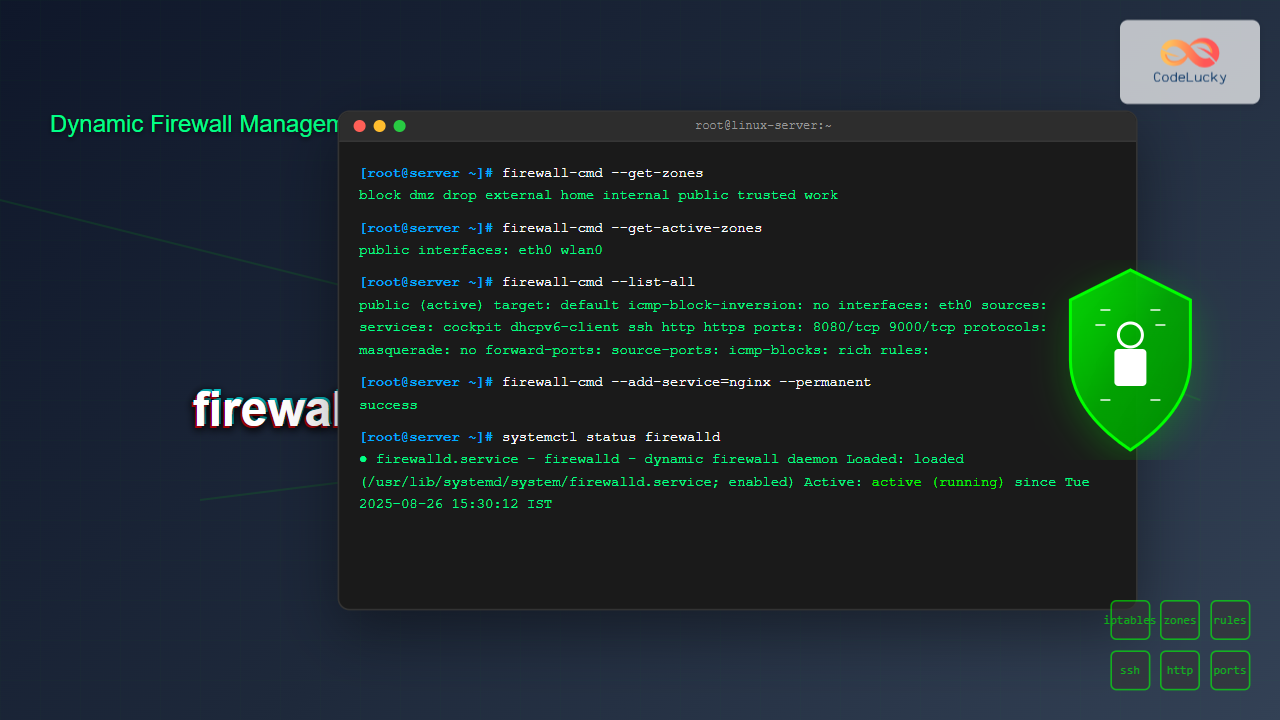
firewalld is a powerful, dynamic firewall management tool for Linux systems that provides a flexible and user-friendly interface for managing network security. Unlike traditional static firewalls, firewalld allows you to make real-time changes without disrupting existing connections, making it an essential tool for modern system administrators.
What is firewalld?
firewalld is a frontend controller for iptables that implements network security zones and supports both IPv4 and IPv6 protocols. It was developed by Red Hat and is the default firewall solution for RHEL, CentOS, Fedora, and many other Linux distributions. The key advantage of firewalld is its ability to manage firewall rules dynamically without requiring a complete restart of the firewall service.
Key Features of firewalld
- Dynamic rule management: Add, remove, or modify rules without service interruption
- Zone-based configuration: Organize network interfaces into security zones
- Rich rule support: Create complex firewall rules with advanced conditions
- Service-based management: Predefined service configurations for common applications
- Direct rule support: Direct iptables rule manipulation when needed
- D-Bus integration: API access for other applications and services
Installing firewalld
Most modern Linux distributions come with firewalld pre-installed. However, if you need to install it manually, use the following commands:
Red Hat/CentOS/Fedora:
sudo dnf install firewalld
# or for older versions
sudo yum install firewalld
Ubuntu/Debian:
sudo apt update
sudo apt install firewalld
Starting and Enabling firewalld
sudo systemctl start firewalld
sudo systemctl enable firewalld
sudo systemctl status firewalld
Expected output:
● firewalld.service - firewalld - dynamic firewall daemon
   Loaded: loaded (/usr/lib/systemd/system/firewalld.service; enabled; vendor preset: enabled)
   Active: active (running) since Tue 2025-08-26 15:30:12 IST; 2min 15s ago
     Docs: man:firewalld(1)
 Main PID: 1234 (firewalld)
    Tasks: 2 (limit: 4915)
   Memory: 25.6M
   CGroup: /system.slice/firewalld.service
           └─1234 /usr/bin/python3 -Es /usr/sbin/firewalld --nofork --nopid
Understanding firewalld Zones
Zones are the cornerstone of firewalld’s security model. Each zone represents a different level of trust for network connections and defines which services and ports are accessible.
Default Zones Explained
| Zone | Trust Level | Description |
|---|---|---|
| drop | Lowest | All incoming packets are dropped without notification |
| block | Very Low | Incoming connections are rejected with icmp-host-prohibited message |
| public | Low | For use in public areas with untrusted networks |
| external | Low | For external networks with masquerading enabled |
| dmz | Medium | For computers in DMZ with limited access to internal network |
| work | Medium | For work environments with mostly trusted computers |
| home | High | For home networks where you trust most computers |
| internal | High | For internal networks with trusted systems |
| trusted | Highest | All network connections are accepted |
Managing Zones
Viewing Available Zones
sudo firewall-cmd --get-zonesOutput:
block dmz drop external home internal public trusted workChecking Active Zones
sudo firewall-cmd --get-active-zonesOutput:
public
  interfaces: eth0 wlan0
Getting Default Zone
sudo firewall-cmd --get-default-zoneOutput:
publicSetting Default Zone
sudo firewall-cmd --set-default-zone=homeBasic firewalld Commands
Checking Firewall Status
sudo firewall-cmd --stateOutput:
runningListing All Configurations
sudo firewall-cmd --list-allOutput:
public (active)
  target: default
  icmp-block-inversion: no
  interfaces: eth0
  sources:
  services: cockpit dhcpv6-client ssh
  ports: 8080/tcp
  protocols:
  masquerade: no
  forward-ports:
  source-ports:
  icmp-blocks:
  rich rules:
Listing Configuration for Specific Zone
sudo firewall-cmd --zone=home --list-allManaging Services
firewalld uses predefined service configurations that group related ports and protocols. This approach simplifies firewall management by allowing you to enable entire services rather than individual ports.
Viewing Available Services
sudo firewall-cmd --get-servicesOutput (truncated):
RH-Satellite-6 amanda-client amanda-k5-client amqp amqps apcupsd audit bacula bacula-client bitcoin bitcoin-rpc bitcoin-testnet bitcoin-testnet-rpc ceph ceph-mon cfengine cockpit condor-collector ctdb dhcp dhcpv6 dhcpv6-client dns docker-registry docker-swarm dropbox-lansync elasticsearch freeipa-ldap freeipa-ldaps freeipa-replication freeipa-trust ftp galera high-availability http https imap imaps ipp ipp-client ipsec irc ircs iscsi-target jenkins kadmin kerberos kibana klogin kpasswd kprop kshell ldap ldaps libvirt libvirt-tls managesieve matrix mdns minidlna mongodb mosh mountd mqtt mqtt-tls ms-wbt mssql murmur mysql nfs nfs3 nmea-0183 nrpe ntp nut openvpn ovirt-imageio ovirt-storageconsole ovirt-vmconsole pmcd pmproxy pmwebapi pmwebapis pop3 pop3s postgresql privoxy proxy-dhcp ptp pulseaudio puppetmaster quassel radius redis rpc-bind rsh rsyncd rtsp salt-master samba samba-client sane sip sips slp smtp smtp-submission smtps snmp snmptrap spideroak-lansync squid ssh steam-streaming svdrp svn syncthing syncthing-gui telnet tftp tftp-client tinc tor-socks transmission-client upnp-client vdsm vnc-server wbem-http wbem-https wsman wsmans xdmcp xmpp-bosh xmpp-client xmpp-local xmpp-server zabbix-agent zabbix-serverAdding Services
# Add HTTP service temporarily
sudo firewall-cmd --add-service=http

# Add HTTP service permanently
sudo firewall-cmd --add-service=http --permanent

# Add multiple services at once
sudo firewall-cmd --add-service={http,https,ssh} --permanent
Removing Services
# Remove HTTP service temporarily
sudo firewall-cmd --remove-service=http

# Remove HTTP service permanently
sudo firewall-cmd --remove-service=http --permanent
Checking if Service is Enabled
sudo firewall-cmd --query-service=sshOutput:
yesPort Management
While services provide convenient groupings, you may need to open specific ports for custom applications or services not covered by predefined service definitions.
Adding Ports
# Add single port
sudo firewall-cmd --add-port=8080/tcp --permanent

# Add port range
sudo firewall-cmd --add-port=5000-5010/tcp --permanent

# Add UDP port
sudo firewall-cmd --add-port=53/udp --permanent
Removing Ports
sudo firewall-cmd --remove-port=8080/tcp --permanentListing Open Ports
sudo firewall-cmd --list-portsOutput:
8080/tcp 5000-5010/tcpQuerying Port Status
sudo firewall-cmd --query-port=8080/tcpOutput:
yesRich Rules: Advanced Firewall Configuration
Rich rules provide granular control over firewall behavior, allowing you to create complex rules with specific conditions, actions, and logging capabilities.
Rich Rule Syntax
rule [family="ipv4|ipv6"] [source address="address[/mask]" [invert="True"]] [destination address="address[/mask]" [invert="True"]] [service name="service name"] [port port="port value" protocol="tcp|udp"] [protocol value="protocol value"] [icmp-block name="icmptype name"] [masquerade] [forward-port port="port value" protocol="tcp|udp" to-port="port value" to-addr="address"] [log [prefix="prefix text"] [level="emerg|alert|crit|error|warning|notice|info|debug"]] [audit] [accept|reject [type="reject type"]|drop]Rich Rule Examples
Allow SSH from Specific IP
sudo firewall-cmd --add-rich-rule='rule family="ipv4" source address="192.168.1.100" service name="ssh" accept' --permanentBlock Specific IP Address
sudo firewall-cmd --add-rich-rule='rule family="ipv4" source address="192.168.1.50" drop' --permanentAllow HTTP with Logging
sudo firewall-cmd --add-rich-rule='rule service name="http" log prefix="HTTP-ACCESS: " level="info" accept' --permanentRate Limiting SSH Connections
sudo firewall-cmd --add-rich-rule='rule service name="ssh" accept limit value="3/m"' --permanentPort Forwarding
sudo firewall-cmd --add-rich-rule='rule family="ipv4" forward-port port="80" protocol="tcp" to-port="8080"' --permanentManaging Rich Rules
Listing Rich Rules
sudo firewall-cmd --list-rich-rulesRemoving Rich Rules
sudo firewall-cmd --remove-rich-rule='rule family="ipv4" source address="192.168.1.50" drop' --permanentNetwork Address Translation (NAT) and Masquerading
firewalld supports NAT functionality, allowing you to share internet connections and implement routing between different network segments.
Enabling Masquerading
# Enable masquerading temporarily
sudo firewall-cmd --add-masquerade

# Enable masquerading permanently
sudo firewall-cmd --add-masquerade --permanent

# Check masquerading status
sudo firewall-cmd --query-masquerade
Port Forwarding
# Forward external port 80 to internal port 8080
sudo firewall-cmd --add-forward-port=port=80:proto=tcp:toport=8080 --permanent

# Forward to different host
sudo firewall-cmd --add-forward-port=port=80:proto=tcp:toaddr=192.168.1.100:toport=80 --permanent
Source and Destination Management
Control traffic based on source and destination addresses to implement network segmentation and access control.
Adding Sources to Zones
# Add IP address to trusted zone
sudo firewall-cmd --zone=trusted --add-source=192.168.1.0/24 --permanent

# Add specific IP to public zone
sudo firewall-cmd --zone=public --add-source=203.0.113.10 --permanent
Listing Sources
sudo firewall-cmd --zone=trusted --list-sourcesOutput:
192.168.1.0/24Removing Sources
sudo firewall-cmd --zone=trusted --remove-source=192.168.1.0/24 --permanentICMP Management
Control ICMP (Internet Control Message Protocol) traffic for network diagnostics and security.
Viewing Available ICMP Types
sudo firewall-cmd --get-icmptypesOutput:
address-unreachable bad-header beyond-scope communication-prohibited destination-unreachable echo-reply echo-request failed-policy fragmentation-needed host-precedence-violation host-prohibited host-redirect host-unknown host-unreachable ip-header-bad neighbour-advertisement neighbour-solicitation network-prohibited network-redirect network-unknown network-unreachable no-route packet-too-big parameter-problem port-unreachable precedence-cutoff protocol-unreachable redirect reject-route router-advertisement router-solicitation source-quench source-route-failed time-exceeded timestamp-reply timestamp-request tos-host-redirect tos-host-unreachable tos-network-redirect tos-network-unreachable ttl-zero-during-reassembly ttl-zero-during-transit unknown-header-type unknown-optionBlocking ICMP Types
# Block ping requests
sudo firewall-cmd --add-icmp-block=echo-request --permanent

# Block destination unreachable messages
sudo firewall-cmd --add-icmp-block=destination-unreachable --permanent
Listing ICMP Blocks
sudo firewall-cmd --list-icmp-blocksRuntime vs Permanent Configuration
firewalld maintains two separate configurations: runtime (temporary) and permanent. Understanding this distinction is crucial for effective firewall management.
Configuration Types
- Runtime Configuration: Active rules that apply immediately but are lost on reboot
- Permanent Configuration: Rules saved to disk that persist across reboots
Working with Configurations
Applying Permanent Rules to Runtime
sudo firewall-cmd --reloadMaking Runtime Rules Permanent
sudo firewall-cmd --runtime-to-permanentChecking Permanent Configuration
sudo firewall-cmd --list-all --permanentCreating Custom Services
For applications with unique port requirements, you can create custom service definitions.
Creating a Custom Service
# Create service definition file
sudo firewall-cmd --new-service=myapp --permanent

# Add description
sudo firewall-cmd --service=myapp --set-description="My Custom Application" --permanent

# Add short description
sudo firewall-cmd --service=myapp --set-short="MyApp" --permanent

# Add ports
sudo firewall-cmd --service=myapp --add-port=8080/tcp --permanent
sudo firewall-cmd --service=myapp --add-port=8443/tcp --permanent

# Reload to apply changes
sudo firewall-cmd --reload
Using Custom Service
sudo firewall-cmd --add-service=myapp --permanentEditing Service Files Manually
Service files are stored in /usr/lib/firewalld/services/ (system) and /etc/firewalld/services/ (custom).
# Example custom service file: /etc/firewalld/services/myapp.xml
<?xml version="1.0" encoding="utf-8"?>
<service>
  <short>MyApp</short>
  <description>My Custom Application Service</description>
  <port protocol="tcp" port="8080"/>
  <port protocol="tcp" port="8443"/>
</service>
Logging and Monitoring
Effective logging is essential for security monitoring and troubleshooting firewall issues.
Enabling Logging
# Enable logging for denied packets
sudo firewall-cmd --set-log-denied=all --permanent

# Other options: off, all, unicast, broadcast, multicast
sudo firewall-cmd --reload
Viewing Firewall Logs
# View recent firewall logs
sudo journalctl -u firewalld -f

# View kernel messages (iptables logs)
sudo dmesg | grep -i firewall

# Check system logs
sudo tail -f /var/log/messages | grep kernel
Rich Rule Logging Example
sudo firewall-cmd --add-rich-rule='rule service name="ssh" log prefix="SSH-ATTEMPT: " level="warning" accept' --permanentTroubleshooting Common Issues
Diagnosing Connectivity Problems
Testing Port Connectivity
# Test from client machine
telnet your-server-ip 80
nc -zv your-server-ip 80

# Test locally on server
ss -tlnp | grep :80
netstat -tlnp | grep :80
Checking Active Rules
# View actual iptables rules
sudo iptables -L -n
sudo iptables -t nat -L -n

# Check firewalld rules
sudo firewall-cmd --direct --get-all-rules
Common Configuration Mistakes
- Forgetting –permanent flag: Rules lost after reboot
- Not reloading configuration: Permanent rules not applied
- Wrong zone assignment: Interface in different zone than expected
- Service vs port confusion: Opening individual ports when service exists
Backup and Restore
Backing Up Configuration
# Backup entire firewalld configuration
sudo tar -czf firewalld-backup-$(date +%Y%m%d).tar.gz /etc/firewalld/

# Backup specific zone
sudo cp /etc/firewalld/zones/public.xml /backup/public.xml.backup
Restoring Configuration
# Restore from backup
sudo tar -xzf firewalld-backup-20250826.tar.gz -C /

# Reload configuration
sudo firewall-cmd --reload
Advanced Configuration Techniques
Direct Rules
For complex scenarios not covered by firewalld’s high-level interface, you can use direct rules to interact with iptables directly.
# Add direct rule
sudo firewall-cmd --direct --add-rule ipv4 filter INPUT 0 -p tcp --dport 9999 -j ACCEPT --permanent

# List direct rules
sudo firewall-cmd --direct --get-all-rules

# Remove direct rule
sudo firewall-cmd --direct --remove-rule ipv4 filter INPUT 0 -p tcp --dport 9999 -j ACCEPT --permanent
Interface Assignment
# Assign interface to specific zone
sudo firewall-cmd --zone=dmz --change-interface=eth1 --permanent

# Remove interface from zone
sudo firewall-cmd --zone=dmz --remove-interface=eth1 --permanent

# List interfaces in zone
sudo firewall-cmd --zone=dmz --list-interfaces
Panic Mode
# Enable panic mode (blocks all network traffic)
sudo firewall-cmd --panic-on

# Disable panic mode
sudo firewall-cmd --panic-off

# Check panic mode status
sudo firewall-cmd --query-panic
Best Practices for firewalld Management
Security Best Practices
- Principle of least privilege: Only open necessary ports and services
- Use appropriate zones: Match zone trust levels to network environments
- Regular audits: Periodically review and clean up firewall rules
- Source-based restrictions: Limit access to trusted IP ranges when possible
- Enable logging: Monitor access attempts and blocked traffic
Management Best Practices
- Document changes: Maintain records of firewall modifications
- Test thoroughly: Verify rules work as expected before making permanent
- Use version control: Track configuration changes over time
- Automate deployments: Use configuration management tools
- Regular backups: Maintain current configuration backups
Performance Considerations
- Rule ordering: Place frequently matched rules earlier in the chain
- Avoid overlapping rules: Remove redundant or conflicting rules
- Monitor resource usage: Check CPU and memory impact of complex rules
- Use services over individual ports: Leverage predefined service groups
Integration with Configuration Management
Ansible Example
---
- name: Configure firewalld
  hosts: webservers
  become: yes
  tasks:
    - name: Start and enable firewalld
      systemd:
        name: firewalld
        state: started
        enabled: yes

    - name: Allow HTTP service
      firewalld:
        service: http
        permanent: yes
        state: enabled
        immediate: yes

    - name: Allow HTTPS service
      firewalld:
        service: https
        permanent: yes
        state: enabled
        immediate: yes

    - name: Open custom port
      firewalld:
        port: 8080/tcp
        permanent: yes
        state: enabled
        immediate: yes
Conclusion
firewalld provides a robust, flexible framework for managing Linux firewall configurations. Its zone-based approach, dynamic rule management, and rich feature set make it an excellent choice for both simple and complex network security scenarios. By mastering the concepts and commands covered in this guide, you’ll be well-equipped to implement effective firewall policies that protect your systems while maintaining the flexibility needed for modern applications.
Remember to always test firewall changes in a controlled environment before applying them to production systems, maintain regular backups of your configurations, and keep your firewall rules updated as your infrastructure evolves. With proper implementation and maintenance, firewalld can serve as a cornerstone of your Linux security strategy.
Related Posts
ip6tables Command Linux: Complete Guide to IPv6 Firewall Management and Security
The ip6tables command is the IPv6 counterpart to the popular iptables firewall utility in Linux. As IPv6 adoption continues to...

iptables Command Linux: Complete Guide to Configure Firewall Rules
The iptables command is one of the most powerful and essential tools for managing firewall rules in Linux systems. As...
ufw Command Linux: Complete Guide to Uncomplicated Firewall Management
The Uncomplicated Firewall (ufw) is a user-friendly frontend for managing iptables firewall rules in Linux systems. Designed to simplify firewall...
iptables Advanced Linux: Complete Guide to Advanced Firewall Rules and Security Configuration
iptables is the most powerful and flexible firewall solution available for Linux systems, offering granular control over network traffic through...
UFW Advanced Linux: Complete Guide to Advanced Firewall Configuration and Security Management
UFW (Uncomplicated Firewall) serves as Ubuntu's default firewall configuration tool, providing a user-friendly interface to manage iptables rules. While UFW...
nftables Command Linux: Complete Guide to Next Generation Firewall Framework
nftables is a modern Linux kernel subsystem that provides packet classification and filtering capabilities, serving as the next-generation replacement for...

fail2ban Linux: Complete Intrusion Prevention and Security Framework Guide
fail2ban is a powerful intrusion prevention framework designed to protect Linux servers from brute force attacks, dictionary attacks, and other...
systemd-networkd Linux: Complete Network Configuration Manager Guide
systemd-networkd is a powerful system daemon that manages network configurations on Linux systems. As part of the systemd ecosystem, it...
NetworkManager Linux: Complete Guide to Network Management Service
NetworkManager is a powerful network management service that provides automatic network detection and configuration for Linux systems. It simplifies network...
ip Command Linux: Complete Guide to Advanced Network Configuration and Management
The ip command is one of the most powerful and versatile networking tools in Linux, serving as the modern replacement...
nmap Command Linux: Complete Guide to Network Mapping and Port Scanning
The nmap (Network Mapper) command is one of the most powerful and versatile network discovery and security auditing tools available...
nmcli Command Linux: Complete Guide to NetworkManager Command Line Tool
The nmcli (NetworkManager Command Line Interface) is a powerful command-line tool that allows you to control NetworkManager and configure network...





