
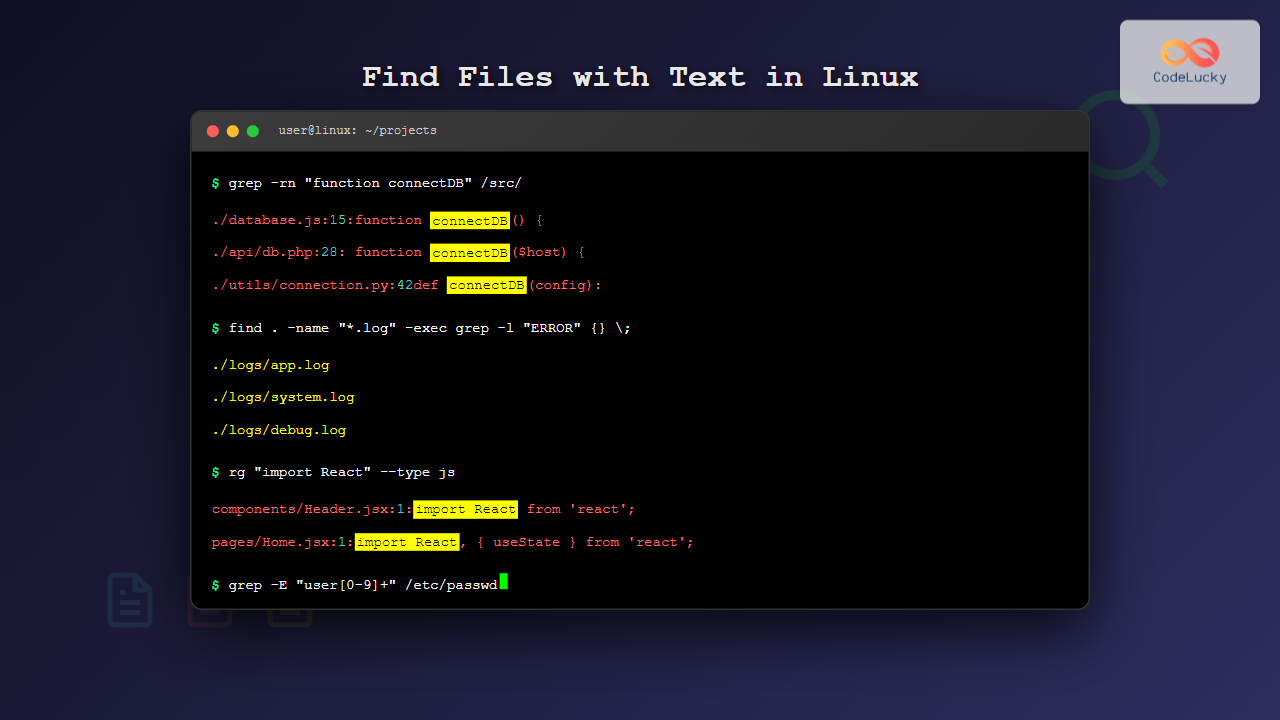
Searching for files containing specific text is one of the most common tasks in Linux system administration and development. Whether you’re debugging code, analyzing logs, or managing configuration files, knowing how to efficiently locate files with specific content can save hours of manual work.
This comprehensive guide covers multiple methods to find files containing text in Linux, from basic grep commands to advanced search techniques with performance optimization tips.
Understanding Linux Text Search Tools
Linux provides several powerful tools for text searching, each with unique strengths:
- grep – The most popular pattern searching tool
- find – File system traversal with text search capabilities
- ack – Developer-friendly search tool
- ripgrep (rg) – Ultra-fast modern alternative
- ag (The Silver Searcher) – Fast code searching

Basic grep Command for Text Search
The grep command is the foundation of text searching in Linux. Here’s the basic syntax:
grep [options] "search_pattern" file_or_directorySimple Text Search Examples
Search for a specific word in a single file:
grep "error" /var/log/syslogOutput:
Aug 29 14:32:15 server kernel: [12345.678901] error: disk read failure
Aug 29 14:35:22 server apache2: error loading module ssl_module
Search for text in multiple files:
grep "TODO" *.pyOutput:
main.py:45:    # TODO: Implement error handling
utils.py:23:    # TODO: Optimize this function
config.py:67:   # TODO: Add validation
Case-Insensitive Search
Use the -i flag for case-insensitive matching:
grep -i "warning" /var/log/messagesRecursive Directory Search
To search through entire directory trees, use the recursive option:
grep -r "database_password" /etc/This command searches all files under /etc/ for the text “database_password”.
Enhanced Recursive Search Options
Combine multiple options for better results:
grep -rni "function connectDB" /home/user/projects/Where:
-r= recursive search-n= show line numbers-i= case insensitive
Output:
/home/user/projects/app/database.js:15:function connectDB() {
/home/user/projects/api/db.php:28:    function connectdb($host) {
Using find Command with Text Search
The find command can be combined with grep for more complex searches:
find /var/www -name "*.php" -exec grep -l "mysql_connect" {} \;This finds all PHP files containing “mysql_connect” function calls.

Advanced find with grep Examples
Search only in recently modified files:
find /home/user -name "*.log" -mtime -7 -exec grep -l "ERROR" {} \;Find files larger than 1MB containing specific text:
find /var/log -size +1M -exec grep -l "failed login" {} \;Advanced grep Options and Patterns
Regular Expression Patterns
Use extended regular expressions with -E flag:
grep -E "user[0-9]+" /etc/passwdSearch for email addresses:
grep -E "[a-zA-Z0-9._%+-]+@[a-zA-Z0-9.-]+\.[a-zA-Z]{2,}" *.txtContext Display Options
Show lines before and after matches:
grep -A 3 -B 2 "exception" application.logWhere:
-A 3= show 3 lines after match-B 2= show 2 lines before match-C 5= show 5 lines before and after (context)
File Type Filtering
Search only in specific file types:
grep -r --include="*.java" "public static void" /src/Exclude certain file types:
grep -r --exclude="*.min.js" "console.log" /web/assets/Modern Alternatives: ripgrep and The Silver Searcher
Using ripgrep (rg)
Ripgrep is significantly faster for large codebases:
# Install ripgrep (Ubuntu/Debian)
sudo apt install ripgrep

# Basic search
rg "import React" /projects/

# Search with file type
rg -t js "addEventListener" /web/
Using The Silver Searcher (ag)
# Install ag
sudo apt install silversearcher-ag

# Basic search
ag "class UserController" /app/

# Search with context
ag -C 3 "database connection" /config/
Practical Examples and Use Cases
Finding Configuration Issues
Search for hardcoded passwords in configuration files:
grep -r -i "password.*=" /etc/ --include="*.conf"Code Review and Debugging
Find all files with debugging statements:
rg "console\.(log|debug|error)" --type js /src/Locate deprecated function usage:
grep -rn "mysql_query\|mysql_connect" /var/www/ --include="*.php"Log Analysis
Find error patterns in log files:
grep -E "(ERROR|FATAL|CRITICAL)" /var/log/*.logSearch for specific IP addresses:
grep -r "192\.168\.1\.100" /var/log/ --include="*.log"Performance Optimization Tips
Speed Optimization Techniques
Use file patterns to limit scope:
grep -r "function" /src/ --include="*.js" --include="*.ts"Exclude unnecessary directories:
grep -r "import" /project/ --exclude-dir=node_modules --exclude-dir=.gitUse fixed strings when possible:
grep -F "exact.string.match" /large/file.txtCombining Commands for Complex Searches
Chain multiple commands for sophisticated searches:
# Find files modified today containing errors
find /var/log -name "*.log" -newermt "$(date +%Y-%m-%d)" -exec grep -l "ERROR" {} \;
Use xargs for better performance:
find /src -name "*.py" | xargs grep -l "import pandas"Creating Custom Search Scripts
Create a reusable search function:
search_code() {
    rg "$1" --type="$2" -C 2 -n /projects/
}

# Usage
search_code "connectDB" "js"
Common Pitfalls and Solutions
Handling Special Characters
Escape special regex characters:
grep "price: \$[0-9]+\.[0-9]{2}" products.txtBinary File Issues
Exclude binary files from search:
grep -r -I "search_term" /directory/The -I flag tells grep to ignore binary files.
Large File Handling
For very large files, use streaming approach:
grep "pattern" huge_file.log | head -20Integration with Text Editors and IDEs
Most modern editors integrate these search capabilities:
- Vim:
:grep pattern **/*.py - VS Code: Uses ripgrep internally
- Emacs: M-x rgrep
Understanding command-line search enhances your ability to work with any editor or environment.
Conclusion
Mastering file text search in Linux dramatically improves productivity for developers, system administrators, and power users. Start with basic grep commands and gradually incorporate advanced options and modern tools like ripgrep for optimal performance.
The key to effective text searching is choosing the right tool for your specific use case – whether it’s quick debugging with grep, comprehensive code analysis with ripgrep, or complex file system searches with find combinations.
Practice these commands regularly, and consider creating custom aliases or scripts for your most common search patterns to streamline your workflow.





